

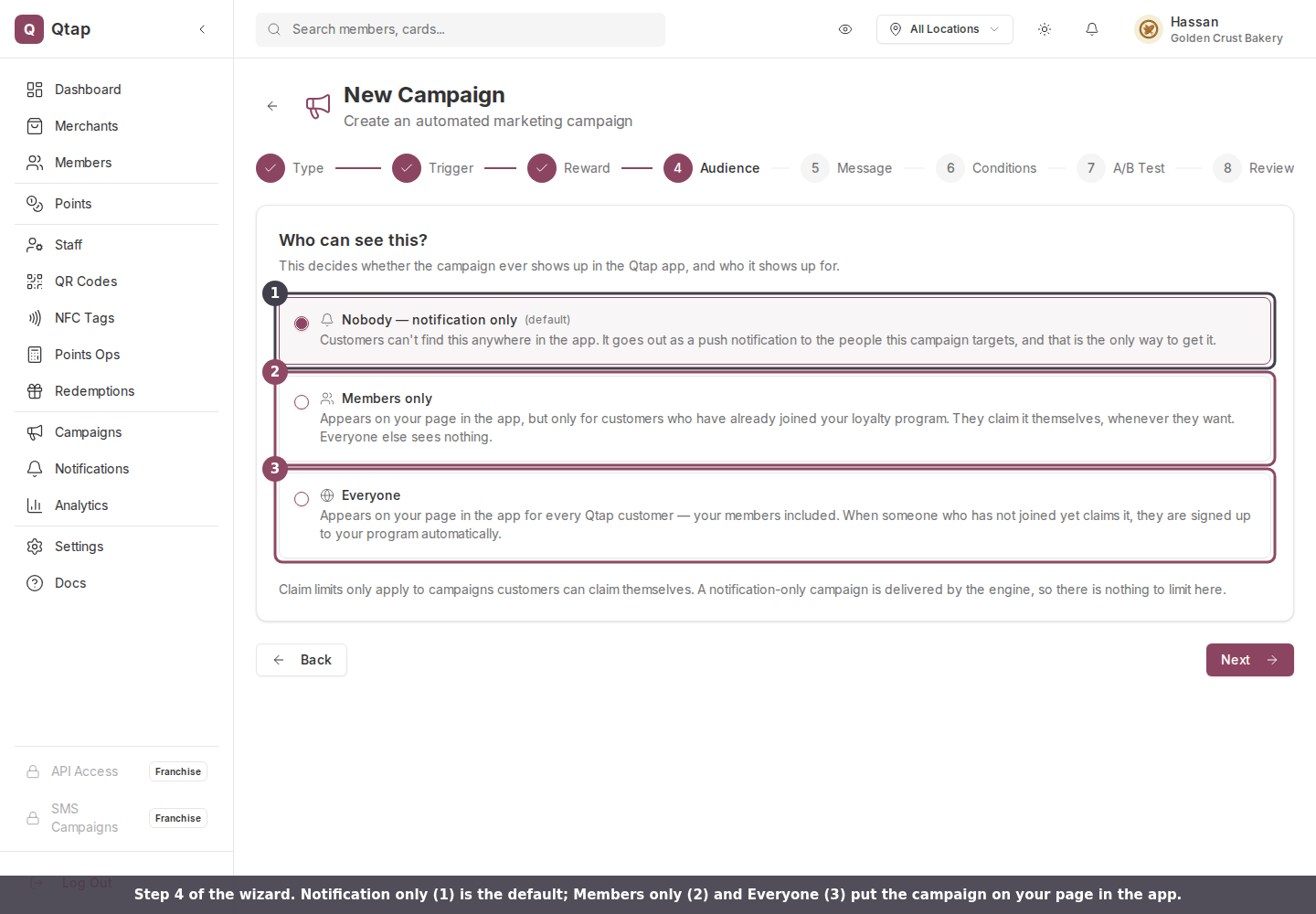
Step 4 of the wizard. Notification only (1) is the default. Members only (2) and Everyone (3) put the campaign on your page in the app.
The three choices
Nobody, notification only is the default, and it is how every campaign behaved before this step existed. Customers cannot find the campaign anywhere in the app. It goes out as a push notification to the members the campaign targets, and that push is the only way to get it. Pick this for a birthday greeting or a win-back nudge, where you decide who hears about it and when. Members only puts the campaign on your page in the app, visible to your members, the people who have already joined your loyalty program. They claim it themselves whenever they want. A customer who has not joined sees nothing at all. Everyone puts it on your page for every Qtap customer, your own members included. When someone who has not joined yet claims it, Qtap signs them up to your program at the same time. That makes it a way to win new customers rather than reward existing ones.“Everyone” already includes your members, so there is no fourth option for both. Members only is the narrower of the two.
What changes when customers can claim it
Choosing Members only or Everyone flips the campaign from something Qtap sends to something customers take. The campaign is never pushed automatically. The engine that runs every fifteen minutes skips claimable campaigns entirely, so nobody is messaged and no rewards are issued in advance. Customers find it on your page. The notification message becomes optional. Next on the Message step stays available with the title and body empty, and the Review screen reads “No notification, customers find this on your page.” Fill the message in anyway if you plan to switch the campaign back to notification only later. The numbers on the campaign change. A notification campaign reports Sent, Opened, Clicked and Redeemed. A claimable one reports how many customers claimed it and how many redeemed, because there was never a send to measure.Claim limits
A claimable campaign needs a ceiling, so the step adds three fields once you pick Members only or Everyone.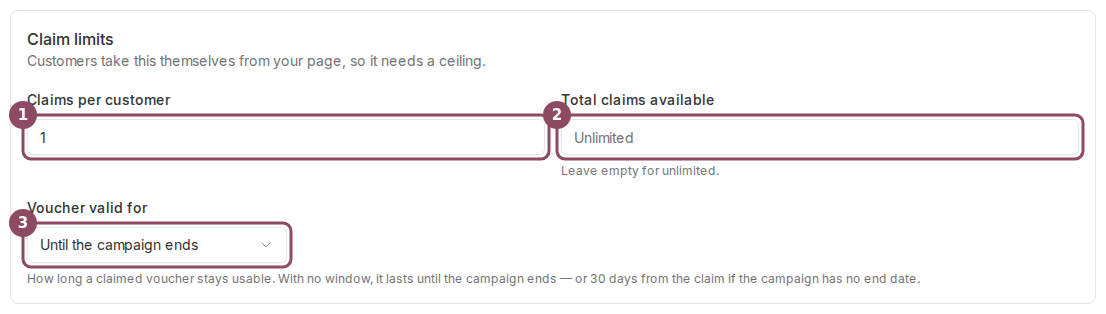
Claim limits appear once the campaign is claimable: per customer (1), total available (2), and how long a claimed voucher lasts (3).
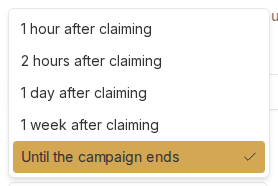
The five voucher windows. The last one ties the voucher to the campaign instead of the claim.
Check it on the Review step
The Review screen spells your choice back to you in plain words, along with the claim limits and the voucher window.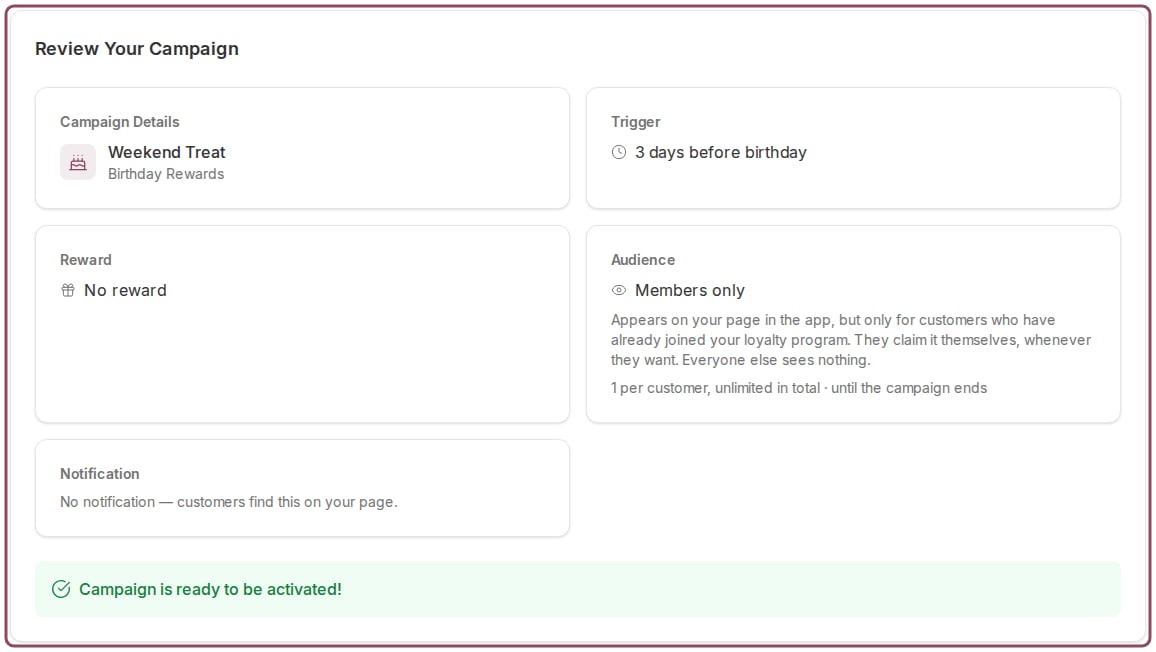
The Review step. Audience shows the choice, the limits, and that no notification is going out.
Reading it later
Every campaign carries a badge on the Campaigns page showing its audience: Private, Members or Public.
A notification-only campaign carries the Private badge next to its status.
Changing your mind
Audience is the one setting the campaign page lets you edit after the campaign is built. Open the campaign and use the Who can see this card.
The Who can see this card on a campaign. The description under it updates as you choose.
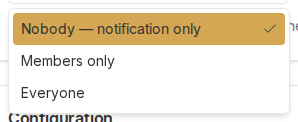
The same three options, so you can put a finished campaign on your page without rebuilding it.
Claim limits are not editable from this card. It shows the ones the campaign already has, so set them in the wizard while you are building it.