

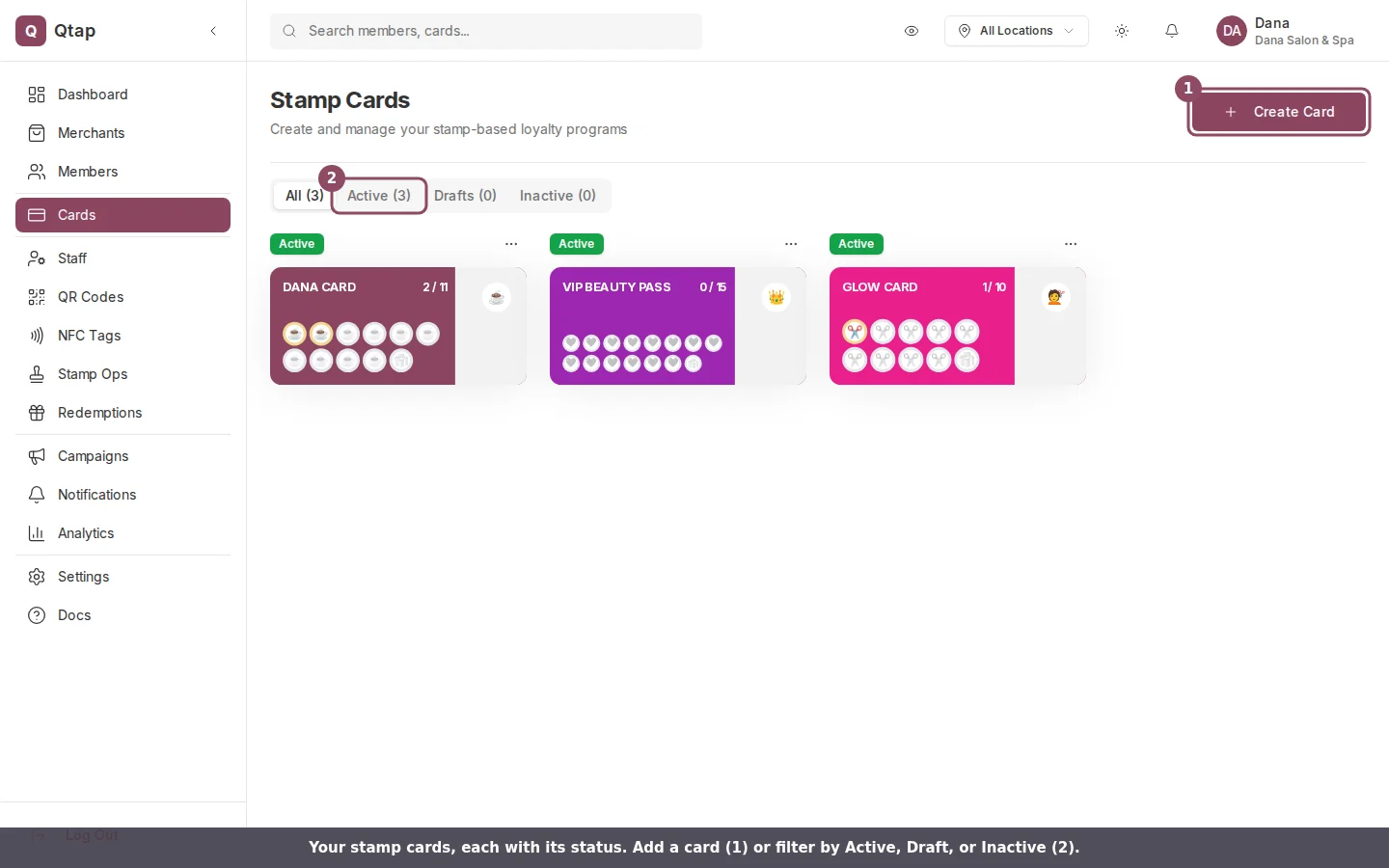
The Stamp Cards page. Each card shows its colors, stamp icons, current progress, and status.
How stamp cards work
When a customer earns stamps, Qtap records each one against their account. When their total reaches the stamp goal you’ve set, they receive the reward automatically. Staff issue stamps by scanning the customer’s QR code with the mobile app, or you can issue them manually from the dashboard.What you can configure
Each stamp card has these settings: Basic details- Card Name — what the card is called (shown to customers)
- Description — a short line displayed on the card in the member app
- Stamp Goal — the number of stamps required to earn the reward
- Card Color — the background color of the stamp card
- Card Icon — an emoji shown on the card
- Stamp Icon — the emoji used to represent each individual stamp
Card statuses
A stamp card can be in one of three states:- Draft — created but not visible to new members yet
- Active — live and available for members to join
- Inactive — no longer accepting new members or stamps
Existing members keep their stamp progress when you deactivate a card. They can still redeem earned rewards, but new stamps cannot be issued against an inactive card.
Duplicating a card
On the Stamp Cards list page, click the three-dot menu next to any card and select Duplicate. This creates a draft copy with all the same settings, which you can then edit before activating.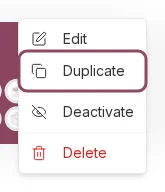
The card menu. Duplicate copies a card's settings into a new draft you can edit.
Plan limits
Your plan determines how many active stamp cards you can have at once. If you’ve reached the limit, you’ll see a message with a link to Settings > Billing to upgrade.Creating a Stamp Card
Step-by-step instructions for creating a new stamp card.
Designing Your Card
How to customize colors, icons, and the card’s appearance.