

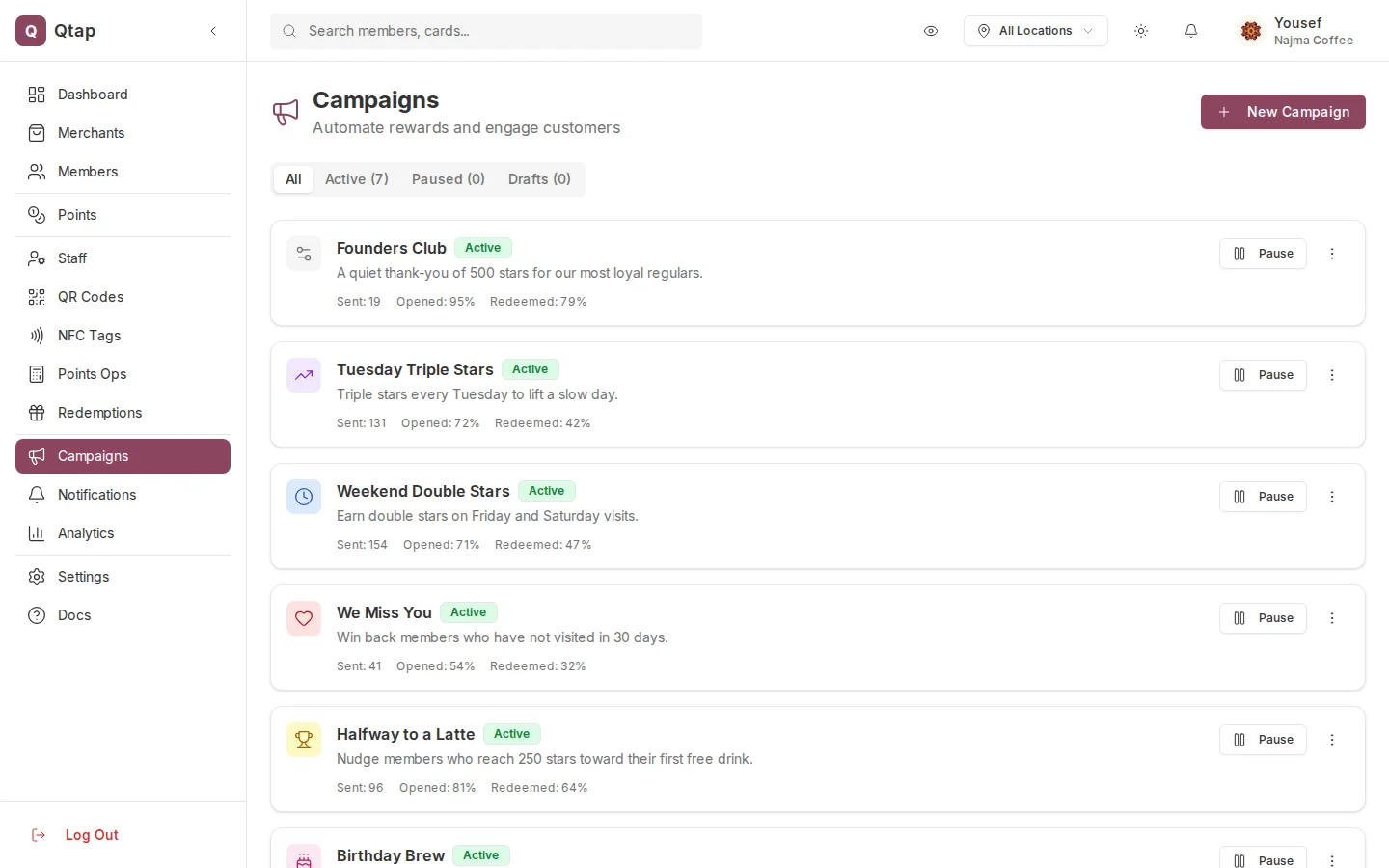
The Campaigns page showing active campaigns and the New Campaign button.
How campaigns work
When a member meets a campaign’s trigger condition (for example, their birthday is in 3 days, or they haven’t visited in 60 days), Qtap sends them a push notification. You can attach a reward to the notification so they receive something when they open it. Each campaign runs on its own rules. You can have multiple campaigns active at the same time.Campaign types
Qtap has seven campaign types: Birthday Rewards — sends a message a set number of days before a member’s birthday. You choose how many days in advance. Win-Back Campaign — targets members who haven’t visited in a certain number of days. You set how many days of inactivity triggers the campaign. Milestone Celebration — triggers when a member reaches a specific number of stamps or points. Useful for recognizing loyal customers at a key threshold. Time-Based Promotion — sends messages on specific days of the week within a time window. Good for happy hours or recurring weekly offers. Welcome Campaign — sends a message to new members after a delay you set, measured in hours after they join. Points Multiplier — increases the points members earn during a set date range. Only available on a points program. Flash Sale — a limited-time offer with a set duration. You define the discount or bonus, the duration in hours, and an optional cap on how many times it can be redeemed.Campaign statuses
- Draft — saved but not running yet. Members won’t receive anything.
- Active — running. Qtap is monitoring for trigger conditions.
- Paused — temporarily stopped. No new notifications will be sent until you resume it.
- Ended — completed campaigns that are no longer running.
Creating a campaign
Click New Campaign from the Campaigns page. A multi-step wizard walks you through:- Choosing the campaign type and giving it a name
- Configuring the trigger
- Optionally adding a reward (free item, bonus stamps, bonus points, or a discount)
- Writing the notification title and message body
- Optionally setting conditions to narrow which members are targeted
- Optionally setting up an A/B test with two message variants
- Reviewing and either saving as a draft or activating immediately
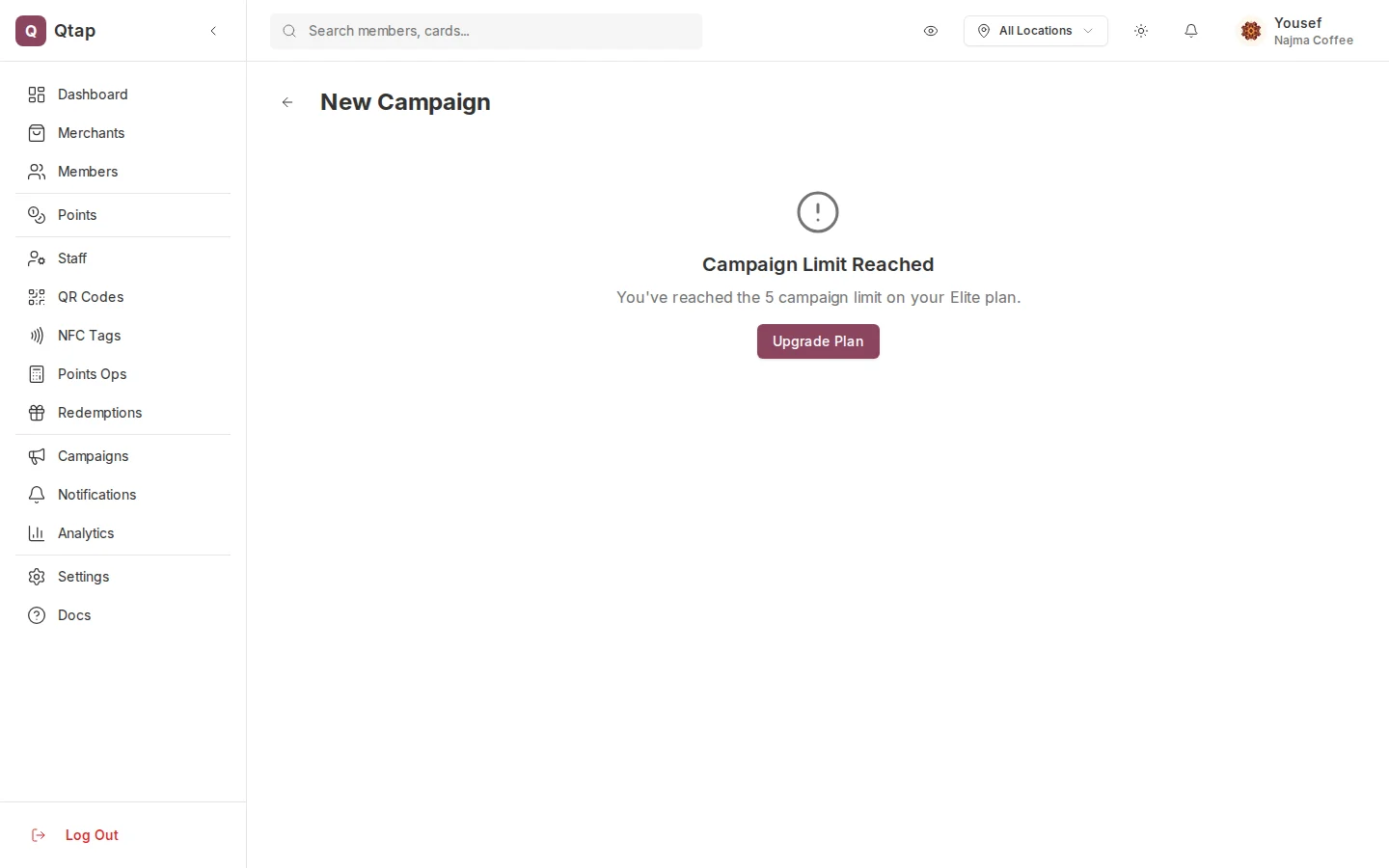
The first step of the New Campaign wizard, where you pick a campaign type.
Pausing and resuming campaigns
On the Campaigns page, find the campaign card and open its menu. Select Pause to stop it temporarily, or Resume to start it again. Paused campaigns keep all their settings.Plan limits
Your plan determines how many active campaigns you can run at once. If you’ve reached the limit, you’ll see a message when trying to create a new one. Go to Settings > Billing to upgrade.Campaign notifications are sent to members via the Qtap member app. Members who haven’t downloaded the app or enabled notifications won’t receive them.
Birthday Campaigns
Configure a birthday reward campaign step by step.
Win-Back Campaigns
Re-engage members who haven’t visited in a while.
Push Notifications
Send a one-off message to a specific audience segment, on demand or on a schedule.