

Your current plan
At the top of the Billing page you’ll see your plan name, subscription status, and when your current billing period ends. If you’re on a free trial, you’ll also see how many days remain. Qtap has four plans:
You can switch between monthly and annual billing when you upgrade. Annual billing is charged as a lump sum for 12 months.
Usage
Below your current plan you’ll see a usage breakdown showing how much of each limit you’ve used this billing period:- Locations — active locations vs. your plan’s location limit
- Staff — active staff accounts vs. your staff limit
- Loyalty Cards — active stamp cards and points programs combined
- QR Codes — QR codes generated this month vs. your monthly allowance
- Campaigns — total campaigns vs. your campaign limit
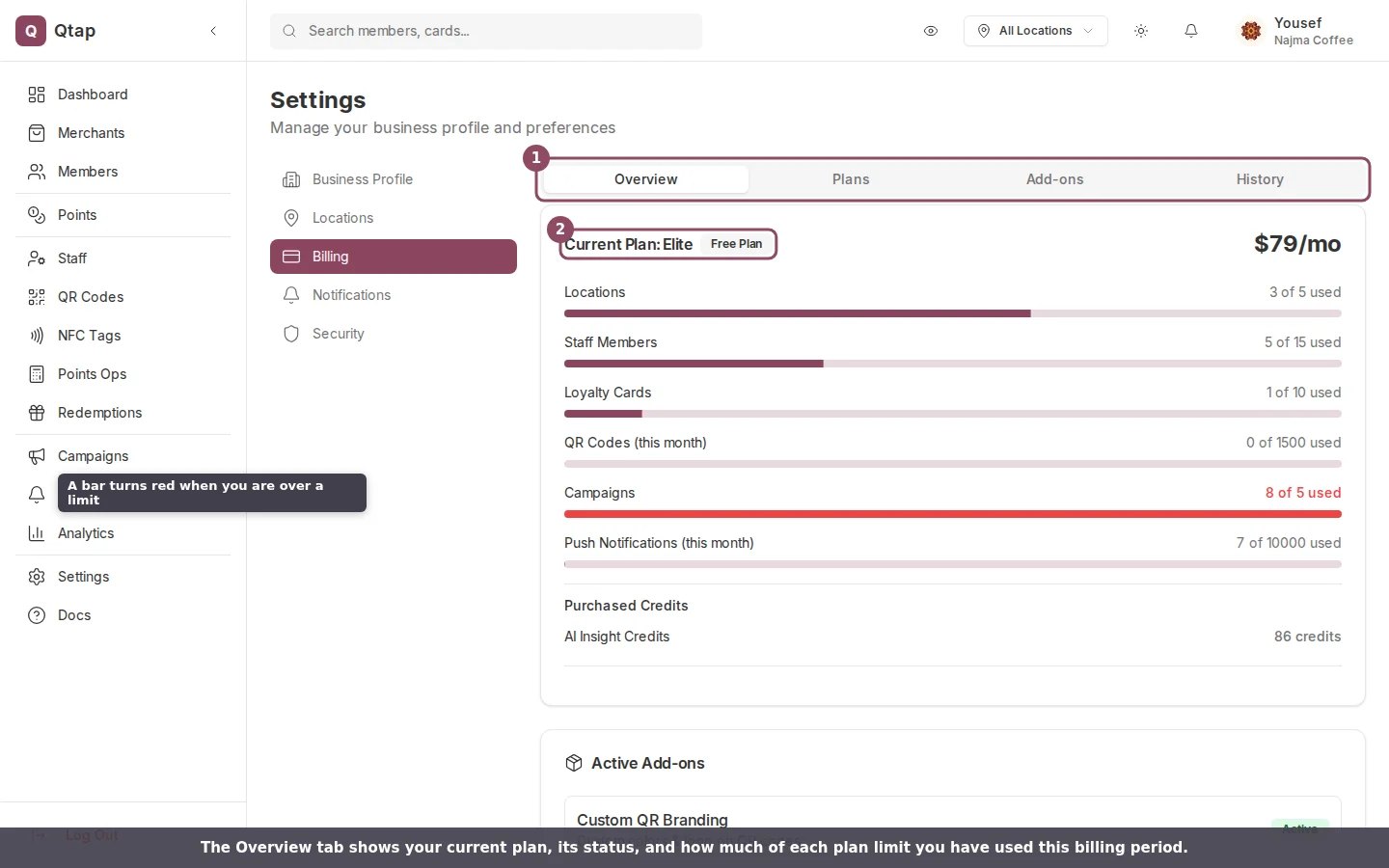
The Billing page Overview tab: your current plan, its status, and a usage meter for each plan limit.
Changing your plan
Click any plan card to upgrade or downgrade. Use the Monthly / Annual toggle to choose your billing interval before selecting a plan. Upgrading moves you to the new plan immediately. You’ll be sent to a Stripe checkout page to confirm payment. Downgrading checks whether your current usage fits within the lower plan’s limits before proceeding. If you have more locations, staff, or loyalty cards than the lower plan allows, you’ll see a warning listing the conflicts. You’ll need to reduce your usage before the downgrade can go through.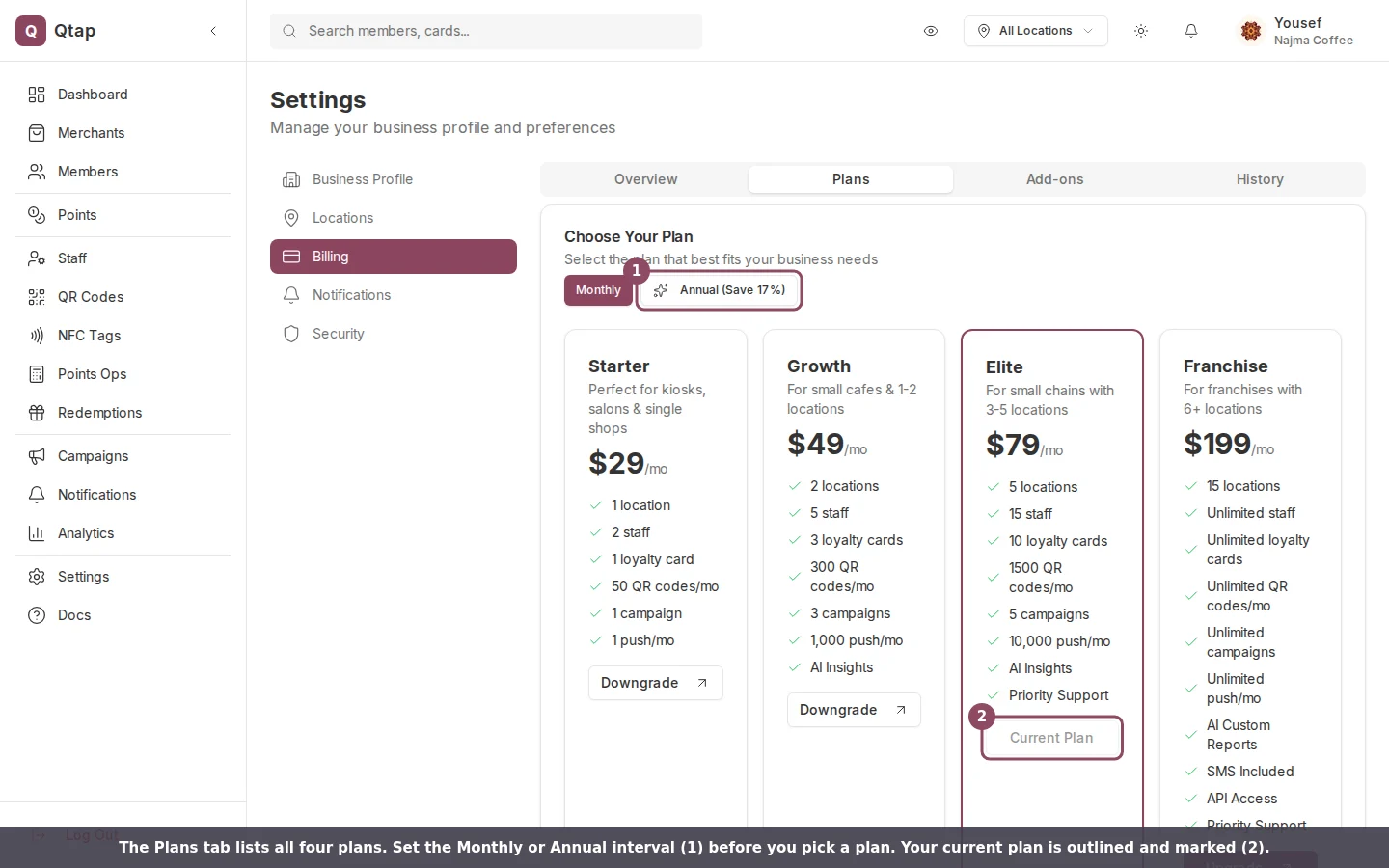
The Plans tab. Switch between Monthly and Annual before choosing a plan; your current plan is outlined.
Add-ons
The Billing page includes a section for purchasing add-ons that work on top of your base plan:
Click Buy next to any add-on to go to a checkout page for that item. NFC tags are physical items — after purchasing, they ship to you separately. Once you receive them, register them under NFC Tags in the main navigation.
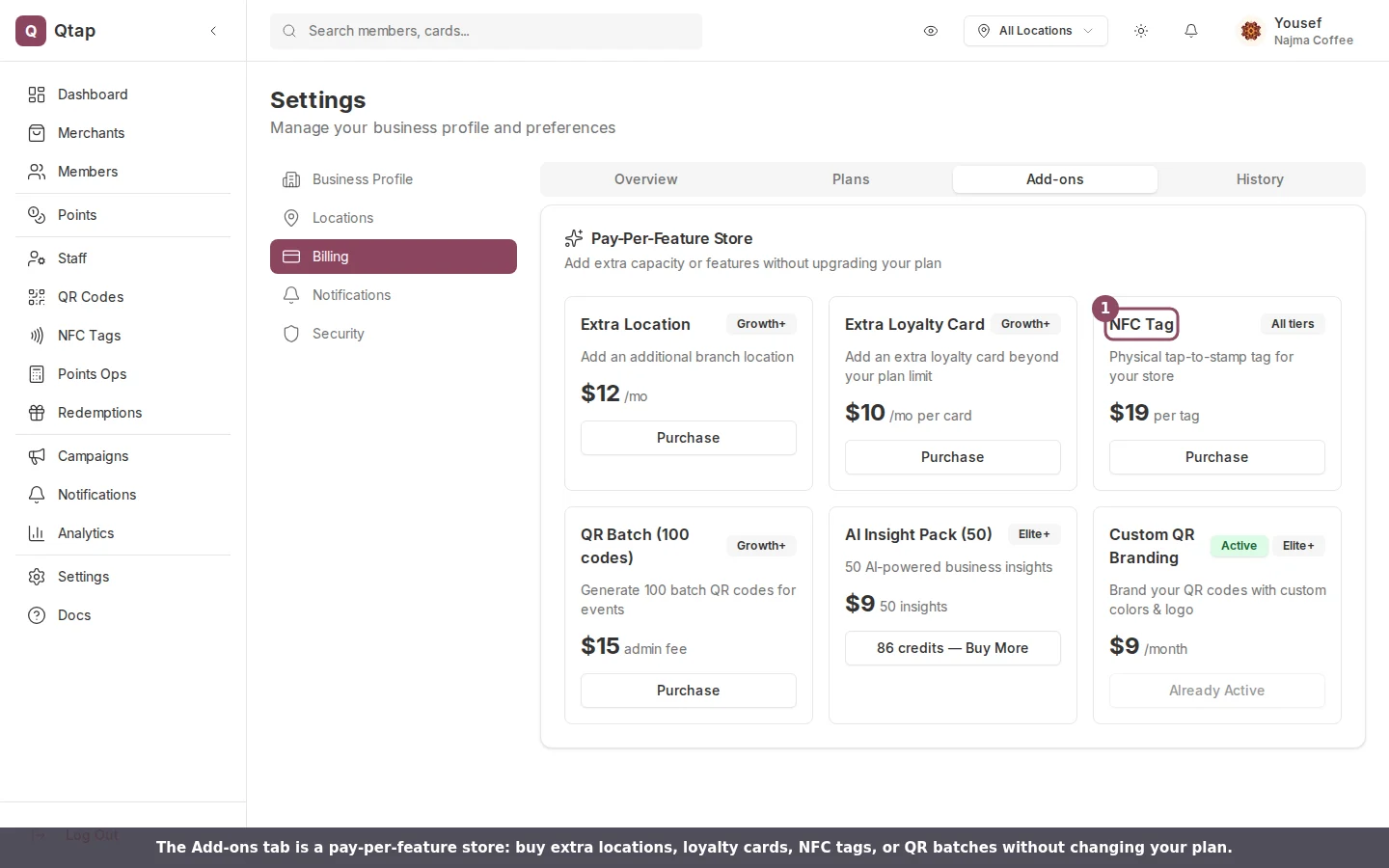
The Add-ons tab, a pay-per-feature store where you buy extra capacity without changing your plan.
Add-on purchases go through Stripe checkout just like plan changes. You’ll receive a receipt by email for each purchase.
Payment method and invoices
The Billing tab inside the page shows your current payment method (card brand and last four digits) and a list of past invoices. Each invoice shows the date, amount, status (Paid / Open), and links to download the PDF or view it online. To update your payment method, click Manage Subscription to open the Stripe billing portal. From there you can also view full billing history, update your card, and download all invoices.The Manage Subscription button only appears if you have an active Stripe subscription. If you’re still on a trial and haven’t entered payment details yet, subscribe to a plan first.
Canceling your plan
To cancel, scroll to the bottom of the Billing page and click Cancel Plan. You’ll be asked to confirm and optionally provide a reason. Your plan stays active until the end of the current billing period — you won’t be charged again after that.Locations
Manage your physical locations and their settings
NFC Tags
Register and manage NFC tags purchased through billing
Staff
Manage staff accounts and understand role-based access