

dashboard.qtap.qa/signup, and there is a Sign up link at the bottom of the login page if you land there first.
Sign up with your email
Open the signup page and fill in four things.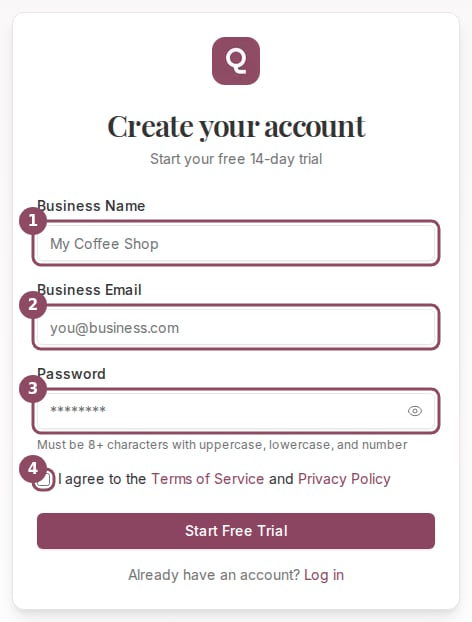
The signup form asks for your business name, your email, a password, and your agreement to the terms.
1
Business Name
The trading name your customers know you by. Qtap uses it as the name of your business across the dashboard, and it also builds the first version of your public page address from it. You can rename the business later in Settings, and an owner or manager can change the public address separately from the merchant page.
2
Business Email
The address you will log in with. It also receives your confirmation email, so use one you can open now.
3
Password
At least 8 characters, with an uppercase letter, a lowercase letter, and a number. The eye button on the right shows what you typed, which is worth using before you commit to a password you cannot repeat.
4
Terms of Service and Privacy Policy
Tick the box. The form will not submit without it.
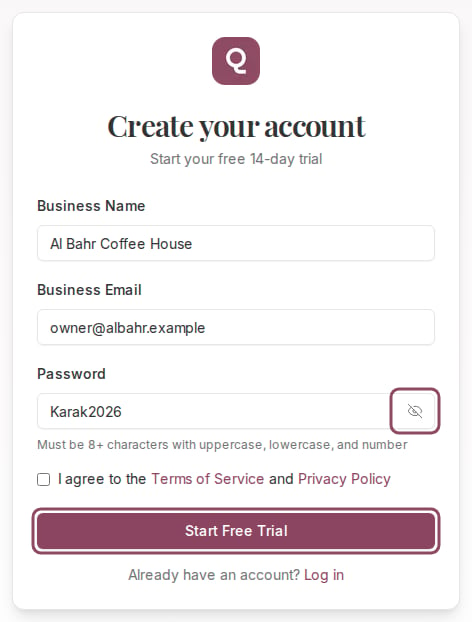
A filled form. The eye button reveals the password, and Start Free Trial creates the account.
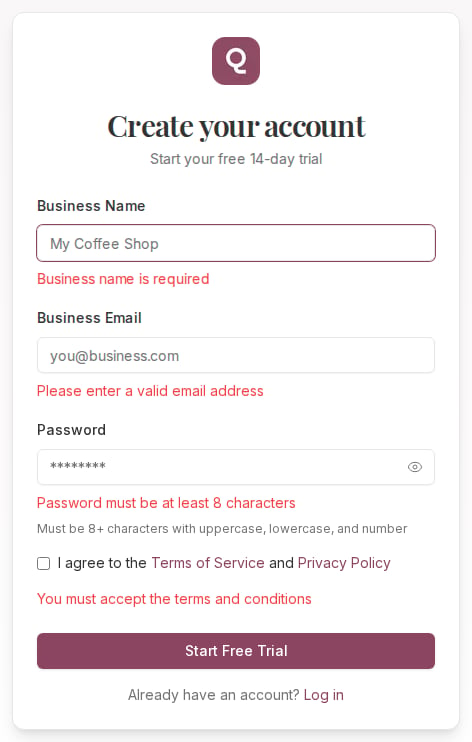
Pressing Start Free Trial with an empty form shows what each field needs.
The button says Start Free Trial, but the 14 days do not begin here. Pressing it creates your account and your business record. The trial clock starts when you finish the onboarding steps that come after. See Your free trial for what the trial covers.
Confirm your email
Qtap sends a message from Qtap with the subject Confirm your Qtap account, and shows you this screen while it waits.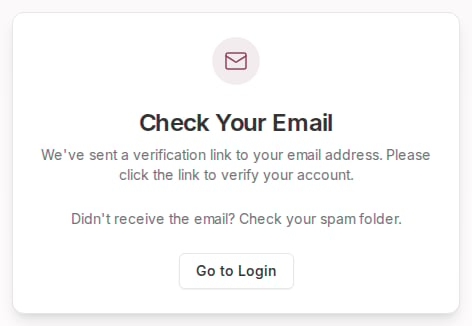
After signing up you land here until you open the email and confirm.
Sign up with Google instead
Qtap also accepts a Google account. The button for it sits on the Log in page rather than the signup page, which catches people out on their first visit.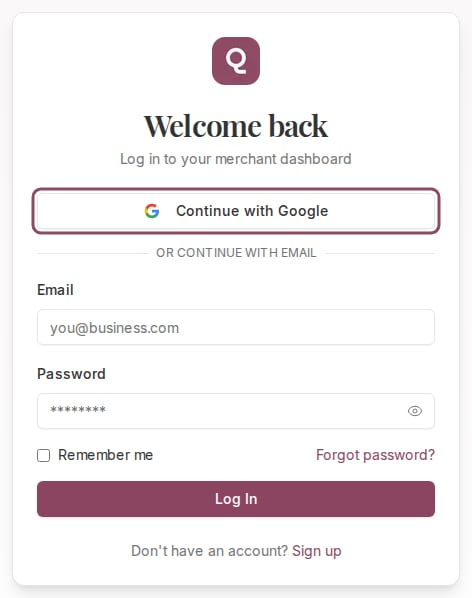
Continue with Google sits at the top of the login page. On a first visit it creates the account for you.
A business created this way is named after your Google profile, in the form
Sara's Organization. Rename it under Settings, in the Business Information card, and your customers will see the corrected name.Logging in afterwards
Once the account exists you log in atdashboard.qtap.qa/login with the same email and password, or with the same Google account. Remember me keeps you signed in on that browser. If the password has gone, Resetting a forgotten password covers the recovery link.