

A milestone campaign sends a push notification when a member reaches a total number of stamps you set, for example 50 stamps earned with you over time. You can attach a reward so reaching the goal comes with a treat. Qtap calls this campaign type Milestone Celebration.

How it works

Once the campaign is active, Qtap checks your members regularly (about every 15 minutes) and finds anyone whose lifetime stamp total has reached your goal. Each matching member gets the notification, and if you attached a reward it lands in their wallet. The threshold counts every stamp a member has earned with you, not the progress on their current card. A member who has filled three 10-stamp cards and is partway through a fourth has earned more than 30 stamps in total, so a goal of 30 would already include them. Each member receives a milestone campaign once. If some members are already past the goal when you activate, they receive it on the next check.
Owners and managers can create campaigns. Staff members don’t have access to the Campaigns page by default.

Setting up a milestone campaign

Go to Campaigns in the left sidebar and click New Campaign. The wizard has seven steps.
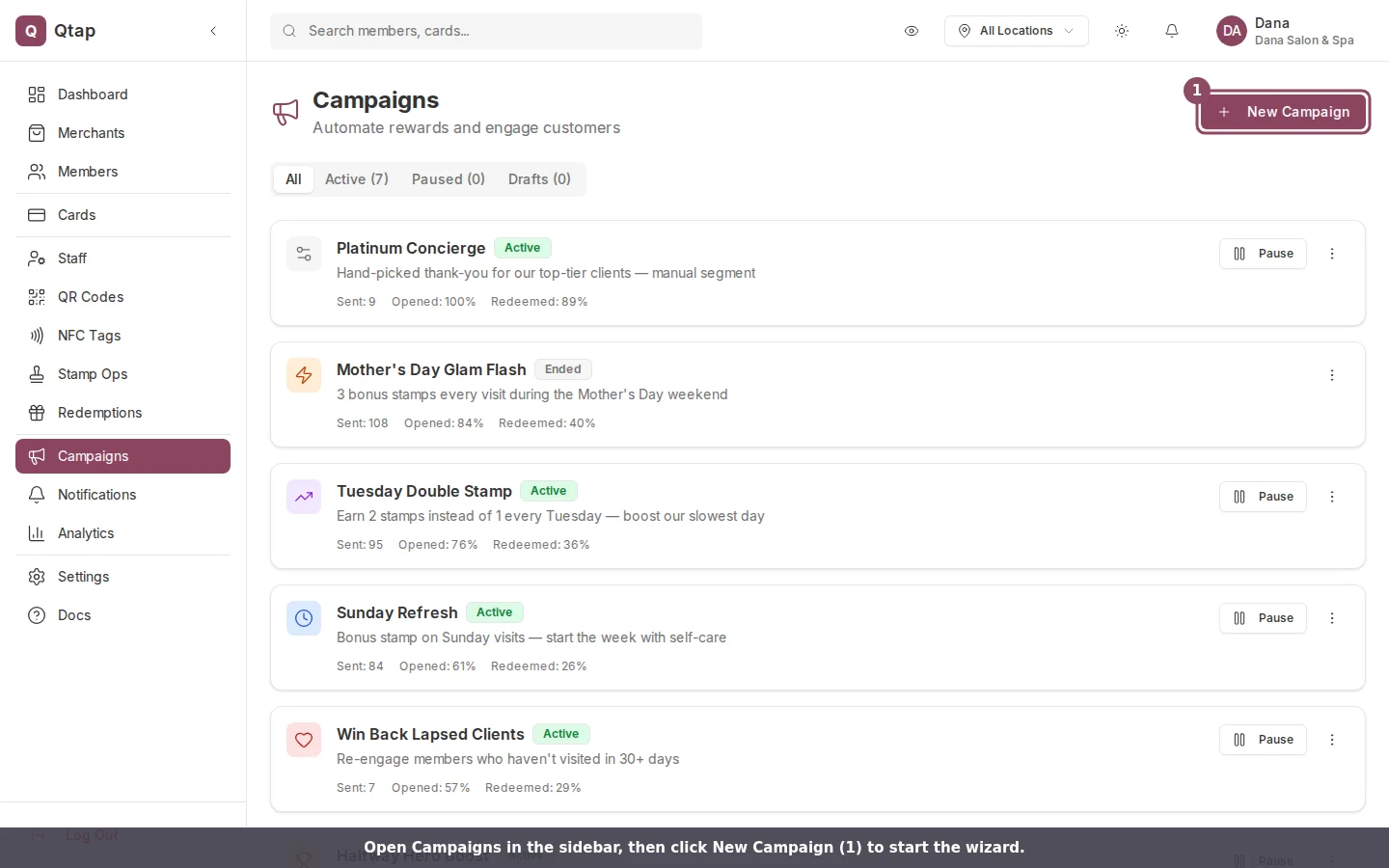
The Campaigns page with the New Campaign button highlighted
1
Step 1: Type
2
Choose Milestone Celebration from the campaign type list. Give it a name, such as “50-Stamp Club”, and an optional internal description. Click Next.
3
Campaign type step with Milestone Celebration selected and a campaign name entered
4
Step 2: Trigger
5
Enter the total number of stamps a member must reach to trigger the campaign. The default is 50. Click Next.
6
Trigger step showing the total stamps threshold set to 50
7
Step 3: Reward (optional)
8
Attach a reward so the milestone comes with something to claim. Choose from Free Item, Bonus Stamps, Bonus Points, Discount, or Special Badge, then fill in the details. The reward goes into the member’s wallet and is valid for 30 days.
9
Leave this step empty to send a message without a reward. Click Next.
10
Reward step with Free Item selected and a reward name entered
11
Step 4: Message
12
Write the push notification. The title and message are both required. Click Use Template to start from a ready milestone message, and use the personalization variables (such as Customer Name) to address members by name. The preview shows how the notification will read.
13
Message step with the milestone template applied and a live preview
14
Step 5: Conditions (optional)
15
Add conditions to narrow who receives the campaign, for example only members at a specific location. Leave it empty to include everyone who reaches the goal. Click Next.
16
Step 6: A/B Test (optional)
17
Test two versions of the message to see which one members respond to. Leave it off if you don’t need it. Click Next.
18
Step 7: Review
19
Check the summary, then click Activate Campaign to start it, or Save as Draft to finish later.
20
Review step showing the campaign summary with the Activate Campaign and Save as Draft buttons

Managing the campaign

An active campaign runs in the background. To pause it, open the three-dot menu on the campaign card on the Campaigns page and click Pause.
Members receive the notification only if they have push notifications turned on. A member without push enabled still qualifies for the reward, but won’t get the message announcing it.
The trigger counts a member’s total stamps earned with you, so it fits stamp programs. If you run a points-only program, this campaign type still measures stamps rather than points.

Win-Back Campaigns

Re-engage members who haven’t visited in a while.

Campaign Stats

See how many members each campaign reached and how they responded.