

A win-back campaign sends a push notification to members who haven’t visited your business in a set number of days. You can attach a reward to bring them back.

How it works

Qtap checks daily for members whose last recorded visit falls outside the inactivity window you set. When a match is found, they receive a push notification. If you attached a reward, it goes into their wallet when they open the message. The campaign will only contact each member up to the maximum number of times you set, so you won’t keep messaging the same inactive customers indefinitely.

Setting up a win-back campaign

Go to Campaigns in the left sidebar and click New Campaign. The wizard has seven steps.
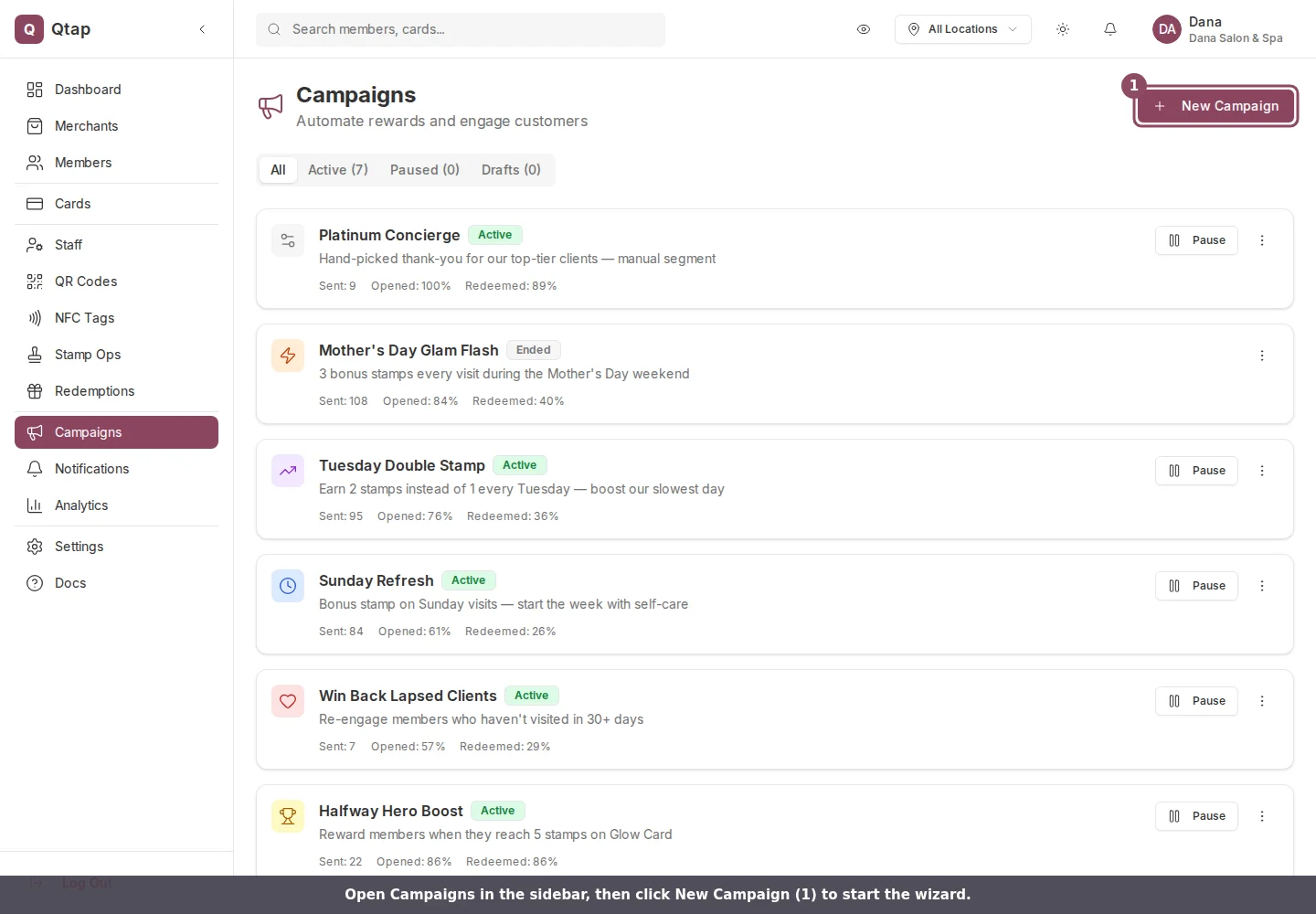
Campaigns list with the New Campaign button highlighted
1
Step 1: Type
2
Select Win-Back Campaign from the campaign type list. Give it a name (e.g., “We Miss You”) and an optional internal description. Click Next.
3
Campaign type step with Win-Back Campaign selected and a name entered
4
Step 2: Trigger
5
Set how long a member must be inactive before the campaign fires, and how many times they can receive it:
6
Inactivity period — choose from 14, 30, 60, or 90 days without a visit.
7
Maximum sends per customer — how many times a single member can receive this campaign. Options are 1, 2, or 3 times. This prevents messaging the same person repeatedly if they remain inactive after receiving the first notification.
8
Click Next.
9
Trigger step with the inactivity period and maximum sends fields highlighted
10
Step 3: Reward (optional)
11
Attach a reward to give inactive members a reason to return. Choose from Free Item, Bonus Stamps, Bonus Points, Discount, or Special Badge. Fill in the reward details.
12
Leave this step empty to send a message without a reward.
13
Click Next.
14
Reward step showing the five reward types with Bonus Points highlighted
15
Step 4: Message
16
Write the push notification:
17
  • Title — the headline (e.g., “We miss you!”)
  • Message — the body text. Be specific about what they’ll get if they come back.
  • 18
    Both fields are required. Click Next.
    19
    Message step with the notification title and message fields filled in
    20
    Step 5: Conditions (optional)
    21
    Add conditions to narrow the audience. For example, limit the campaign to members who have visited at least 3 times in the past but haven’t come back. Leave empty to reach all inactive members.
    22
    Click Next.
    23
    Step 6: A/B Test (optional)
    24
    Test two different messages to see which performs better. Leave this off if you don’t need it.
    25
    Click Next.
    26
    Step 7: Review
    27
    Check your settings and click Activate to start the campaign, or Save Draft to publish later.
    28
    Review step summarizing the campaign with the Activate Campaign and Save as Draft buttons highlighted

    Managing the campaign

    Once active, the campaign runs automatically in the background. You can pause it from the Campaigns page by opening the three-dot menu on the campaign card and clicking Pause.
    A member’s “last visit” is recorded when staff stamp their card or issue points. Members who have joined your loyalty program but never received a stamp will not be counted as having visited.
    If you lower the inactivity threshold after a campaign is already active (for example, from 60 days to 30 days), some members who were previously outside the window may now qualify and receive a notification.

    Campaigns Overview

    How campaigns work and what types are available.

    Birthday Campaigns

    Send an automated birthday reward to members each year.