

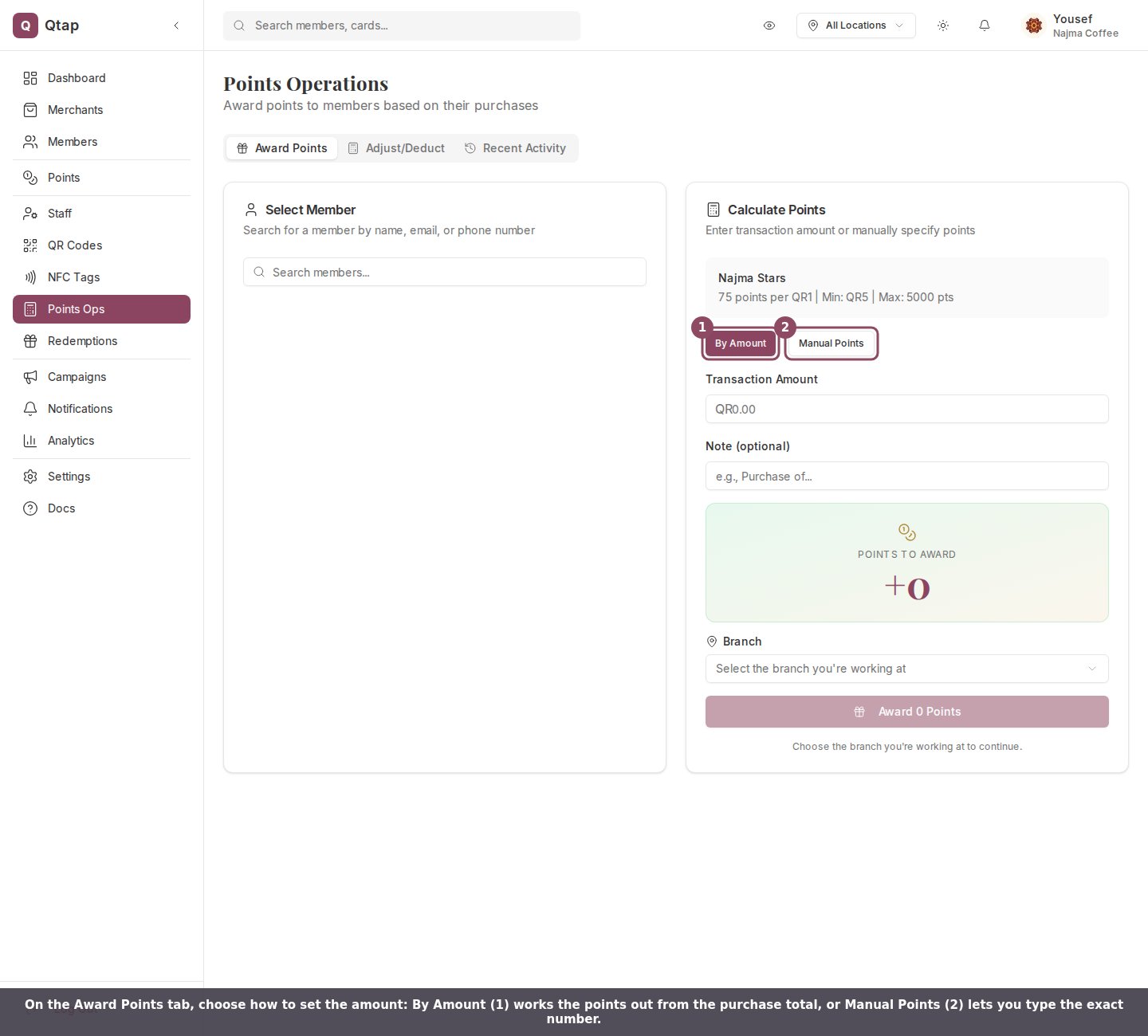
The Award Points tab. By Amount works points out from the purchase total; Manual Points takes an exact number.
By Amount
Use this for a normal sale. Type the purchase total into Transaction Amount, and Qtap multiplies it by your program’s earn rate to fill in the Points to Award preview as you type. The card header shows the rate and any limits, for example “75 points per QR1 | Min: QR5 | Max: 5000 pts”.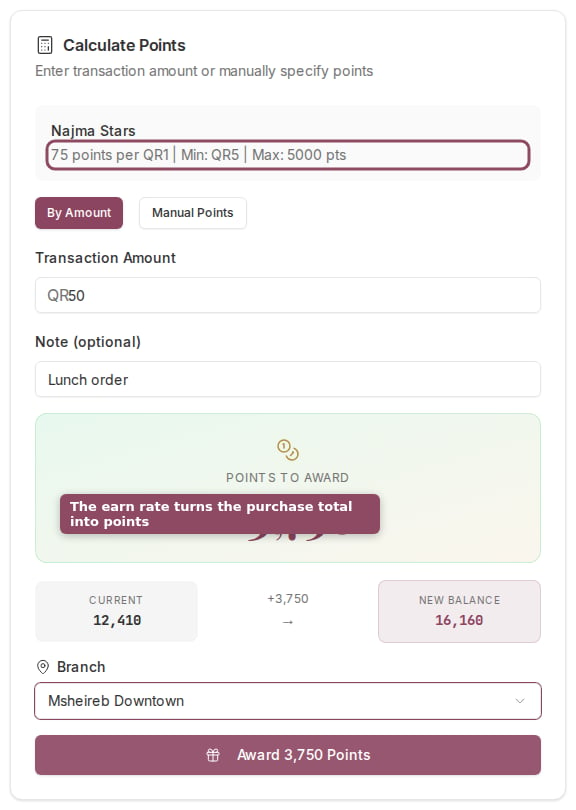
By Amount: a QR50 purchase earns 3,750 points at 75 per QR1, and the new balance is shown before you confirm.
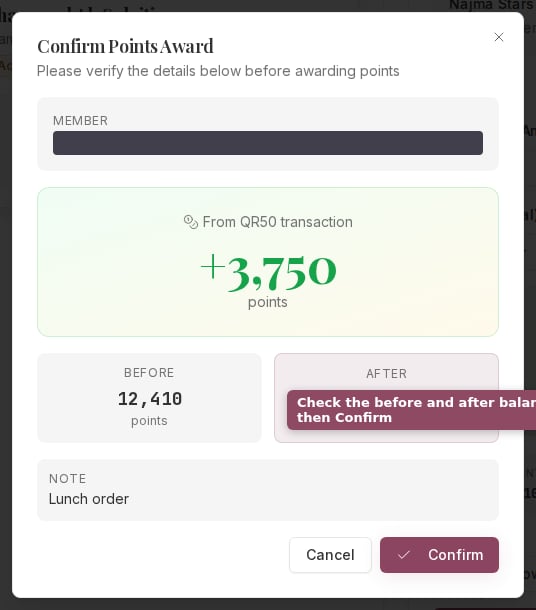
The confirmation step shows the member, the points, and the before and after balance.
Manual Points
Switch to Manual Points to give an exact number instead, such as a goodwill gesture or a figure agreed outside the normal rate. Type the points straight into Points to Award.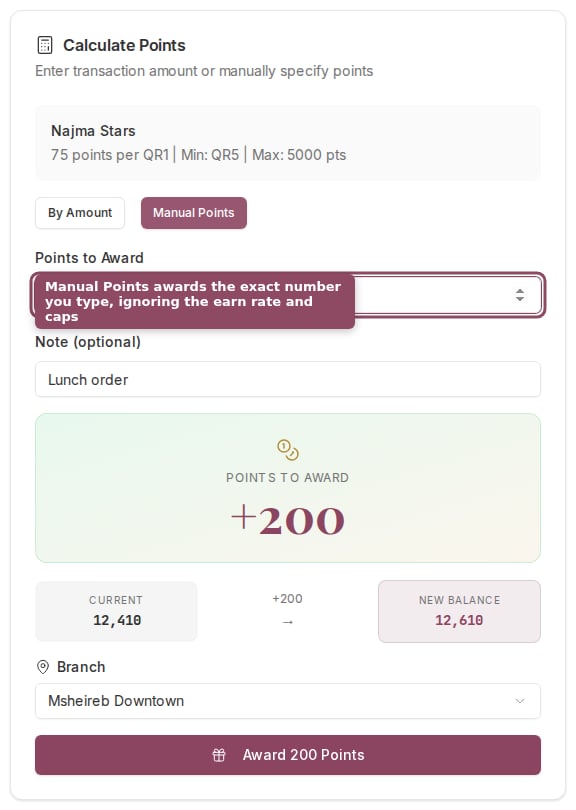
Manual Points awards the exact number you type. The earn rate and caps do not apply.
Who can award points
Owners, managers, and staff can all award points, so any team member working the till can use this tab. Correcting a balance outside a sale lives on the Adjust/Deduct tab, which the same three groups can reach by default, though an owner can take that one away per person. See Adjusting and deducting points.Points Operations
The full tour of the page, including Adjust/Deduct and Recent Activity.
Setting your earn rate
Set the points per currency, minimum transaction, and per-visit cap that By Amount uses.