

Open a tag’s detail page
Go to NFC Tags in the left sidebar. Find the tag in the table, open its three-dot menu on the right, and choose View Details.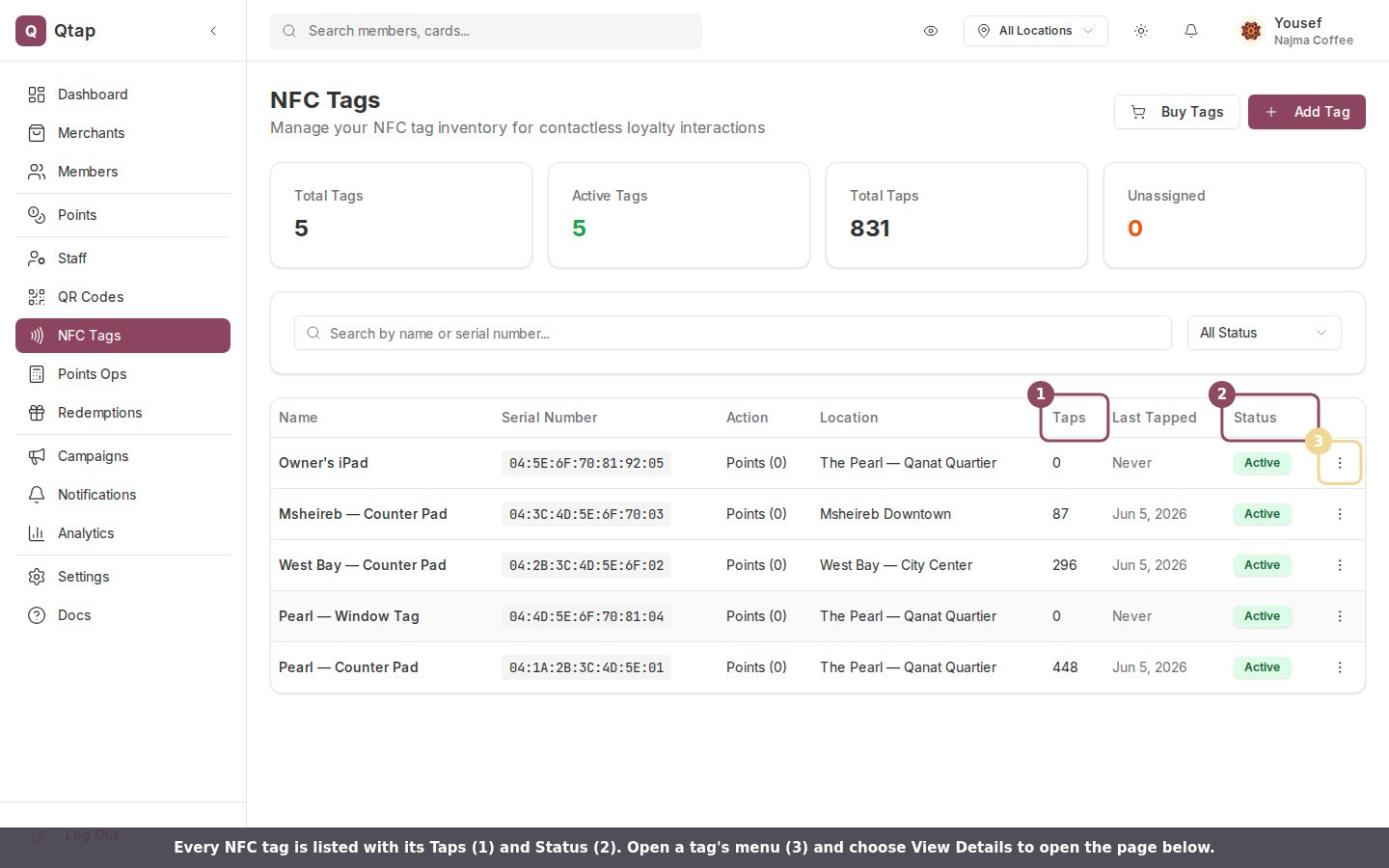
Find a tag in the NFC Tags table, open its menu, and choose View Details.
What the detail page shows
The top of the page has four quick stats: Total Taps, Action (what a tap does, such as points or stamp), Location, and Status (active or inactive).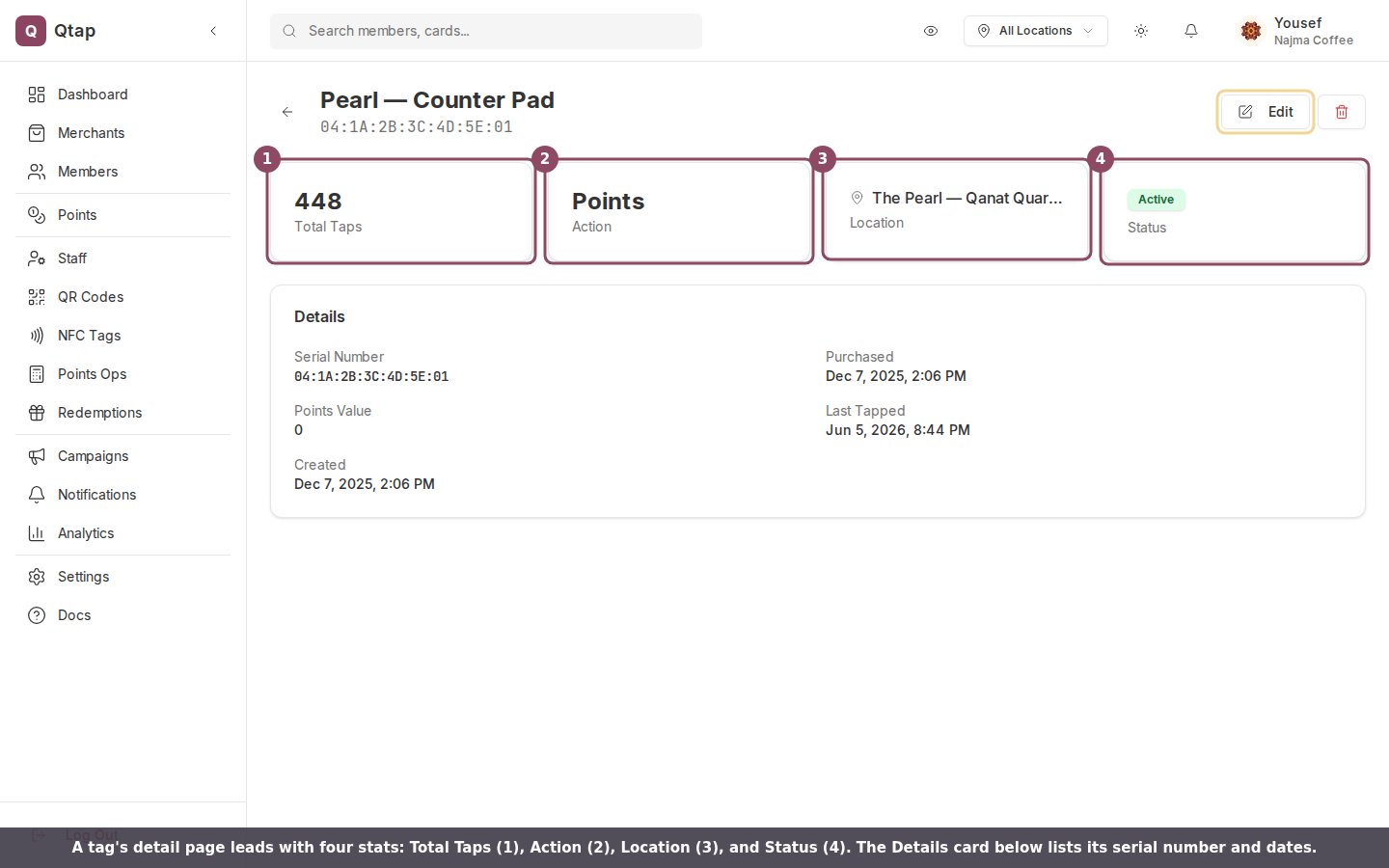
A tag's detail page opens with four stats and a Details card.
Change a tag’s settings
Click Edit to open the tag’s settings. You can update its Name, move it to a different Location, change the Action a tap runs (Add Stamp, Award Points, or Check-In), set the Points Value for a points tag, and turn the tag Active or off with the toggle. Click Save Changes when you are done.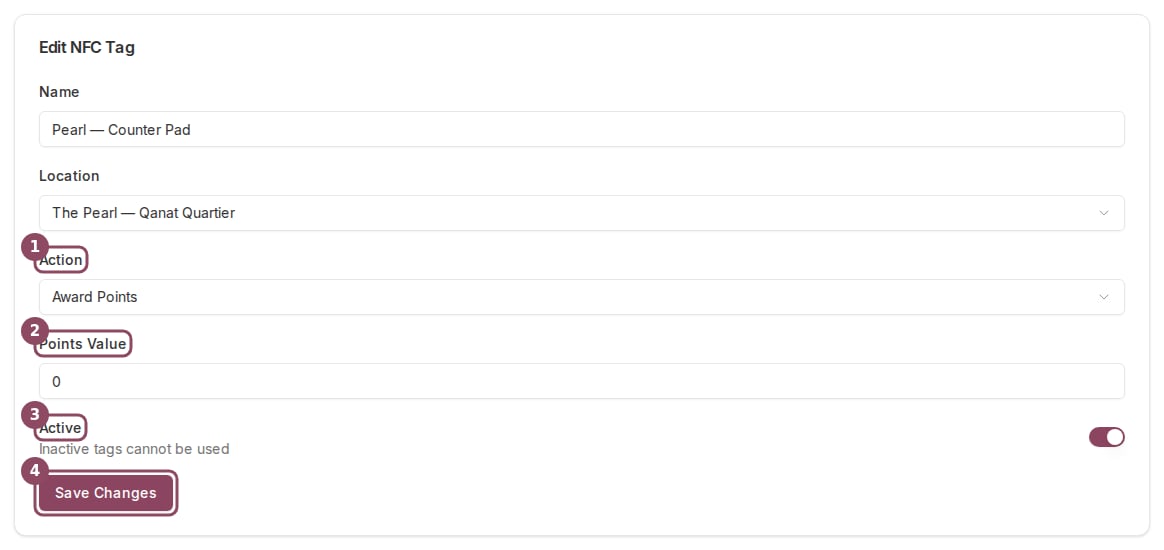
Edit a tag's name, location, action, points value, and active status.
The Serial Number is printed on the tag itself and cannot be changed. The edit form also does not choose a stamp card: a tag fills the stamp card it was matched to when you first registered it. Switching the action to Add Stamp here is only useful for a tag that was set up against a stamp card to begin with.
Pause or delete a tag
To pause a tag without removing it, open Edit and turn off Active. An inactive tag stops working when tapped, and you can turn it back on later. To remove a tag for good, click the red trash button in the top right, then confirm in the dialog. Deleting a tag also deletes its tap history, and the action cannot be undone.Owners and managers can open NFC tag detail pages. Staff members do not have access to the NFC Tags section.
NFC Tags
Register and manage the NFC tags across your locations.
How a tap awards a stamp or points
What happens behind the scenes when a customer taps a tag.