

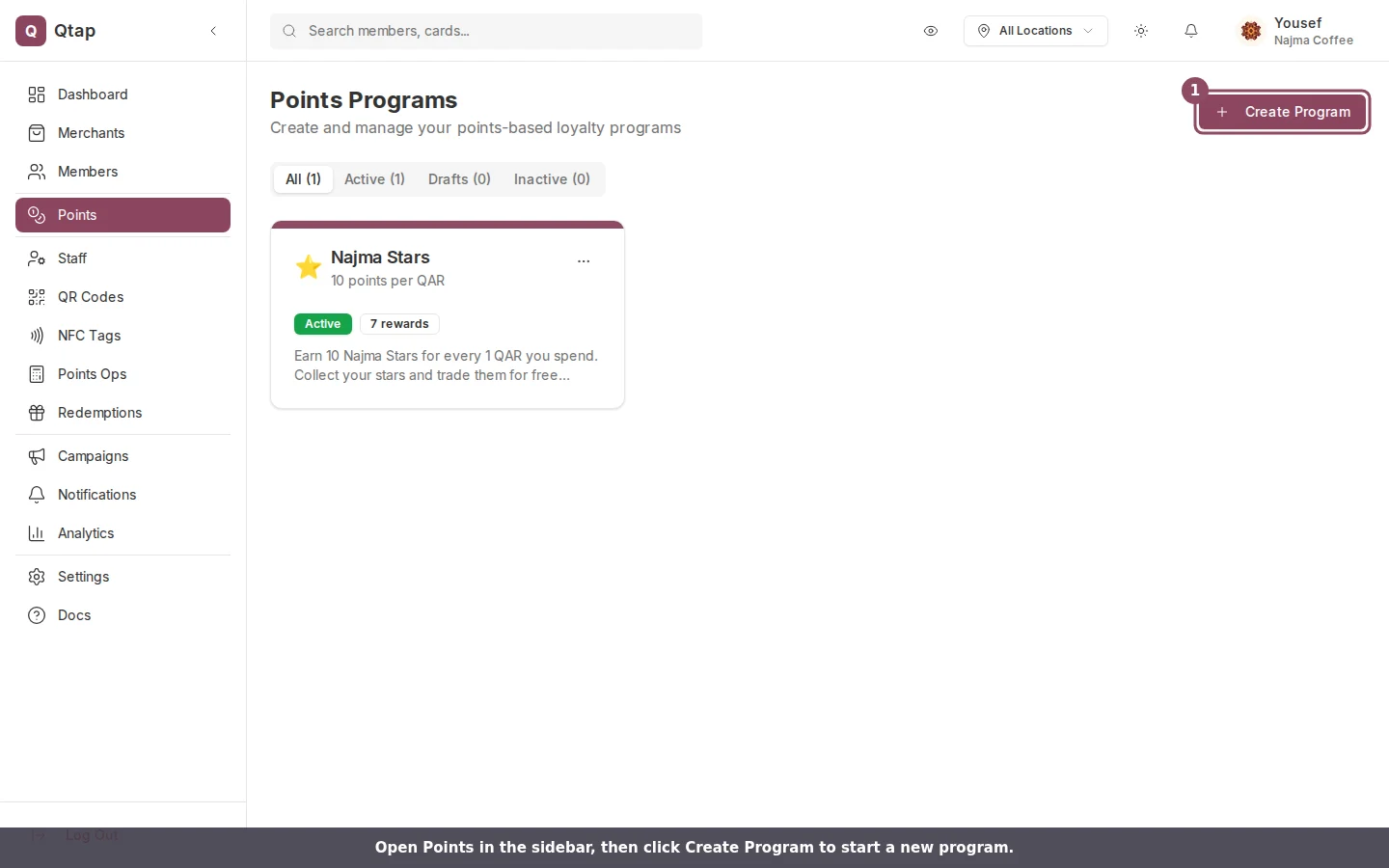
On the Points page, click Create Program to start a new points program.
Points programs and stamp cards share a plan limit. If you’ve reached your loyalty card limit, you’ll see a message here with a link to upgrade under Settings > Billing.
Program details
Fill in the program details at the top of the form:- Program Name — what members see on the card in the app. Required.
- Description — a short line that appears on the card, like “Earn 1 point per QAR spent.”
- Points per currency — how many points a customer earns per one unit of currency. If you set this to 2, a customer spending 10 QAR earns 20 points. Defaults to 1.
- Currency — the currency your program uses. Defaults to QAR.
- Card Icon — choose an emoji to display on the card (diamond, star, trophy, gift, and others).
- Card Color — the background color of the card. Click the color swatch to open the picker.
- Terms and conditions — optional text displayed on the back of the card.
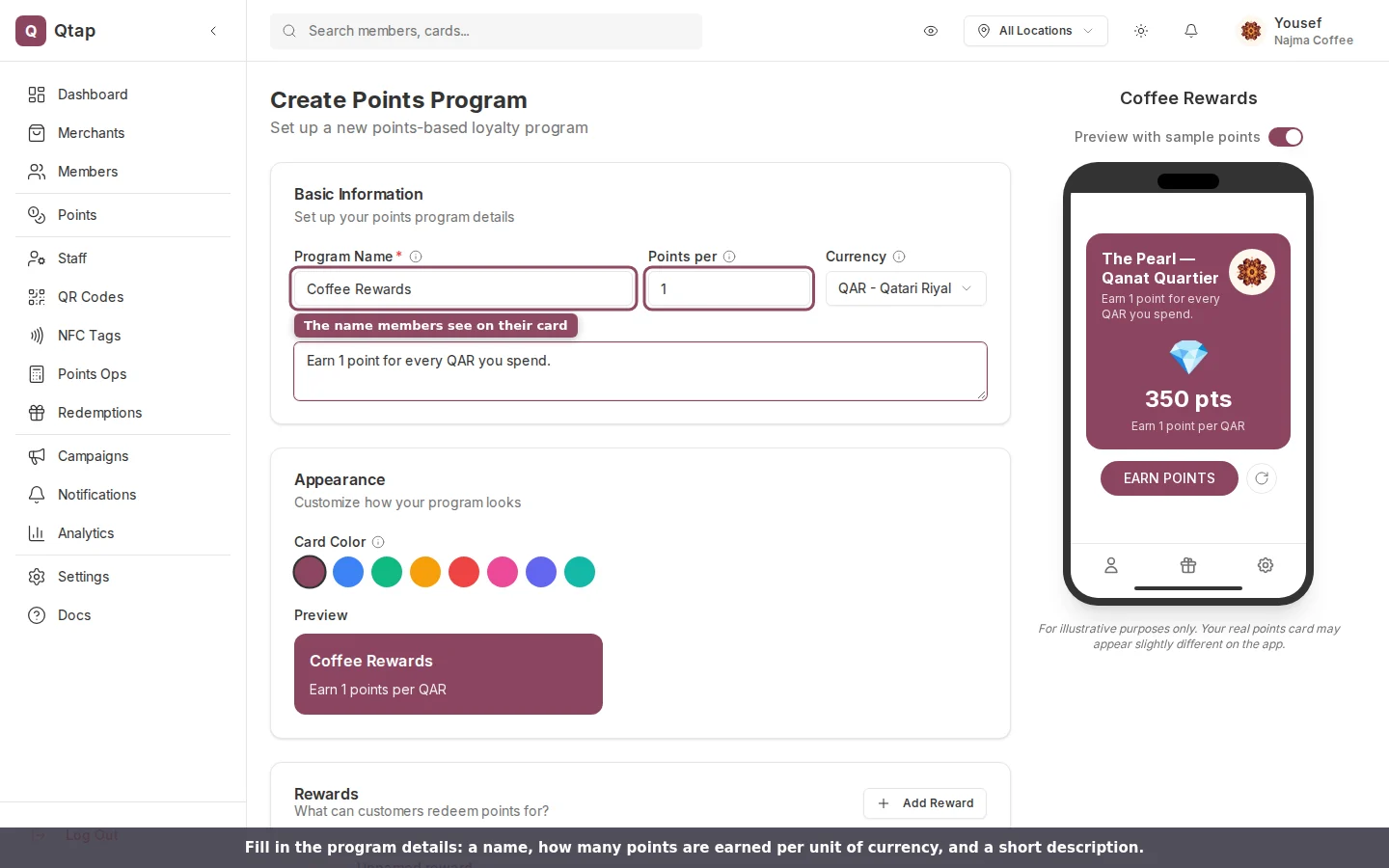
The program form, with the live card preview on the right updating as you type.
Rewards
Rewards define what members get and how many points they need to earn it.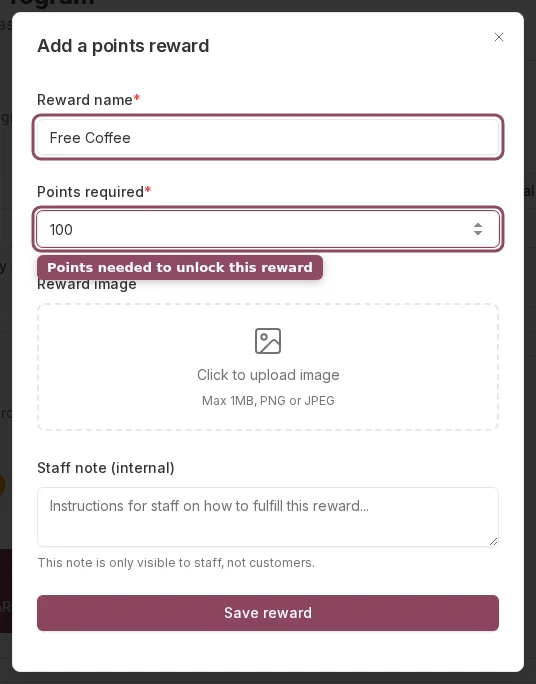
The reward editor: give the reward a name and the number of points needed to earn it.
Expiry rules
By default, points never expire. To enable expiry, turn on the Points expire toggle and configure:- Days — how many days before points expire
- Expiry type — choose from “From earn date,” “From last activity,” or “Calendar year”
Availability period
If you want the program to run only during a specific window, turn on the availability period toggle and set a start date and end date. Members can only earn points between those dates.Valid Locations
Select which locations this program applies to. If you leave all locations unchecked, the program works at all locations.Saving and publishing
At the bottom of the form, click Publish to make the program live immediately. Members can find and join it in the Qtap app right away. Click Save Draft to save without making it public. Draft programs are not visible to members.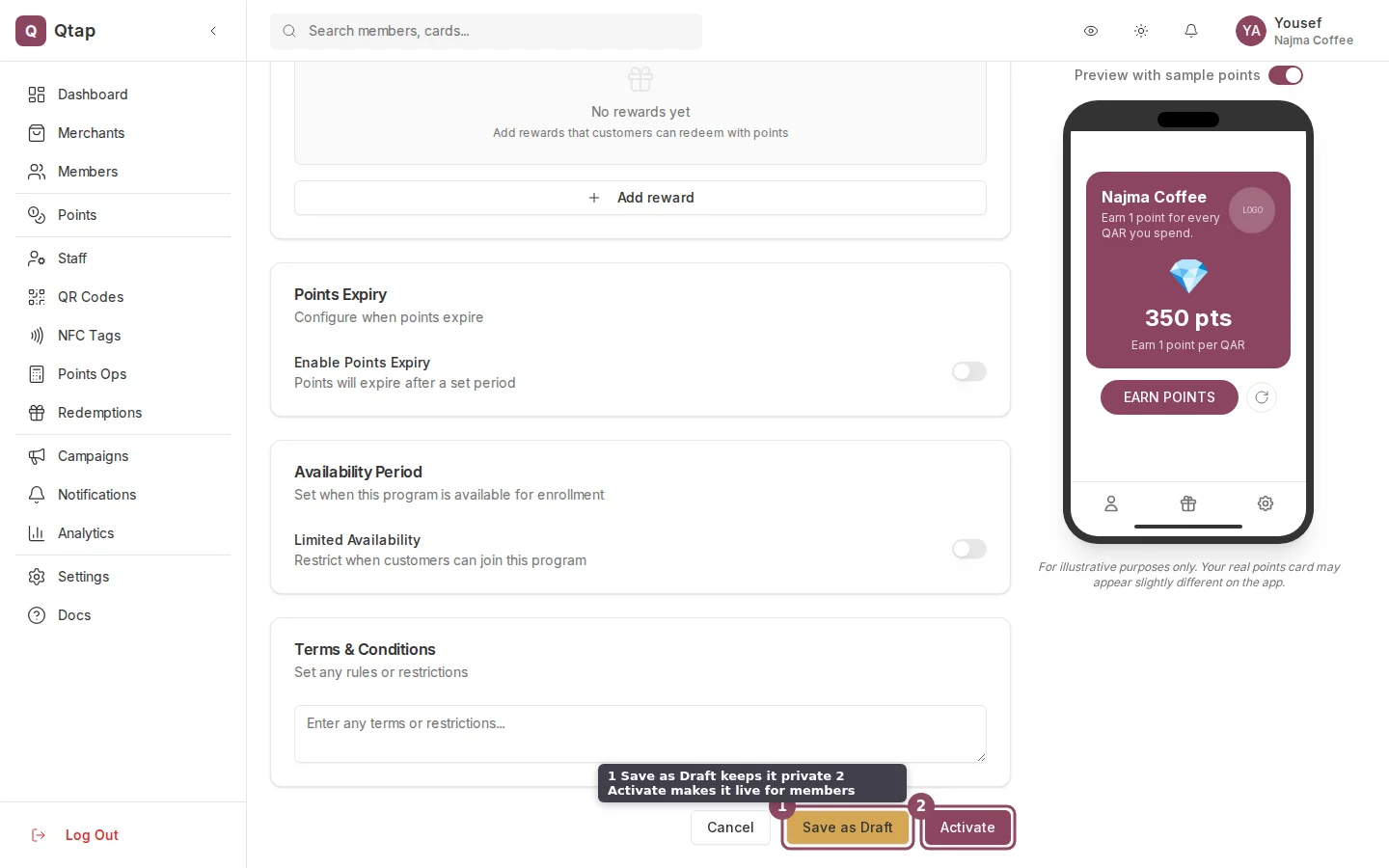
At the bottom of the form, Save as Draft keeps the program private; Activate makes it live for members.
Points Programs Overview
How points programs work and what can be configured.
Points Operations
How staff issue points to customers.