Save a message once and reuse it: create, edit, and load notification templates when you compose a push.
If you send the same kind of message often, like a weekly special or an event reminder, you don’t have to retype it every time. A template saves the title and body of a notification so you can load it into a new push in one click and edit it before sending.A template holds only the message text. You still choose the audience and the send time each time you use it, so the same template can go to different members on different days.
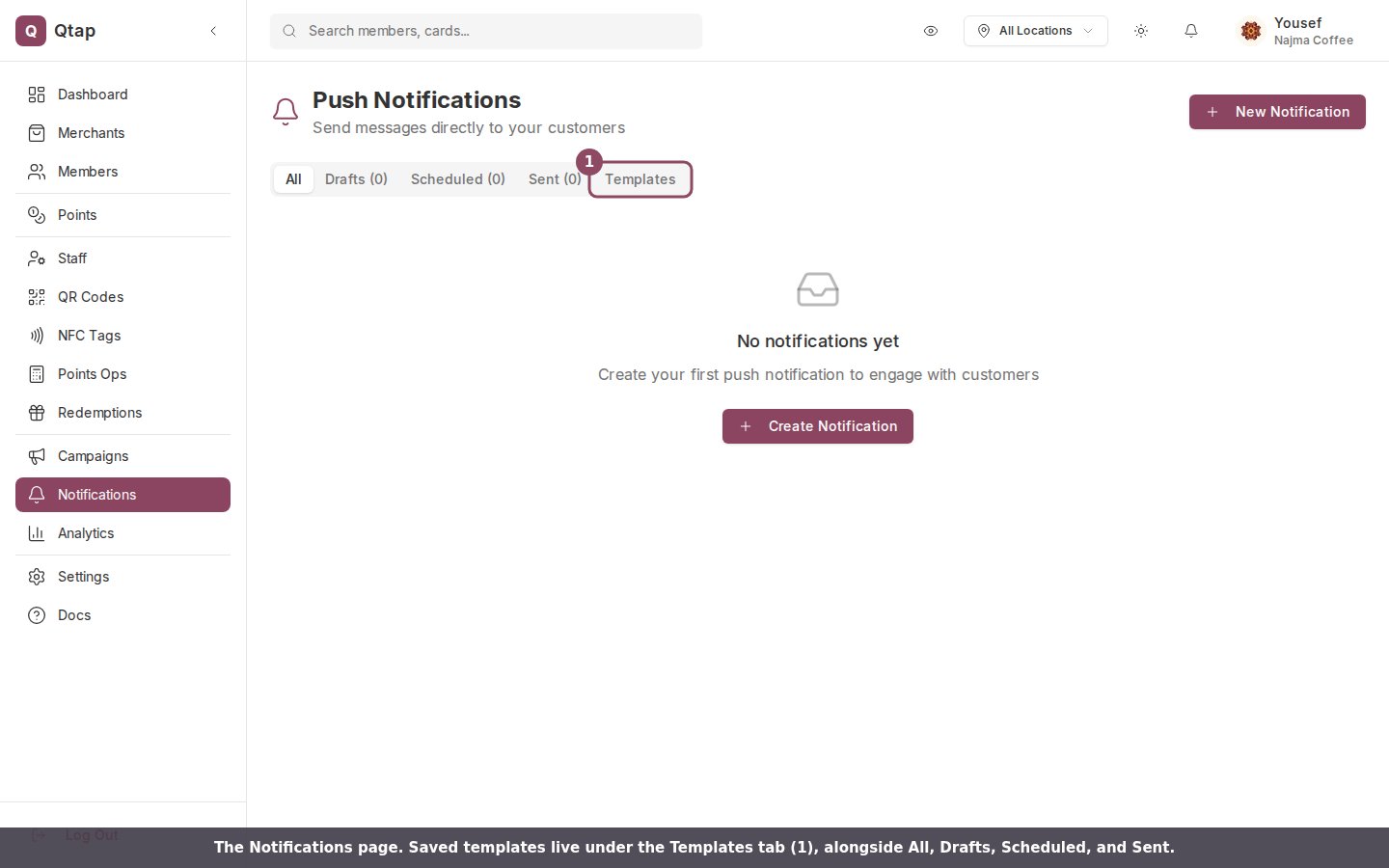
Go to Notifications in the left sidebar. The page has five tabs: All, Drafts, Scheduled, Sent, and Templates. Templates are managed on the last tab.
The Notifications page. Saved templates live under the Templates tab, next to All, Drafts, Scheduled, and Sent.
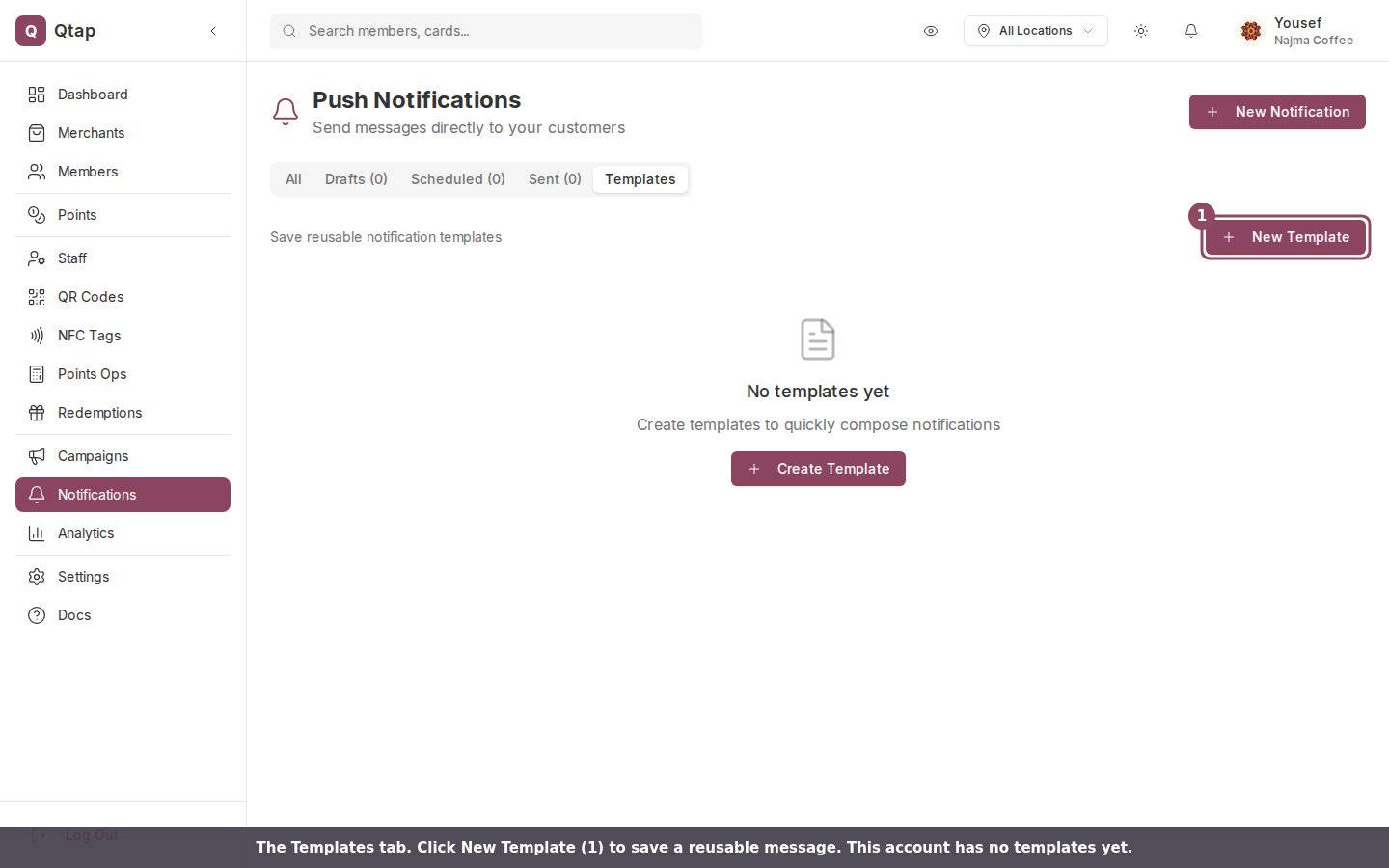
Open the Templates tab. Each saved template shows its name, the notification title, and a preview of the message. If you haven’t saved any yet, you’ll see an empty tab with a New Template button.
The Templates tab. Click New Template to save a reusable message.
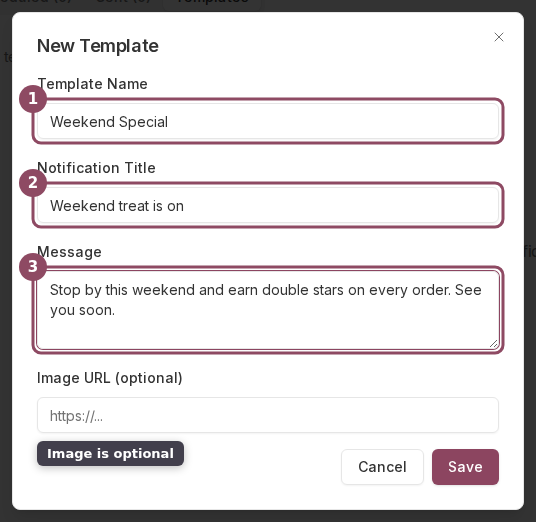
There are three fields you need to complete, and one that’s optional.
The New Template form: a name for your reference, plus the title and message members will see.
Template Name is a label only you and your team see. It does not appear in the notification. Use something you’ll recognize later, like Weekend Special.
Notification Title is the bold first line members read on their phone.
Message is the body text below the title.
Image URL (optional) attaches a picture. Paste a web address and a preview appears below the field. Leave it blank for a text-only message.
3
Save
Click Save. The button stays greyed out until the name, title, and message are all filled in. Your template then appears in the list on the Templates tab.
Each template in the list has two buttons on the right. The pencil reopens the same form so you can change the text, and the trash icon removes the template after a confirmation. Deleting a template cannot be undone.Editing a template changes only the template. Notifications you have already sent or scheduled from it stay exactly as they went out.
Click New Notification, then Use Template at the top of the form to load a saved template into the title and message. You can edit the loaded text before you send, so each template gives you a head start that you adjust for the moment. The Use Template button appears once you have saved at least one template. For the full composing flow, see Push notifications.
Templates are shared across your whole team. Anyone who can open the Notifications page sees the same set.
Owners and managers can open the Notifications page and manage templates. Staff members don’t have access to notifications by default. To change that, see Roles and permissions.
Push notifications
Write, target, and send a one-off message to your members.
Campaigns overview
Set up automated messages that send themselves when a condition is met.