

Opening a card to edit
Go to Cards in the sidebar. Find the card you want to change, open its three-dot menu, and choose Edit. Clicking the card’s name opens the same screen.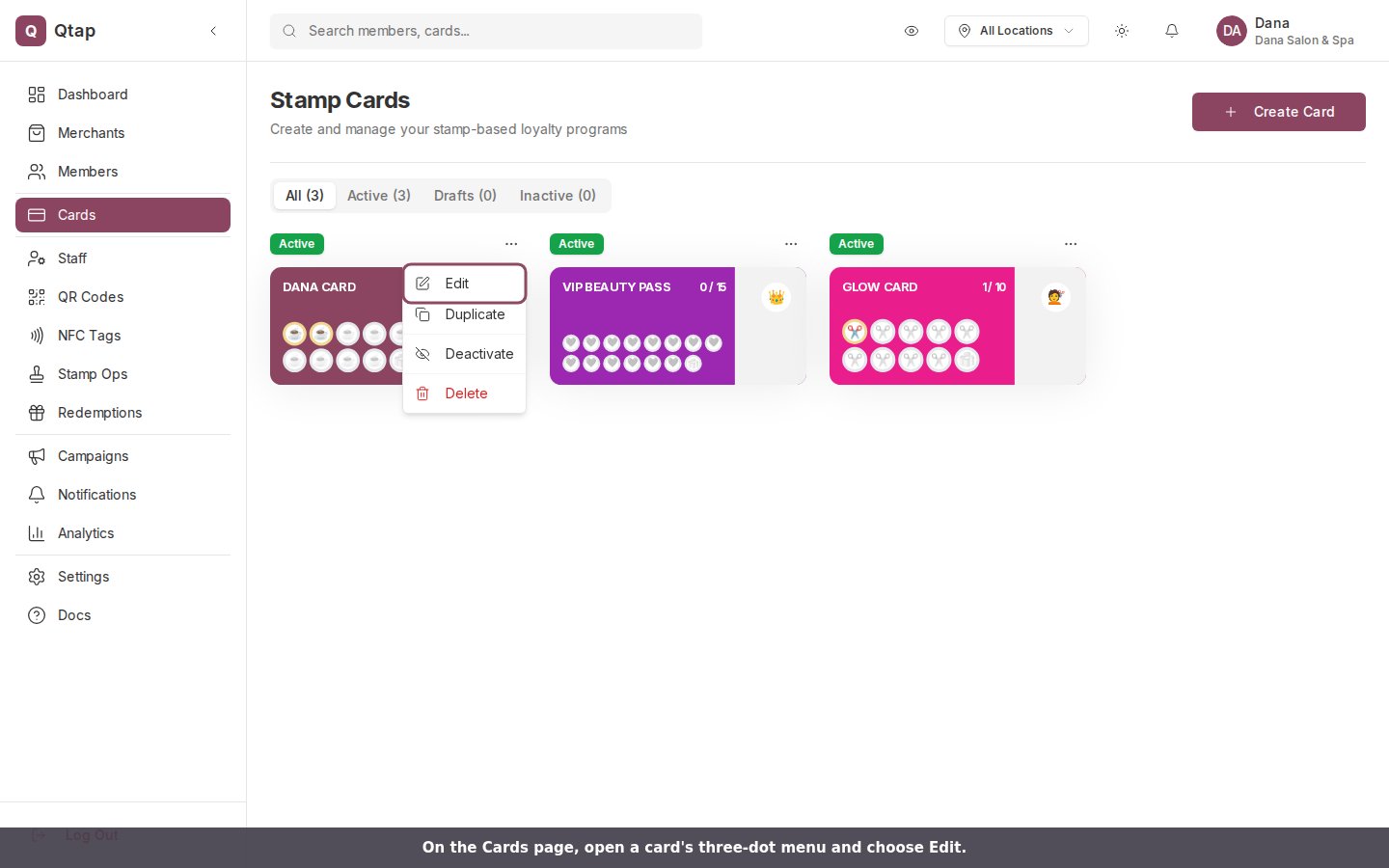
On the Cards page, open a card's three-dot menu and choose Edit.
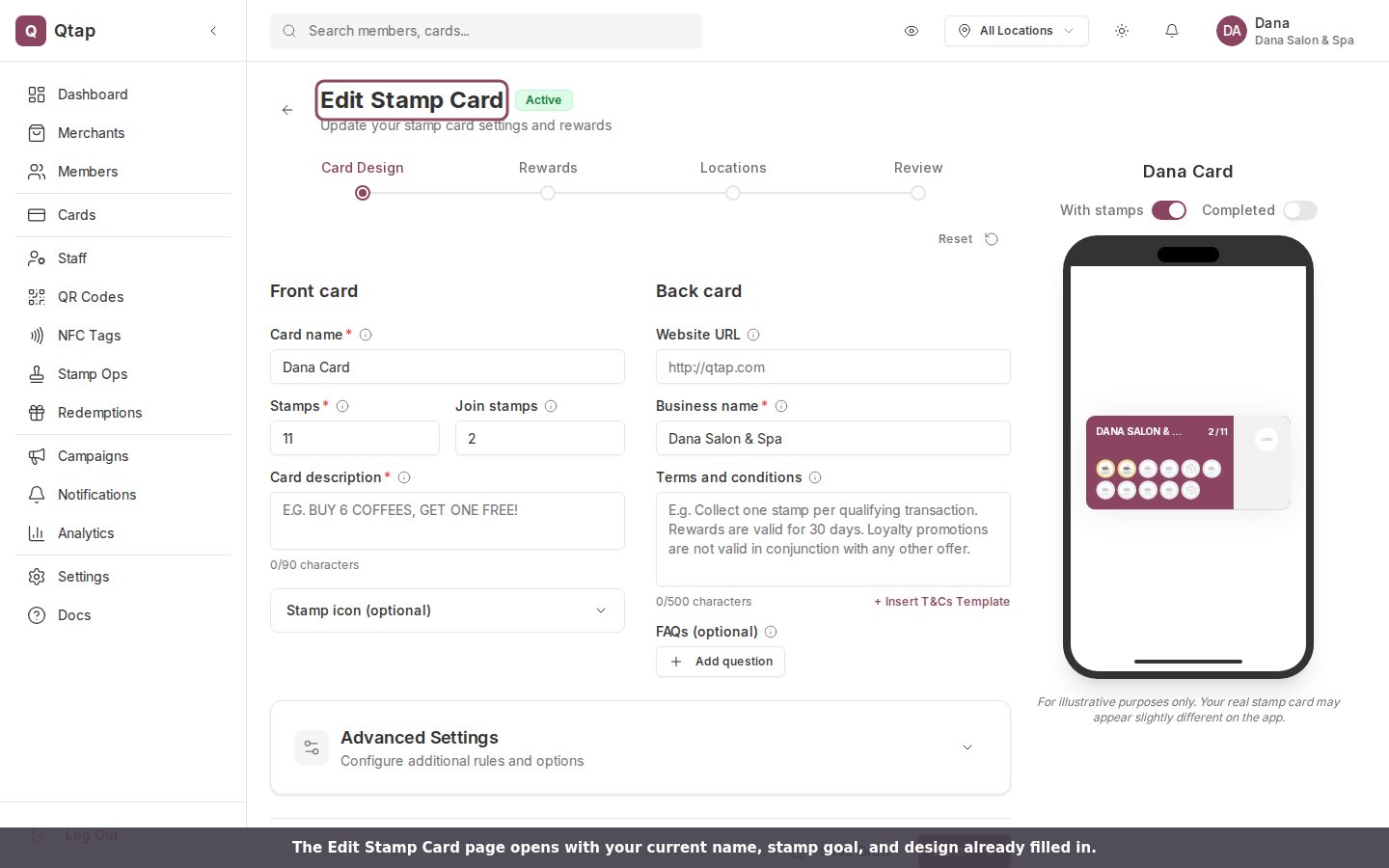
The Edit Stamp Card page opens with your current name, stamp goal, and design already filled in.
What you can change
Everything stays editable after a card goes live. You can rename it, change its colors and stamp icon, move the stamp goal up or down, add or remove rewards, and change which locations it belongs to. Nothing locks once the card is Active.Rewards are rewritten when you save
Each time you save the card, Qtap clears the card’s rewards and re-adds the ones in your list at that moment. The list on the Rewards step is exactly what the card keeps. Remove a reward from the list and save, and it’s gone.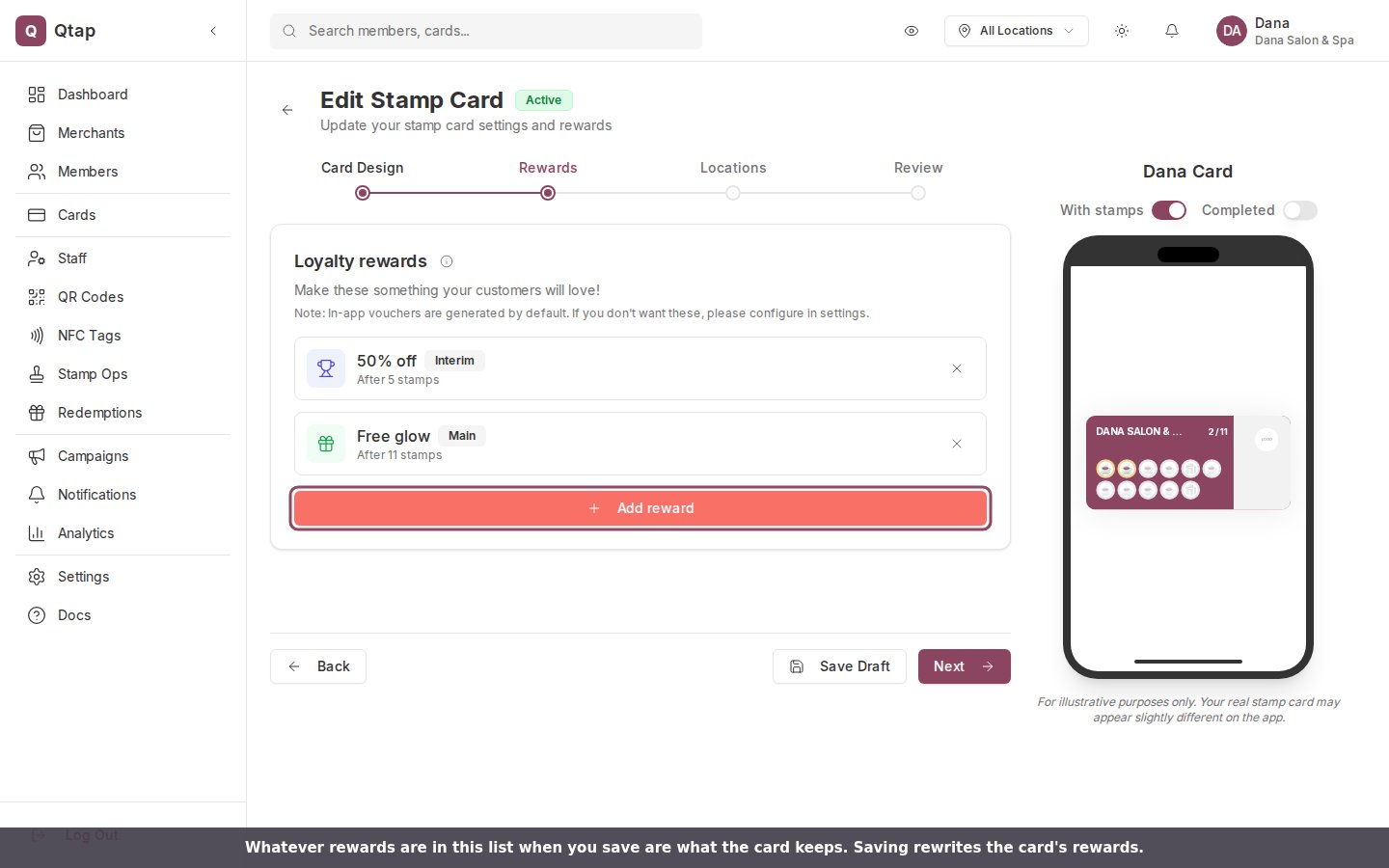
The Rewards step shows the card's current rewards. Whatever is in this list when you save is what the card keeps.
Saving your changes
The Review step has two ways to save:- Publish Card saves the card and keeps it live. Use this to save changes to a card customers are already collecting. Publishing needs a name, a stamp goal, at least one Main reward, and a valid location.
- Save as Draft saves your changes but sets the card back to Draft, which takes it offline.
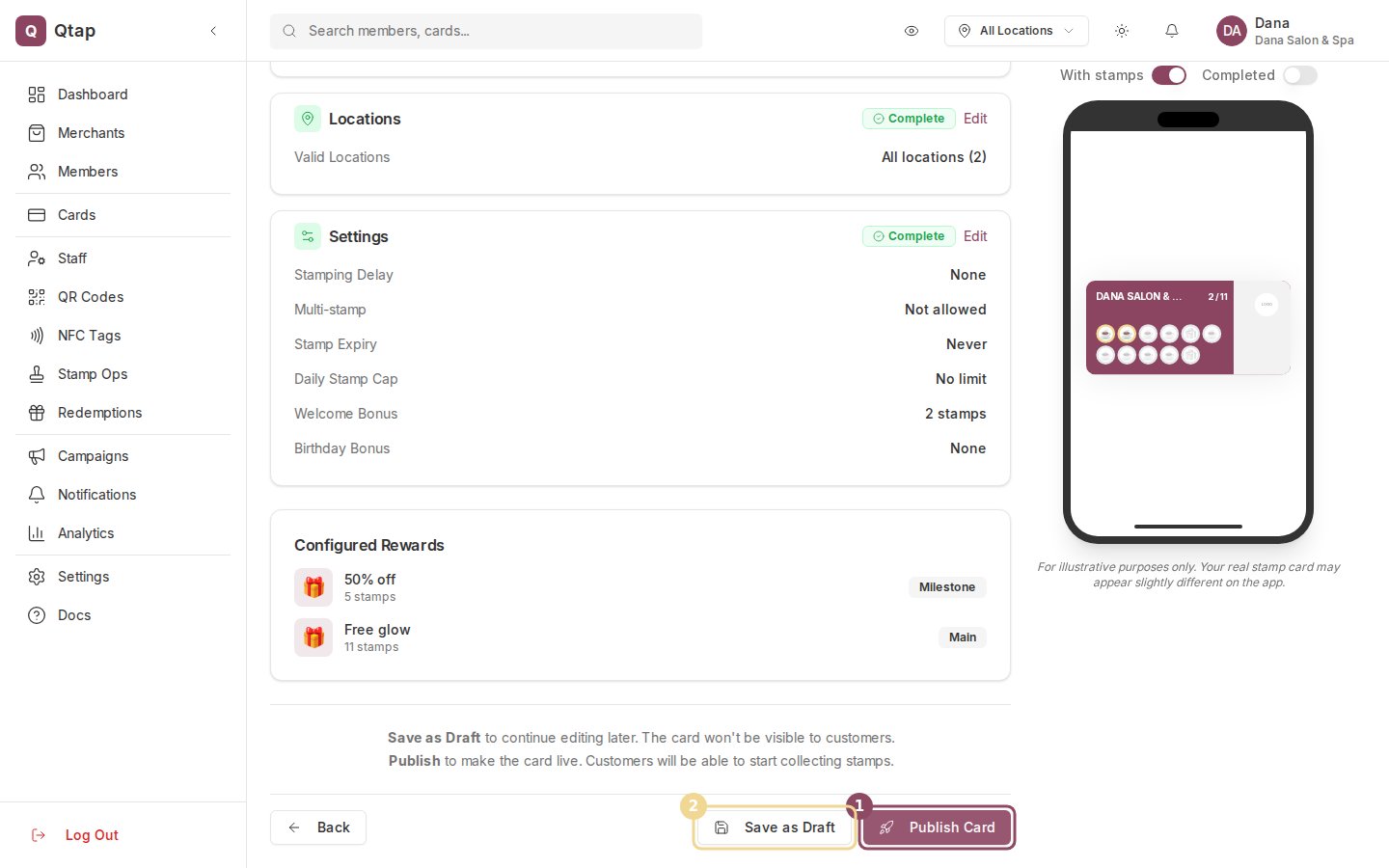
On the Review step, Publish Card (1) keeps the card live, while Save as Draft (2) returns it to draft.
Creating a stamp card
The full walkthrough for building a card from scratch.
Stamp card rewards
How Main, Sign Up, and Interim rewards work.
Advanced settings
Stamping delays, daily caps, and bonus stamps.
Stamp cards overview
Manage your card list, duplicate, and deactivate.