

dashboard.qtap.qa/analytics/reports/points-activity. This report is for points programs. If you run stamp cards only, it stays empty.
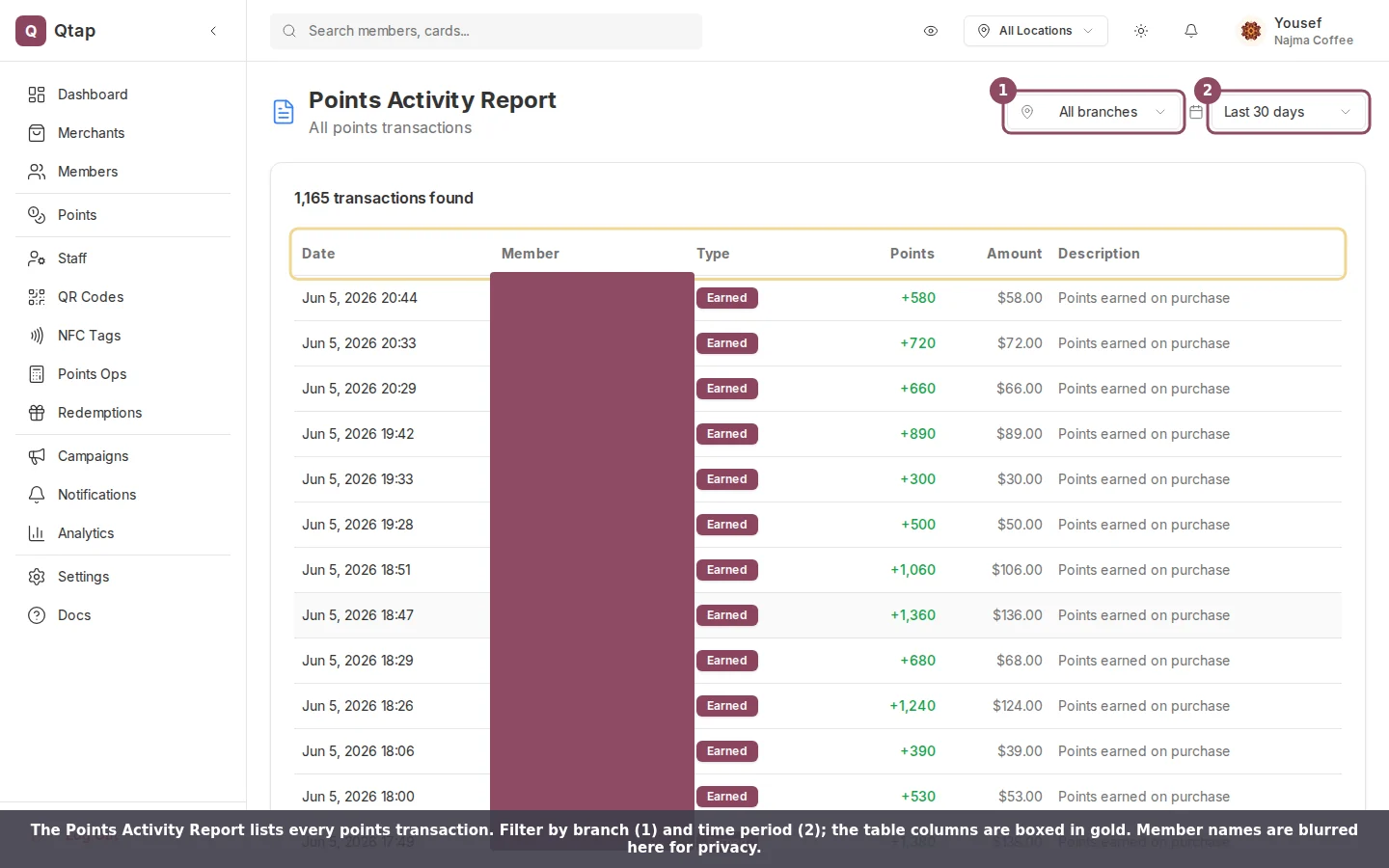
The Points Activity Report. Filter by branch (1) and time period (2); the table columns are boxed in gold.
Filtering the ledger
Two controls sit at the top right. The time period selector covers Today, Last 7 days, Last 30 days, Last 90 days, and This year. It opens on Last 30 days.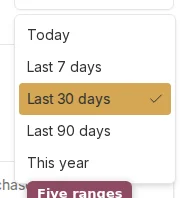
The time period selector: five ranges, opening on Last 30 days.
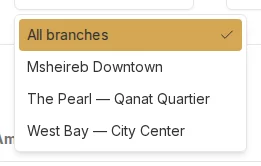
The branch filter, with an All branches option and one entry per location.
Reading a row
Each row has six columns: the date and time, the member’s name, the type, the points, the amount, and a description. The type is one of Earned, Redeemed, Adjusted, or Expired. Earned rows show the points in green with a plus sign. Redeemed, Adjusted, and Expired rows show them in red with a minus sign, so a glance down the Points column tells you what was added and what was taken away.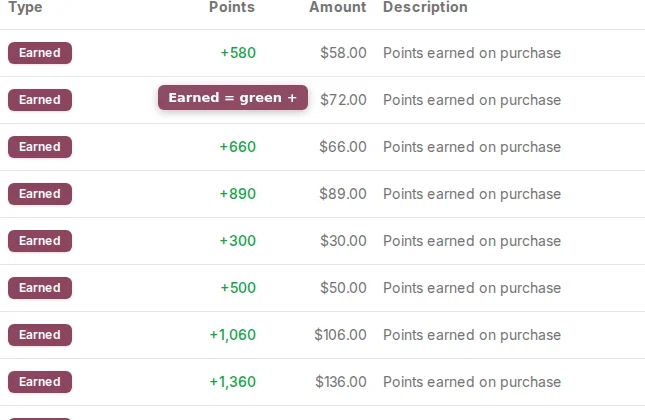
Points earned show in green with a plus; the amount is the purchase total tied to that sale.
Who can see it
Owners and managers can open this report. Staff can’t by default, because analytics access is off for the staff role. To let a staff member in, turn on their analytics access in Roles and permissions.For the headline numbers and charts that sit above this ledger, start on the Analytics Overview.