

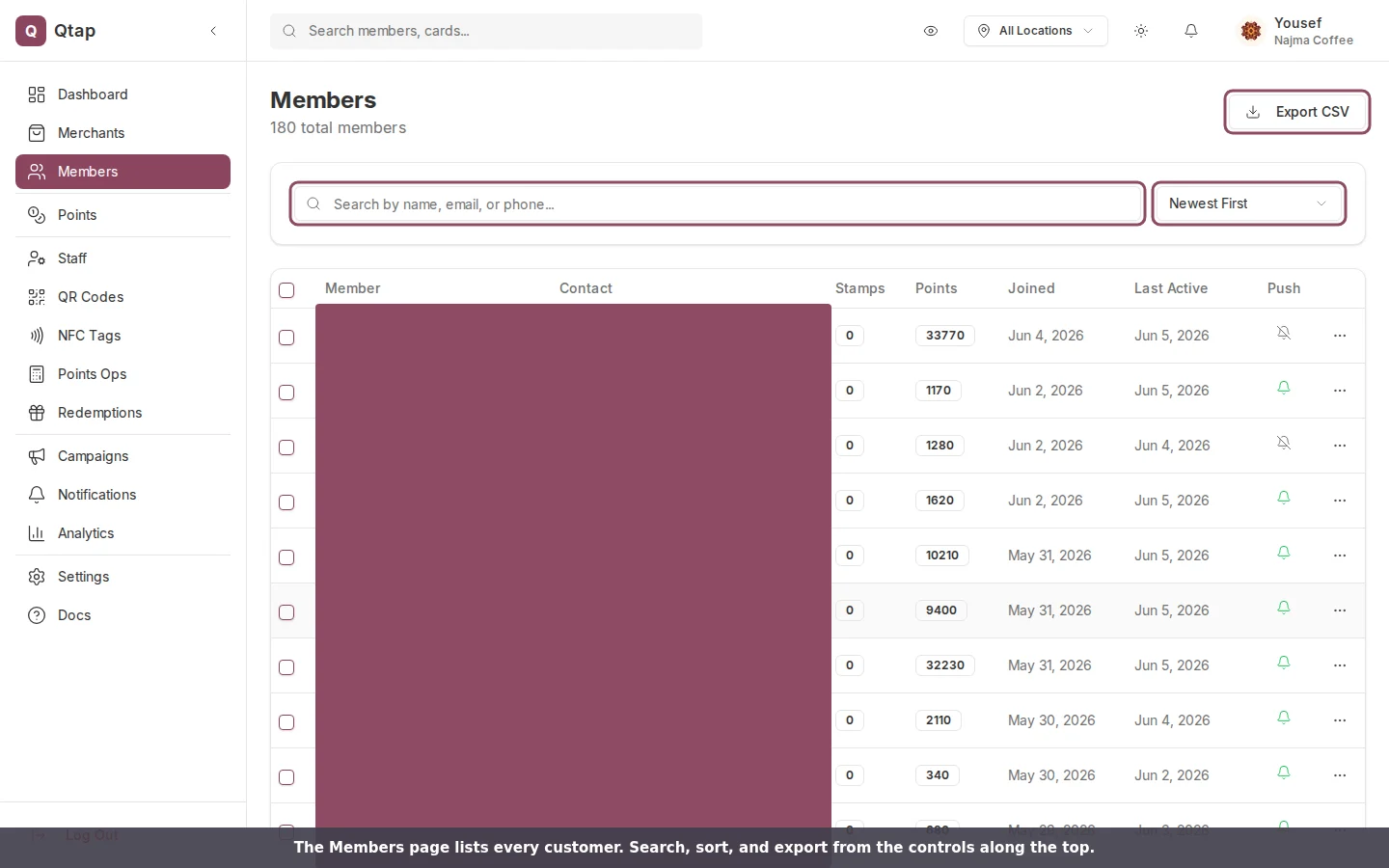
The Members page. Search, sort, and export from the controls along the top. Member names and contact details are covered here for privacy.
The Member List
The list shows up to 50 members per page. Each row shows the member’s name, email, phone number, and when they joined. Use the arrow buttons at the bottom to move between pages. Sorting. The dropdown beside the search box orders the list four ways: Newest First, Recent Activity, Most Stamps, or Highest Points Balance. There is no way to sort by name. Search. Type a name, email, or phone number into the search box to filter the list. The list updates as you type.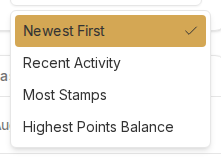
The sort menu. Highest Points Balance sorts on a member's current balance, not on what they have earned over their lifetime.
Member Actions
Click the three-dot menu at the end of any member row to see actions:- View Profile opens the member’s profile page with their full history.
- Send Notification starts a push message addressed to that one member. When the member has not turned push on in the app, this item reads Push not enabled and cannot be clicked.
- Add Tag does nothing yet. See the note below.
- Delete Member takes the member off your program.
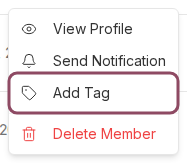
The per-member menu. Add Tag, outlined here, is the one item with no effect.
Bulk Actions
Check the boxes on the left side of the member list to select several members. A toolbar appears above the table carrying Export Selected, Send Notification, Tags, and Delete. Export Selected and Send Notification are hidden from a team member on the Staff role, and Delete shows only for someone allowed to remove members. To select every member on the current page, check the box in the table header.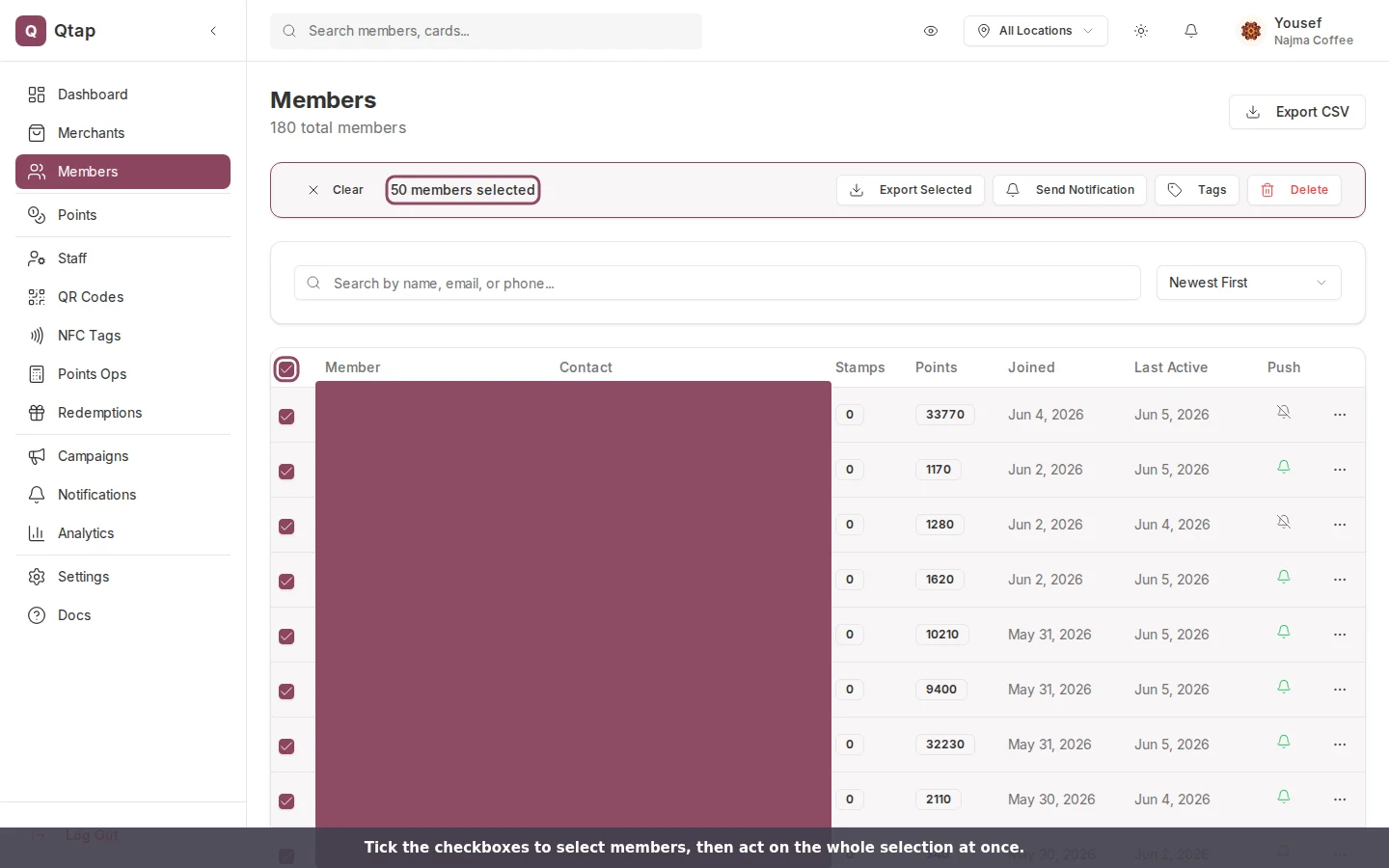
With members selected, a bar appears with actions that apply to the whole selection.
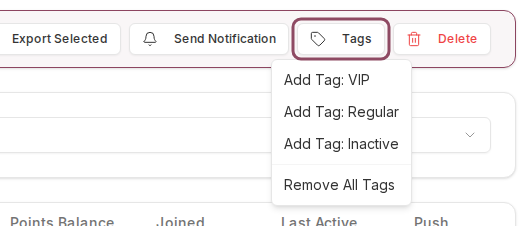
The Tags button opens a menu of four options. None of them saves anything.
Member Profiles
Open a profile from View Profile in the row menu. The member’s name is plain text, so clicking it does nothing. The profile shows:- Contact details (email, phone, birthday)
- Current stamp and points balances across all your programs
- Transaction history — every stamp, redemption, and points adjustment, with the staff member and location for each
- Notes — a text field only visible to you and your staff
Members control their own accounts through the Qtap app. You cannot change a member’s email address from the dashboard.
Downloading Member Data
Click Export CSV at the top of the Members page to download your whole member list as a spreadsheet. The file carries names, contact details, join date, balances, and visit counts. Exporting and deleting members lists every column and covers the selected-rows export.Member Profiles
Detailed look at what’s on a member profile and how to use it
Member Redemptions
How to view and confirm reward redemptions
Campaigns
Send automated messages to specific groups of members