

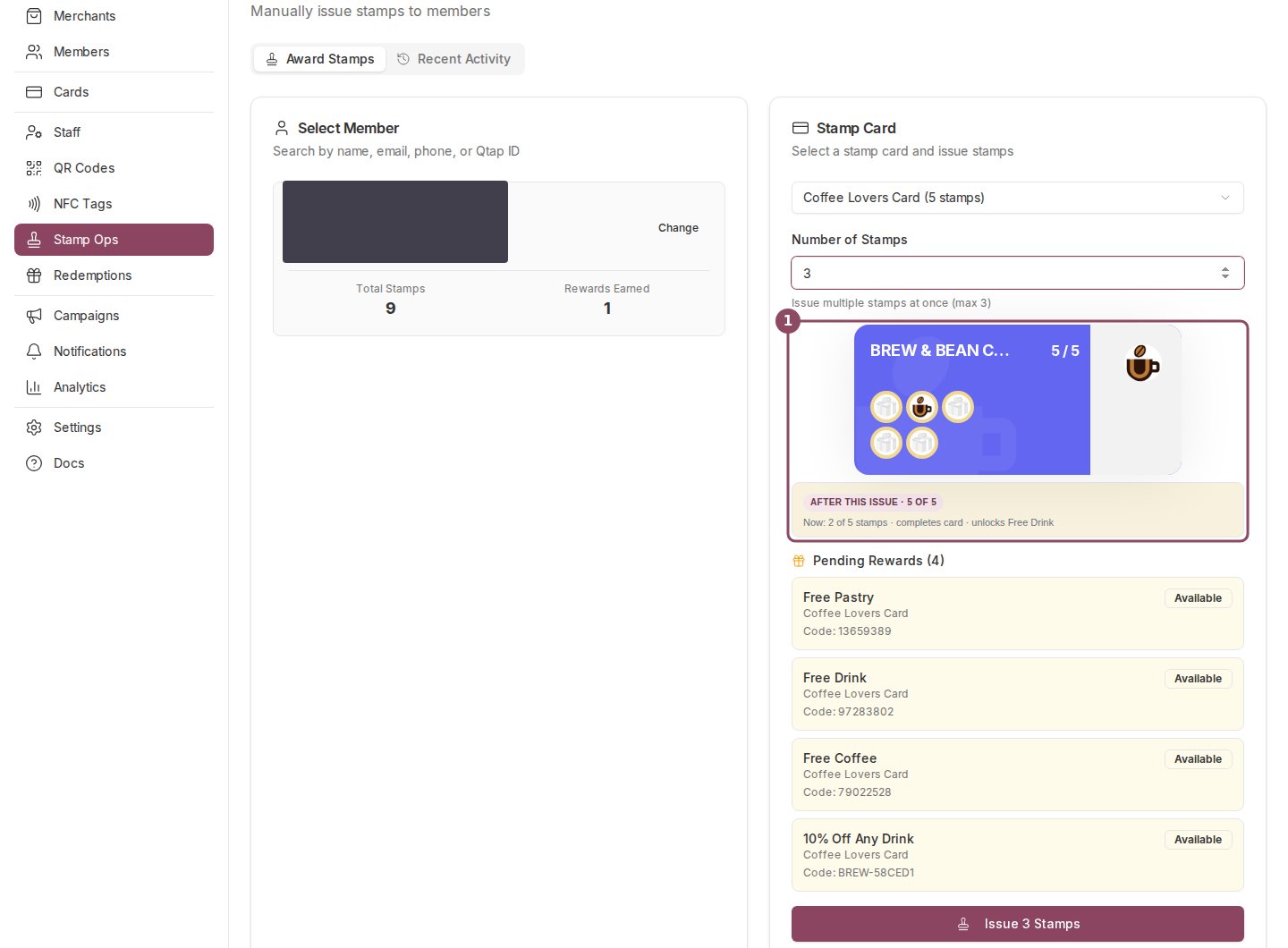
On Stamp Operations, the card preview (1) sits under the stamp card selector, above the customer's banked rewards.
What the card shows
The card is the same one your customer sees, not a generic template. It carries your business name, your card colour, your stamp icon and your logo watermark, and it fills in the customer’s own progress. On a stamp card you get the grid of stamps and the count in the corner. On a points program you get the balance, your earn rate, and a progress bar.On Stamp Operations, it shows the future
This is the one place the card does not show the current state. Once you set a quantity, the card jumps to what the customer will have after you confirm, and a small tag above the summary line spells it out:AFTER THIS ISSUE · 5 OF 5.
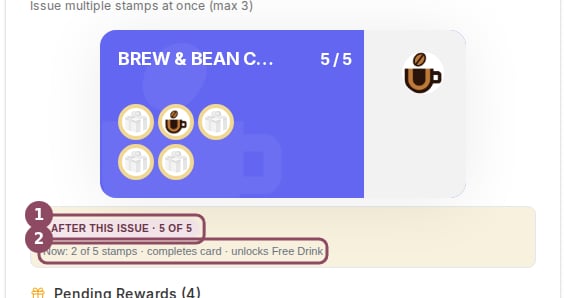
The projection tag (1) and the summary line (2). The card behind them already shows 5 of 5, which is what this customer gets when you confirm.
Now: 2 of 5 stamps · completes card · unlocks Free Drink. It names an interim reward only when the stamps you are adding cross that reward’s threshold, and it says “completes card” only when the card was unfinished and this issue finishes it. Nothing has been saved at this point, so if the line is not what you expected, change the quantity or the card.
On Points Operations
The points version reads the customer’s balance instead. It gives the balance, the next reward they can reach with how far they still have to go, and the largest reward in the program.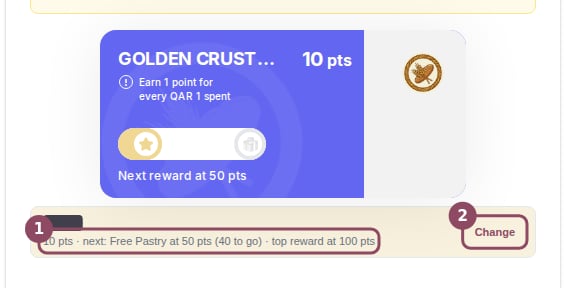
The summary line (1) on Points Operations, and the Change button (2) that clears the customer and returns you to the search box.
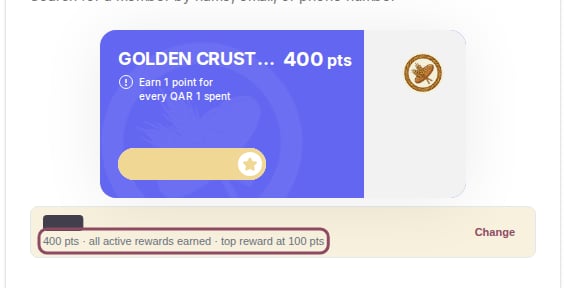
A customer holding 400 points in a program whose largest reward costs 100. There is no next target left, so the line says so.
On the Redemptions page
Look up a customer to redeem something and the same card appears above their vouchers, with the current state this time. A stamp customer gets2 of 5 stamps · next: Free Drink at 3 · card completes at 5. It is a quick way to confirm you pulled up the right person before you hand anything over.
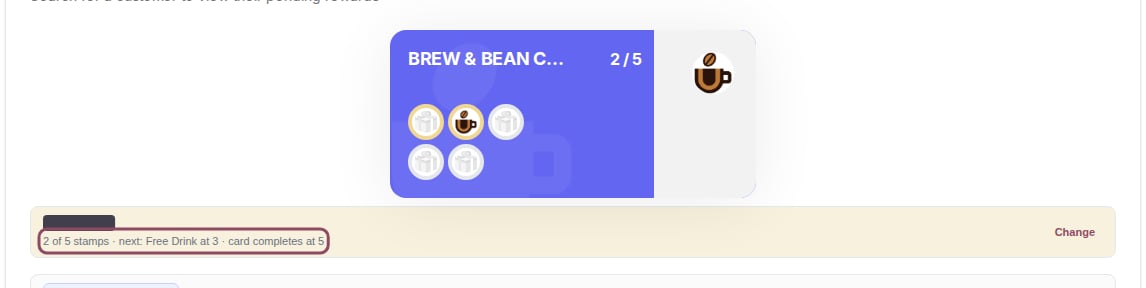
The card preview on the Redemptions page, above the customer's vouchers.
Rewards they already hold
The summary line is about progress. What the customer has already earned and can claim today sits in its own list under the card on Stamp Operations, with the reward name, the card it came from, its code, and whether it is available.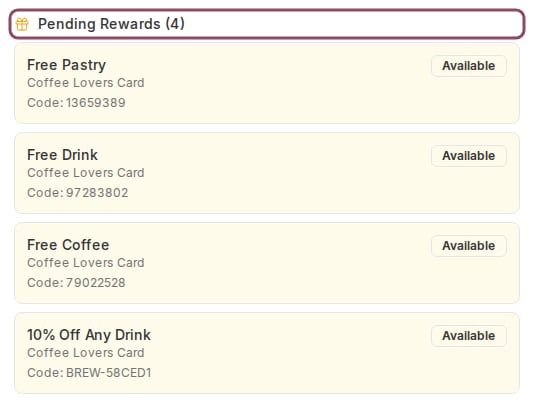
Pending Rewards lists what this customer has already banked, each with the code staff can redeem it against.
At the till on a phone
The card and its summary follow you onto a phone screen, so a member of staff working from a handset sees the same check. The line wraps onto two rows and everything else stays put.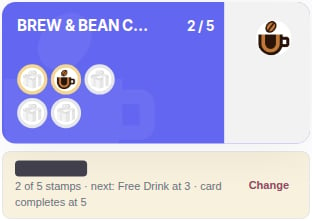
The same preview on a phone. Nothing is dropped from the small-screen version.