

dashboard.qtap.qa/analytics/reports/staff-performance, or open the hub and click the Staff Performance card.
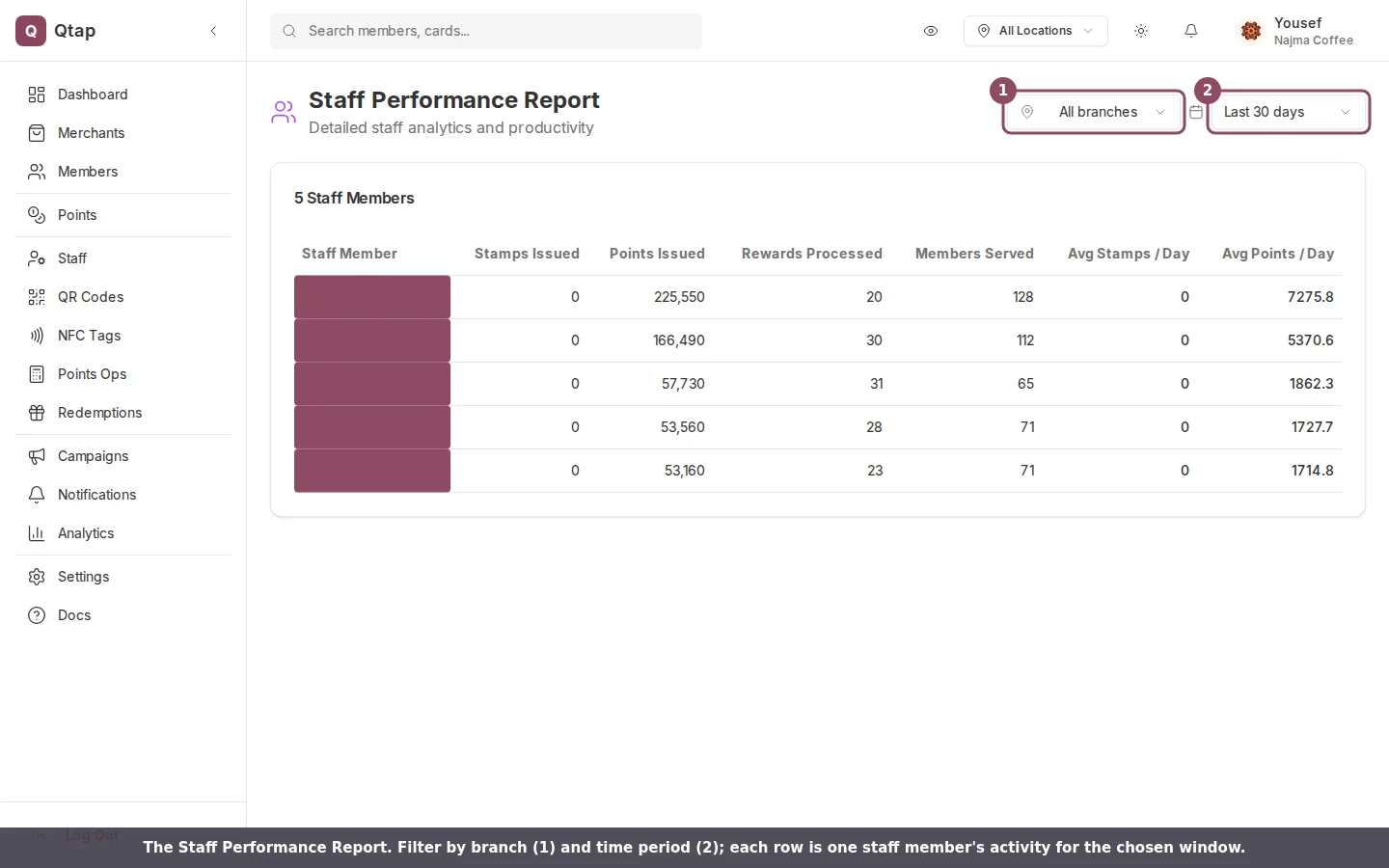
The Staff Performance Report. Filter by branch and time period at the top right; each row is one team member.
What each column means
Every figure comes from your transaction ledger, counting only the actions that were recorded against a staff member for the period you selected.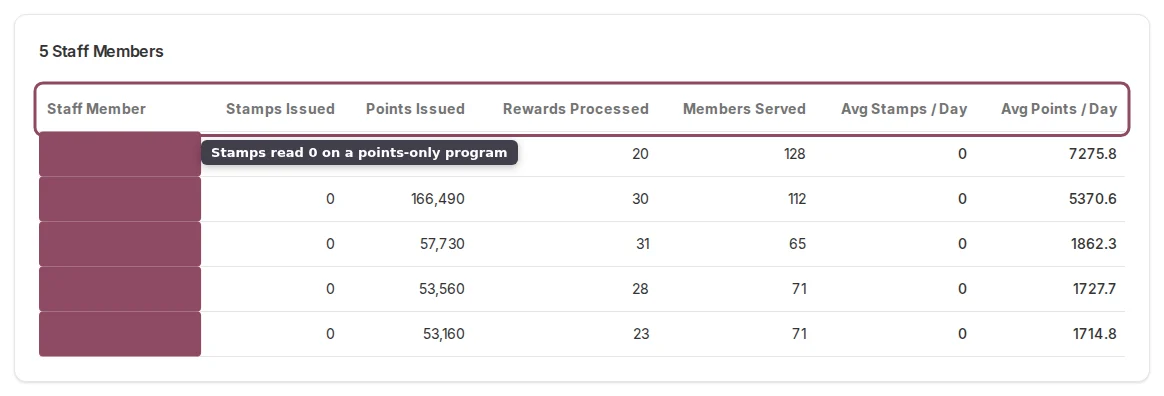
The report table. Each column counts one kind of counter activity for the chosen period.
- Stamps Issued is the total number of stamps that staff member added.
- Points Issued is the total number of points they awarded.
- Rewards Processed is how many redemptions they handled.
- Members Served is how many different members they interacted with. A member who came in five times still counts once.
- Avg Stamps / Day and Avg Points / Day divide the totals above by the number of days in the period, so a 7-day window and a 90-day window stay comparable.
Only actions tagged with a staff member are counted. A stamp added by a customer scanning their own QR code has no staff behind it, so it won’t appear here.
Filter by branch and period
The time period selector covers Today, Last 7 days, Last 30 days, Last 90 days, and This year. It opens on Last 30 days. Change it and the table reloads for the new window.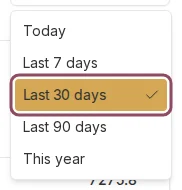
The time period selector. The report opens on the last 30 days.
Open one staff member
Click any row to open that person’s own page. It leads with their headline numbers, each marked with how it changed against the period before, followed by an activity-over-time chart. Multi-branch businesses also get a per-branch breakdown and a recent-activity list.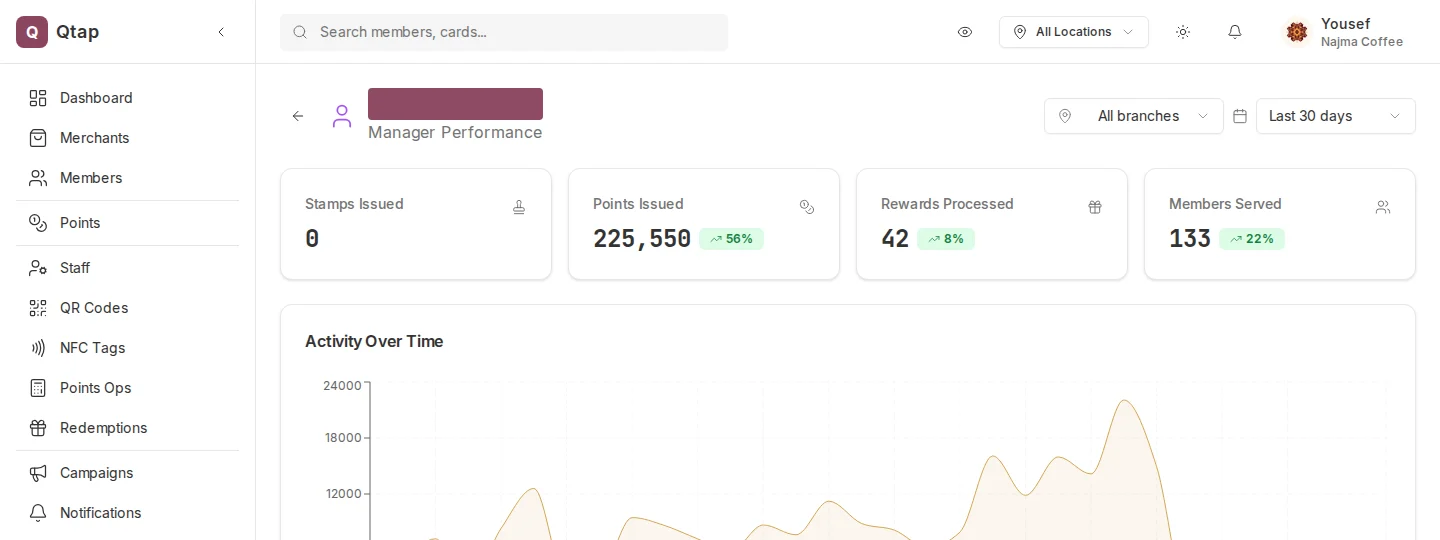
A staff member's drill-down: headline metrics with their change versus the previous period, then activity over time.
Who can see it
Owners and managers can open the report. Staff can’t by default, because analytics access is off for the staff role. To let a team member in, turn on their analytics permission (see Roles and permissions).Detailed Reports
The hub that opens this report and three others.
Staff Activity Log
A line-by-line log of what each staff member did and when.