


Issue a stamp
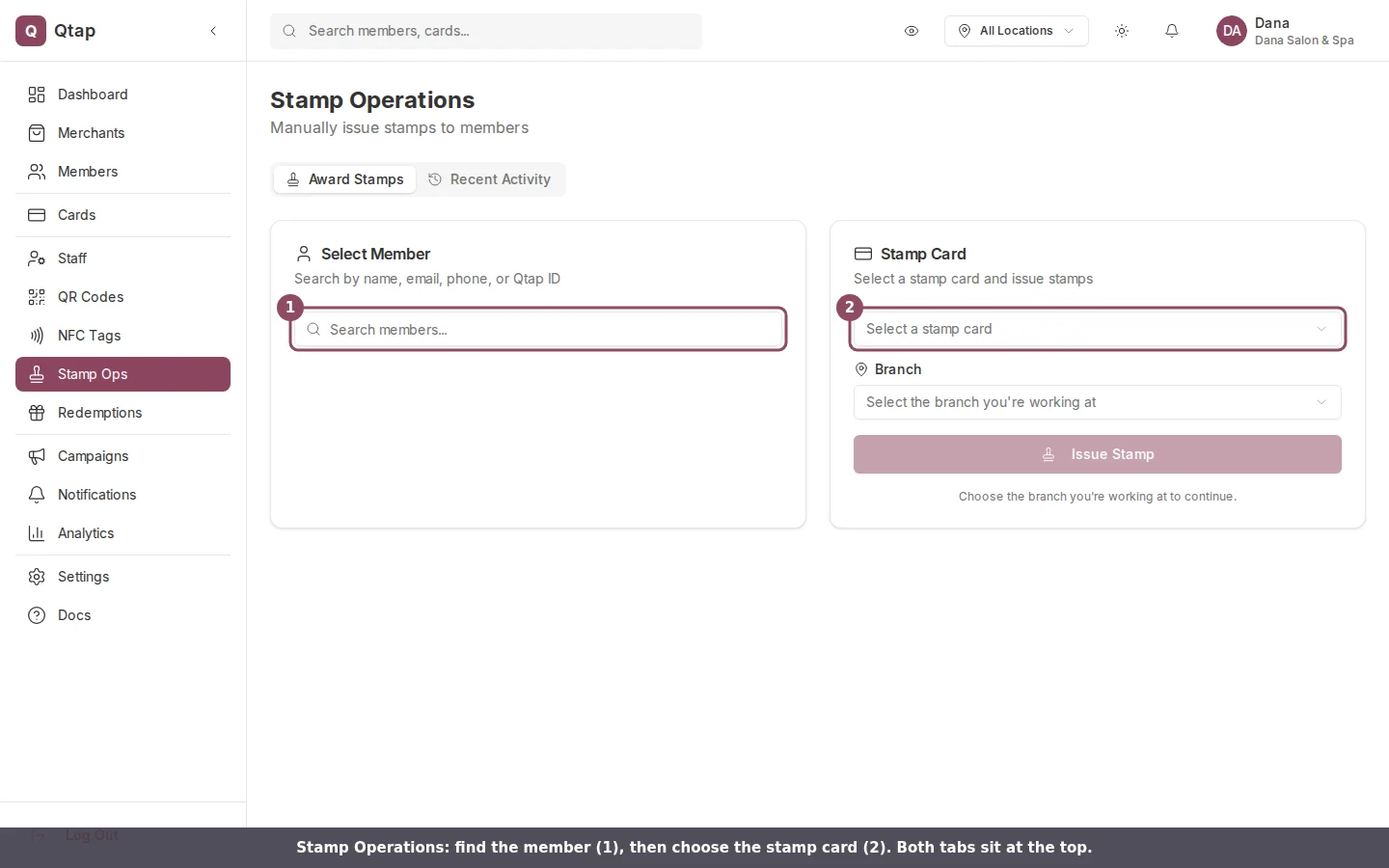
The Award Stamps tab: search for a member (1), then pick the stamp card (2).
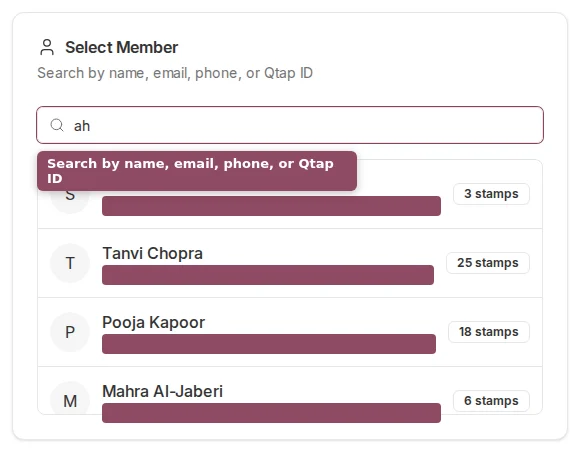
Type at least two characters. Each result shows the member's name and how many stamps they have.
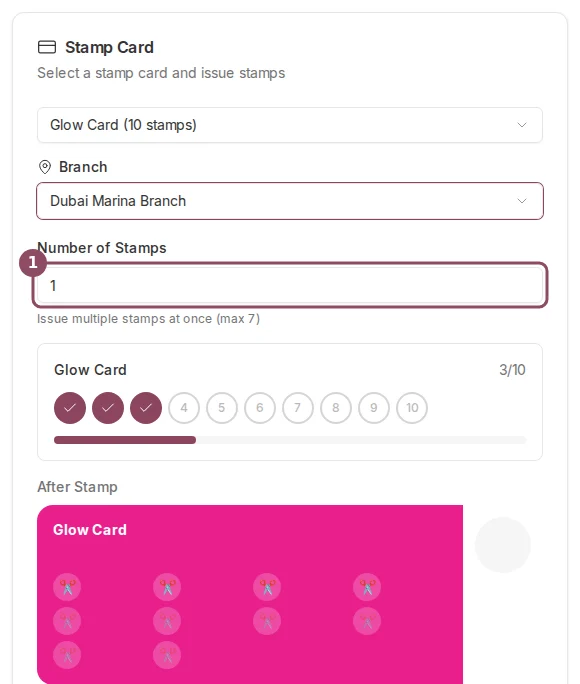
Once a member and card are set, the preview shows the new total and the number of stamps you can add.
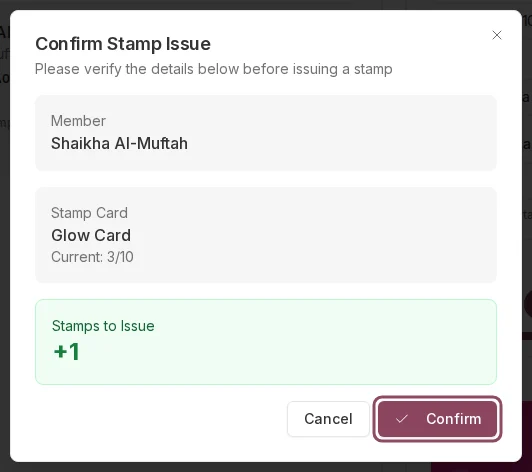
A confirmation step lists the member, card, and stamp count before anything is saved.
When the quantity you enter would complete the card, a “Card Complete!” indicator appears before you confirm. The reward is issued automatically when you click through.
Member not enrolled in the card
If you select a member who is not yet enrolled in the chosen stamp card, an amber notice appears next to the card selector. Confirming the stamp auto-enrolls them in the card first, then issues the stamp — both happen in one step, so you don’t need to ask the customer to enroll in the app separately.Recent stamp transactions
The bottom of the Stamp Operations page shows the last 20 stamp transactions. Each row shows the member name, stamps issued, card name, and timestamp. Use this to confirm a recent stamp went through or to check that the correct member was selected.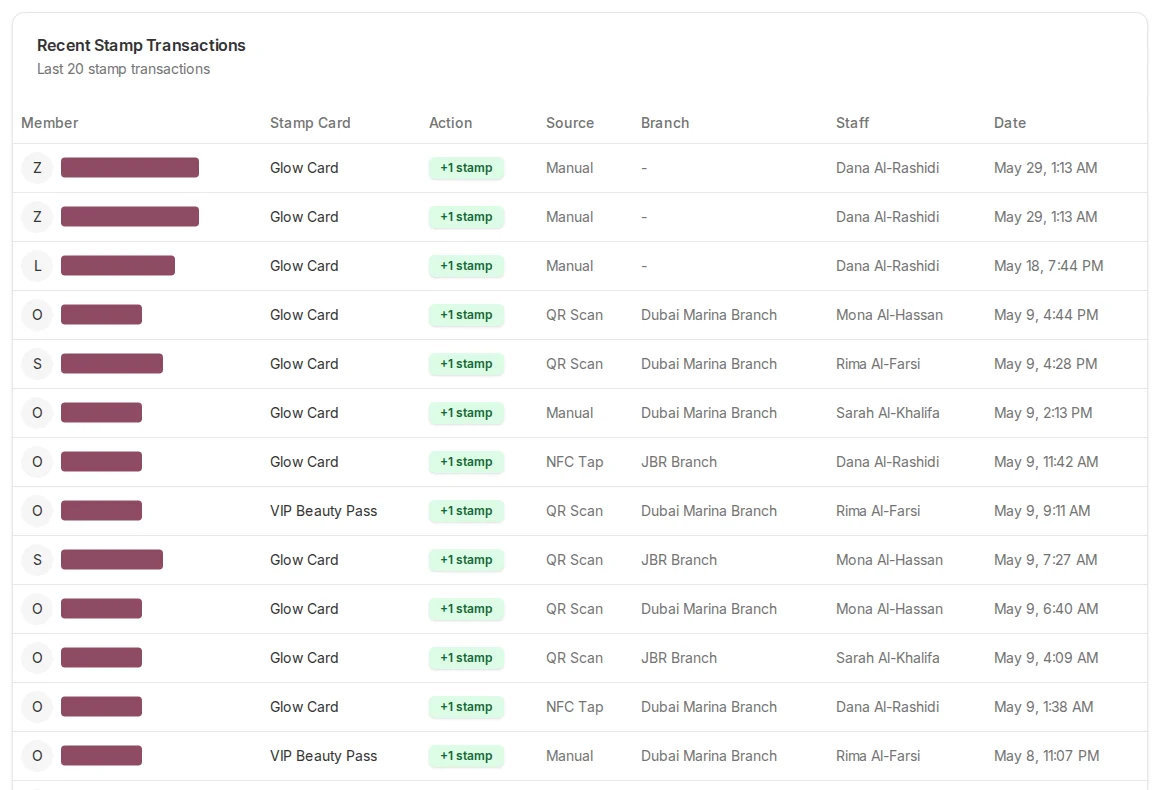
The Recent Activity tab lists the latest stamp transactions with the card, source, branch, and staff member.
Stamp Card Overview
How stamp cards work and what members see in the app.
Creating a Stamp Card
Set up a new stamp card with rewards and locations.