

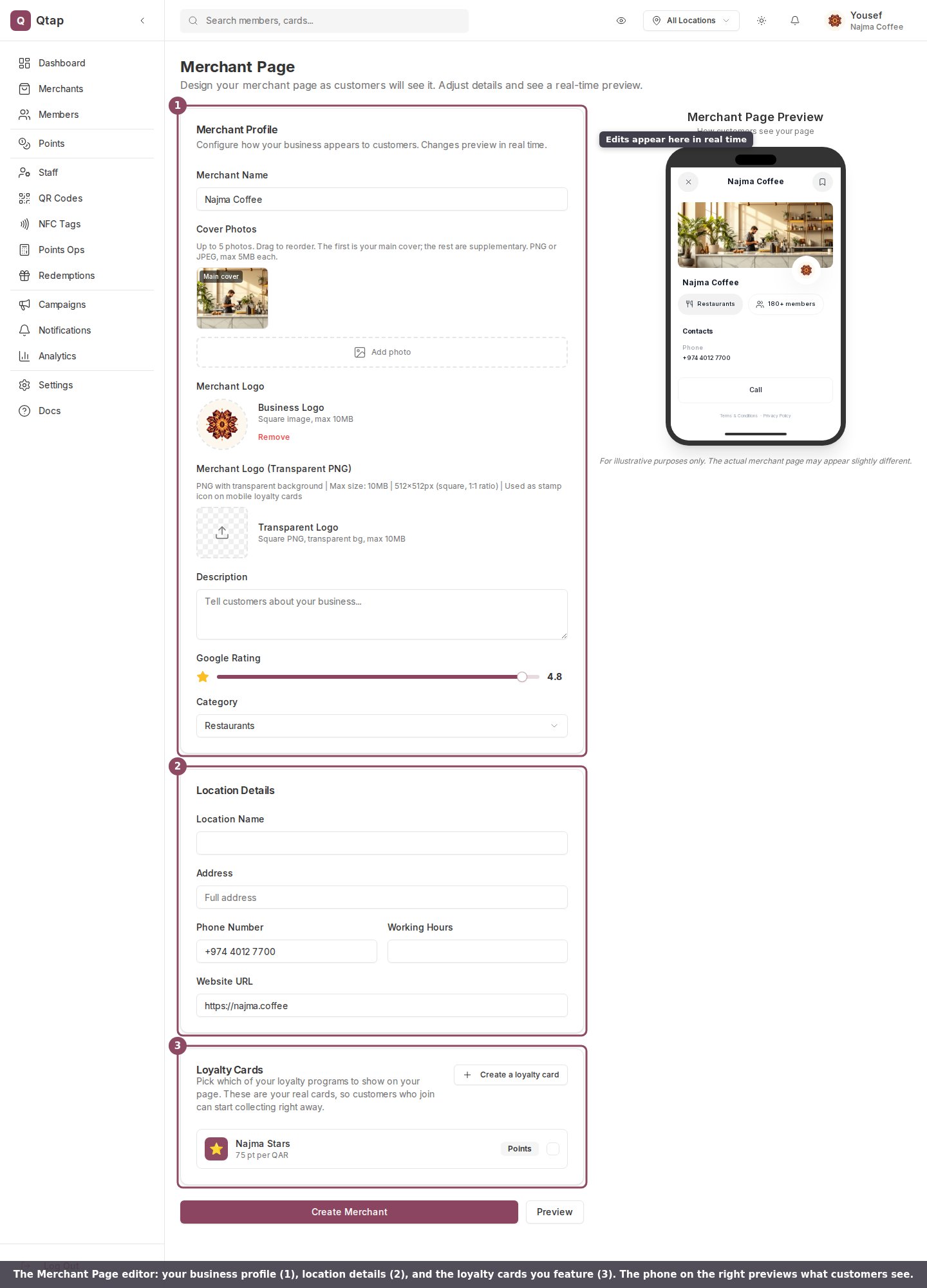
The Merchant Page editor. Fill in your profile (1), location details (2), and featured loyalty cards (3), with a live preview on the right.
Open the editor
1
Go to Merchants
Click Merchants in the left sidebar. This is your business overview.
2
Open the page designer
Click Create Merchant to build a page for the first time, or Edit Merchant if you already have one. Either opens the editor.
Owners and managers can use the editor. The Merchants page above is owner-only though, so a manager opens the editor by going to
dashboard.qtap.qa/merchant-page directly in the browser; no sidebar link points there. Staff see an access-denied screen, even with other dashboard permissions.Your business profile
The Merchant Profile section sets how your business appears at the top of the page.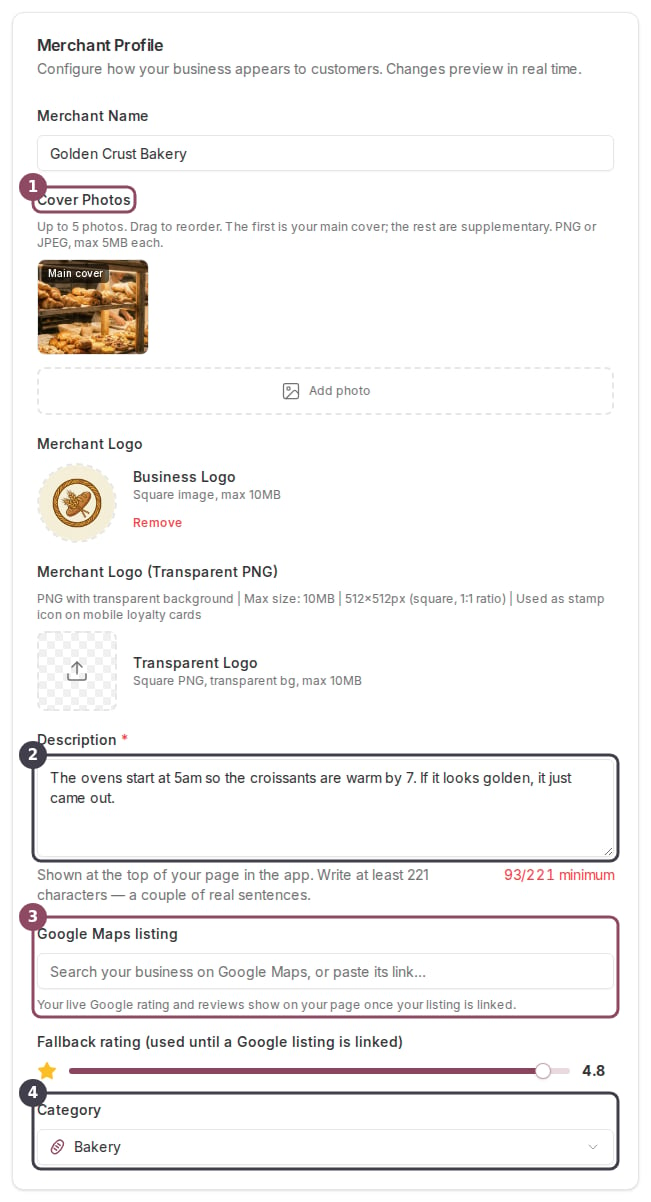
The Merchant Profile section: cover photos (1), description (2), your Google Maps listing (3), and category (4), plus your name and logos.
- Merchant Name is your business name as customers read it.
- Cover Photos: add up to five, in PNG or JPEG, each under 5MB. Drag to reorder. The first one is your main cover and the rest are supplementary.
- Merchant Logo: a square image, PNG or JPEG, up to 10MB.
- Merchant Logo (Transparent PNG): a square transparent PNG at 512 by 512 pixels, up to 10MB. Qtap uses it as the stamp icon on mobile loyalty cards.
- Description runs at the top of your page in the app and has to be 221 to 350 characters, so write a couple of real sentences. The counter under the box stays red until you reach the minimum, and saving is blocked while it does.
- Google Maps listing links your page to your listing on Google so your real rating and reviews show. A Fallback rating slider appears in its place while nothing is linked. See Rating and hours.
- Category is one of eighteen, from Cafe and Bakery through Retail, Fitness & Wellness, and Other. The one you pick sets the label and the icon on your page.
Location details
The Location Details section holds the practical information customers need to find and reach you: Location Name, Address, Phone Number, Working Hours, and Website URL. Working Hours is a day-by-day table of opening and closing times that drives the live Open or Closed badge on your page, and it saves against one of your branches. Rating and hours covers how it works and which branch it edits.The loyalty cards you feature
The Loyalty Cards section picks which of your published programs show on the page. These are your real cards, so a customer who joins from the page starts collecting straight away.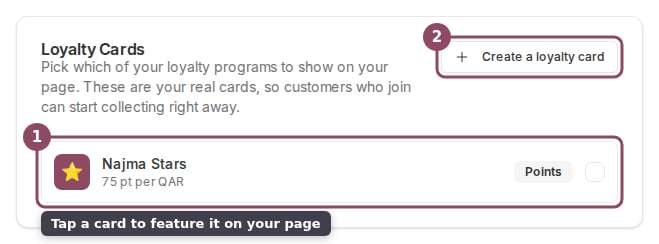
Featuring a loyalty card. Tap a card to feature it (1), or add a new one (2).
Save, preview, and reset
The buttons at the bottom act on the whole page.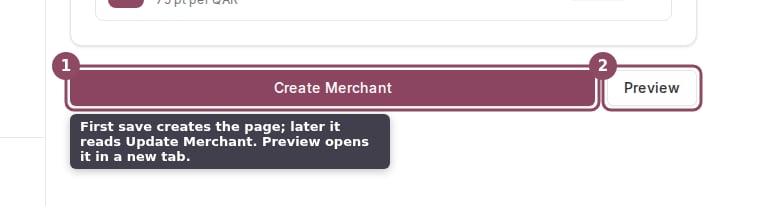
The page actions. Create or update the page (1), or open a live preview in a new tab (2).
- Create Merchant saves your page for the first time. After that the same button reads Update Merchant and saves your changes.
- Preview opens your page in a new browser tab, exactly as customers see it, using your current edits. You do not have to save first, so it is a safe way to check the page before you publish.
- Delete appears once you have a page. It resets the page back to empty by clearing the cover photo, logo, and merchant page settings.
Merchant Page settings
Update the business name, logo, hours, and contact details Qtap stores.
Create a stamp card
Build a loyalty card you can feature on your page.