

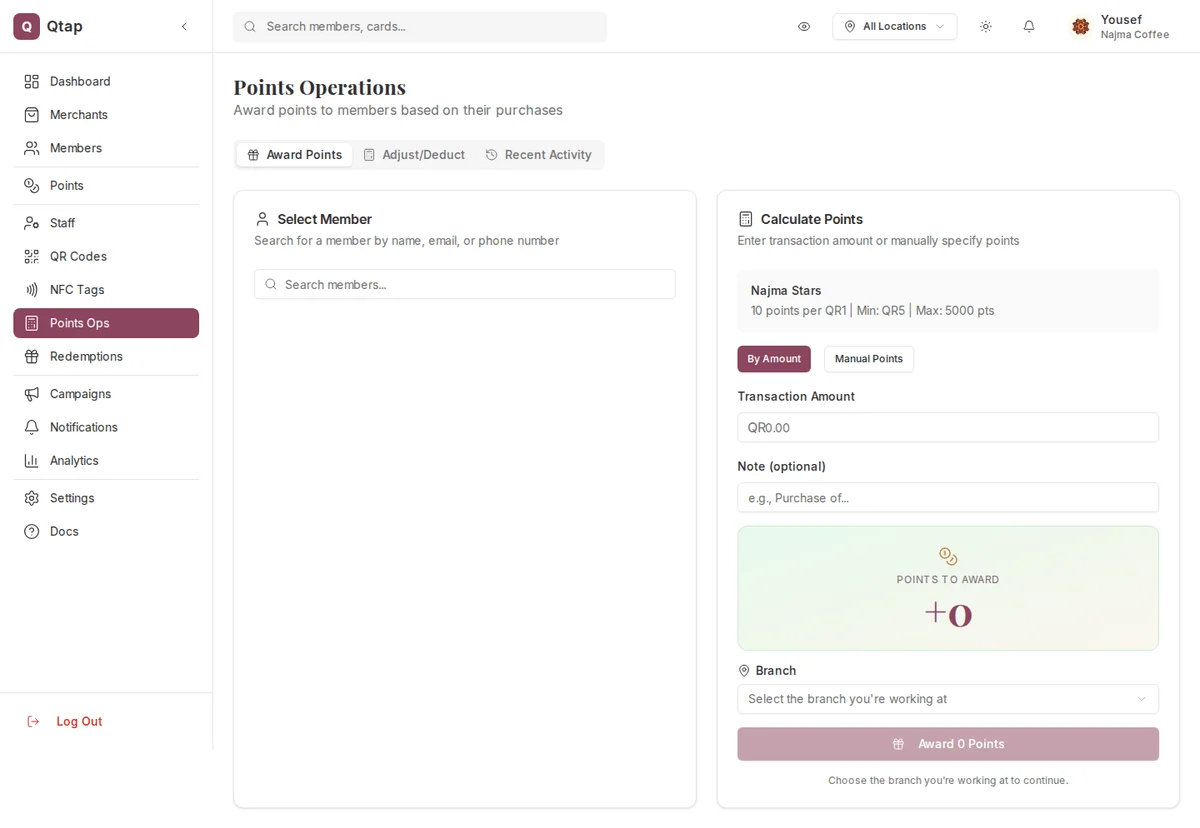
The Award Points tab, with member search on the left and the points calculator on the right.
Award points for a purchase
On the Award Points tab, the left card is where you find the member and the right card works out how many points to give. Points land on the member’s balance right away, and a confirmation shows the amount awarded.Your program can set a minimum transaction and a cap per award. The program card shows these, for example “Min: QR5 | Max: 5000 pts”. A purchase below the minimum earns 0 points, and a single award will not go above the cap. The preview reflects both before you confirm.
Give an exact number of points
If you want to hand out a set number of points rather than calculate from a purchase amount, switch from By Amount to Manual Points and type the points directly.Adjust or deduct a balance
Use the Adjust/Deduct tab to add or remove points outside a normal purchase, such as fixing a mistake or honoring a one-off exception.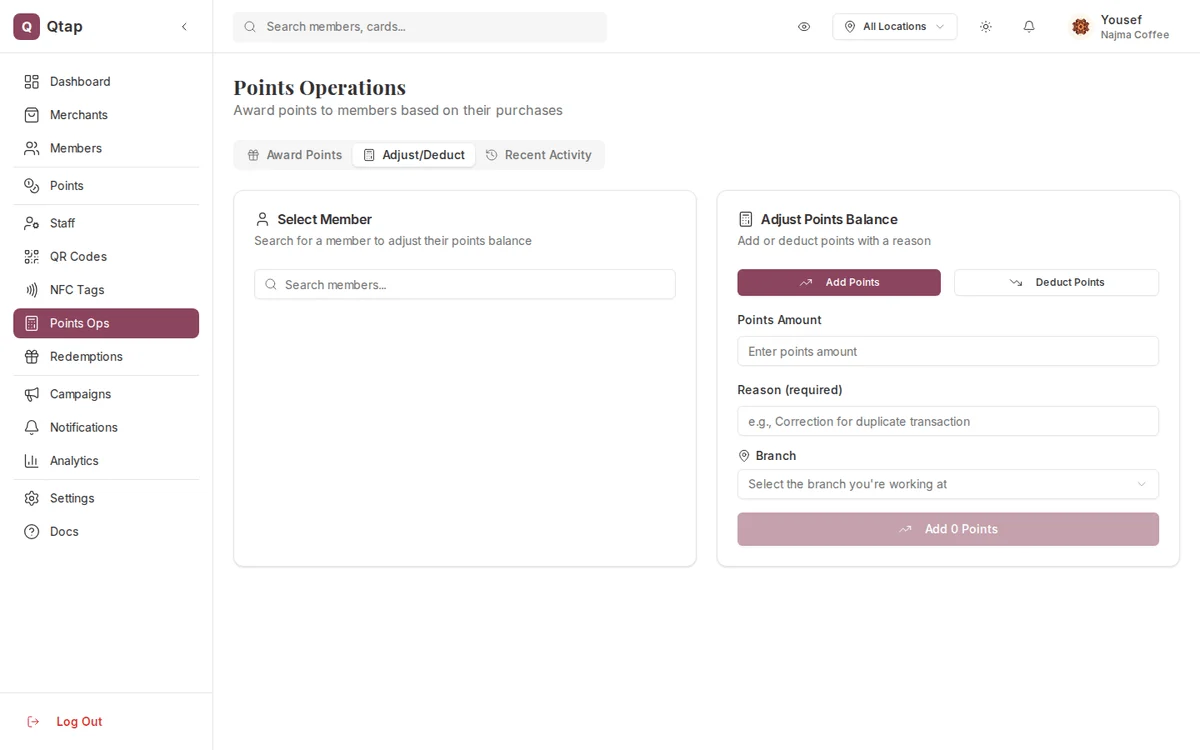
The Adjust/Deduct tab, with Add Points and Deduct Points and a required reason.
Recent activity
The Recent Activity tab lists recent points transactions across all your members. Each row shows the member, the type of transaction, the points and amount, the branch, a description, and the date. It is a quick way to confirm an award or adjustment went through.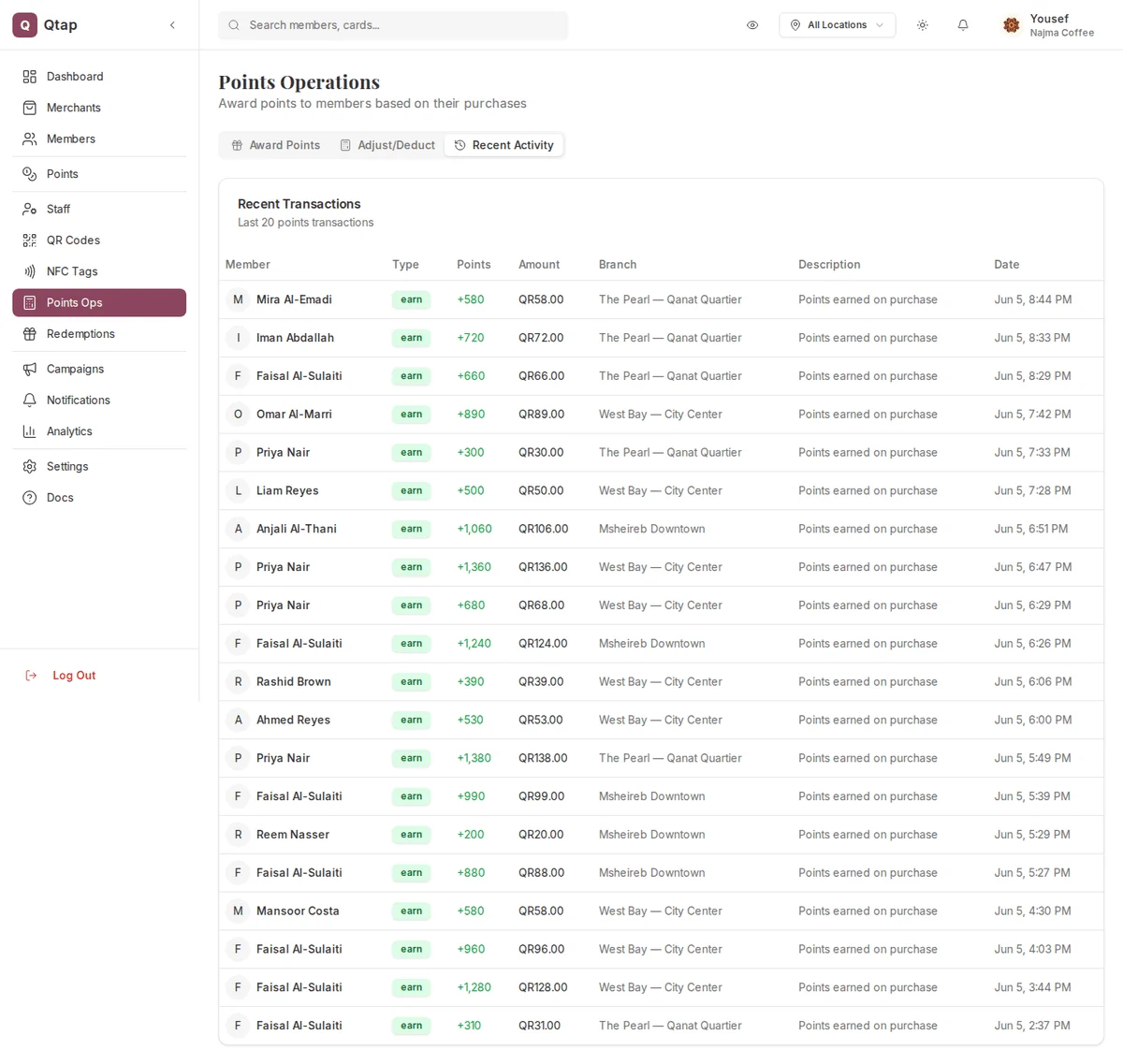
The Recent Activity tab showing the points transaction log.
Points Programs
Set up your earn rate, minimum transactions, and expiry rules.
Member Profiles
See a member’s full points history and current balance.