

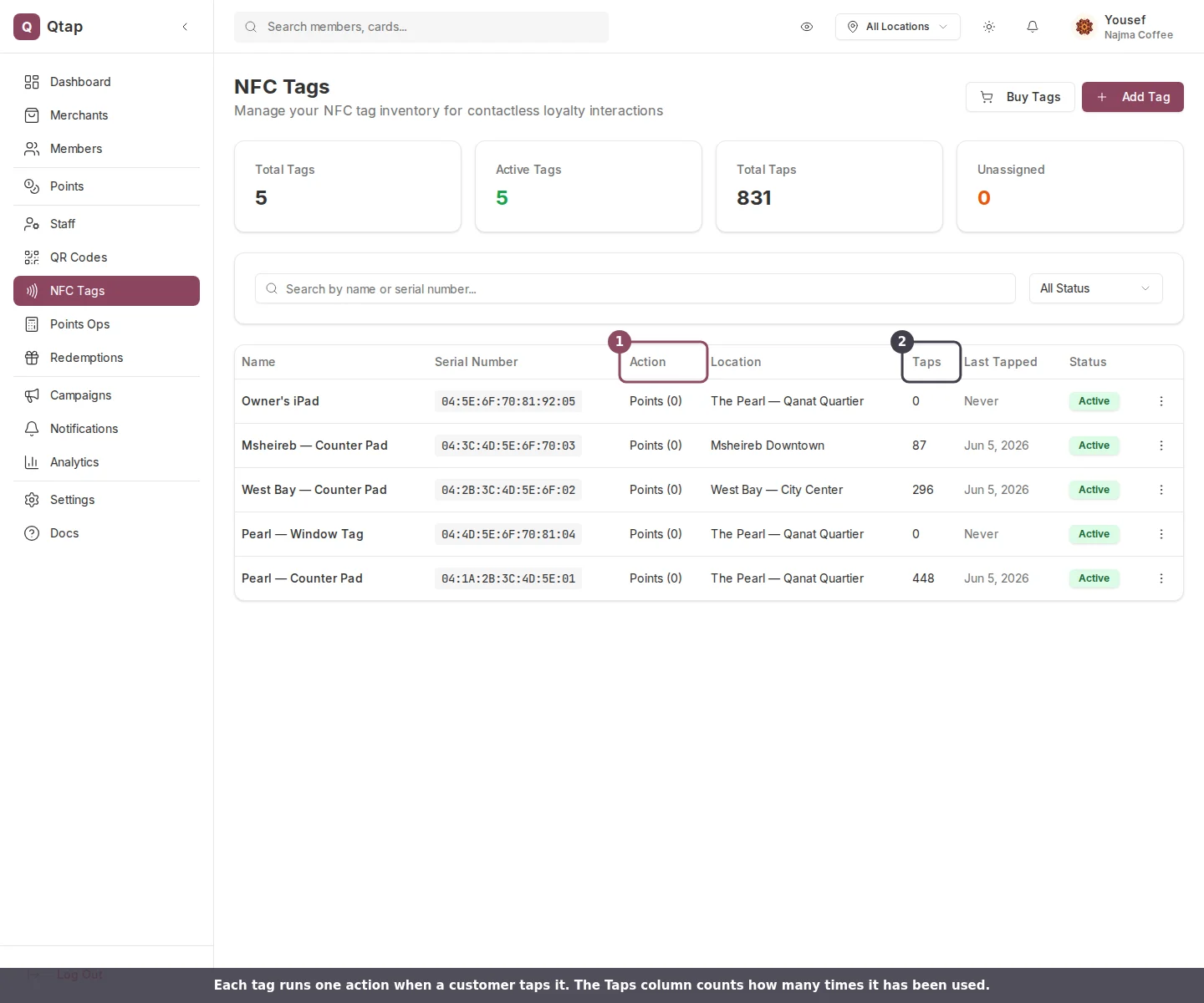
Each tag's Action column shows what a tap does, and the Taps column counts how many times it has been tapped.
A tap always belongs to a customer
A customer taps with the Qtap app open, so every tap credits a real account. If the app can’t identify the customer, the tap doesn’t register. The first time someone taps one of your tags, Qtap adds them to your members and then runs the action, so you never have to sign them up by hand.What each action does
You choose one action per tag when you register it (see NFC Tags). A tap runs that action: You set the action when you register a tag, and you can change it later from the tag’s detail page.
The Action dropdown on a tag, with the three things a tap can do.
Where to see tap activity
Open NFC Tags, then choose View Details on any tag. The detail page shows four cards at the top with the Total Taps, the action, the assigned location, and the tag’s status, followed by a Details panel with the serial number, purchase date, and last tap.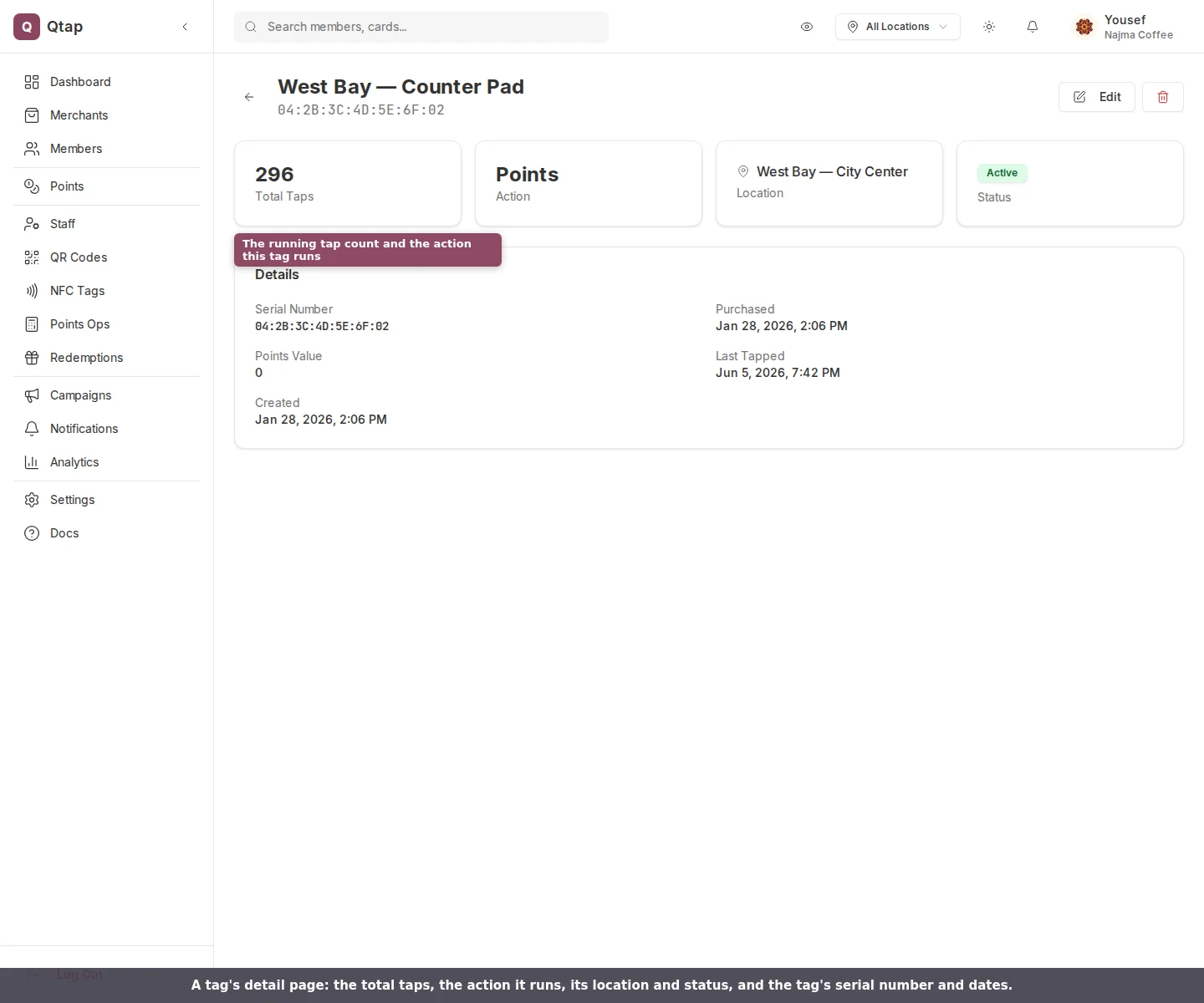
A tag's detail page: the running tap count, the action it runs, its location and status, and the tag's details.
How a tap differs from a QR scan
A tap and a scan both add stamps or points. Two differences are worth knowing before you decide which to use: If you want a points bonus or the reward message to reach customers, send them to a QR code for those visits, or have your staff mention the reward at the counter.
What Qtap does the moment a customer taps a tag.
NFC Tags
Register and manage the tags that run these actions
QR Code Actions
Compare how a QR scan handles the same actions
Stamp Cards
Set up the cards an Add Stamp tap links to