

Pick the members
Go to Members in the left sidebar. Tick the checkbox on each member’s row. A bar appears across the top showing how many you have selected, with a Send Notification button.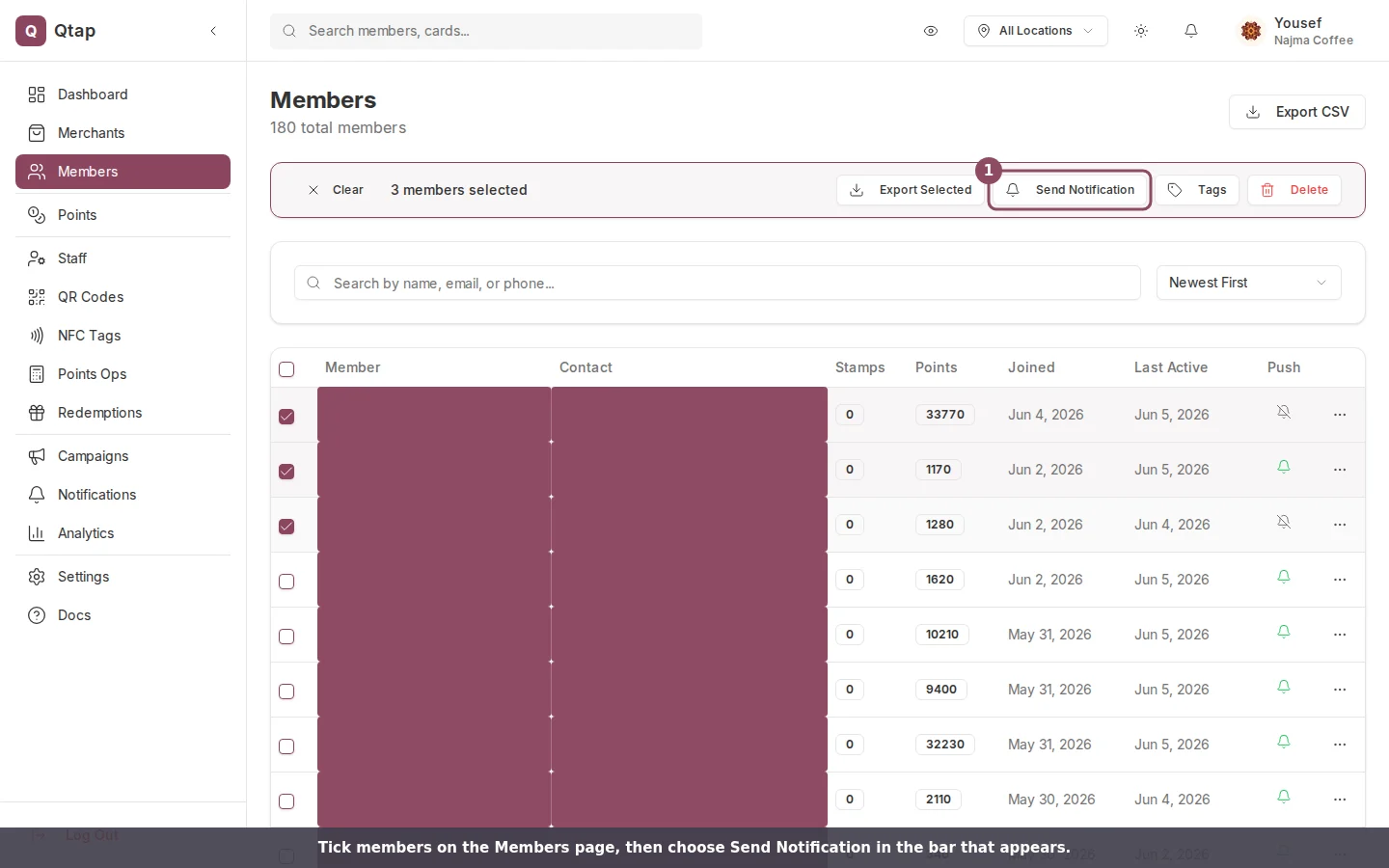
Select members on the Members page, then choose Send Notification in the bar that appears.
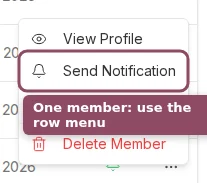
For a single member, use Send Notification in the row menu or on their profile.
Write and send
The compose page opens with the audience already set. Instead of the segment chooser, the Send To card reads Sending to N selected members, so you can see your message goes only to the people you picked.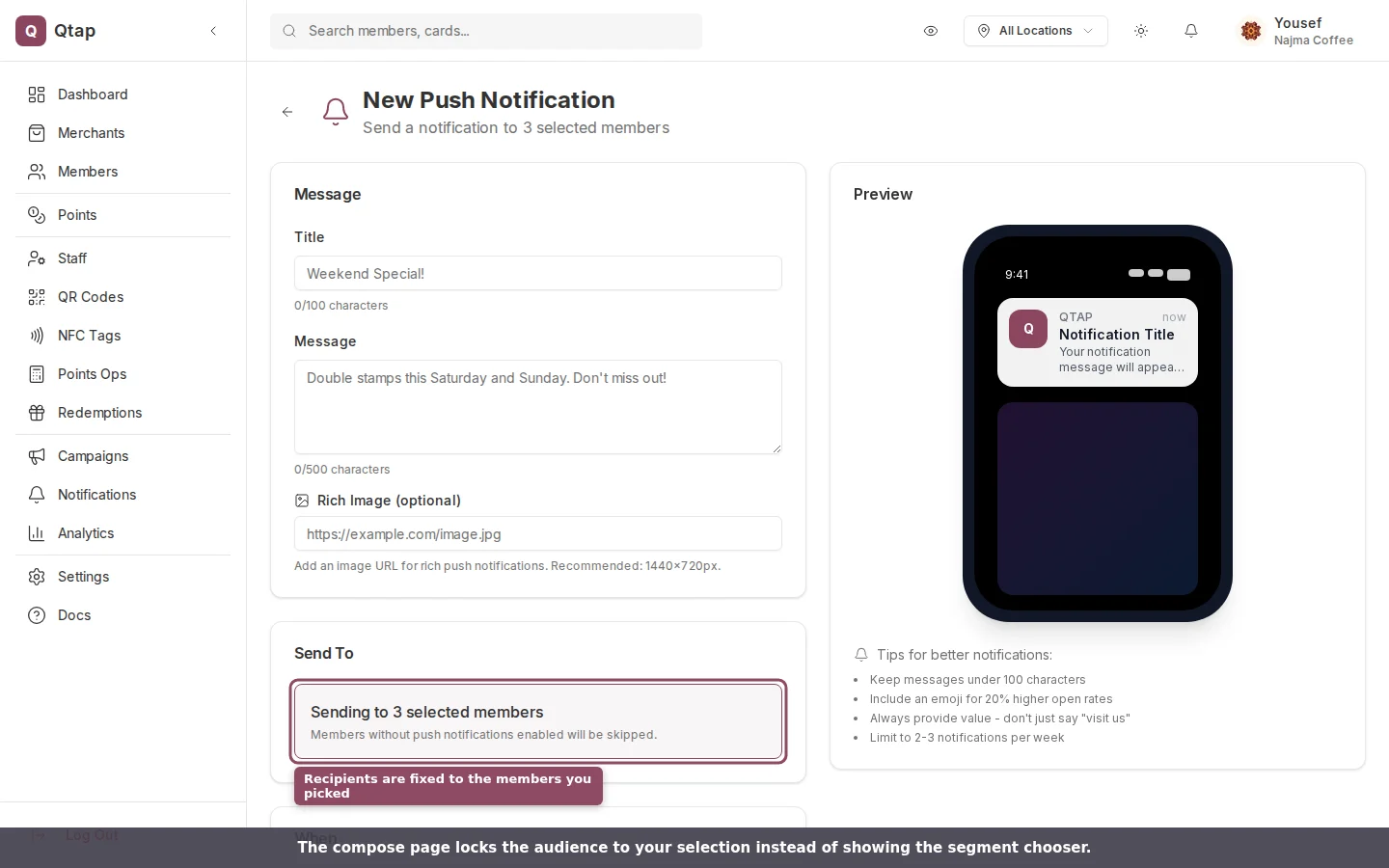
The audience is locked to your selection. No segment picker appears.
1
Write the message
Add a Title (up to 100 characters) and a Message (up to 500). The phone preview on the right updates as you type. To start from a saved message, click Use Template.
2
Send or schedule
Click Send Now to deliver right away, or turn on Schedule for later to pick a date and time. Save as Draft keeps it for later without sending.
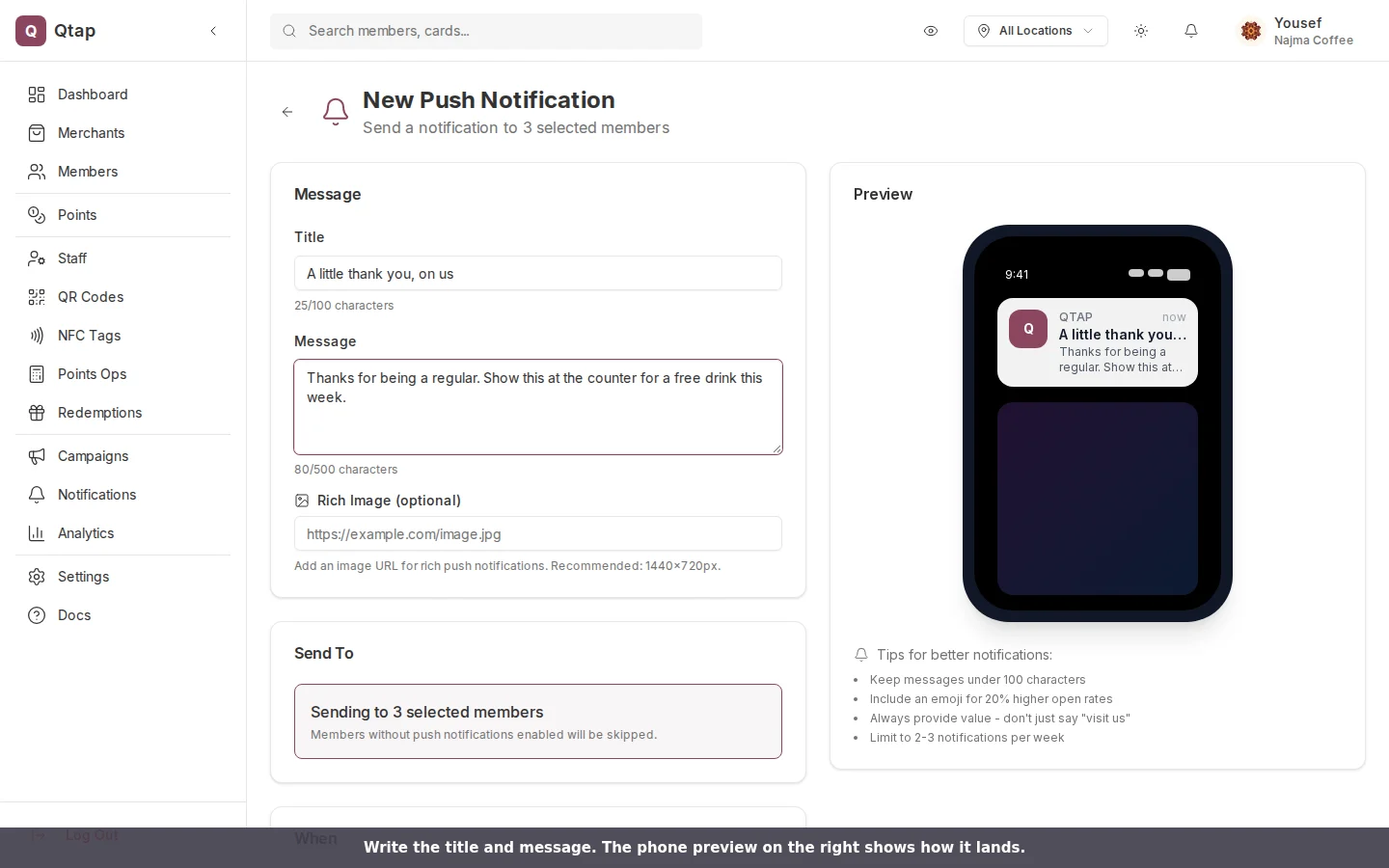
Write the title and message; the preview shows how it lands on the member's phone.
Members without the Qtap app, or who have turned push off, are skipped. If none of the members you picked have push on, nothing is sent and the notification shows zero recipients.
Push Notifications
Send to a whole segment, add personalized variables, save templates, and read delivery stats.
Members
Search and sort your members, then open any member’s profile.