Turning it on
The switch is the eye button in the top bar, to the left of the location picker. Hover it and it says Try demo mode.
The eye button in the top bar turns demo mode on and off.
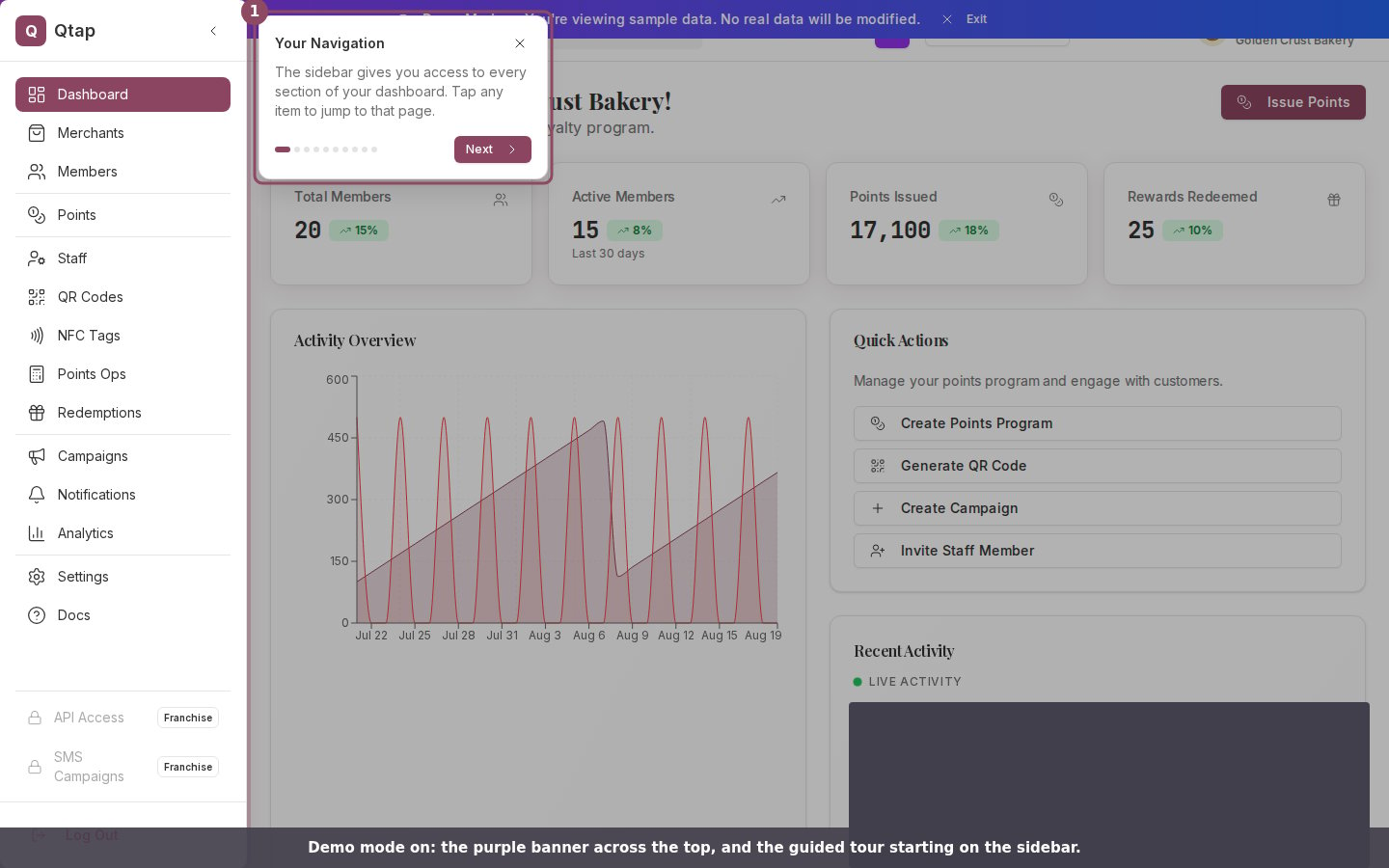
Demo mode on: the banner sits above every page, and the tour starts on the sidebar.
The tour
The tour walks through ten places in the dashboard, starting with the sidebar and finishing at Settings. Each step highlights the part of the screen it is describing. Next moves forward, the back arrow returns to the previous step, and the dots show how far along you are. Close it with the X at any point, or click anywhere on the dimmed background.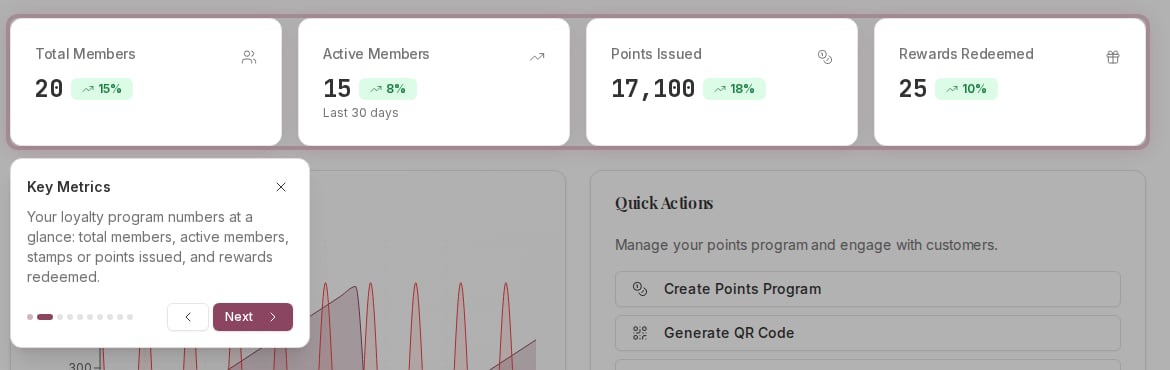
Step two of the tour, with the stat cards highlighted while the tour describes them.
What the sample data covers
The sample business is a cafe called Brew House Qatar, with two branches and twenty members. Members, QR Codes, NFC Tags, Redemptions and the stamp and points operations pages all read from it, and so do the figures on Analytics, Campaigns, Notifications and the staff activity log.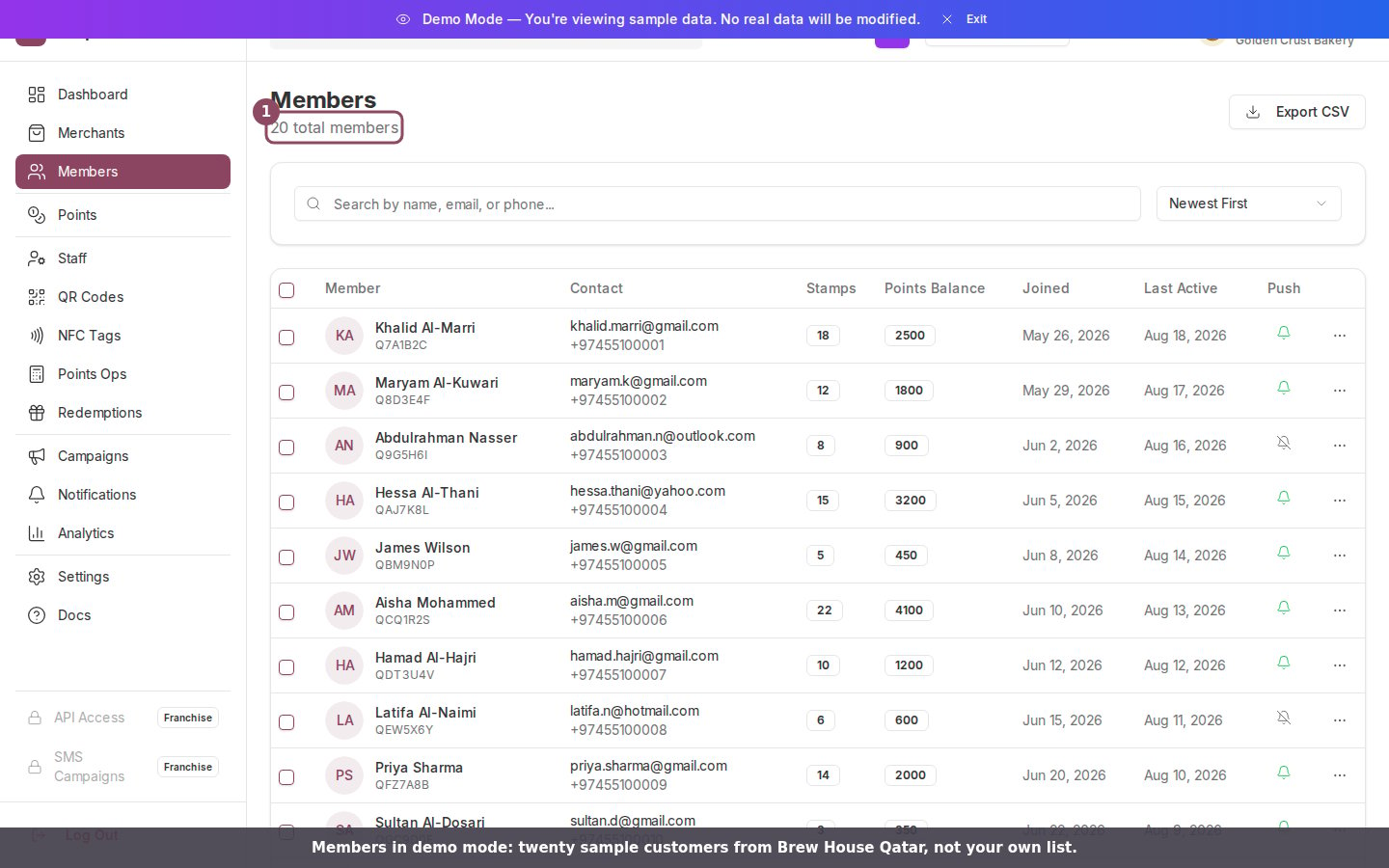
Members in demo mode: twenty sample members with balances and join dates.
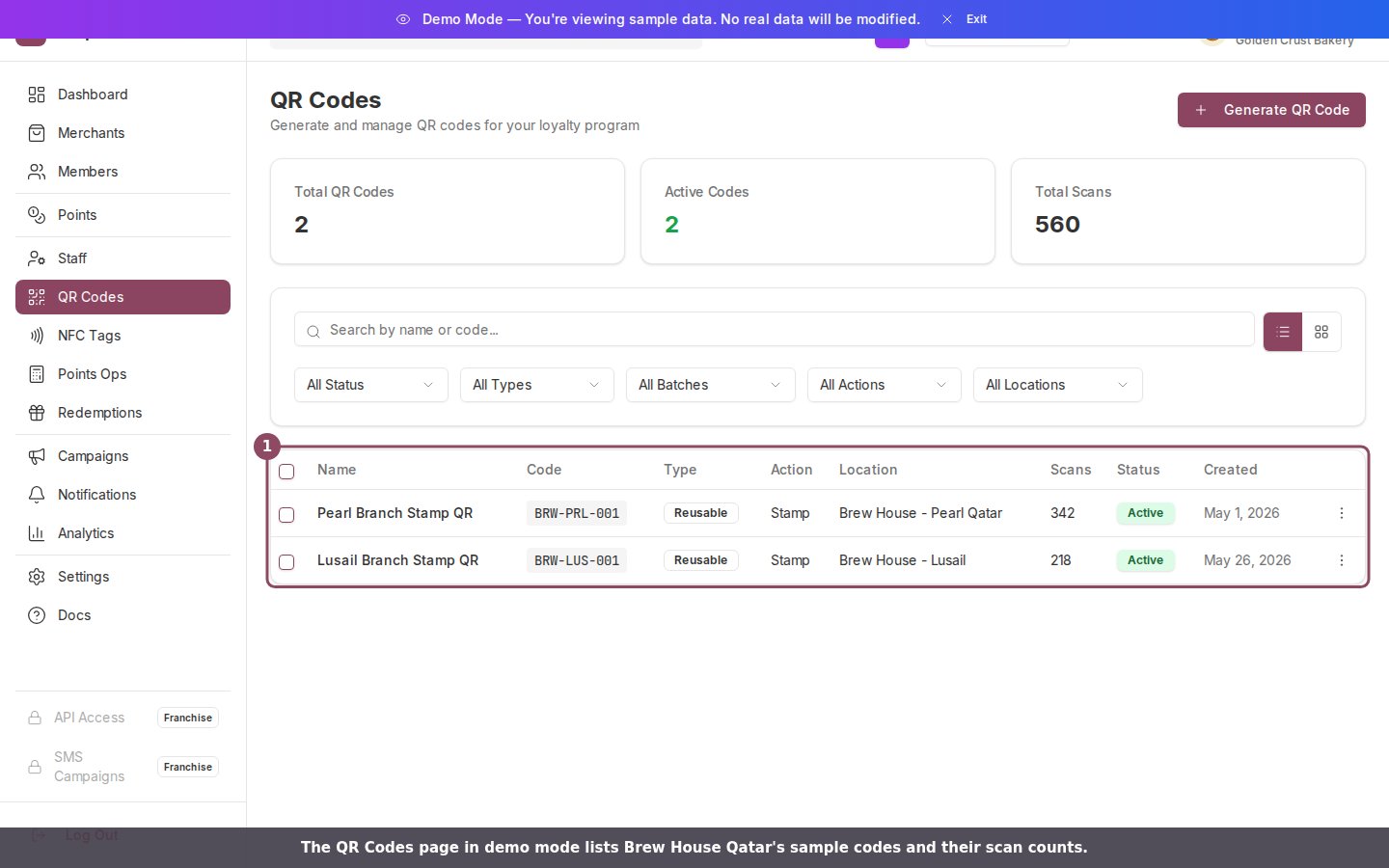
QR Codes in demo mode, with two sample codes and their scan counts.
What demo mode does not touch
On the pages the sample data covers, demo mode never reads or writes your own members, cards, codes or campaigns; those pages show a fixed sample set that ships with the dashboard. The one place that keeps reading your real records is the Recent Activity feed on the dashboard home, covered in the Warning below. Buttons that would change something split two ways. Deleting a QR code, switching one on or off, adding a tag to a member or assigning a location answers with a short “Demo Mode” notice instead of running. Counter actions such as issuing a stamp or awarding points point at a sample member, and that member does not exist in your account, so nothing reaches a real record. If one of those buttons returns an error while demo mode is on, that is why.Turning it off
Click Exit on the purple banner, or click the eye button again.
Exit on the banner returns the dashboard to your own data.
Dashboard Overview
What each part of the main dashboard shows.
Getting started checklist
The setup steps that turn an empty account into a running program.