

Show the code
Open QR Codes in the sidebar and click the code you want to display. Its detail page has a preview of the code and two download buttons.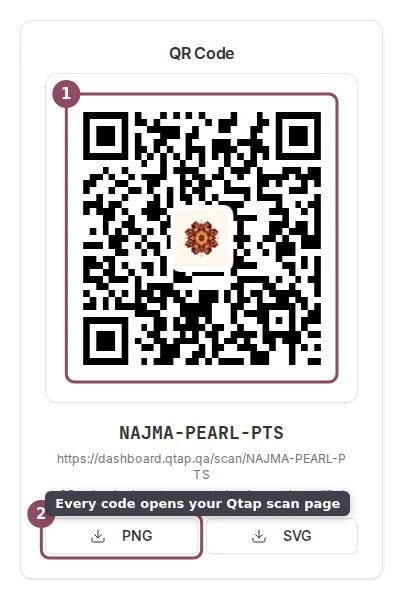
A code's preview, its scan address, and the PNG and SVG download buttons.
- PNG suits a screen or a quick print on standard paper.
- SVG stays sharp at any size, so use it for a window decal or a large poster.
dashboard.qtap.qa/scan/ followed by the code value. That is the page a scan opens, which is why any phone can read it. Put the printed code where customers already pause, like the counter, the table, or the receipt.
What the customer sees
The page opens with your business name and the card they are about to start, so they know whose program this is before they type anything.
Your name (1) and the card the scan starts (2) sit at the top of the join page.

The same page for a points code, showing the earn rate and the next reward.
What they fill in
Only the phone number and the terms box are required. Everything else is there to make the card worth more later.
Phone (1) is the only detail Qtap needs. Birthday (2) is optional. Get my card (3) submits.

The number is shown once more, with Edit number (1) and Confirm and join (2).
No code is sent to that phone. Qtap checks the shape of the number, not the person holding it, so the number stays unconfirmed until they install the Qtap app and claim the card. Your members list marks these people so your staff know.
What the scan is worth
Confirming lands on one of three endings, and only the first one earns anything.
The same code produces a different ending depending on who scanned it.
- New to your business. They become a member and that first scan runs the same earning rules a staff scan does, so a stamp or the points land straight away. On a stamp or points code they are offered a wallet pass, and it arrives already showing what they just earned rather than an empty card.
- Already a member with you. The page says welcome back and offers their pass again in case they lost it. Nothing is earned. Repeat earning happens at the counter, where a staff member scans them.
- Already using the Qtap app. The page points them at the app, where the card already is. Nothing is earned here.
A check-in code joins the customer and records the visit without adding stamps or points, by design. Use it for a code by the door or at an event where you want attendance rather than rewards.
When a code cannot be used
A code that has been deleted, switched off, passed its expiry date, or used up says so in place of the form.
A code Qtap cannot find shows this instead of the join page.
Redeeming a reward
Scanning a code adds stamps or points. Claiming a reward is a separate step. When a customer is ready to use a reward they earned, a staff member handles it on the Redemptions screen, where you confirm the reward and the balance is settled.QR Code Actions
What a scan does: add a stamp, award points, or record a check-in.
Joined without the app
How these members show up in your dashboard, and what staff should watch for.
Redemptions
Confirm and record a reward a customer has earned.
Troubleshooting
What each failure message means and how to get the code working again.