Every staff member in Qtap has a role that controls which parts of the dashboard they can access. There are three built-in roles: owner, manager, and staff. You can also override the defaults with custom permissions for any individual.

Built-in Roles

Owner has full access to everything: members, loyalty cards, QR codes, campaigns, analytics, staff management, billing, and settings. There is one owner per organization and the role cannot be changed or removed. Manager can do most things except billing and settings. Managers can view and edit members, issue stamps and points, correct a points balance, process redemptions, create and edit stamp cards and points programs, generate QR codes, manage NFC tags, run campaigns, view and export analytics, and send notifications. A manager can also open the Staff page and see the team, but the invite button and the row menus stay hidden, so they cannot add anyone or change anyone’s permissions. Staff is narrower than it looks. A teammate on the Staff role gets four places: the dashboard home, Members (read only), the Stamp Ops or Points Ops page for your program type, and Redemptions. Everything else is closed to them, and the sidebar hides what they cannot open rather than showing them dead links.
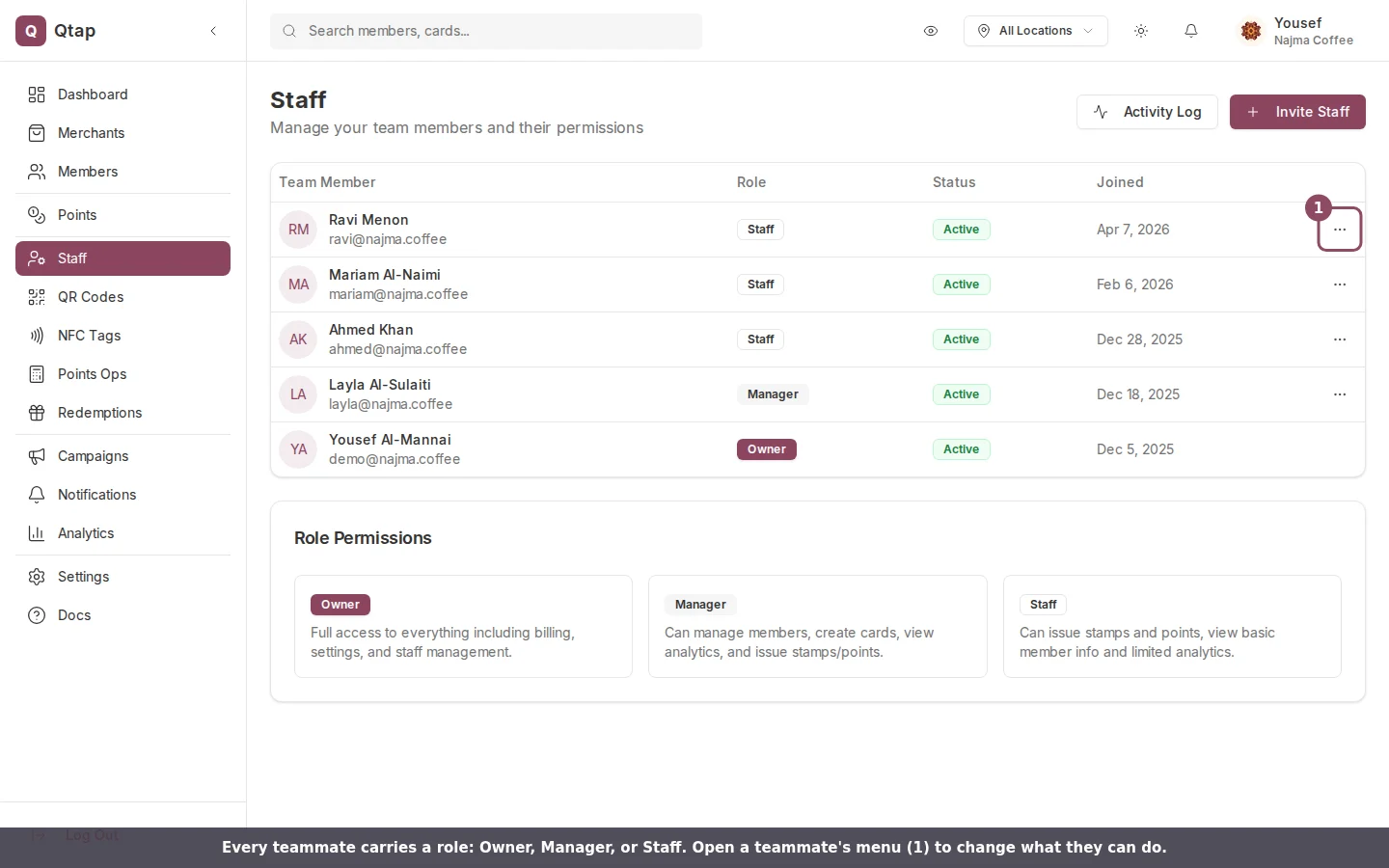
Staff list showing team members with Owner, Manager, and Staff role badges

The Staff page lists each teammate with their role. The Role Permissions card at the bottom summarizes what each role can do.

What the Staff role does not get

The dashboard points a Staff teammate at three things they cannot use. Check these before you hand someone the role. QR Codes is closed. A Staff teammate cannot open the QR Codes section, so they cannot view or download a code. NFC Tags is closed to them too, whatever you tick. Analytics is closed. They see no reports and no export tools. Adjusting a points balance fails. The Adjust and Deduct tab appears on Points Ops for a Staff teammate, and they can fill it in and confirm. Qtap then refuses the change and the balance stays where it was. Awarding points at the till still works; only the correction is blocked.

The Role Permissions card on the Staff page tells you a Staff teammate can see “limited analytics”. That line is wrong. So are the View QR codes, View analytics and Adjust points boxes that the Edit Permissions checklist shows ticked for the Staff role. None of the three takes effect. If your cashier needs any of them, give them the Manager role, or turn on custom permissions and tick the boxes yourself.
Role Permissions card with the Staff role description highlighted

The Role Permissions card on the Staff page. The Staff description promises analytics that the role does not actually get.
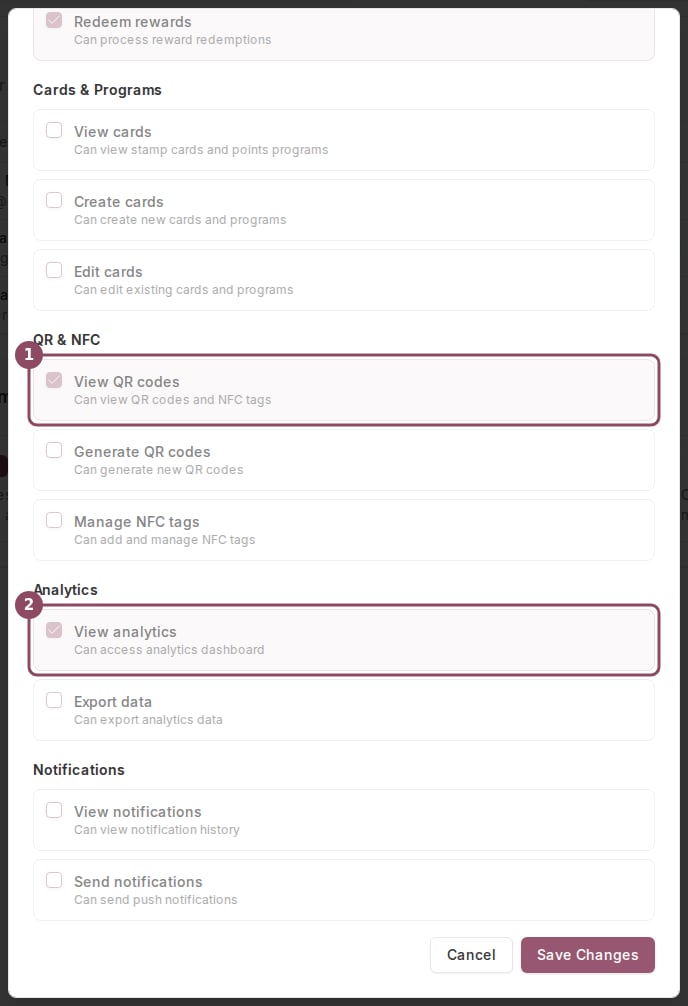
Edit Permissions checklist showing View QR codes and View analytics ticked for the Staff role

The Edit Permissions checklist for a teammate on the Staff role, with the switch off so it shows the role defaults. View QR codes (1) and View analytics (2) are ticked, and neither one opens its section.

You can hand over QR codes and analytics yourself. The role defaults are what fall short, so turn on custom permissions and tick View QR codes or View analytics by hand, and the teammate gets the section. Point adjustments stay shut. Qtap checks the role there, not the permission, so Adjust points fails for a Staff teammate however you set their boxes. A balance correction needs the Manager role or your own owner account.

Custom Permissions

If the built-in roles do not fit a staff member’s actual responsibilities, you can override their permissions individually.
1

Open the staff list

Go to Staff in the sidebar.
2

Open the permissions dialog

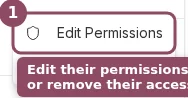
Click the menu icon on the staff member’s row and select Edit Permissions.
Staff row menu showing Edit Permissions and Remove

Each teammate's row menu: edit their permissions, or remove their access.

3

Enable custom permissions

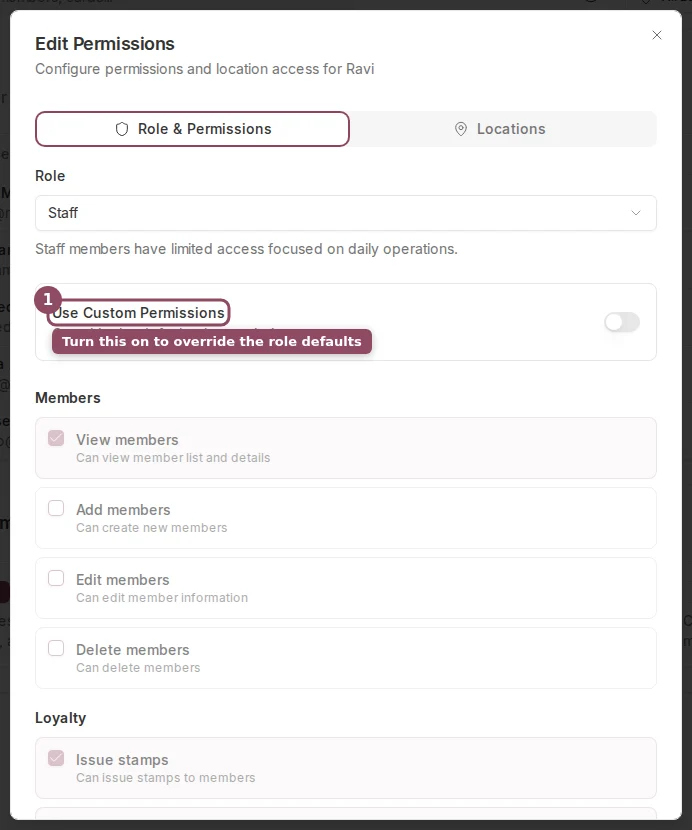
Toggle on Use Custom Permissions. This unlocks a checklist organized into six categories: Members, Loyalty, Cards & Programs, QR & NFC, Analytics, and Notifications.
Edit Permissions dialog with the Use Custom Permissions toggle and permission categories

With Use Custom Permissions turned on, the role defaults become an editable checklist across six categories.

4

Select what they can do

Check or uncheck individual permissions. Each item shows a short description of what it covers. Permission reference maps every box to the pages it opens, including the four that reach wider than their label suggests.
5

Restrict by location (optional)

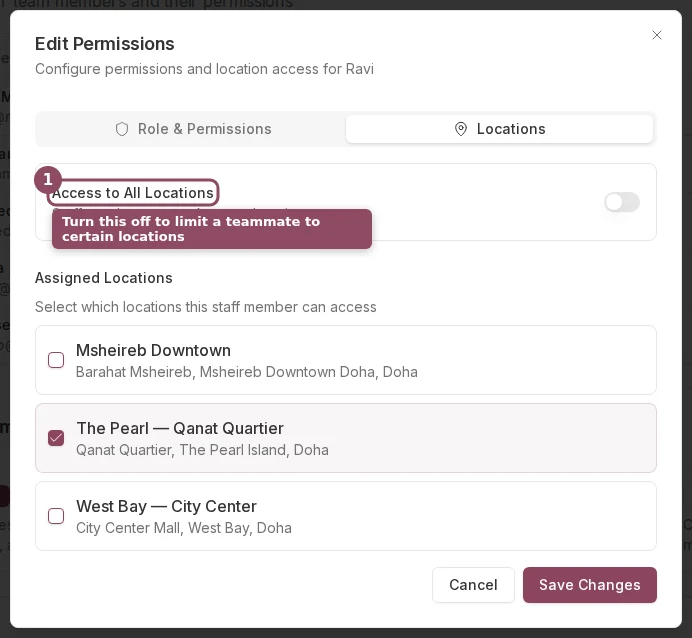
On the Locations tab in the same dialog, you can limit the staff member to specific locations. By default, staff can act on members from any location.
Locations tab of the Edit Permissions dialog showing the Access to All Locations toggle and location list

The Locations tab. Turn off Access to All Locations to assign a teammate to specific locations.

6

Save

Click Save Changes. The new permissions apply immediately.
If you change a staff member’s role (for example, from staff to manager), their permissions reset to the defaults for the new role unless custom permissions are enabled.
Only owners can edit staff roles and permissions. Managers cannot change permissions for other staff members.

Resending an Invitation

If a staff member did not receive or lost their invitation email, find them in the Staff table, click the menu icon on their row, and select Resend Invite. They will receive a new invitation to the email address you originally entered.

Staff Overview

Inviting staff and managing the team list

Activity Logs

See a record of every action staff members have taken