

Only the account owner can invite staff. Managers and staff members don’t see the Invite Staff button, even though they can open the Staff page.
Send the invitation
Go to Staff in the left sidebar, then click Invite Staff in the top right.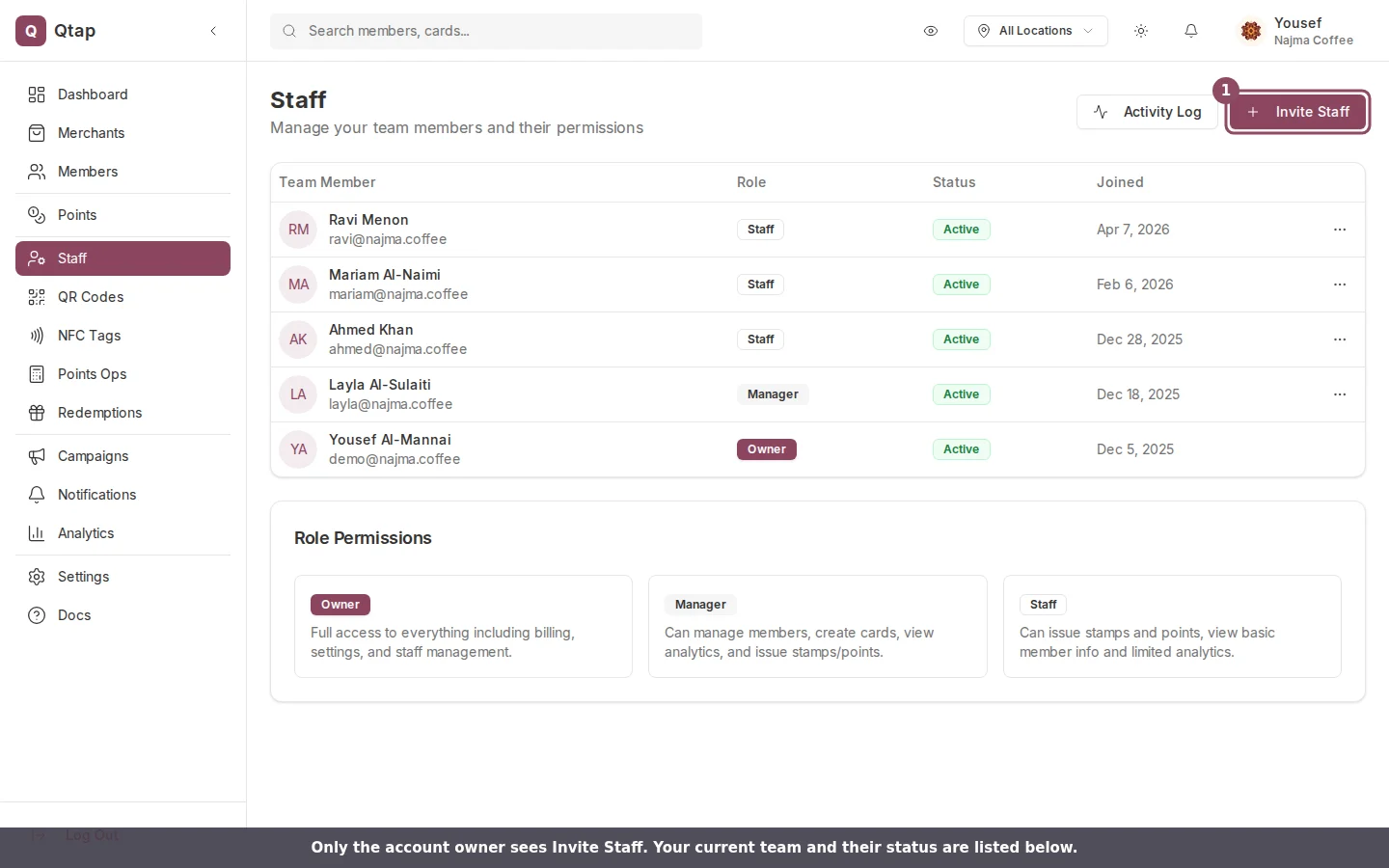
The Staff page. Only the owner sees the Invite Staff button (1). Below it is your current team and each member's status.
- First name (required) and last name (optional). This is how the person shows up in your staff list.
- Email address (required). The invitation goes here, so double-check it.
- Role. Pick Staff for someone who works the counter, or Manager for someone who runs the business with you. The dropdown describes what each role can do. New invites default to Staff.
- Assigned locations. If you have more than one location and the role is Staff, you can limit them to specific branches. Leave All Locations ticked to let them work anywhere. Managers always cover every location.
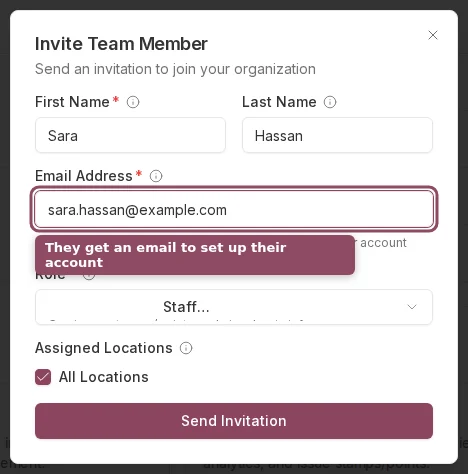
The invite form, filled in. Enter the teammate's name and email, pick a role, then click Send Invitation.
What happens after you send it
The new teammate appears in your staff list with a Pending status. Pending means the invite has been sent but they haven’t set up their login yet. Once they accept, the status changes to Active and the Joined date fills in.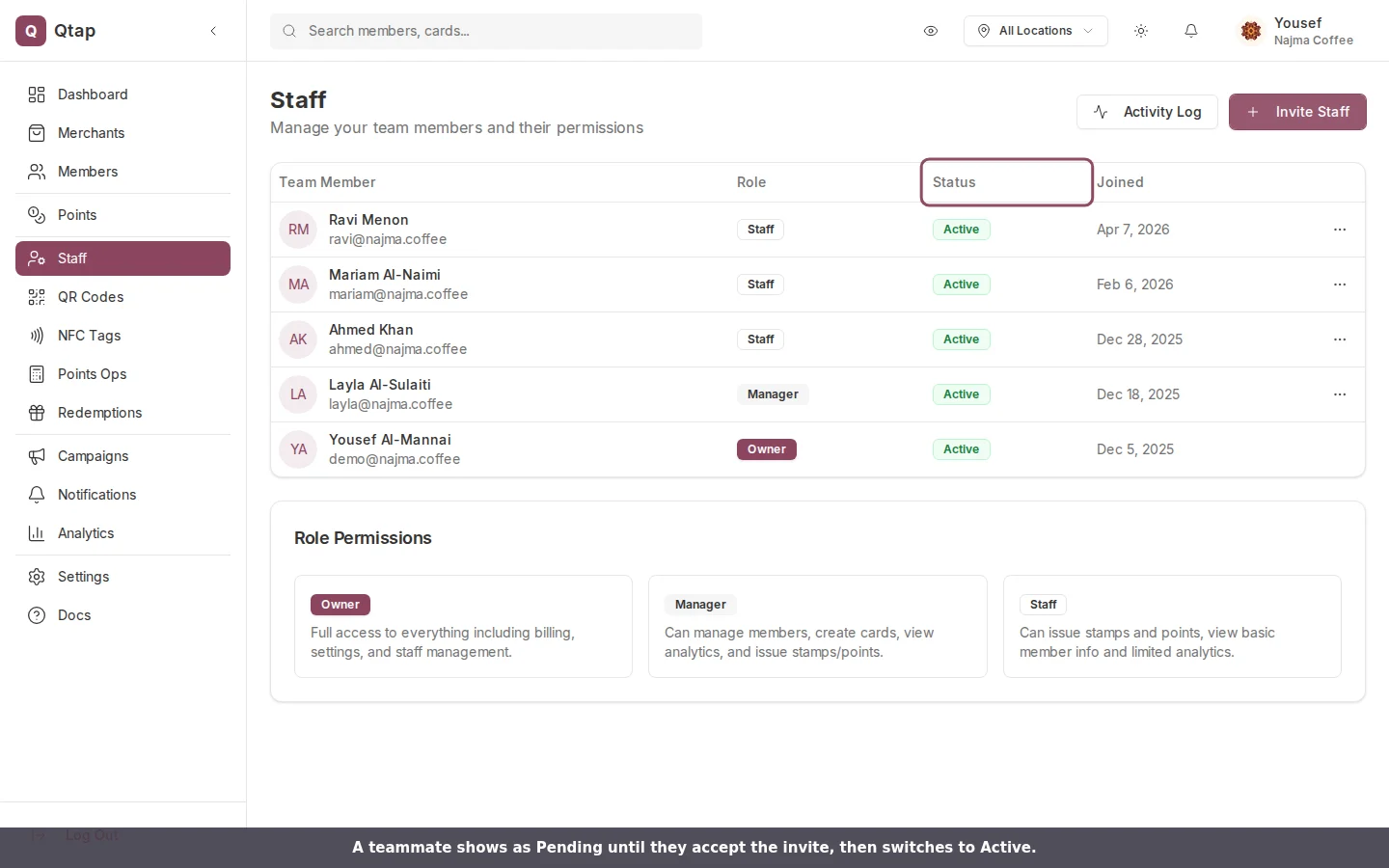
The Status column shows Pending until the teammate accepts, then Active.
Accepting the invite
Your teammate gets an email with the subject “You’re invited to join [your business] on Qtap.” When they open the link, they land on a welcome page that greets them by name and shows which business invited them and as what role. To finish, they create a password. It needs to be at least 8 characters and include an uppercase letter, a lowercase letter, and a number. After they save it, Qtap signs them in and drops them straight onto the dashboard. That’s when their status flips to Active on your end. If the person already uses Qtap with that email address, the invitation links your business to their existing account instead of asking them to start over.If the invite doesn’t arrive
Ask them to check spam first. If it’s still missing, find their row in the staff list, click the three-dot menu, and choose Resend Invite. They’ll get a new link at the same email address. The Resend option only shows while a member is still Pending.Plan limits
Your plan sets how many staff you can have. If you’ve reached the limit, the Invite Staff button shows your cap and is greyed out. Go to Settings > Billing to move to a plan with more seats.Roles and Permissions
What the owner, manager, and staff roles can each access, plus custom permissions.
Staff Overview
Manage your full team list and remove members who leave.