

Open a code’s detail page
Go to QR Codes in the left sidebar, then click any code in the table. You can also open the three-dot menu on a row and choose View Details.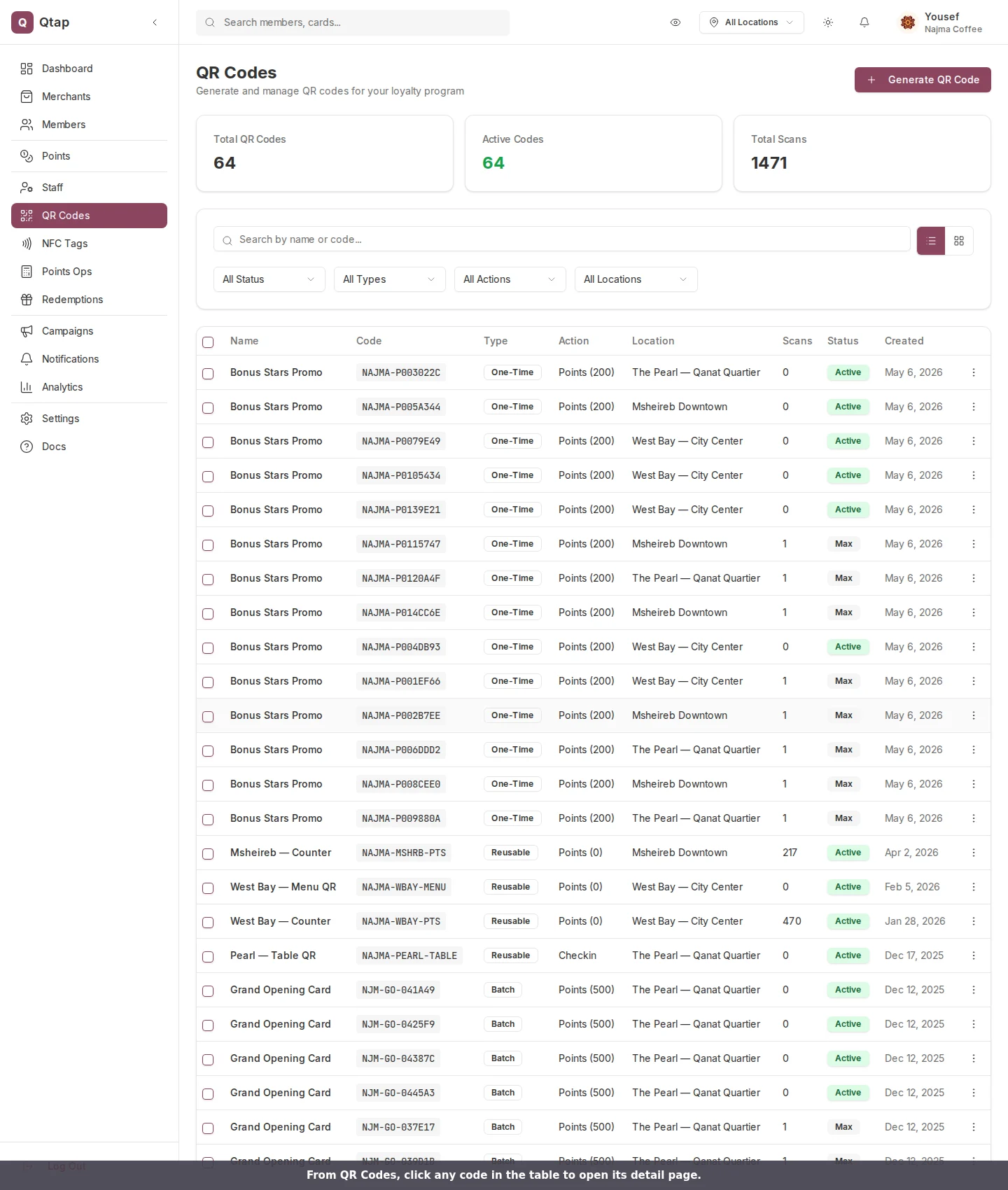
From QR Codes, click any code in the table to open its detail page.
What the detail page shows
The top of the page has four quick stats: Total Scans, Type (reusable, one-time, or batch), Action (what a scan does, such as points or stamp), and Status (active or inactive). If the code has been scanned at least once, a Scan Activity chart plots the daily scan count for the last 7 days. The QR Code panel on the right shows the code image, the link a scan opens, and buttons to download it again as a PNG or SVG.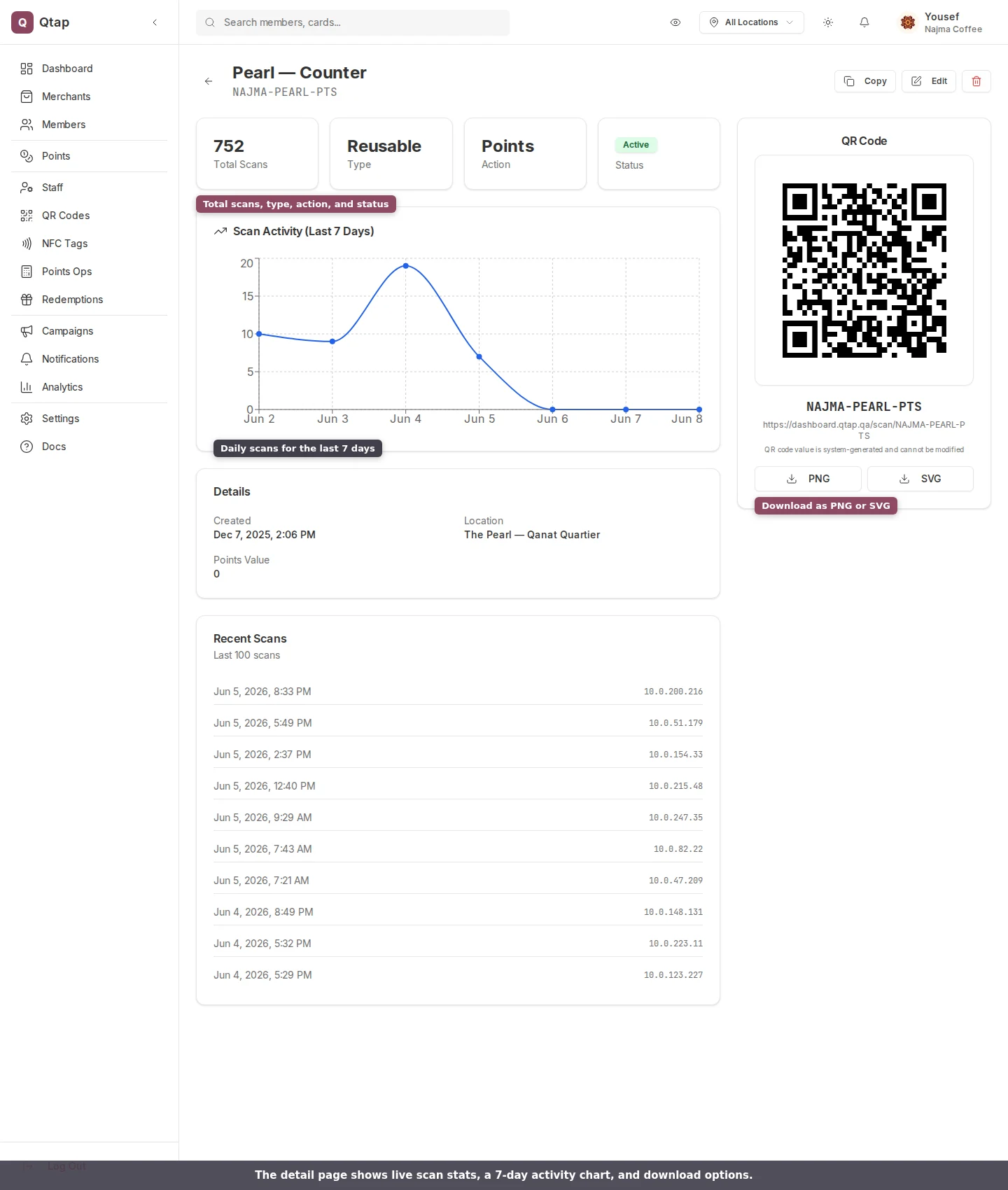
The detail page: live scan stats, a 7-day activity chart, and download buttons.
Rename or move a code
Click Edit to change the code’s details. You can update its Name, move it to a different Location, and turn it Active or inactive with the toggle. An inactive code stops working when scanned, which is the safe way to pause a code without deleting it. Click Save Changes when you are done.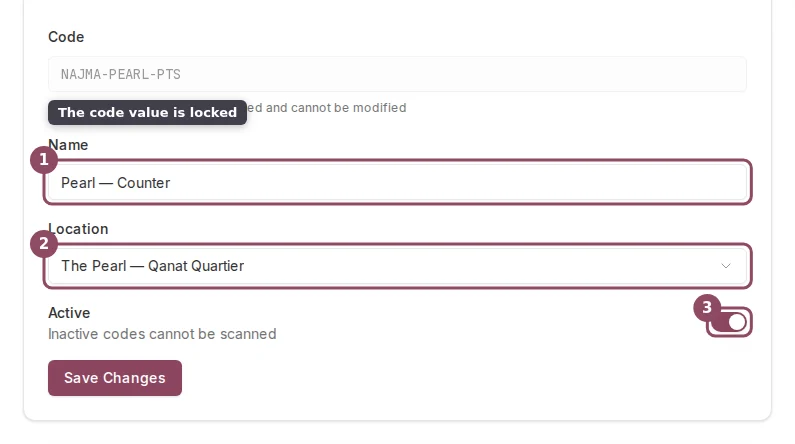
Edit a code's name, location, and active status. The code value itself stays fixed.
The code value (the text under the name, like
NAJMA-PEARL-PTS) is set by Qtap when the code is created and cannot be changed. This keeps any printed copies working. To get a different code value, generate a new code.Delete a code
Click the red trash button in the top right, then confirm in the dialog. Deleting a code also deletes its scan history, and the action cannot be undone.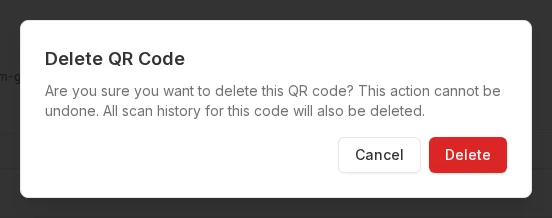
Deleting a code removes its scan history as well.
Owners and managers can open code detail pages. Staff members do not have access to the QR Codes section by default.
QR Codes Overview
How QR codes work and how to manage them from the list.
Generating a QR Code
Create a new code for one of your locations.