

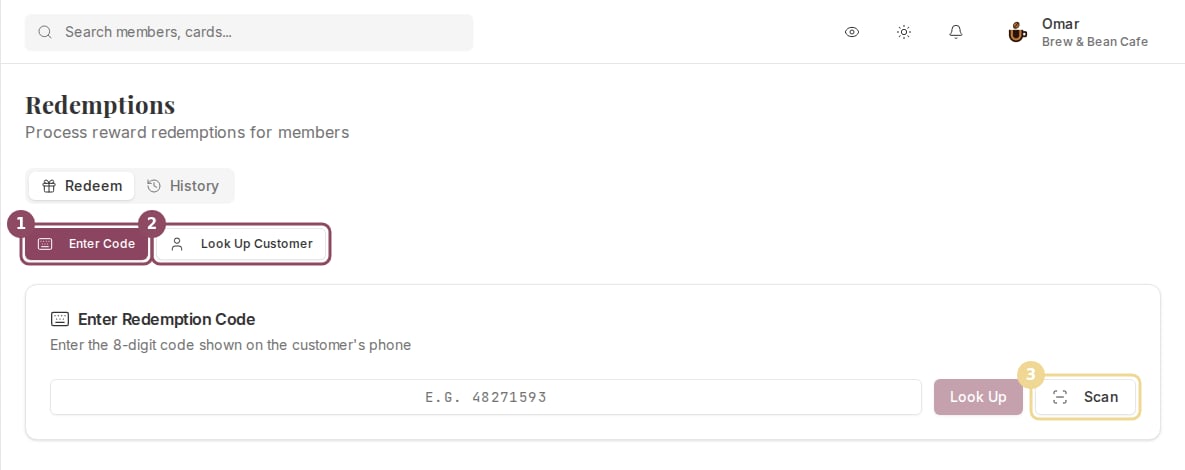
The Redeem tab: type the customer's code (1), search for them by name (2), or scan (3).
Two ways to redeem

Both paths lead to the same place. Code entry is faster when the customer has their phone. Lookup works when they don't.
Enter a code
When a customer claims a reward, Qtap gives them an 8-digit code in the app. It is digits only, so staff can type it on a numeric keypad without switching keyboards. Entering the code takes about 10 seconds at the counter.
Type the 8-digit code from the customer's phone (1), then click Look Up (2).
Open the Redemptions page
Select Enter Code
Type the code
Review the reward card
Click Confirm Redemption
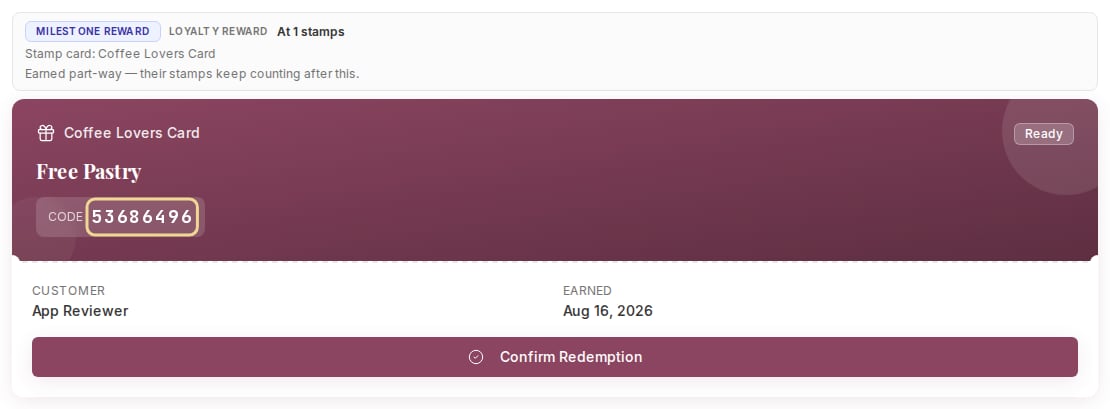
A stamp card reward loaded from its code. The badge reads Ready, so Confirm Redemption is available.
One box, three kinds of code
Staff do not need to know where a code came from. Qtap checks three places for it: rewards the customer earned on a card, offers they claimed from your public page, and rewards they bought with a points balance. Whichever one matches, the voucher loads the same way.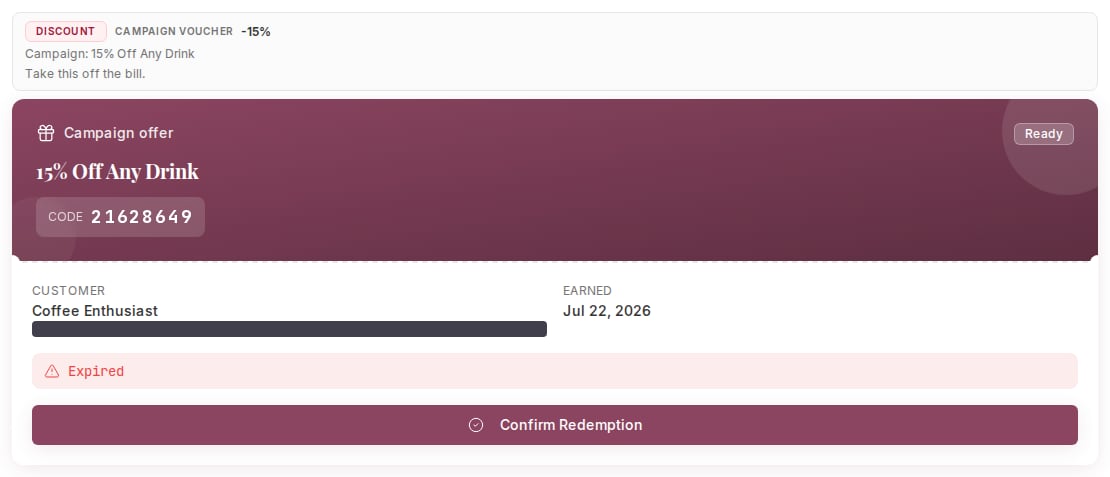
The same box loaded a claimed public offer. The strip above the voucher names the deal so staff know what to hand over.
When a code will not go through
If the code has already been used, the voucher loads with a Redeemed badge and the line “This reward has been redeemed” where the button would be, so staff cannot hand the same reward over twice.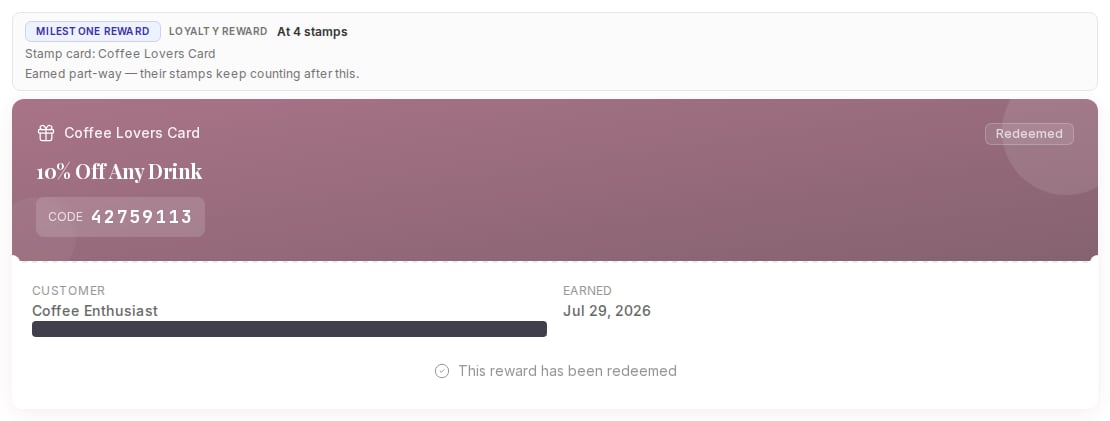
An already-used code loads with a Redeemed badge and no Confirm button.
Look up the customer
Use this method when the customer doesn’t have their code ready or you want to check what rewards they have before they ask.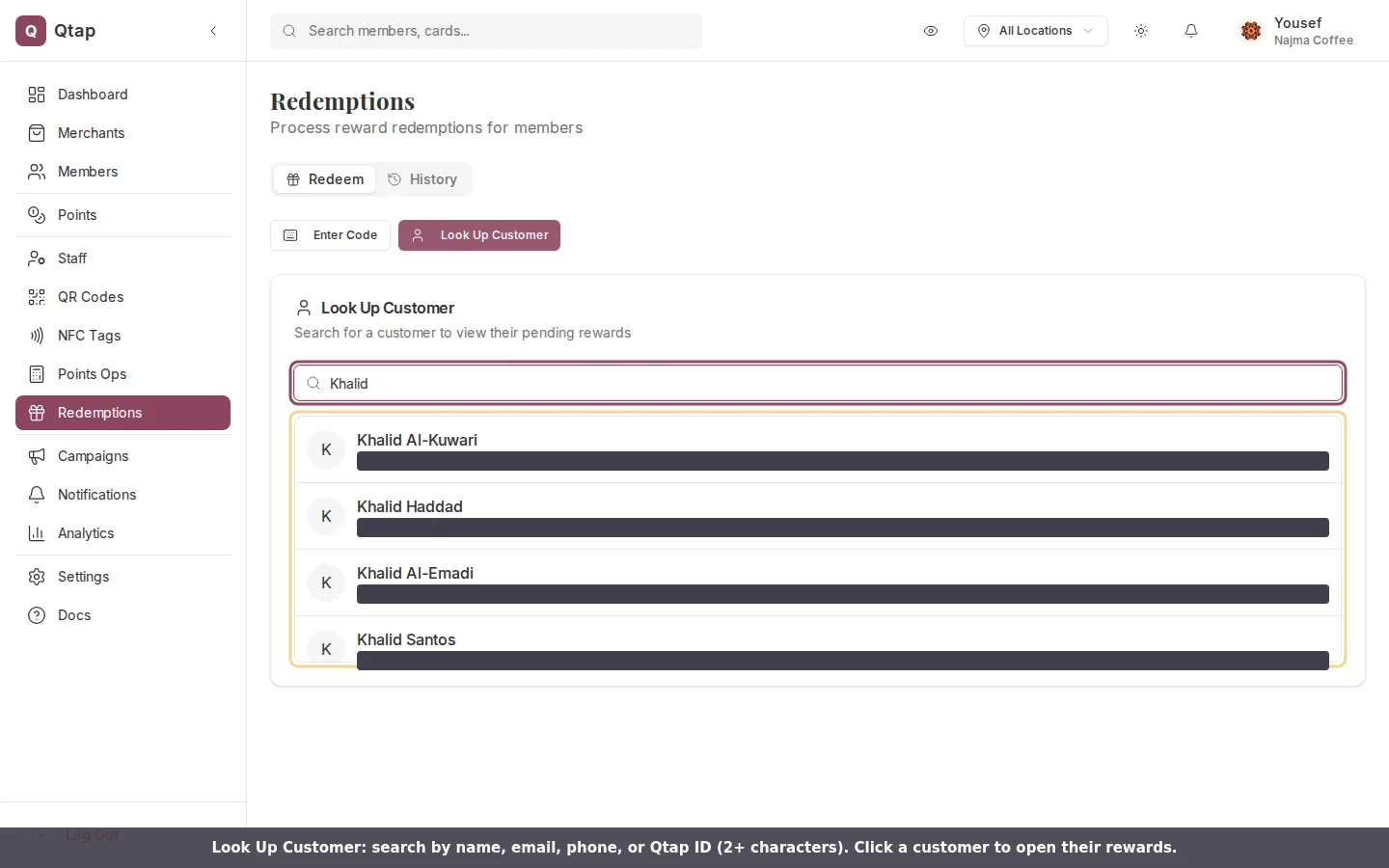
Look Up Customer: search by name, email, phone, or Qtap ID. Customer emails are hidden in this screenshot.
Click Look Up Customer
Search
Select the customer
Redeem a reward
Points-based programs
If your organization runs on a points program rather than stamp cards, the Look Up Customer method shows an additional section after you select a customer. When the customer has enough points to claim a reward, you’ll see their current balance and a list of rewards they’re eligible for. Each reward shows the points it costs. Click Redeem, then confirm. Qtap deducts the points and records the redemption.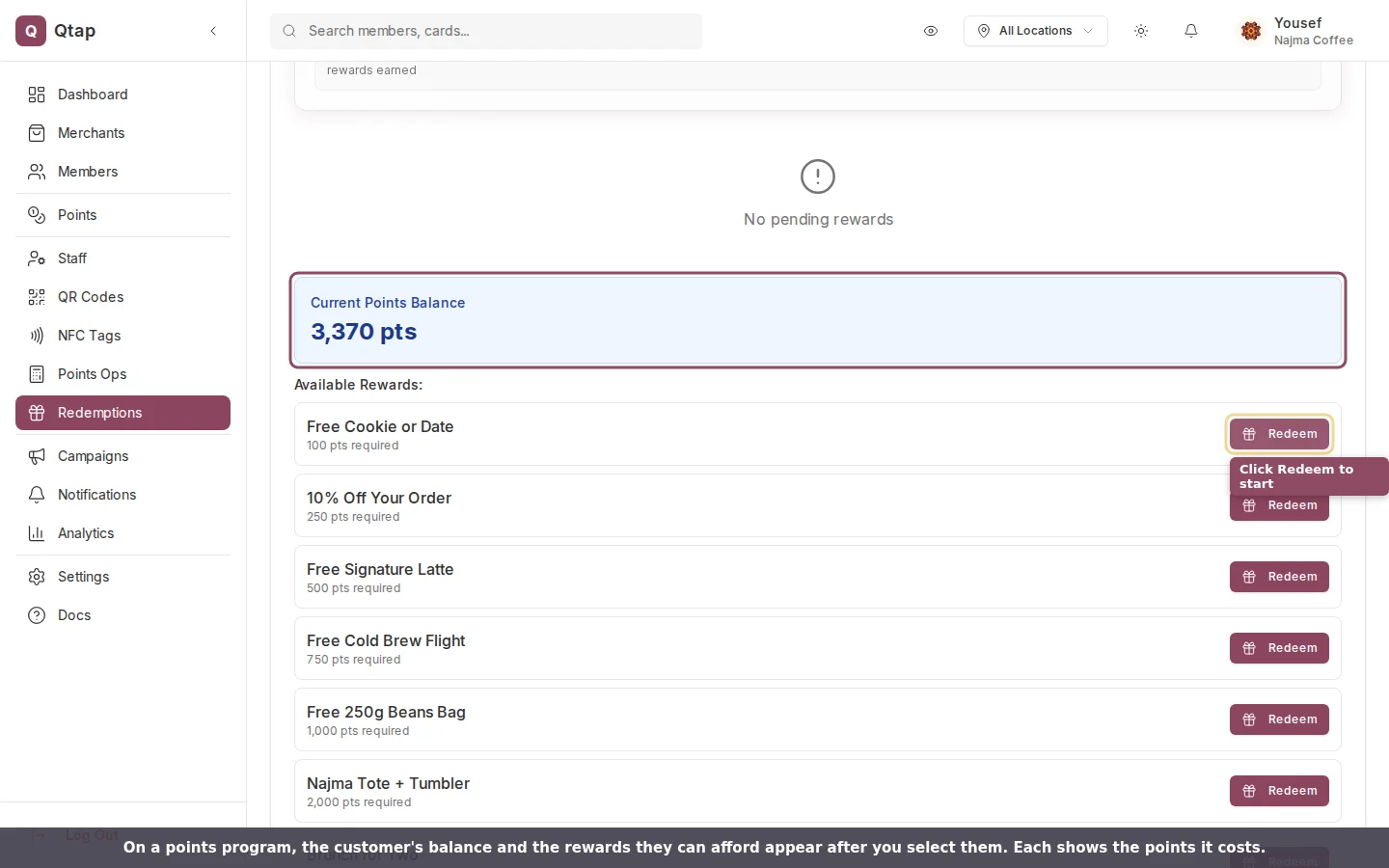
On a points program, the customer's balance and the rewards they can afford appear once you select them.
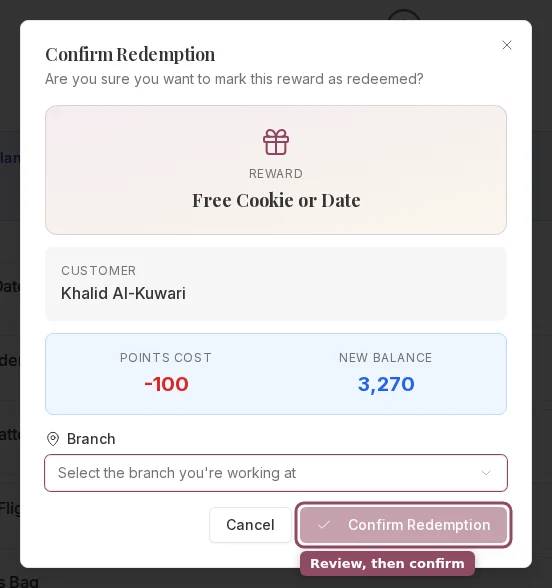
The confirmation shows the points cost and the customer's new balance before you commit.
Reward status
A reward processes only when its status is available or pending redemption. The status appears on the reward card.Redemption history
The History tab shows the last 50 redemptions across your organization. Each row shows:- Customer name
- Reward description
- Stamp card or program the reward came from
- Date and time it was processed
- Which staff member confirmed it
Related
- Redeeming by scanning: use the Scan button instead of typing, with a scanner or a phone camera
- Member Redemptions: view a specific customer’s full redemption record from their profile
- Stamp Card Rewards: configure what reward members get when they complete a stamp card
- Points Programs: Operations: how points are issued and how redemption thresholds work