

Open the member’s profile
Go to Members in the sidebar and click the customer’s row. Their profile opens with contact details on the left and their activity on the right. If the member is missing a phone number or a birthday, a Complete Profile button appears on their profile card, just under their name. The blank line reads “Not provided”, so you can see at a glance what is missing.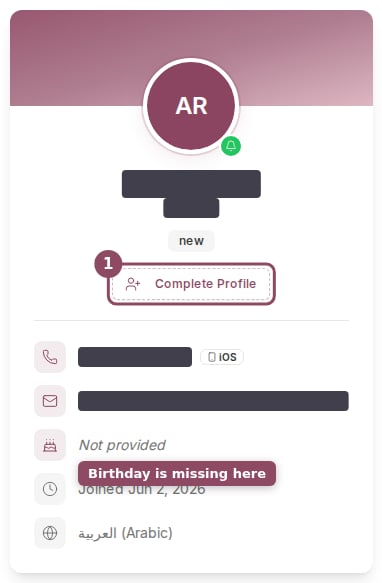
The Complete Profile button appears on the member's card when a detail is missing.
Add the missing details
Click Complete Profile to open the Update Member Information box. It only shows the fields that are still empty, so a member who already has a phone number on file will only see the birthday field.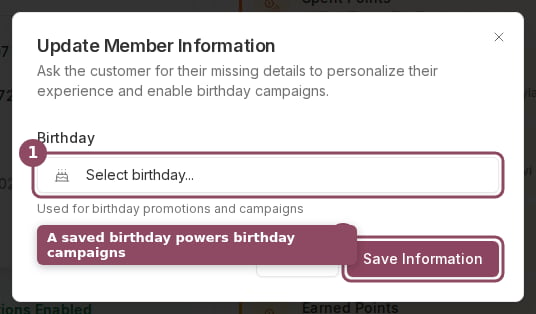
The Update Member Information box, here asking only for the missing birthday.
- Phone number. Type the number with its country code, for example +974 5500 0000. This is the number your team can reach the customer on.
- Birthday. Click Select birthday and choose the date. Use the month and year dropdowns above the calendar to jump straight to the birth year instead of paging back one month at a time.
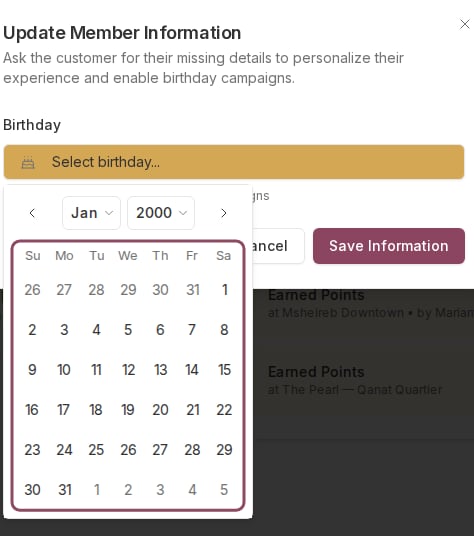
The calendar opens from the Birthday field. The year dropdown jumps to any year.
You can only fill in blanks
This box adds details that are missing. It does not change a phone number or birthday that is already saved, and a field that already has a value will not appear here at all. If a saved value is wrong, the customer corrects it themselves in the Qtap app.Why the birthday matters
A birthday on file is what makes a member eligible for a Birthday campaign. Without a date, Qtap has no way to know when to send the birthday reward, so that member is skipped. Adding birthdays as customers share them widens the audience for that campaign.Who can do this
The Complete Profile button shows for the owner and manager roles. The staff role does not see it, even when a staff member has full access to the Members section, because this action is tied to the role rather than to the Members permission.Member Profiles
The full member profile page: contact details, activity, and notes
Birthday Campaigns
Send a reward around each member’s birthday