

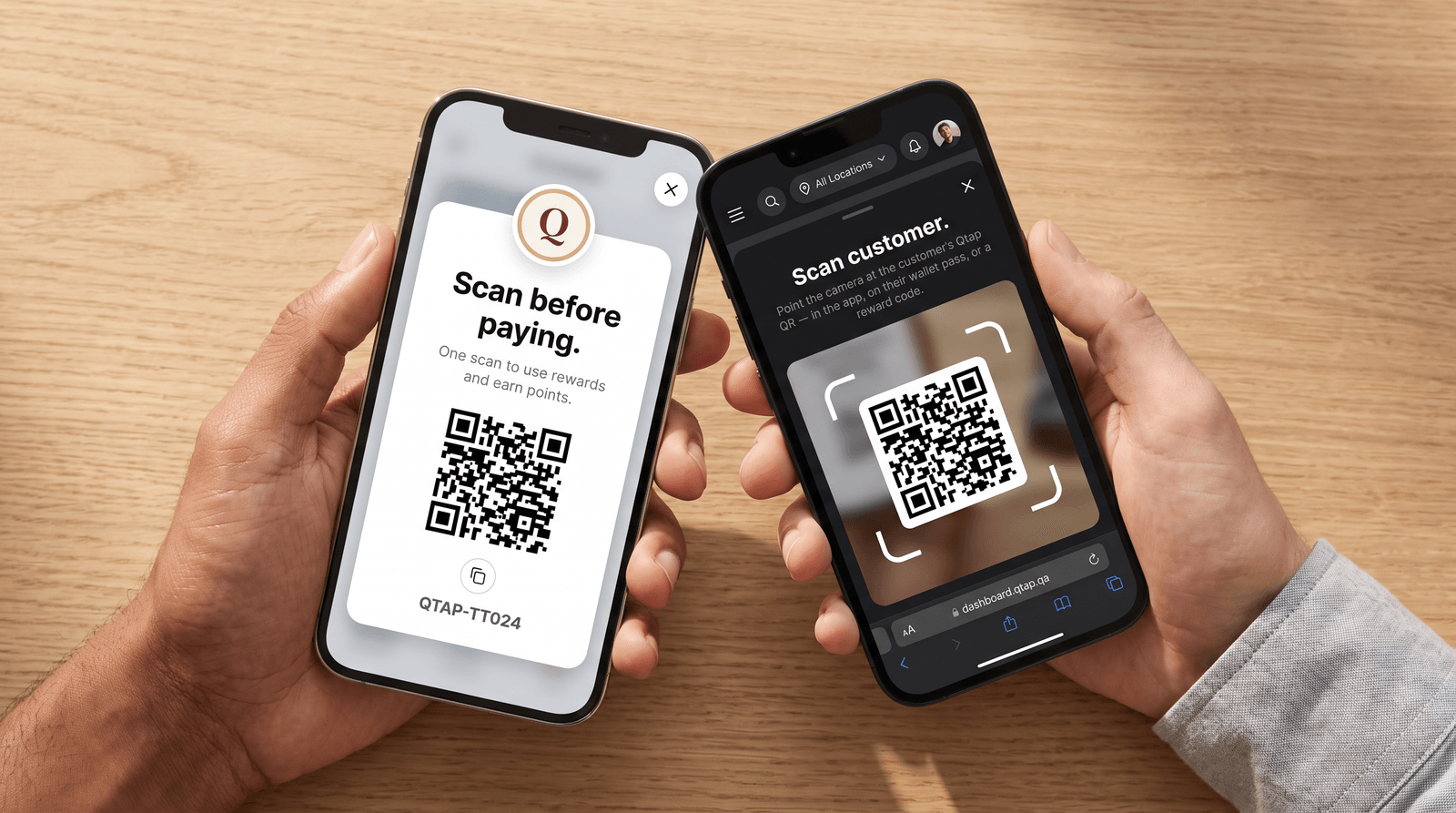
A member walks up and says they have a free coffee waiting. You tap Scan, point the camera at the QR on their phone, and their card and every ready reward appear. No name to spell, no code to read out.
A member holding up their Qtap QR code on a phone while staff read it with the Scan customer camera on a second phone

The whole thing at the counter: the member holds up their Qtap QR, you read it with the camera.
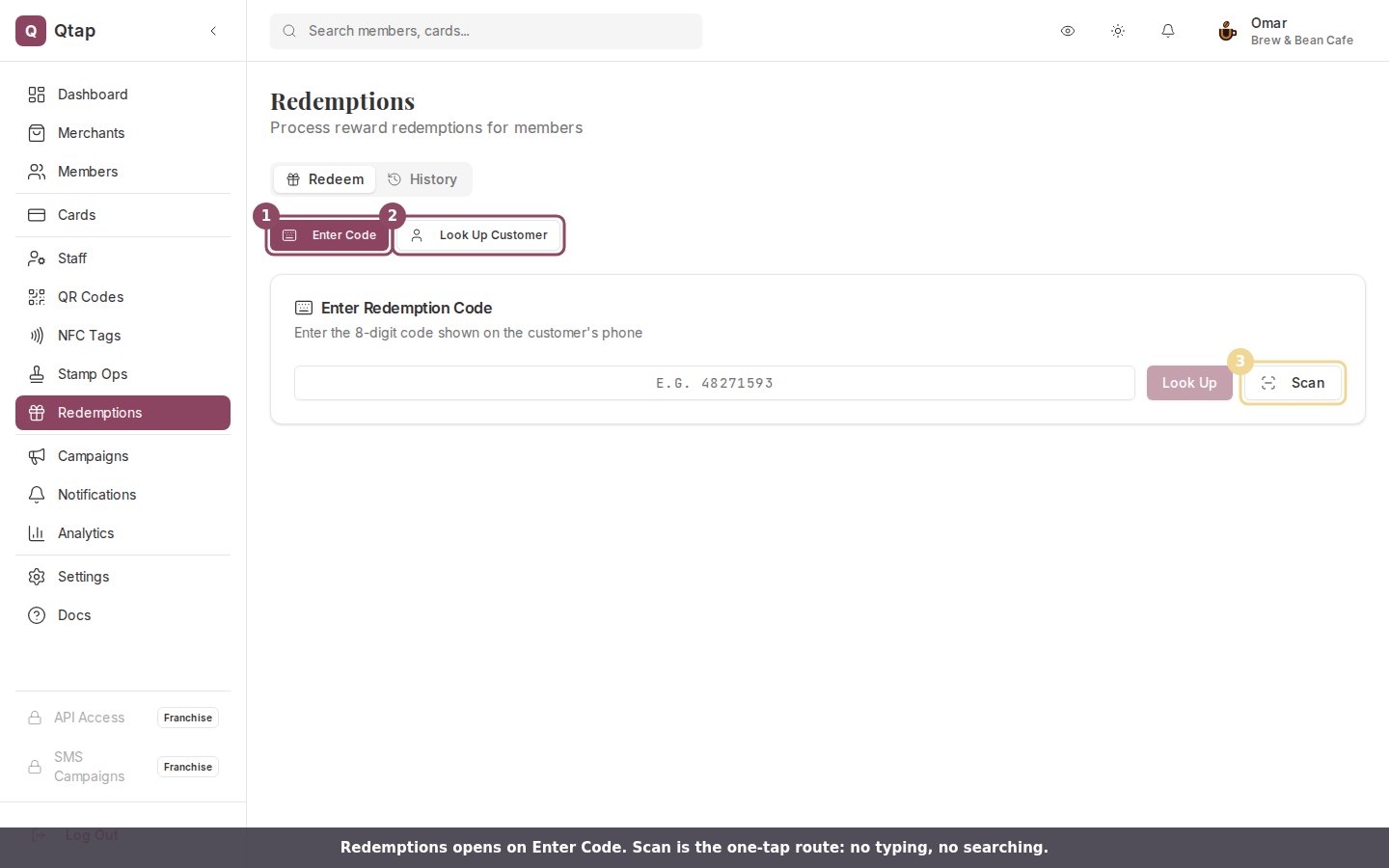
The Redemptions page with the Enter Code, Look Up Customer and Scan buttons marked

The Redemptions page opens on Enter Code (1). Look Up Customer (2) searches by name. Scan (3) skips both.

What the member shows you

Every Qtap member has one QR that identifies them. They can pull it up in three places, and all three work the same way at your counter:
  • The Qtap app, on the QR screen they open from their profile
  • The card they have open in the app
  • Their Apple or Google Wallet pass
The Scan button also reads a reward code straight off the member’s screen, so a member who only has a voucher open still gets served in one tap.

What you scan with

Either of these works, and staff can switch between them shift to shift:
  • A tablet or phone. Open dashboard.qtap.qa in the browser, go to Redemptions, and tap Scan. The device camera does the rest. This is the setup most counters end up using.
  • A QR scanner wired to the till computer. Qtap can supply one; ask your Qtap contact. A wired scanner types the code it reads into whichever box has your cursor, so click the code box first, and the page looks the code up as soon as the scanner finishes.
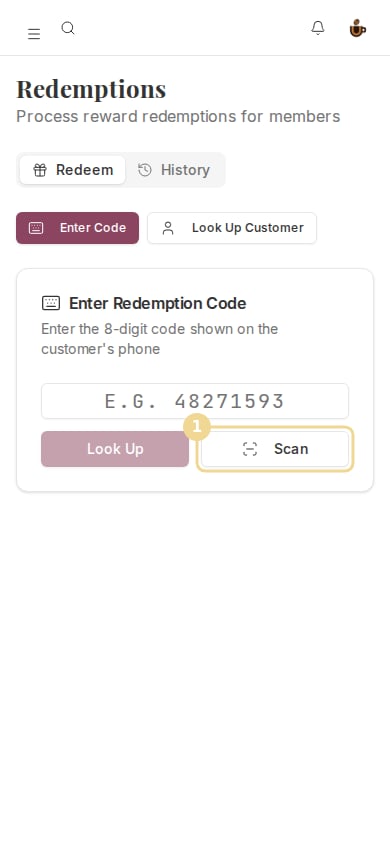
The Redemptions page on a phone with the Scan button marked

Tap Scan on a phone or tablet and the camera opens right there in the browser.

The first code the camera reads closes the scanner, so there is nothing to press to finish. If the camera cannot start, the dialog says so and points you at the code box and Look Up Customer, which always work.

Stamp cards

1

Tap Scan and read the member's QR

The scanner closes itself and Qtap moves you to Look Up Customer with the member already found.
2

Tap the member in the list

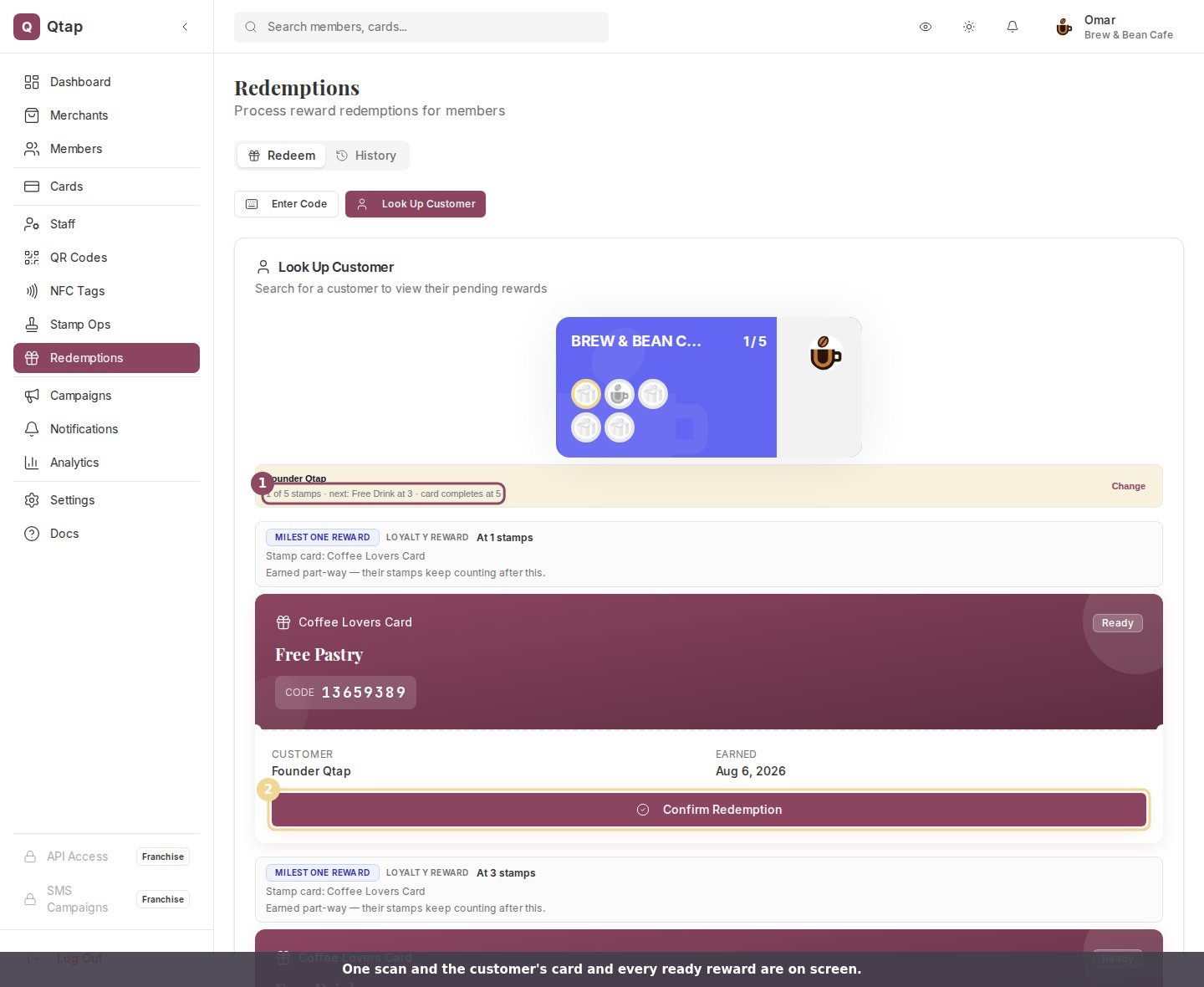
Their card appears with live progress, and every reward they can claim is listed underneath with its code.
3

Tap Confirm Redemption on the reward they want
Check the reward and the member name in the dialog, then confirm. Qtap marks that voucher redeemed. It does not touch their stamp count, so a member sitting on three ready rewards keeps all three until they claim them.
A scanned member's stamp card progress and a ready Free Pastry reward with a Confirm Redemption button

After one scan: the member's card, how far along they are, and each ready reward with its code.
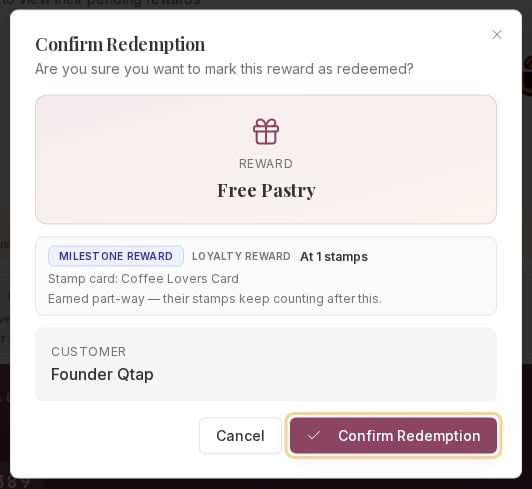
The Confirm Redemption dialog for a Free Pastry stamp card reward

The confirmation names the reward, the card it came from, and the member, so staff can catch a mistake before it happens.

Points programs

The scan is the same. What comes back is the member’s balance and every reward that balance already covers, each with the points it costs.
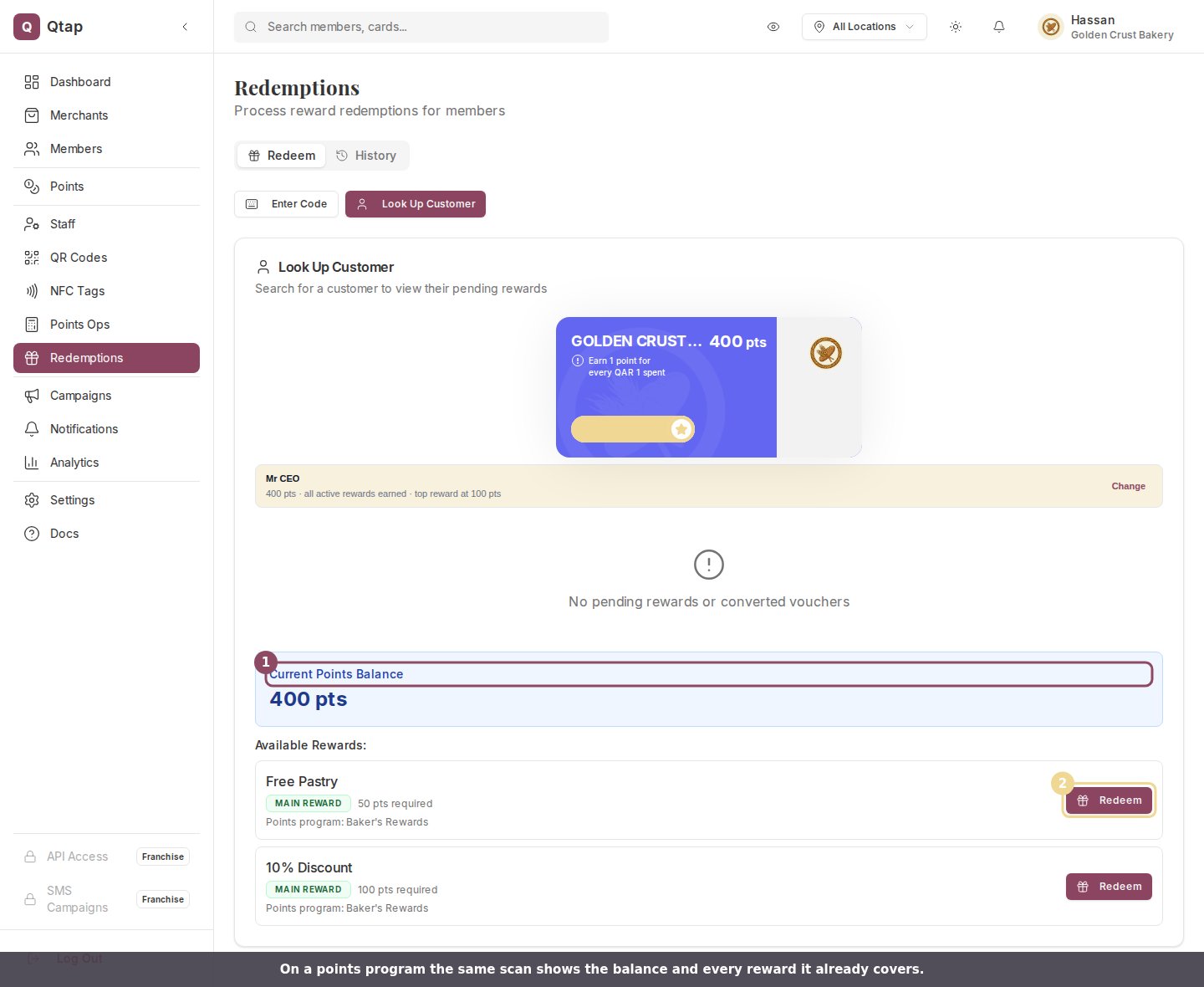
A scanned points member showing a 400 point balance and two available rewards with Redeem buttons

A points member after one scan: their balance, and the two rewards their 400 points already cover.
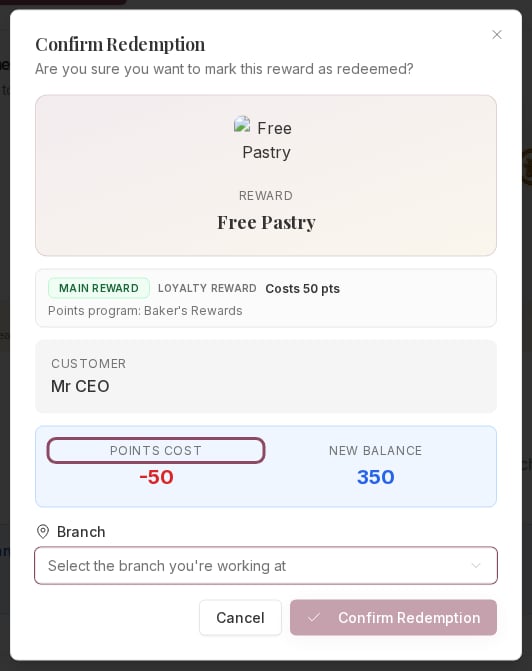
Tap Redeem on the one they want. The confirmation shows what it costs and what they are left with, so you can read the new balance back to them before anything is spent.
The Confirm Redemption dialog for a points reward showing a 50 point cost and a 350 point new balance

Points come off only after you confirm. On a multi-branch account, pick the branch first or the button stays greyed out.
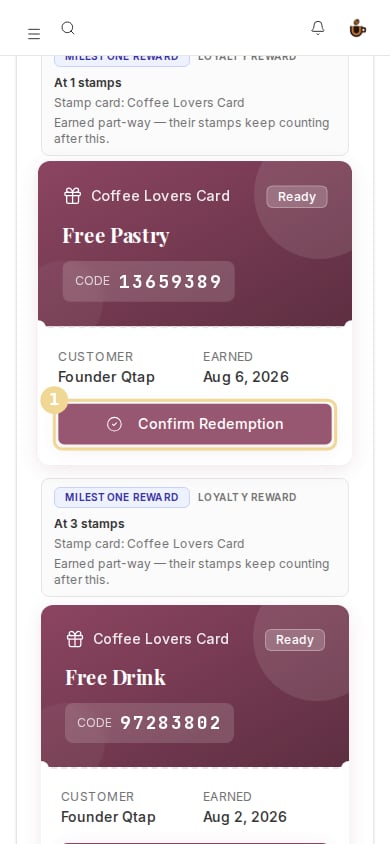
A scanned member's ready rewards on a phone with the Confirm Redemption button marked

The same member view on a phone, ready to confirm at the counter.

When a scan does not land

Hold the phone still and fill the box with the QR. A screen at low brightness or behind a cracked protector takes longer to read. If it will not catch, type the 8 digit code in the code box instead.
You scanned something that is neither a member QR nor a reward code. The printed QR codes on your own counter are for members to earn with, not for this page.
Qtap read the code, but the reward behind it is gone: claimed already, or past its expiry date. Look the member up by name and check what is still ready under their card.
Allow camera access for dashboard.qtap.qa in your browser, then reopen the scanner. A wired scanner or the code box gets the member served in the meantime.

Who can do this

Owners, managers, and staff can all redeem. Redeeming is on by default for every role, so a new team member can serve a reward on their first shift without a permissions change. Two related pages: Redemptions dashboard covers the code and member lookup routes in full, and Redeeming points rewards goes deeper on the points side.