

Open the editor
Open the ⋯ menu on the program card and choose Edit. Clicking the card preview opens the same editor.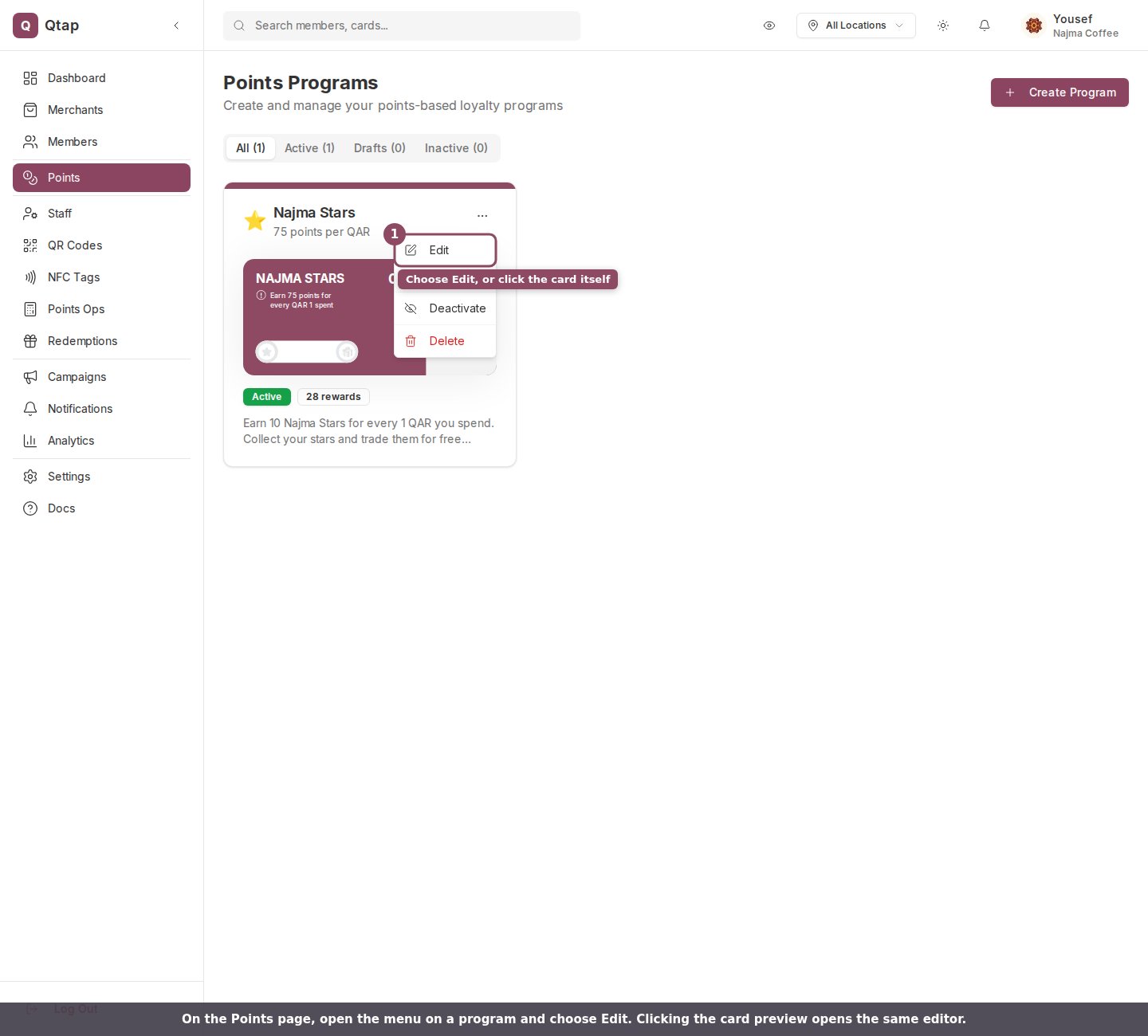
On the Points page, open the menu on a program and choose Edit.
What you can change
The editor opens with every setting filled in from the current program. The page is titled Edit Points Program, and on a wide screen a live preview of the member card sits beside the form and updates as you type.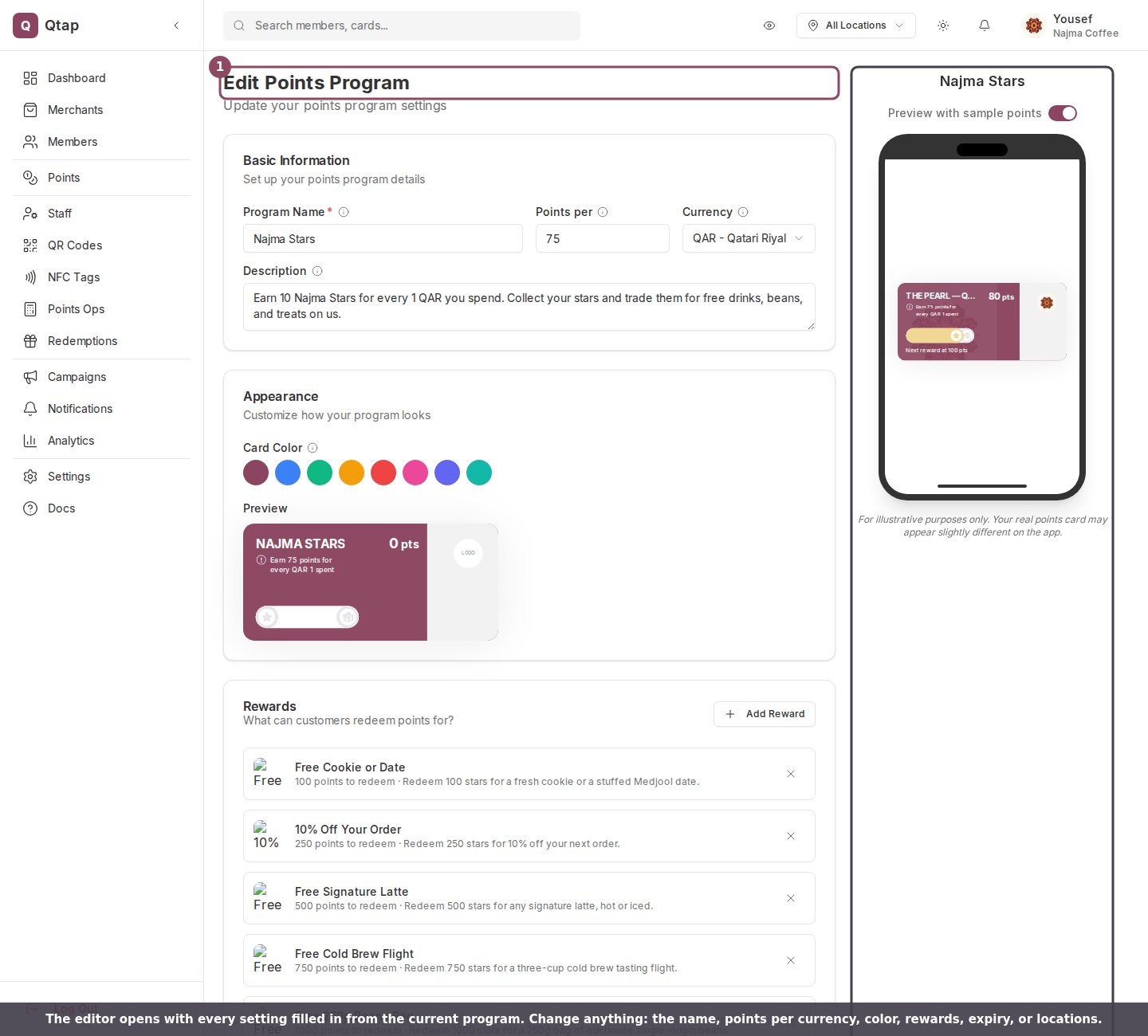
The editor loads the program's current settings. The live preview on the right updates as you edit.
- Program Name, Points per currency, Currency, and Description
- Card Color under Appearance
- Rewards members can redeem
- Locations where the program is valid
- Points Expiry, Availability Period, and the Max points per visit limit
- Terms & Conditions and FAQs
Changing the Points per rate only affects points earned from that moment on. Points members have already earned stay as they are.
Editing rewards
The Rewards card lists every reward on the program. Click a reward to edit its name, points needed, image, or staff note, or use the × to remove it. Add reward adds a new one. This is the same reward editor you used when creating the program.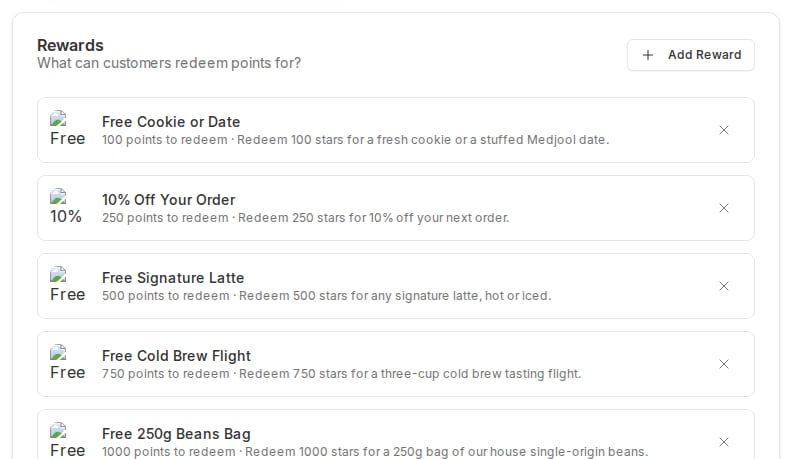
The Rewards card lists every reward. Click one to edit it, or use the × to remove it.
Saving your changes
At the bottom of the form, choose how to save.
Save as Draft takes the program offline; Save & Activate keeps it live.
- Save & Activate saves your changes and keeps the program live for members. If the program was a draft, this publishes it.
- Save as Draft saves your changes but takes the program offline. Members can no longer find or join it until you publish it again.
- Cancel discards your changes and returns to the Points page.
Creating a Points Program
Set up a new points program from scratch.
Points Program Rewards
Add and price the rewards members redeem.