

Where the numbers live
Click Notifications in the sidebar. The page is titled Push Notifications and splits into five tabs: All, Drafts, Scheduled, Sent, and Templates. The Drafts, Scheduled, and Sent tabs carry a live count in their label, so the Sent tab tells you how many messages have gone out in total. The list holds the 50 most recent messages, newest first. Only messages with a green Sent badge show figures. A draft has nothing to report yet, and a scheduled message reports once it goes.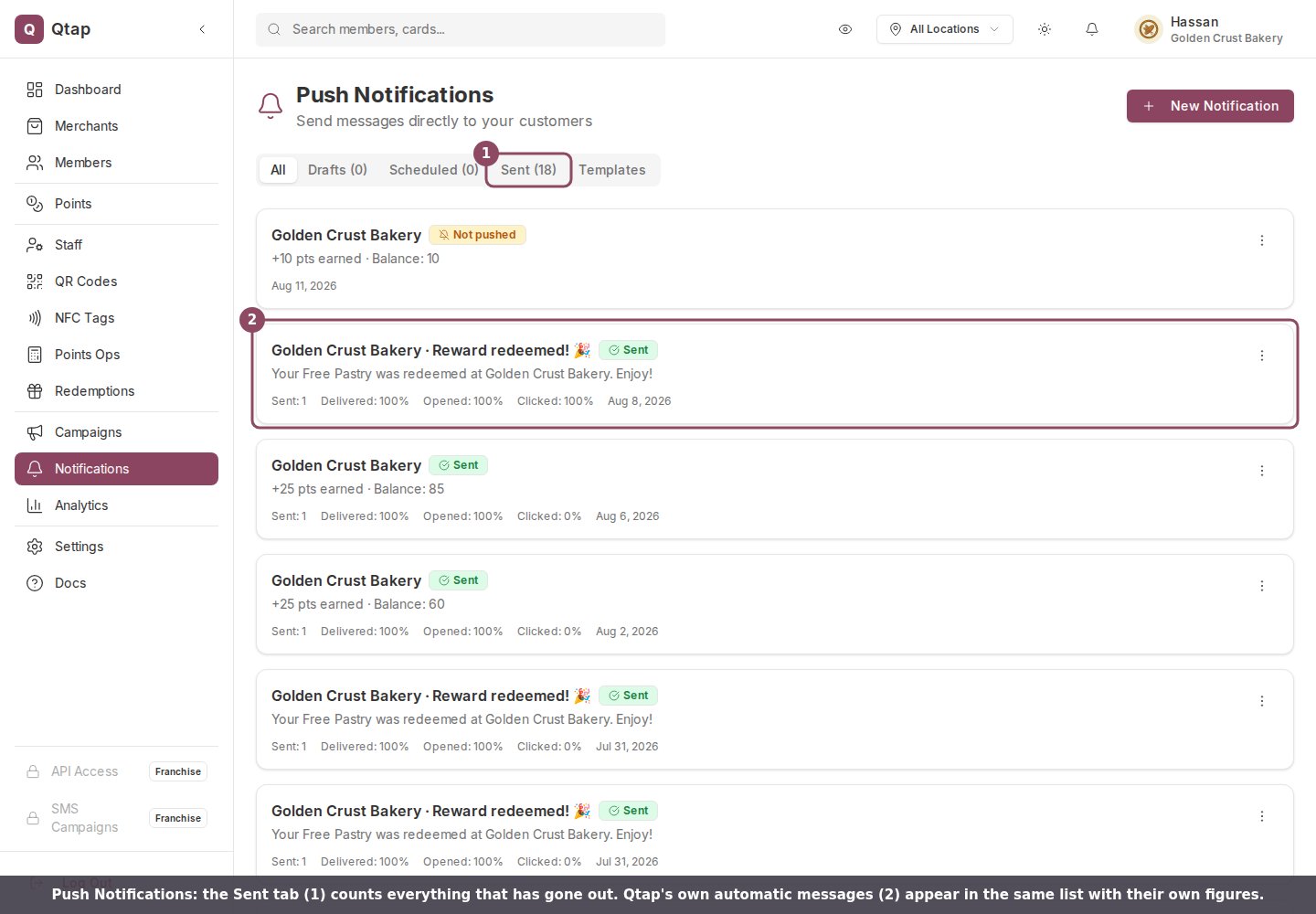
The Notifications page. The Sent tab (1) counts everything that has gone out, and Qtap's own automatic messages (2) sit in the same list.
The four figures

Every sent message carries the same four figures, in this order: Sent, Delivered, Opened, Clicked.
Why Delivered can be lower than Sent
A member counts towards Sent even when their phone stays quiet. Qtap writes the message into their in-app inbox either way, so they will see it next time they open the Qtap app. What they do not get is the push on their lock screen. That happens when the member has notifications turned off for Qtap, has not registered a device yet, or has muted your business. None of them are errors, and none are fixable from your side.
Sent: 1 with Delivered: 0%. The message is in the member's app inbox; their phone stayed quiet.

Not pushed: no push went out for this one, but the message is still waiting in the member's app inbox.
Messages you did not write
Most of the list is usually Qtap’s own work. Qtap messages a member when they earn points or a stamp, finish a card, or redeem a reward or an offer, with titles like “+25 points at your business” and “Reward redeemed!”. Each goes to one person, which is why so many rows read Sent: 1. You cannot turn these off or edit them from the dashboard. The toggles under Settings → Notifications control alerts sent to you, not the messages your members get. Read these rows as a record of what your members were told.Opens and clicks arrive late
Opened and Clicked are reported back by each phone after the fact, so a message you just sent sits at 0% on both for a while before the numbers start moving. Give it an hour before reading anything into them.A member who reads the message inside the Qtap app inbox rather than tapping the push does not register as an open. Treat Opened as a floor, not an exact count.
Who can see this
Owners and managers can open the Notifications page. Staff have no access to it by default, so a staff member who sends stamps all day will not see these figures unless you check View notifications or Send notifications for them under Edit Permissions.Sending a notification
Write and send a one-off message to your members.
Campaign stats
The separate scorecard a campaign keeps, including redemptions.
Audience segments
Which members each segment reaches, and why Sent can come back small.
Roles and permissions
Give a manager or staff member access to the Notifications page.