

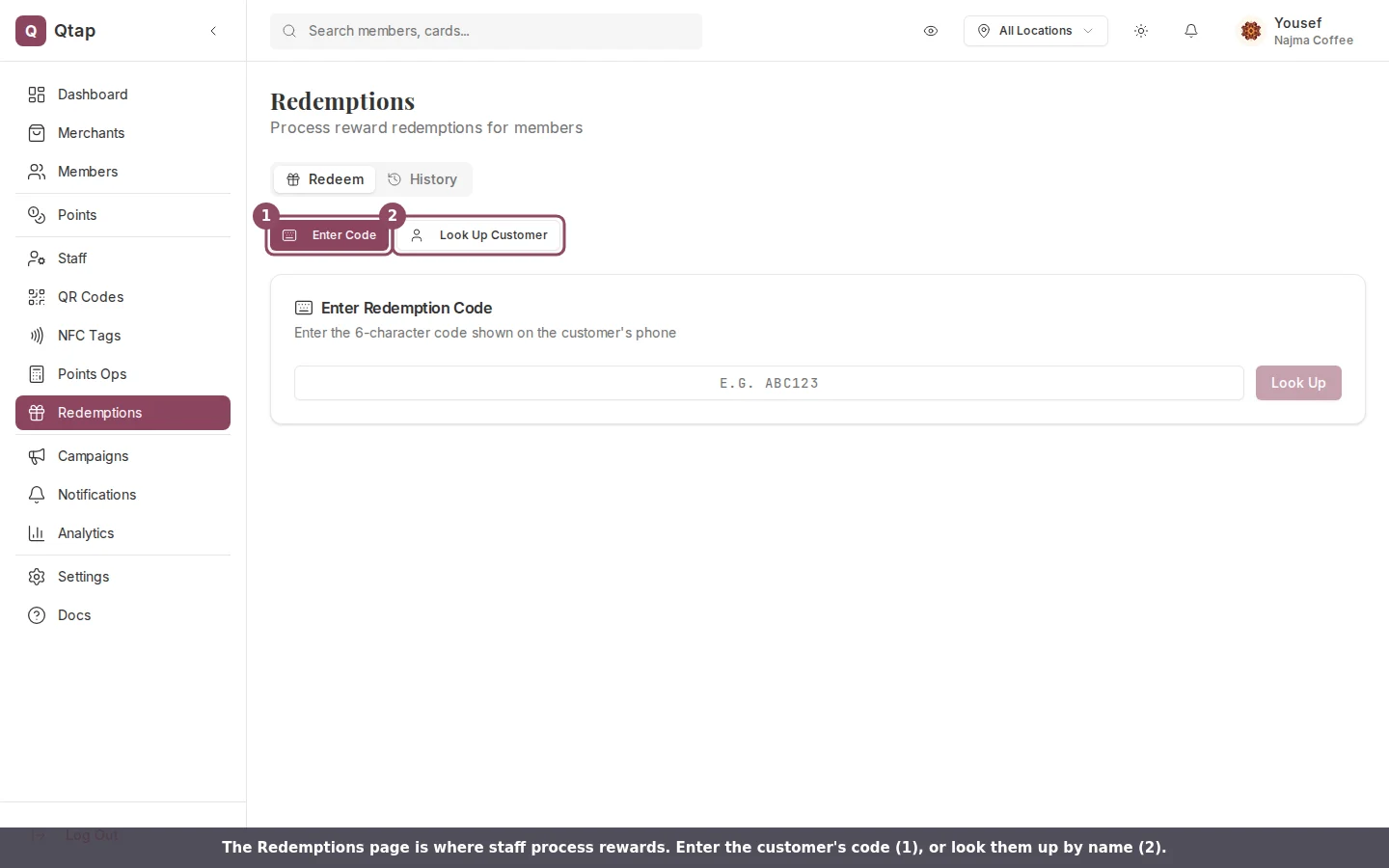
The Redemptions page. Switch between entering a code and looking a customer up, or open the History tab.
Redeem by code
When a member earns a reward, they receive a redemption code. Staff can enter this code to pull up the reward details before confirming.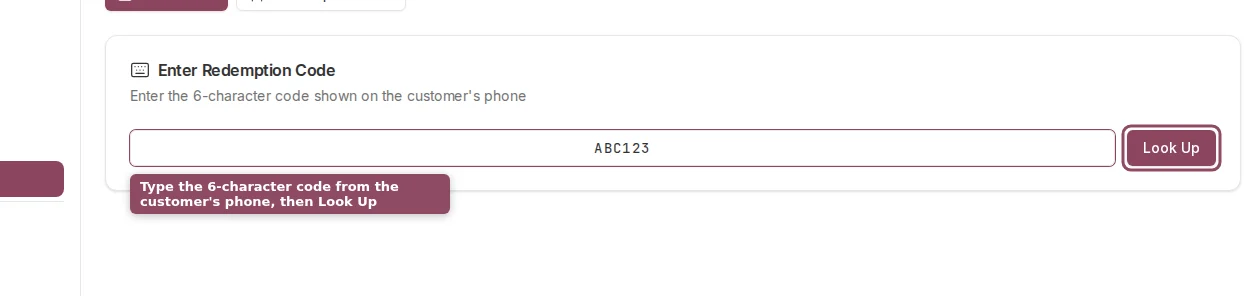
Type the customer's redemption code, then press Look Up to pull up the reward.
Redeem by member lookup
If the member doesn’t have their code, search for them by name, email, or phone number.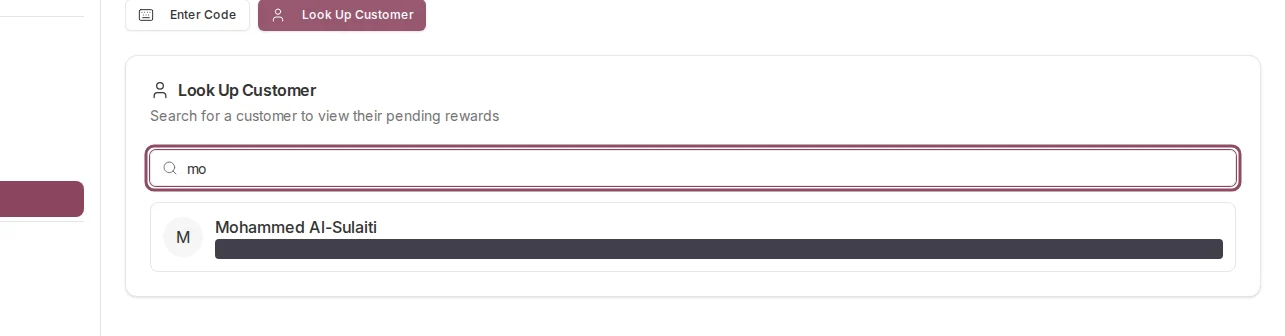
Search by name, email, or phone. Matching customers appear as you type.
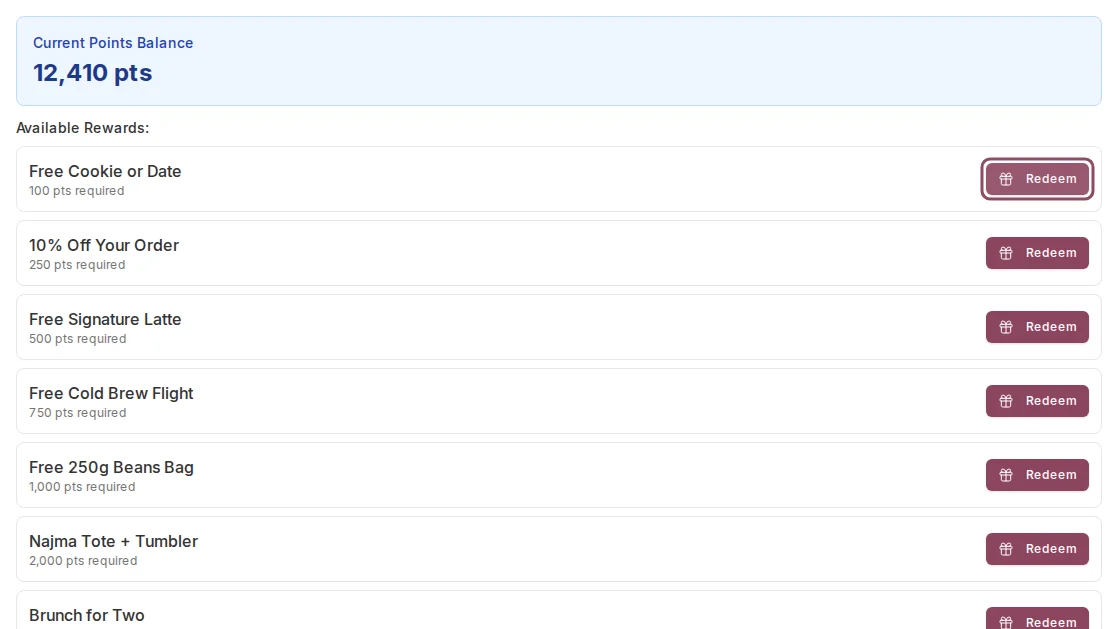
Once you pick a customer, the rewards they can claim appear with a Redeem button next to each.
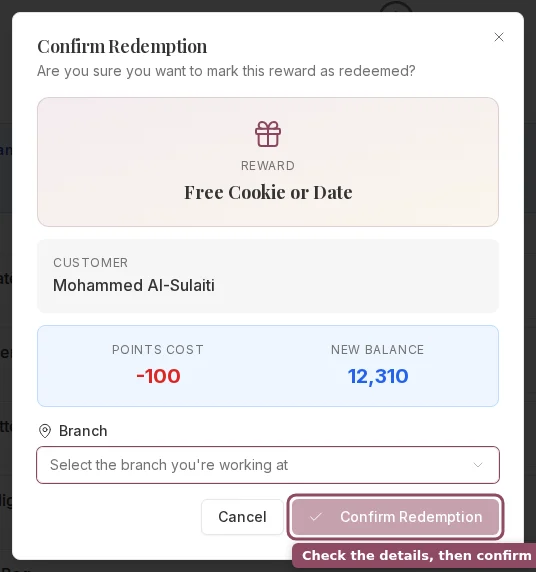
Both methods finish at the same confirmation dialog. Check the reward and customer, then confirm.
If a member has rewards from a points program that they’ve accumulated enough points to claim, those eligible rewards also appear in this view so staff can redeem them on the spot.
Redemption history
The History tab at the bottom of the Redemptions page shows the last 50 redemptions across all members. Each row shows the member name, reward name, program, which staff member processed it, and the date.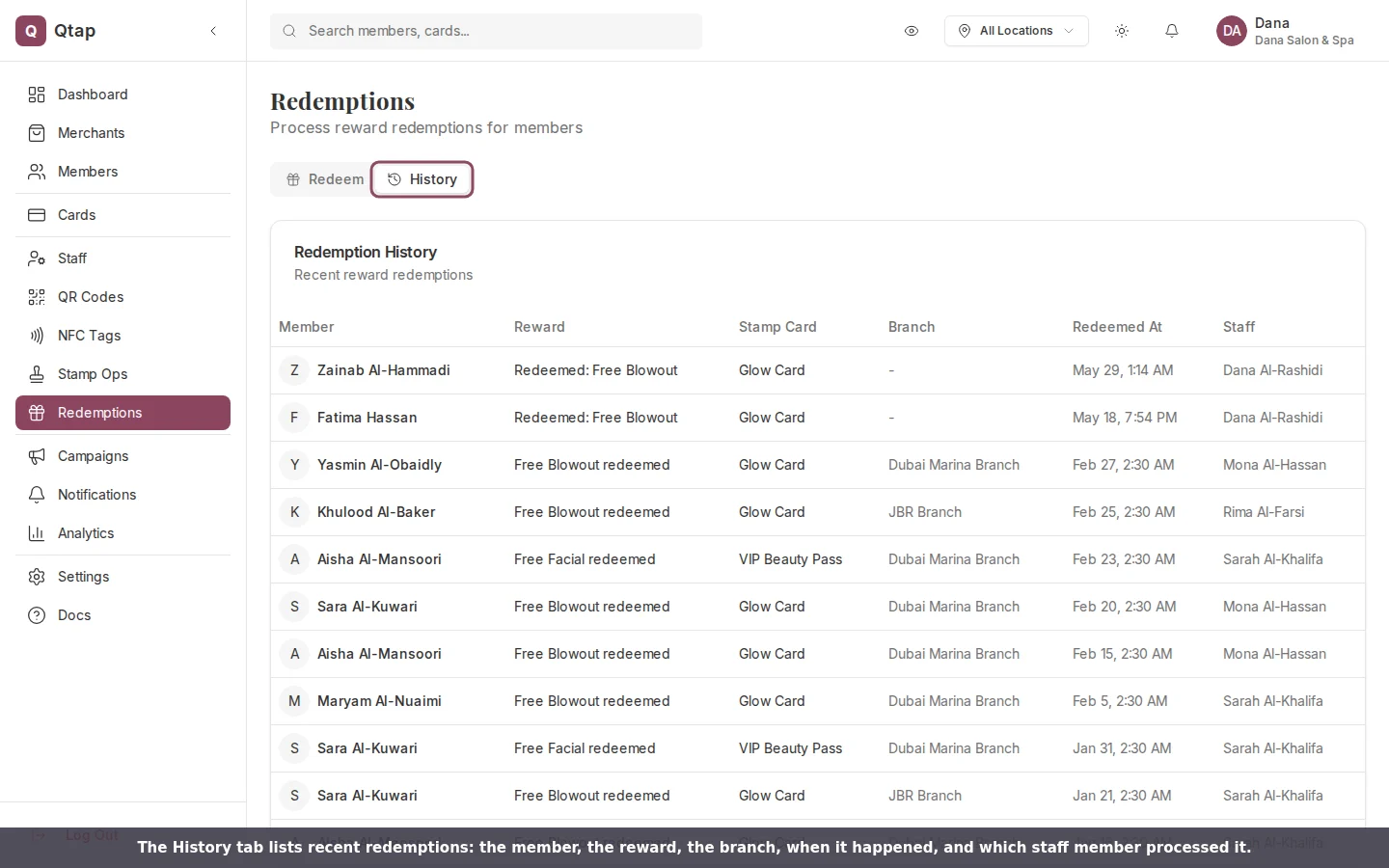
The History tab shows recent redemptions and which staff member processed each one.
Member Profiles
View a member’s full history including past redemptions.
Stamp Card Rewards
Set up what reward members get when they complete a stamp card.