

How QR codes are used
There are two main uses for QR codes in Qtap: Stamping — a customer shows their unique member QR code to staff, and staff scan it using the Qtap staff app. This adds a stamp to the customer’s card or records a points transaction. Alternatively, you can display a location QR code for customers to scan themselves from the member app. Redemptions — when a customer wants to use a reward, staff scan the customer’s QR code on the Stamp Operations or Points Operations screen to confirm the redemption.The QR Codes page
Go to QR Codes in the left sidebar to see all your generated QR codes. The page shows a table of all codes with columns for name, location, type, status, and creation date.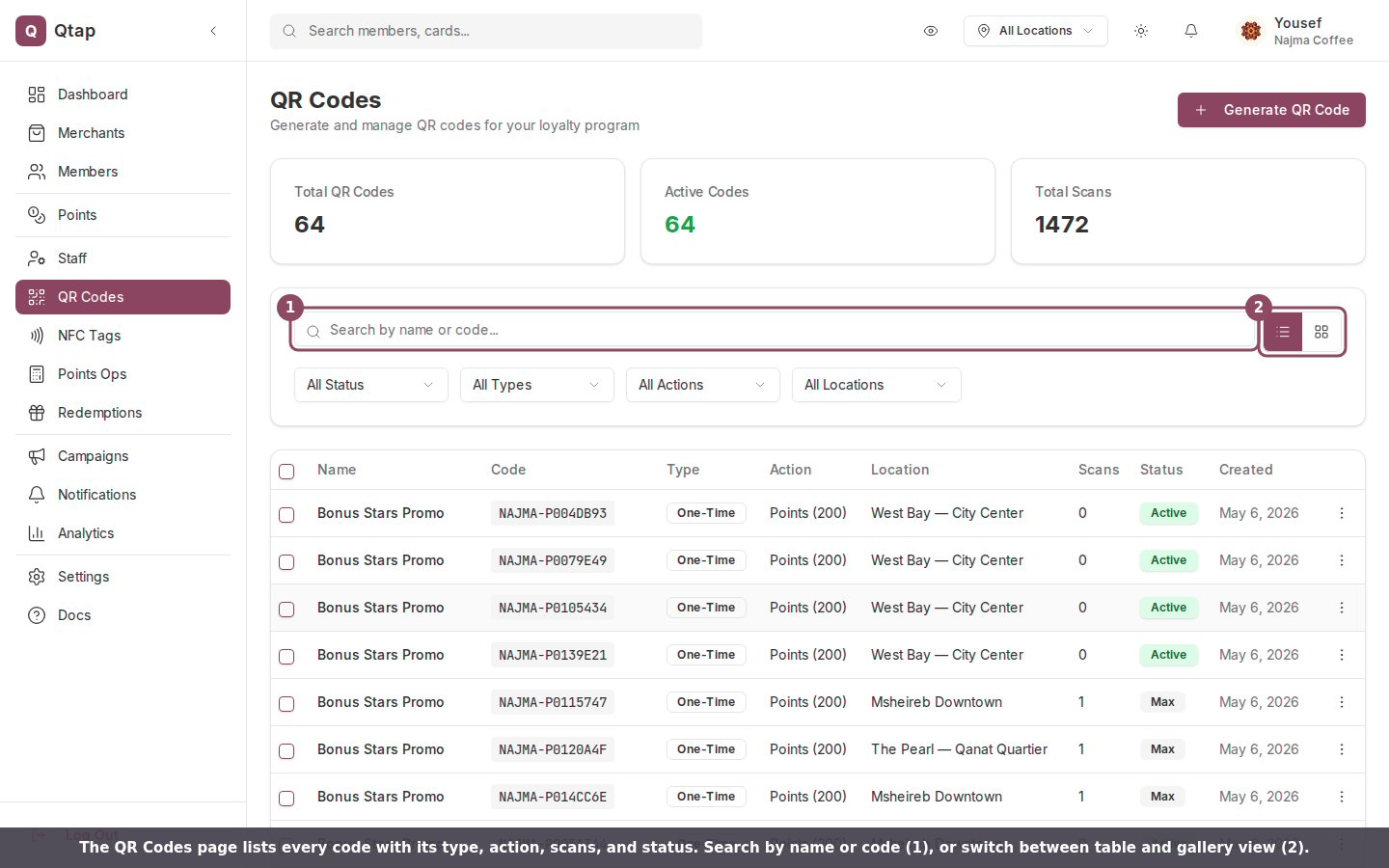
The QR Codes page: search and view toggle at the top, then a table of every code with its type, action, scans, and status.

Narrow the list with the status, type, and action filters, or type in the search box to find one code.
QR code actions
Click the three-dot menu on any code row to see available actions:- View — opens the QR code image full-screen with a download option
- Download — exports the QR code as a PDF file ready to print
- Copy — copies the code’s unique string to your clipboard
- Delete — permanently removes the code
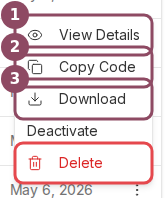
The three-dot menu on each code row: View Details, Copy Code, Download, Deactivate, and Delete.
Bulk export
To export multiple QR codes at once, check the boxes next to the codes you want to select, then use the export options that appear. You can export selected codes as a PDF or as a ZIP file containing individual image files.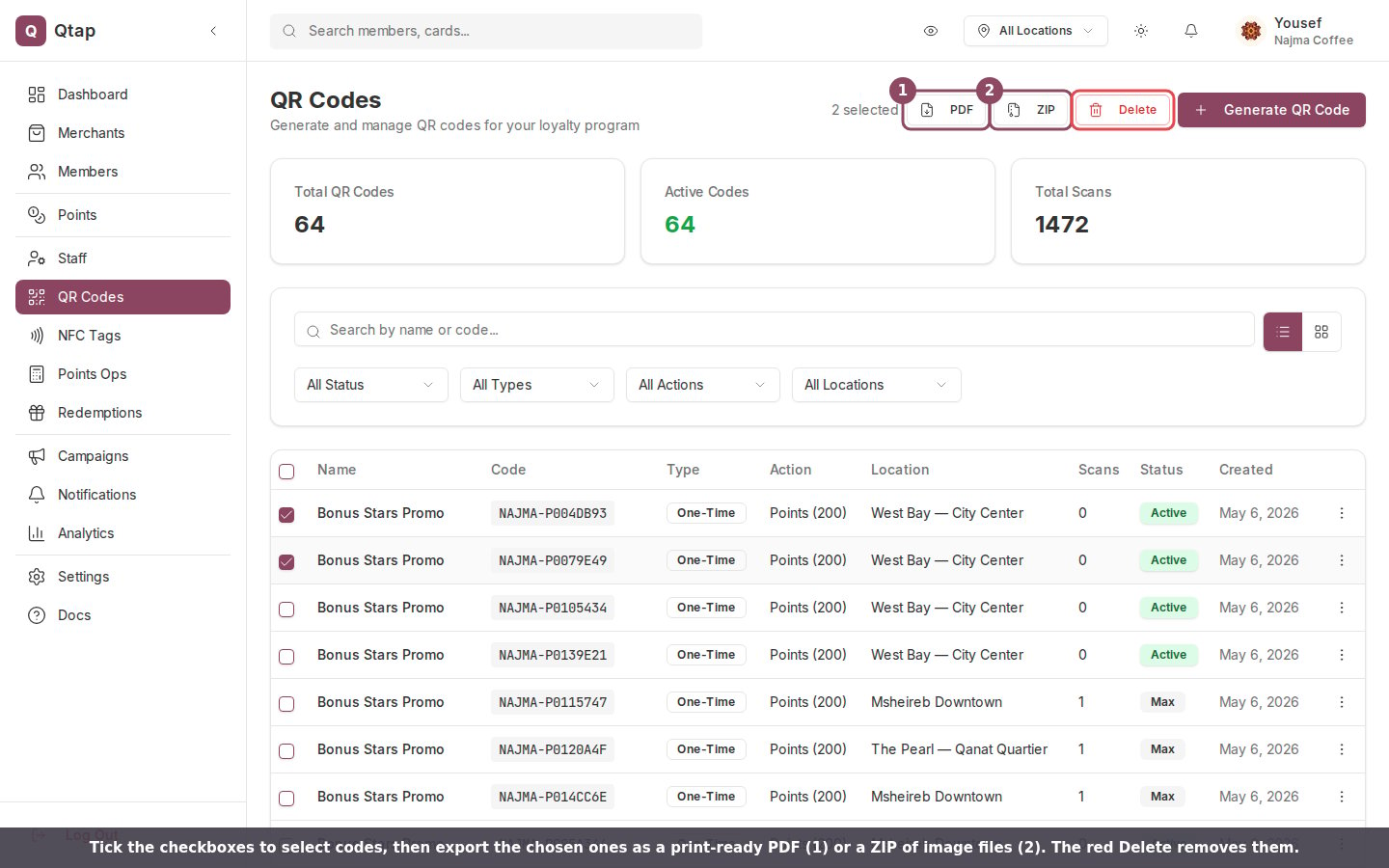
Selecting codes reveals the PDF and ZIP export buttons in the top bar, along with a bulk Delete.
QR code statuses
- Active — the code works and can be scanned
- Inactive — the code is disabled. Scans will not process stamps or redemptions.
Each QR code is linked to a specific location. If you need a code that works at multiple locations, generate a separate code per location or contact Qtap support.
Generating a QR Code
How to create a new QR code for a location.
Batch QR Codes
Generate multiple QR codes at once for print campaigns.