

Basic Business Information
The top section of the settings page has four fields:- Name — your business name as it appears in the dashboard and on member-facing materials
- Email — your business contact email
- Phone — your business phone number
- Website — your business website URL
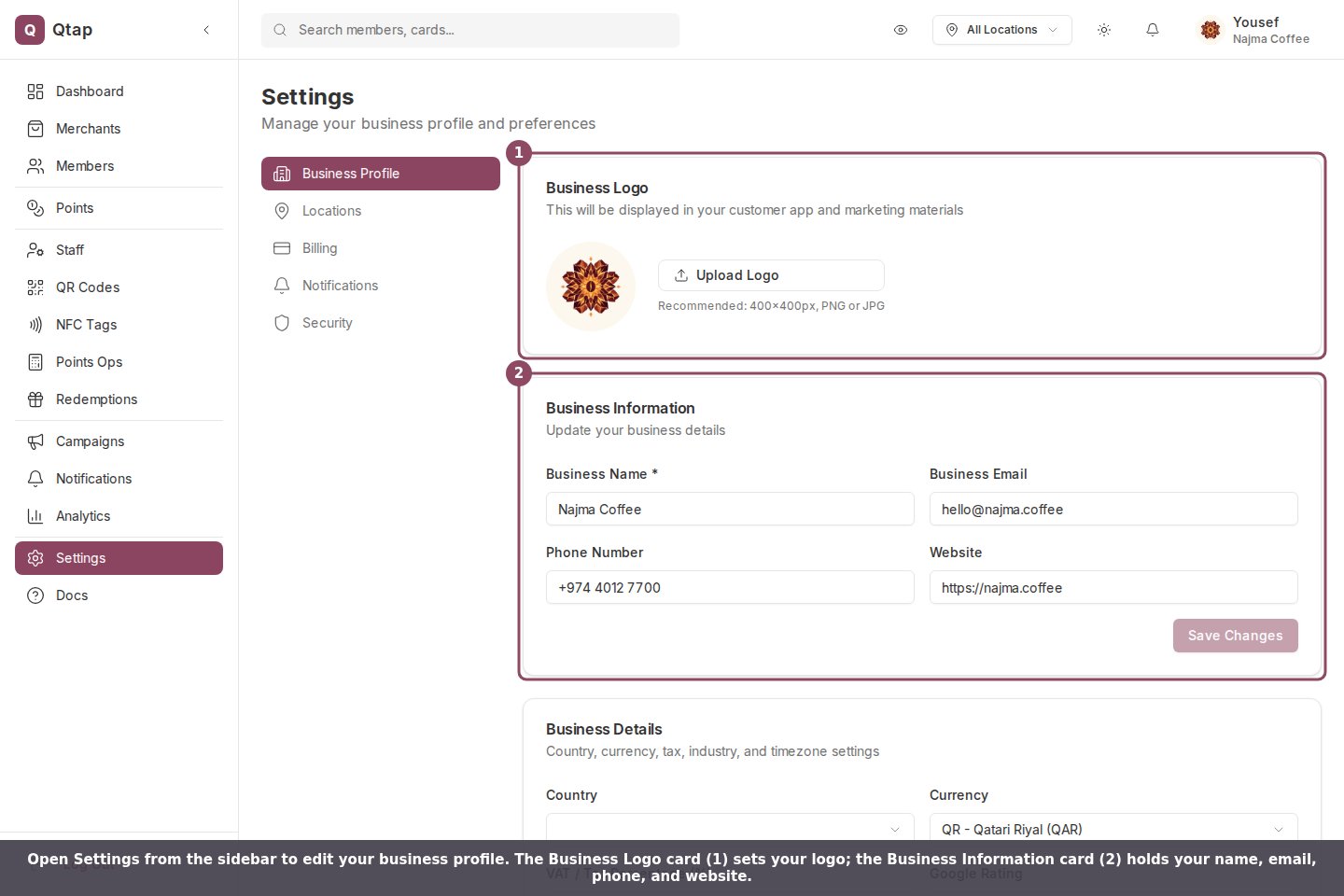
The Settings page. The Business Logo card (1) and the Business Information card (2), where you set your name, email, phone, and website.
Logo
Below the basic fields, click the logo area or the upload button to select an image file from your computer. Qtap uploads the file and updates your logo immediately. The logo appears in the dashboard header and on your public merchant page.Accepted formats are JPG and PNG. Use a square image for the best result — logos that are taller or wider than they are square may appear cropped in some views.
Business Hours
The Business Hours section lets you set your opening hours for each day of the week. Toggle a day on to expand it and enter open and close times. Toggle a day off to mark it as closed. Click Save extended settings after making changes here.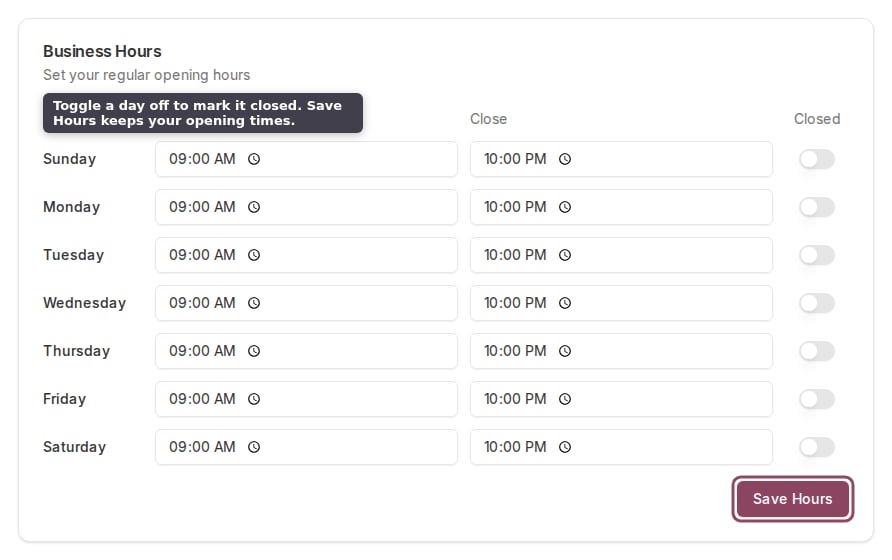
Business Hours: set open and close times for each day, or toggle a day off to mark it closed.
Social Links
Add your handles or URLs for Facebook, Instagram, Twitter, TikTok, and Snapchat. These appear on your public-facing Qtap merchant page so customers can find you. Click Save extended settings after adding or updating links.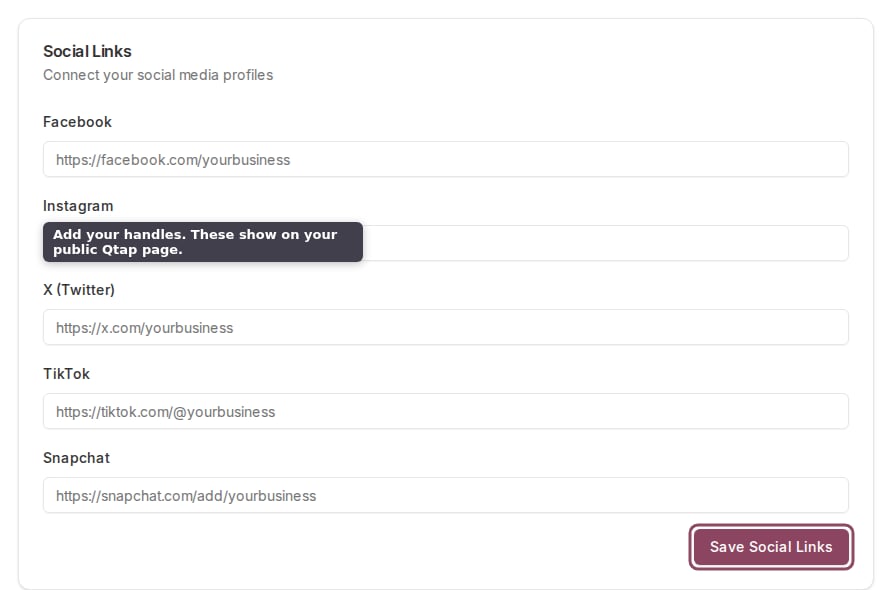
Social Links: add your Facebook, Instagram, X, TikTok, and Snapchat profiles.
Business Details
This section includes fields that affect how Qtap formats and categorizes data for your account:- Country — your country of operation
- Currency — the currency used on your merchant page (default is QAR)
- VAT percentage — your applicable VAT rate, used in any tax-inclusive calculations
- Industry and Industry subcategory — how your business is categorized
- Timezone — controls how timestamps are displayed in the dashboard (default is Asia/Qatar)
- Google rating — your current rating, displayed on your public page
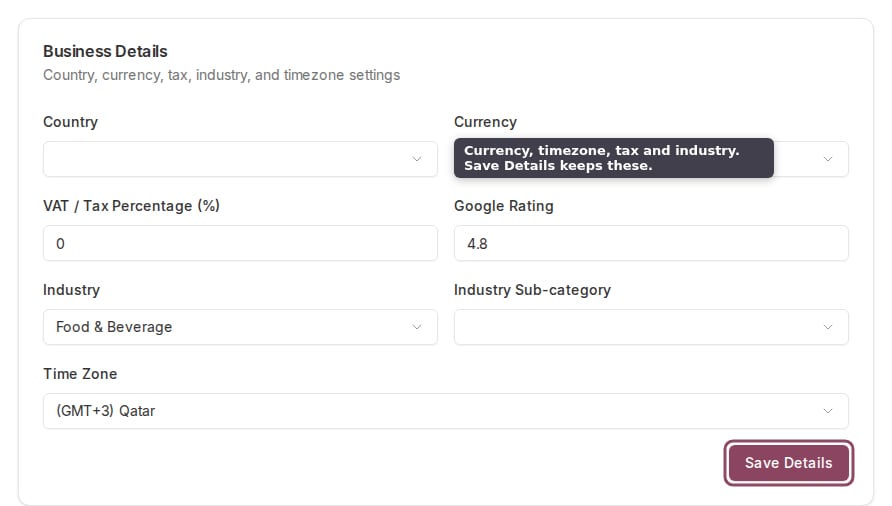
Business Details: country, currency, VAT rate, industry, timezone, and Google rating.
Locations
Add and manage the physical branches of your business
Notifications
Configure push notification settings for your program