

Start with the type
The type sets how often a code can be scanned, so it follows the placement.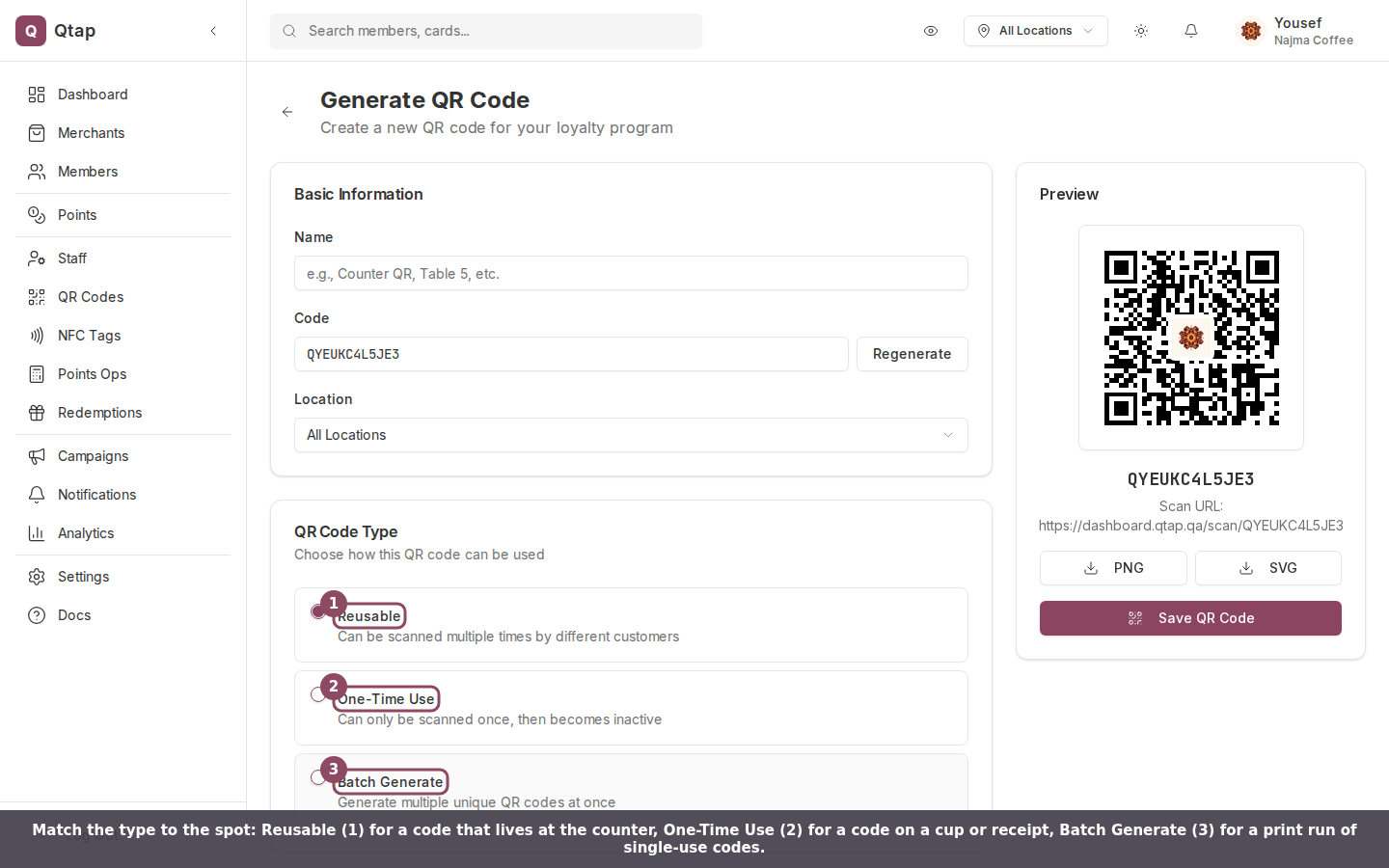
Reusable for a code that stays put, One-Time Use for a code that prints once, Batch Generate for a print run of single-use codes.
- At the counter or on a table tent, use Reusable. The same code works for every customer, every day.
- On cups, receipts, or packaging a customer takes home, use One-Time Use. The code scans once, then goes inactive, so it can’t be reused or shared.
- For a print run, use Batch Generate. It creates up to 100 unique single-use codes in one go, each one good for a single scan.
Pick the action
The action decides what a scan does. It works the same wherever the code is placed.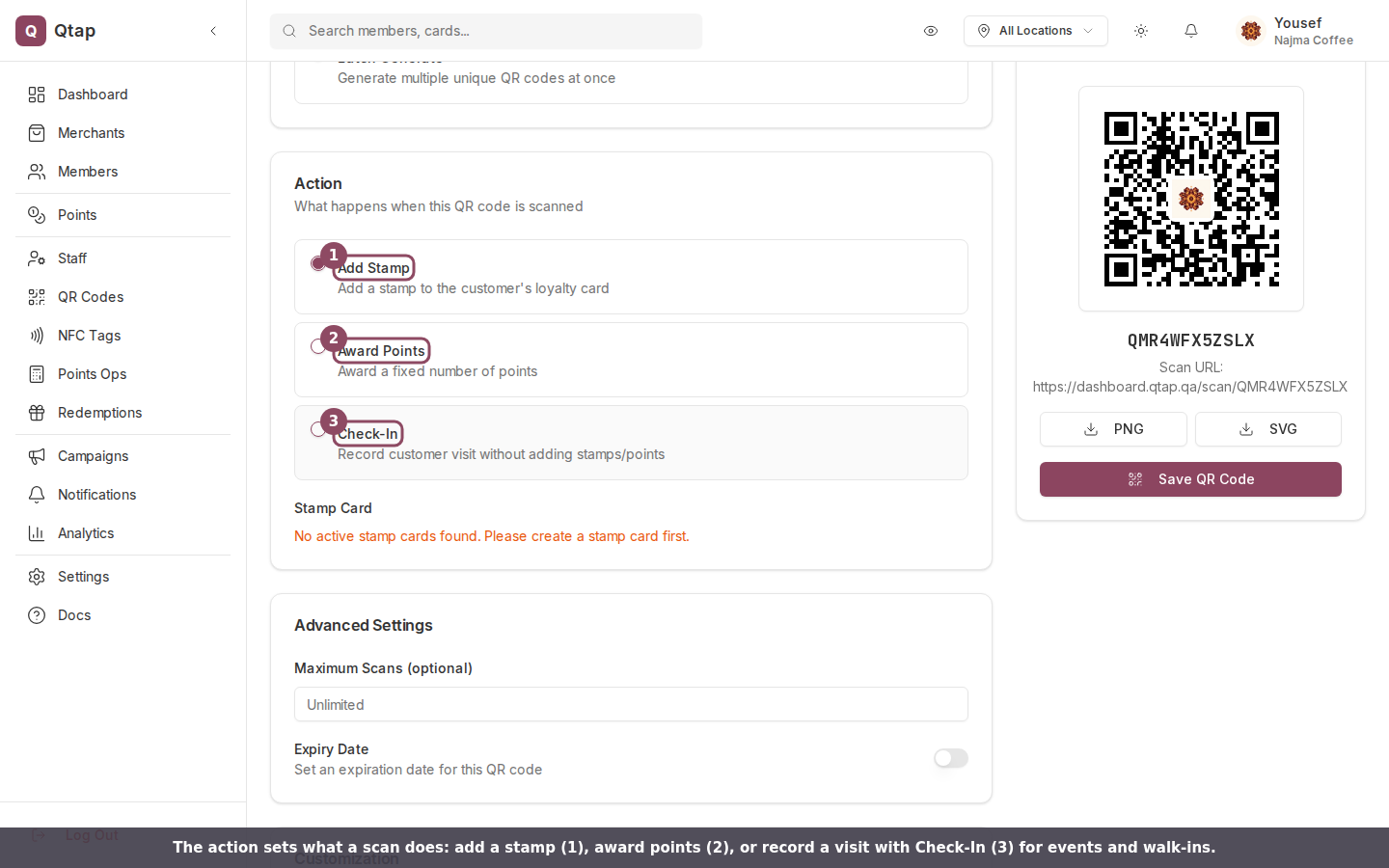
Add Stamp adds to a card, Award Points gives a fixed number of points, and Check-In records a visit only.
Limits for promotions
Two settings under Advanced Settings turn a normal code into a time-bound or quantity-bound promo.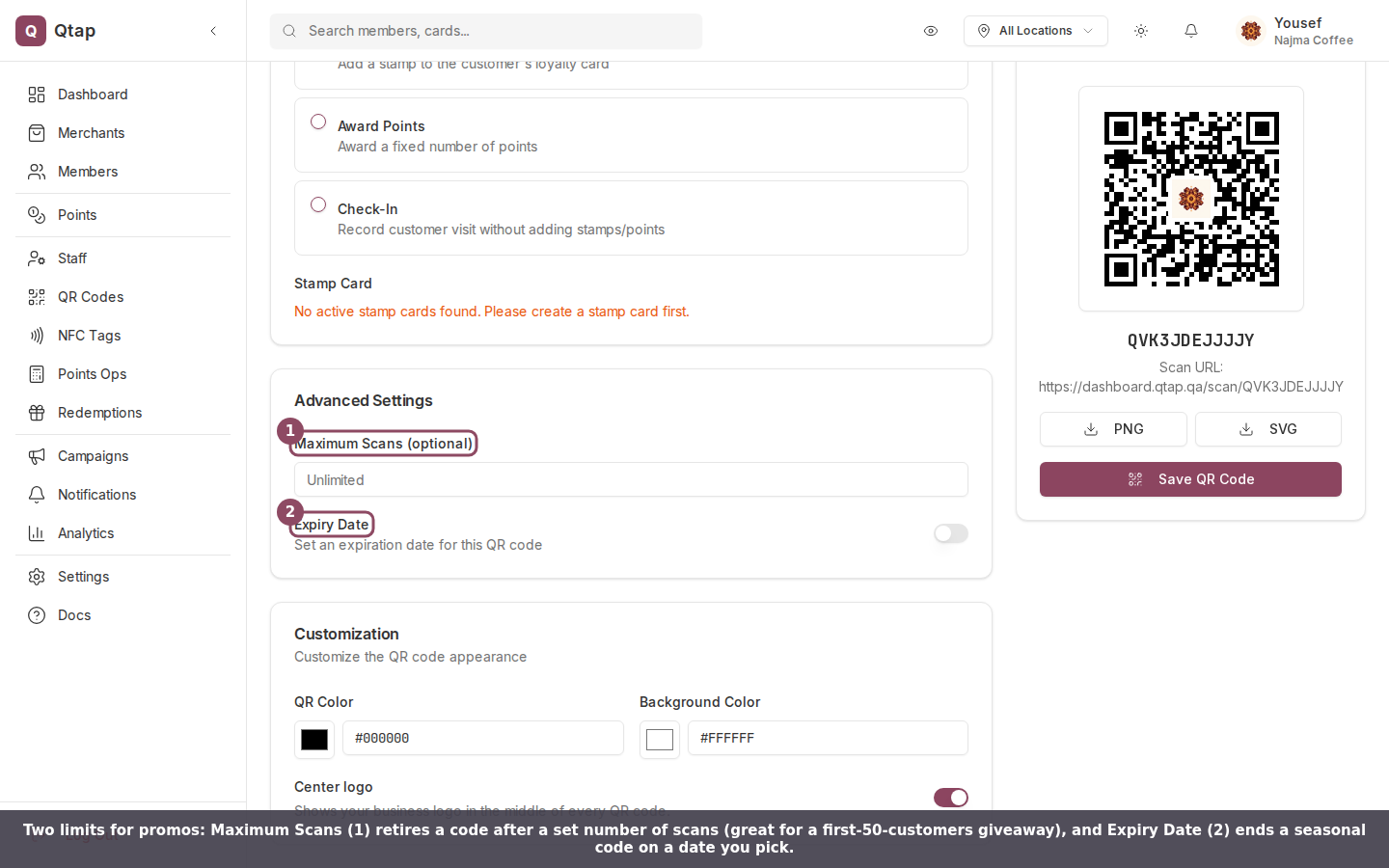
Maximum Scans retires a code after a set number of scans; Expiry Date ends it on a date you choose.
- First-50-customers giveaway: set Maximum Scans to 50. After the 50th scan the code stops working.
- Seasonal offer: turn on Expiry Date and pick the end date. After it passes, a scan shows “This QR code has expired.”
Window decals and posters
For anything printed large, download the SVG from the preview, not the PNG. An SVG stays sharp at any size, so a window decal or A2 poster won’t look blocky. Use the PNG for small prints like table tents and receipts.Print a batch for handing out
When you need many codes on paper, create them, then select and download them together from the QR Codes list.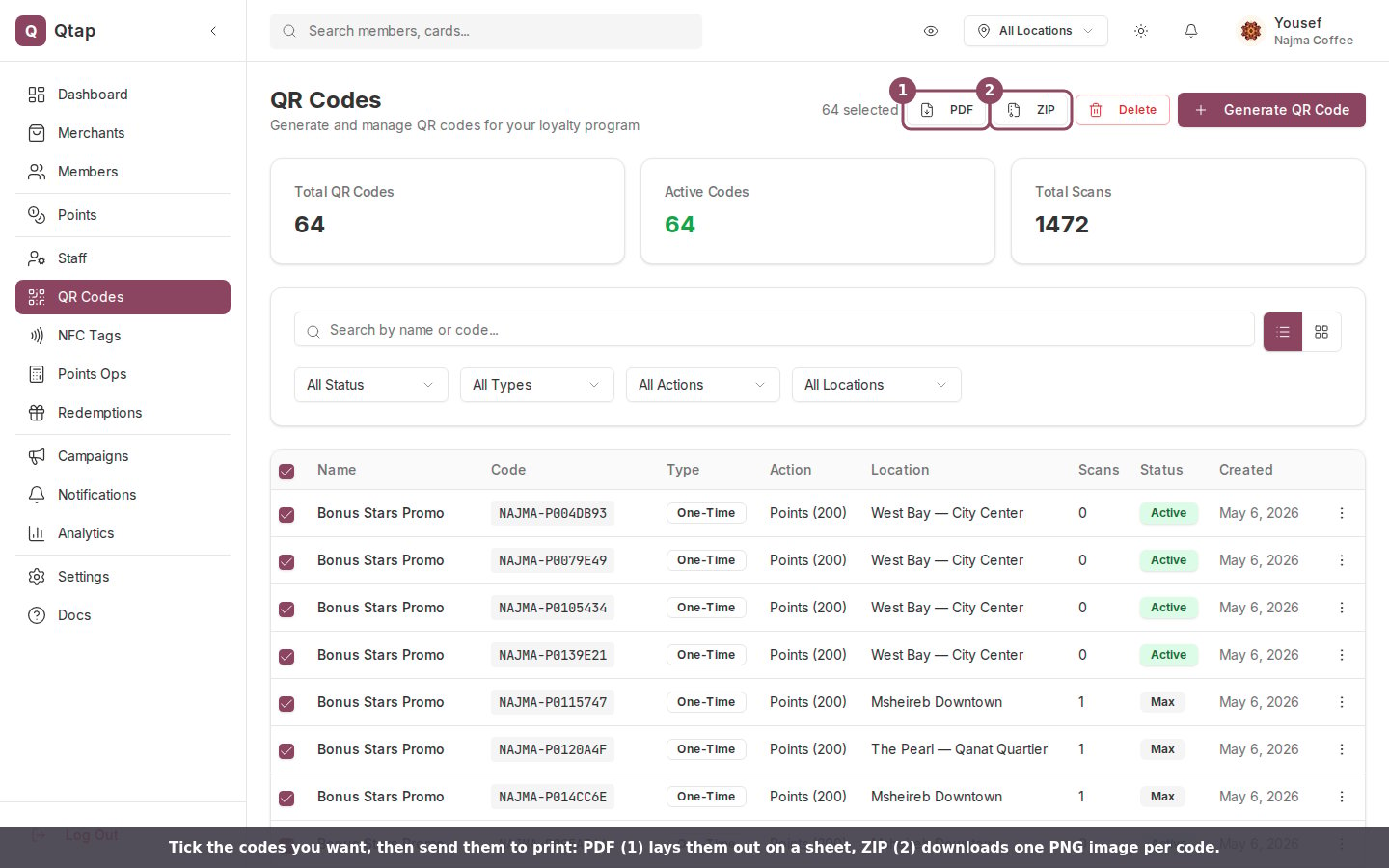
Tick the codes you want, then export them as a print-ready PDF sheet or a ZIP of individual PNG images.
A scan from a plain phone camera opens a join page. A new customer who fills it in becomes a member and earns from that first scan, so a printed code works even for people who don’t have the Qtap app. Someone who opens the page and walks away adds nothing, not even to the scan count. See How customers join from a scan for what the customer sees.

A quick map from each placement to the settings that fit it.
Your plan sets how many QR codes you can create each month: 50 on Starter, 300 on Growth, 1,500 on Elite, and unlimited on Franchise. The count resets on the 1st. A batch counts each code it creates against that month. Only owners and managers can create and manage QR codes.