

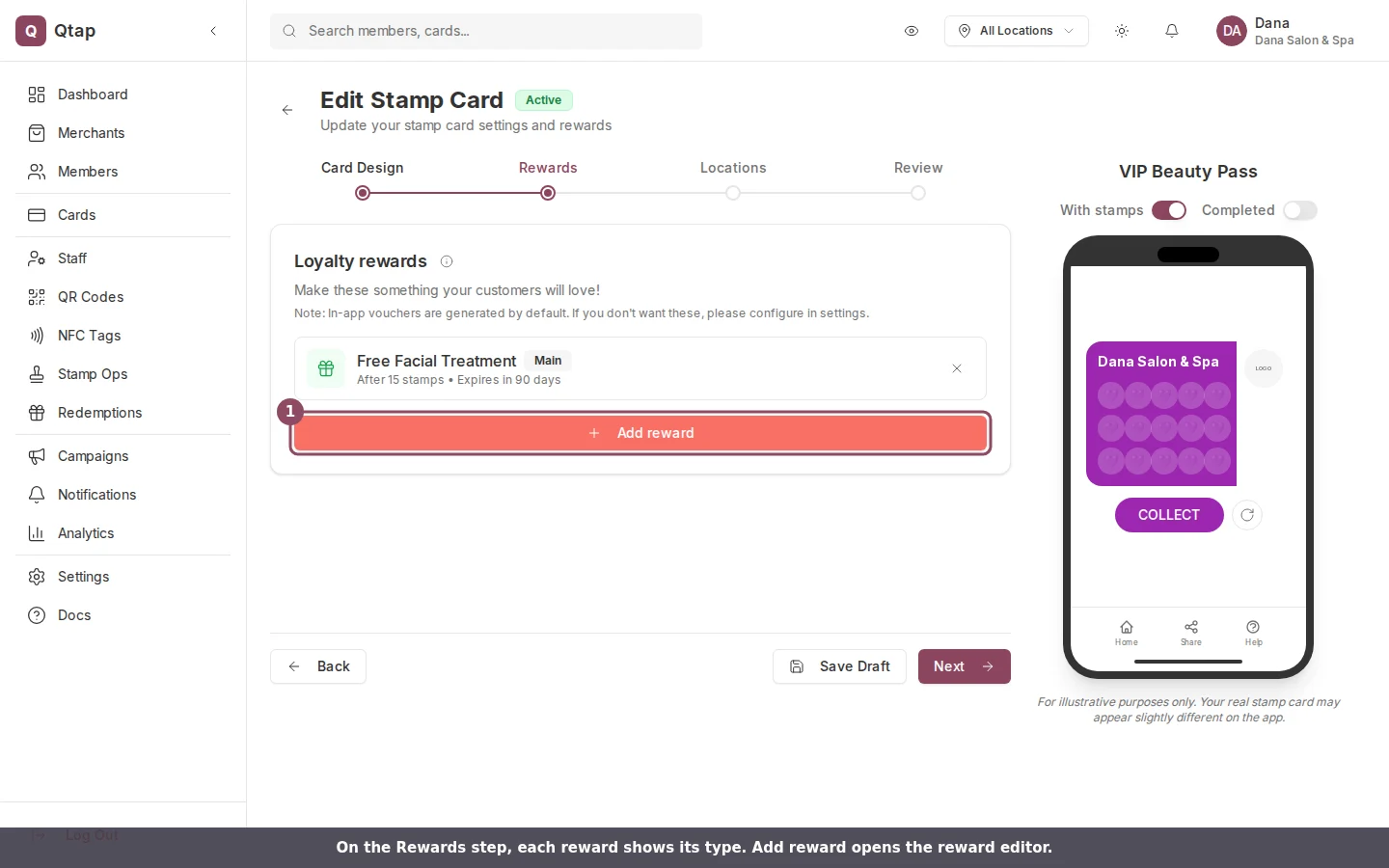
The Rewards step of a stamp card, showing each reward with its type and the Add reward button.
Reward Types
Main is the primary reward. It issues automatically when a member reaches the stamp goal. Every stamp card must have exactly one Main reward before it can be published. The trigger value for a Main reward is always equal to the stamp goal. Sign Up issues automatically when a customer joins the card for the first time. Use this for a welcome offer — for example, “10% off your next visit.” A card can have one Sign Up reward. Interim issues at a specific stamp milestone before the stamp goal. For example, on a 10-stamp card, you could add an Interim reward at stamp 5 for a free upgrade. A card can have multiple Interim rewards, each at a different stamp number.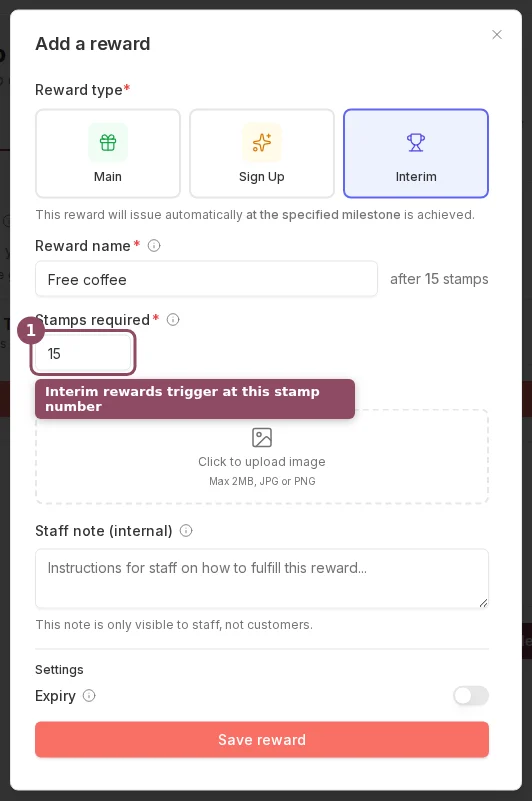
An Interim reward asks for the stamp number that triggers it. Main and Sign Up rewards do not.
Adding a Reward
Click Add Reward on the Rewards step to open the reward editor. Fill in:- Reward Type — Main, Sign Up, or Interim
- Reward Name — the name of the reward the member sees (e.g., “Free Coffee”)
- Trigger Value — for Interim rewards, the stamp number that triggers it; for Main rewards, auto-set to the stamp goal
- Expiry — toggle on and enter a number of days to set an expiry period after the reward is issued
- Reward Image — optional PNG or JPEG up to 2MB, shown with the reward in the app
- Staff Note — optional internal note shown to staff at the point of redemption
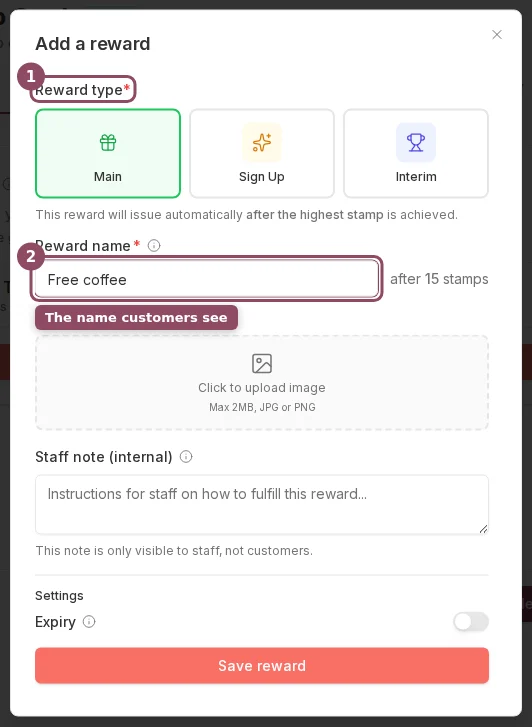
The reward editor. Choose a type, name the reward, and set an optional image, staff note, and expiry.
Reward Expiry
If you enable expiry, the clock starts when the reward is issued, not when the member earns their last stamp. A member who earns a reward and doesn’t redeem it within the expiry window loses the reward. If you leave expiry off, the reward stays valid indefinitely until the member redeems it.Editing Rewards on an Existing Card
Go to Cards, click the three-dot menu on the card, and select Edit. Navigate to the Rewards step to add, edit, or remove rewards.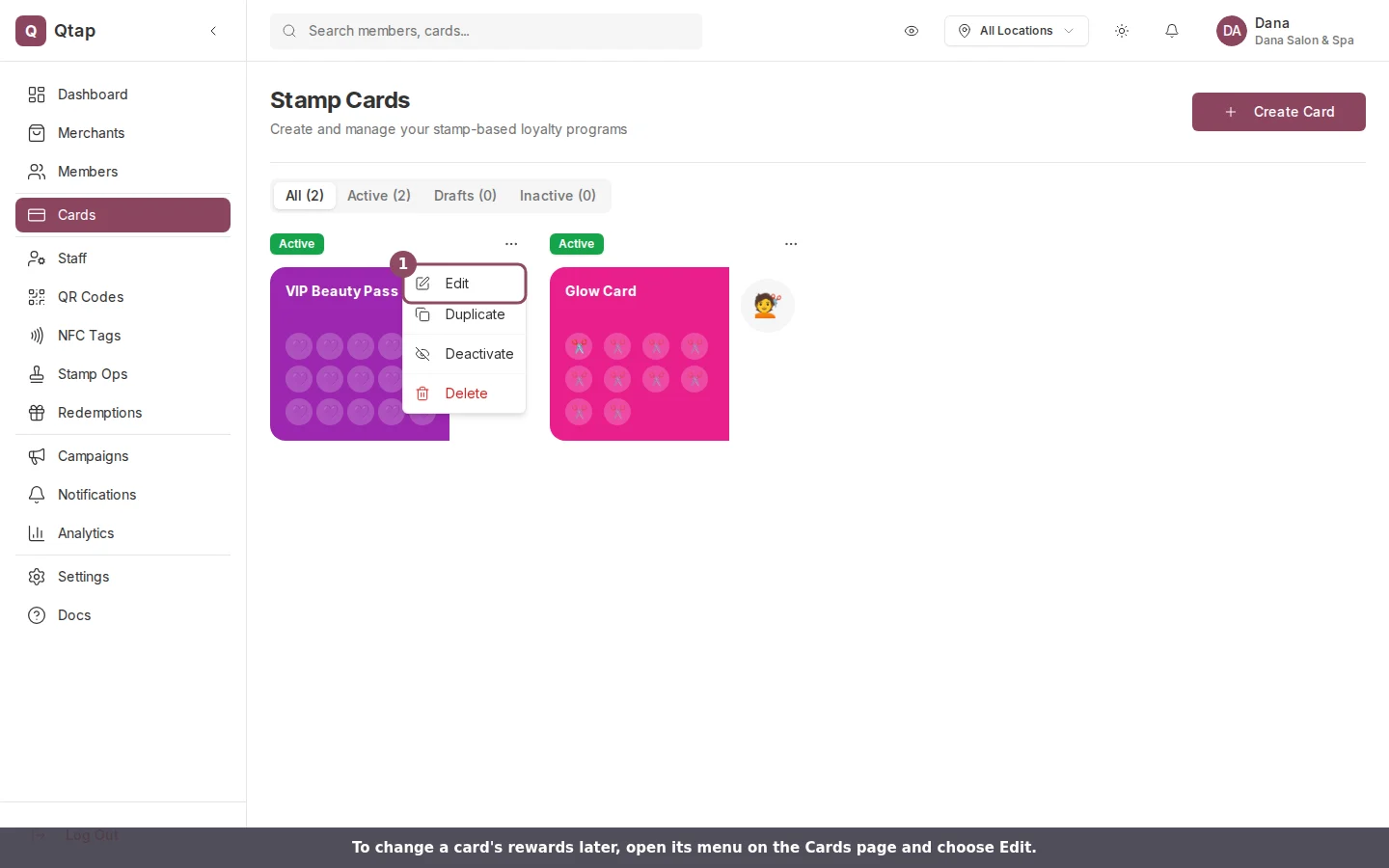
Open a card's three-dot menu on the Cards page and choose Edit to change its rewards.
Removing a reward from a card does not affect rewards already issued to members. If a member already received the reward, it stays in their wallet until they redeem or it expires.
How Redemption Works
When a member has a reward available, they show it to staff in the app. Staff scan the QR code or confirm the redemption on the Stamp Operations screen. Once confirmed, the reward is marked as used and removed from the member’s wallet.Creating a Stamp Card
Full walkthrough of the card setup wizard including the Rewards step
Member Redemptions
How to view and manage redemptions for your members
QR Codes Overview
How staff use QR codes to stamp cards and process redemptions