

Opening a Member Profile
Go to Members in the sidebar. The table shows all enrolled members with their name, email, phone number, total stamps or points, and join date. Click any row to open that member’s profile.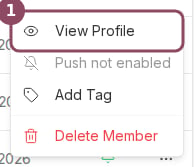
Open a member from the row menu's View Profile option.
You can search by name, email, or phone number using the search bar at the top of the Members table. You can also change the sort order using the sort dropdown — options include most recently joined, most stamps, and most recent activity.
What the Profile Shows
The profile page has a sidebar with contact details and two tabs: Activity and Notes.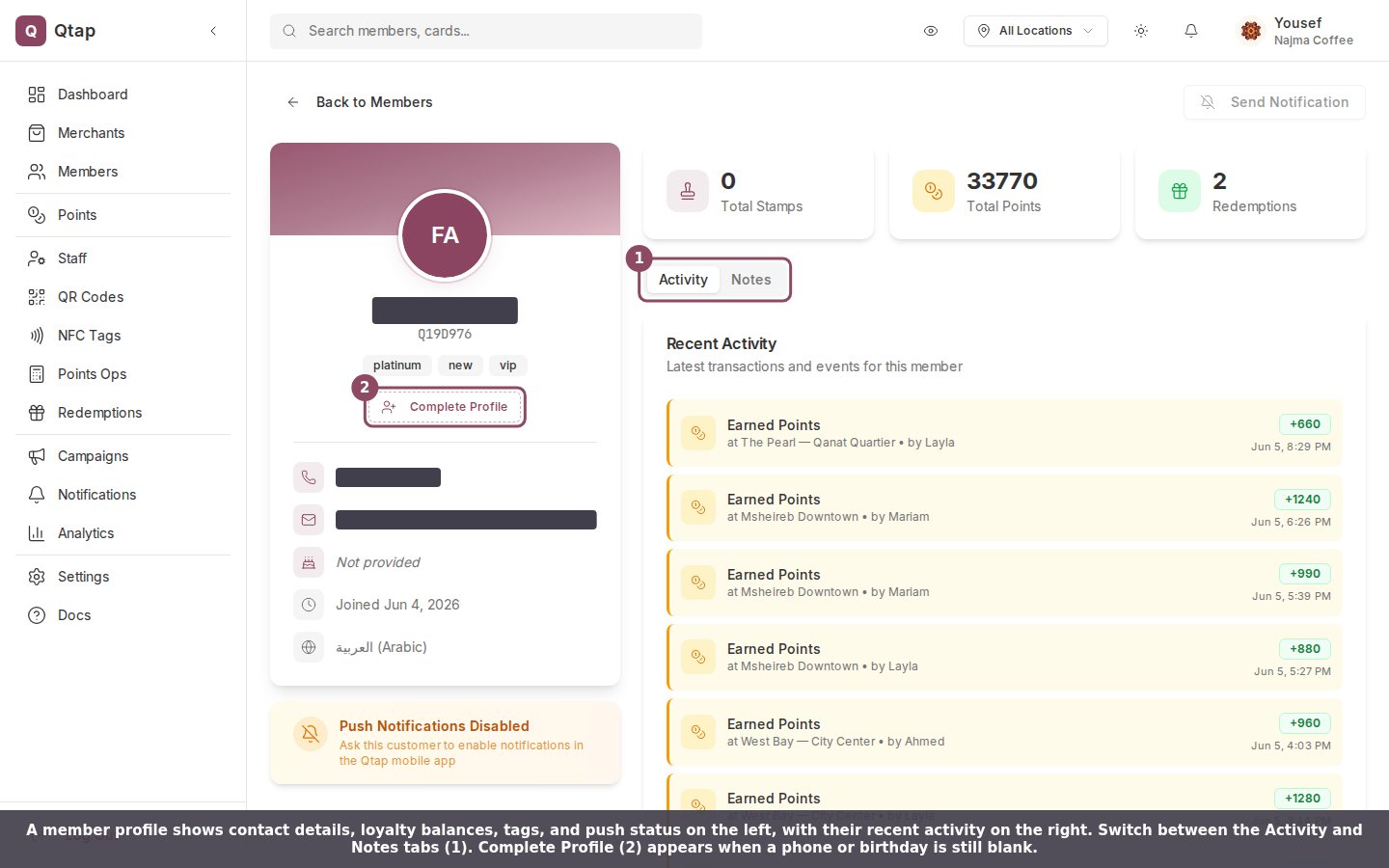
A member profile: contact details, loyalty balances, tags, and push status on the left, with recent activity on the right.
- Name, email, phone, and birthday
- Their Qtap member ID
- The date they joined and their last visit
- Current stamp or points balance across all programs
- Any tags on their account
- Whether they have push notifications enabled
Adding Missing Contact Details
You can add a phone number or birthday to a member’s profile if those fields are currently blank. Click the Edit button near their contact details to open the info dialog, fill in what is missing, and click Save.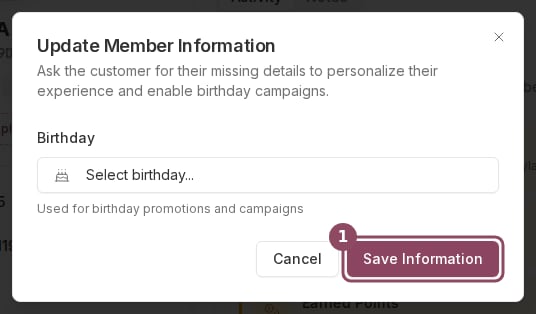
The Update Member Information dialog only shows the details that are still blank, here a birthday.
Saving Notes
Open the Notes tab on a member profile, type in the text area, and click Save notes. Notes are visible to all staff who can access the Members section.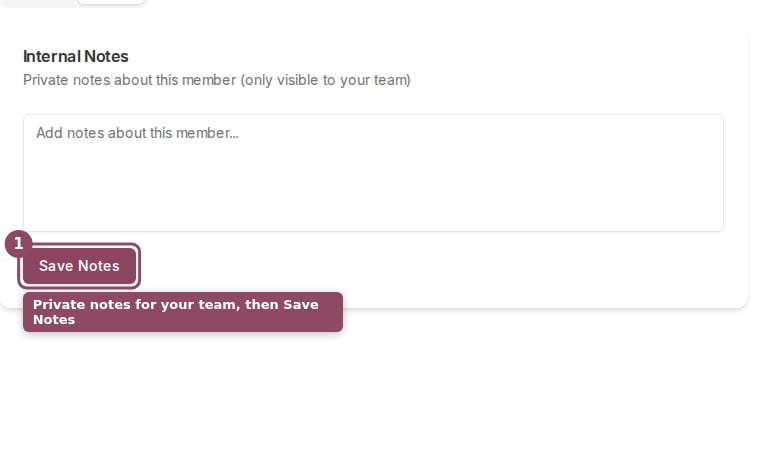
The Notes tab holds private notes for your team. Type in the box and click Save Notes.
Deleting Members
To remove a member, go back to the Members list. Select the checkbox next to their name, then click Delete selected. A confirmation dialog appears before anything is removed. Only owners and staff with full Members permission can delete members.Members Overview
Search and filter your full member list
Redemptions
How reward redemptions are recorded and tracked