

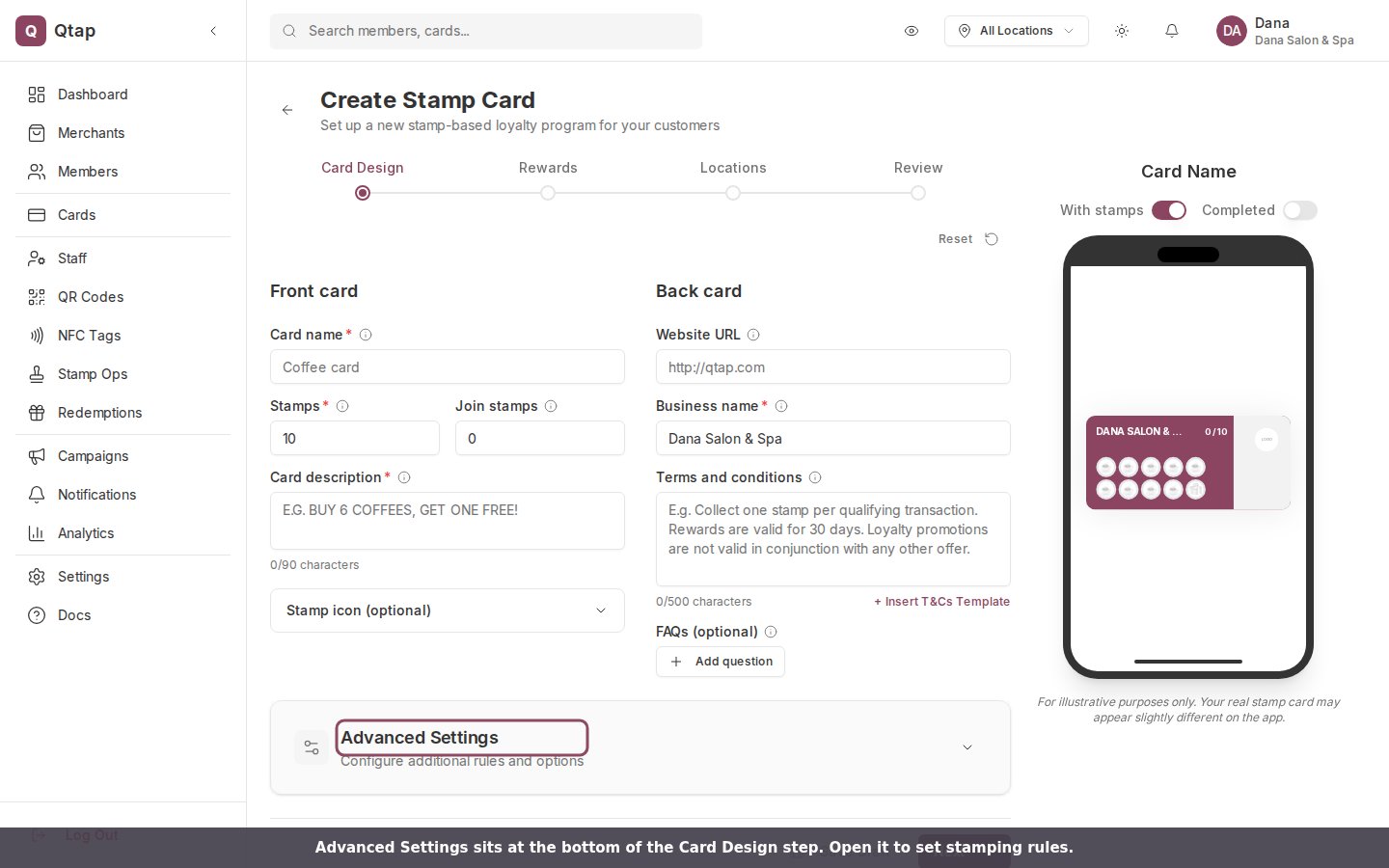
Advanced Settings sits at the bottom of the Card Design step. Click it to open the rules.
Stamping rules
Open the panel and the first group is Stamping Rules. Two of these guard against one customer collecting a pile of stamps in a single moment.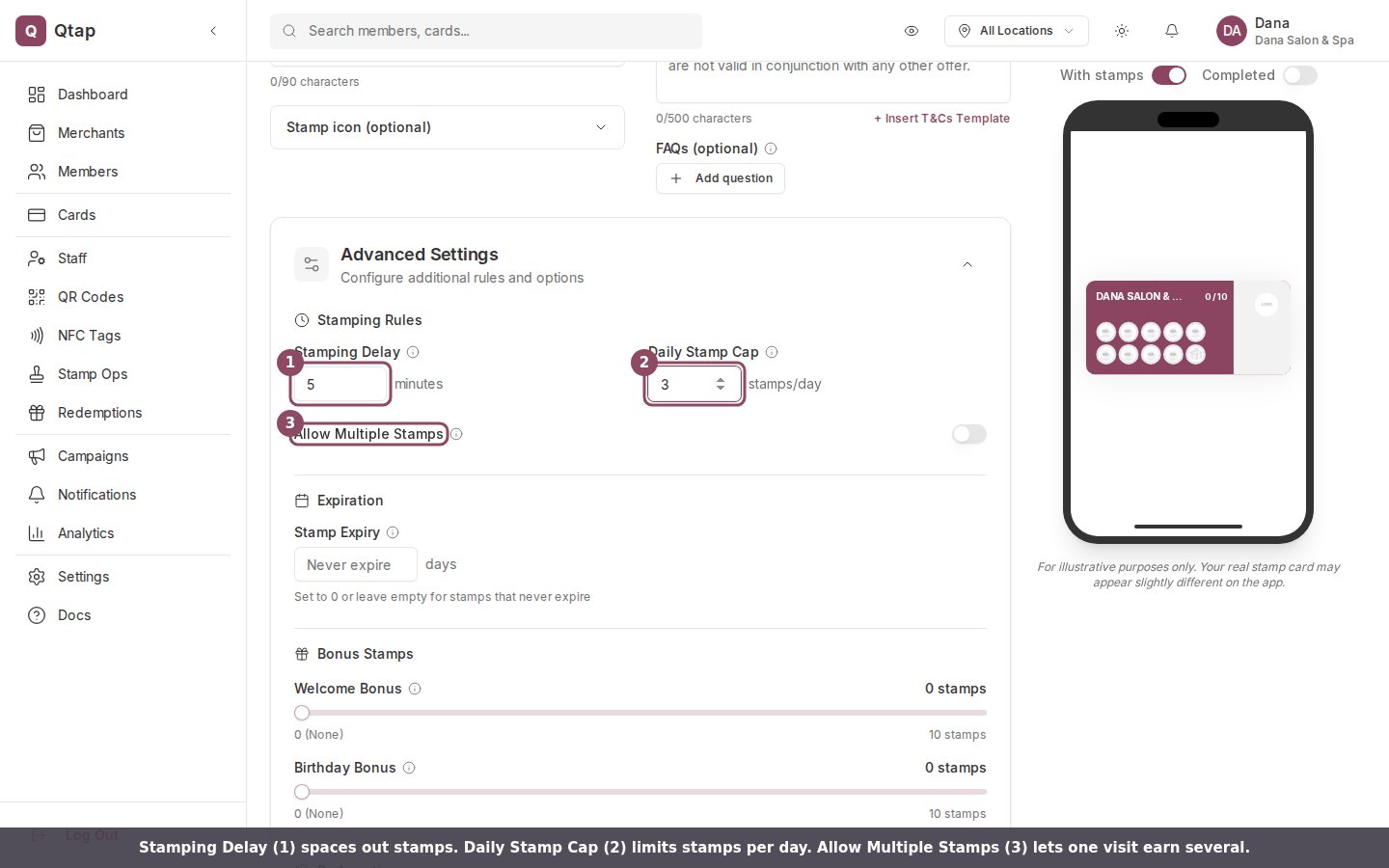
Stamping Delay (1) spaces out stamps, Daily Stamp Cap (2) limits stamps per day, and Allow Multiple Stamps (3) lets one visit earn several.
- Stamping Delay is the shortest time, in minutes, between two stamps for the same customer. Set it to 5 and a customer who just earned a stamp has to wait 5 minutes for the next one. If they scan again too soon, Qtap asks them to wait a few more minutes before collecting another stamp. Leave it at 0 for no delay.
- Daily Stamp Cap is the most stamps one customer can earn in a day. Set it to 3 and the fourth scan that day is turned away with “Daily stamp limit reached (3 per day).” Leave it empty for no daily limit.
- Allow Multiple Stamps is for shops where one visit is worth more than one stamp, like a stamp per item bought. Turn it on for those cards. Your staff add the count on the Stamp Operations screen.
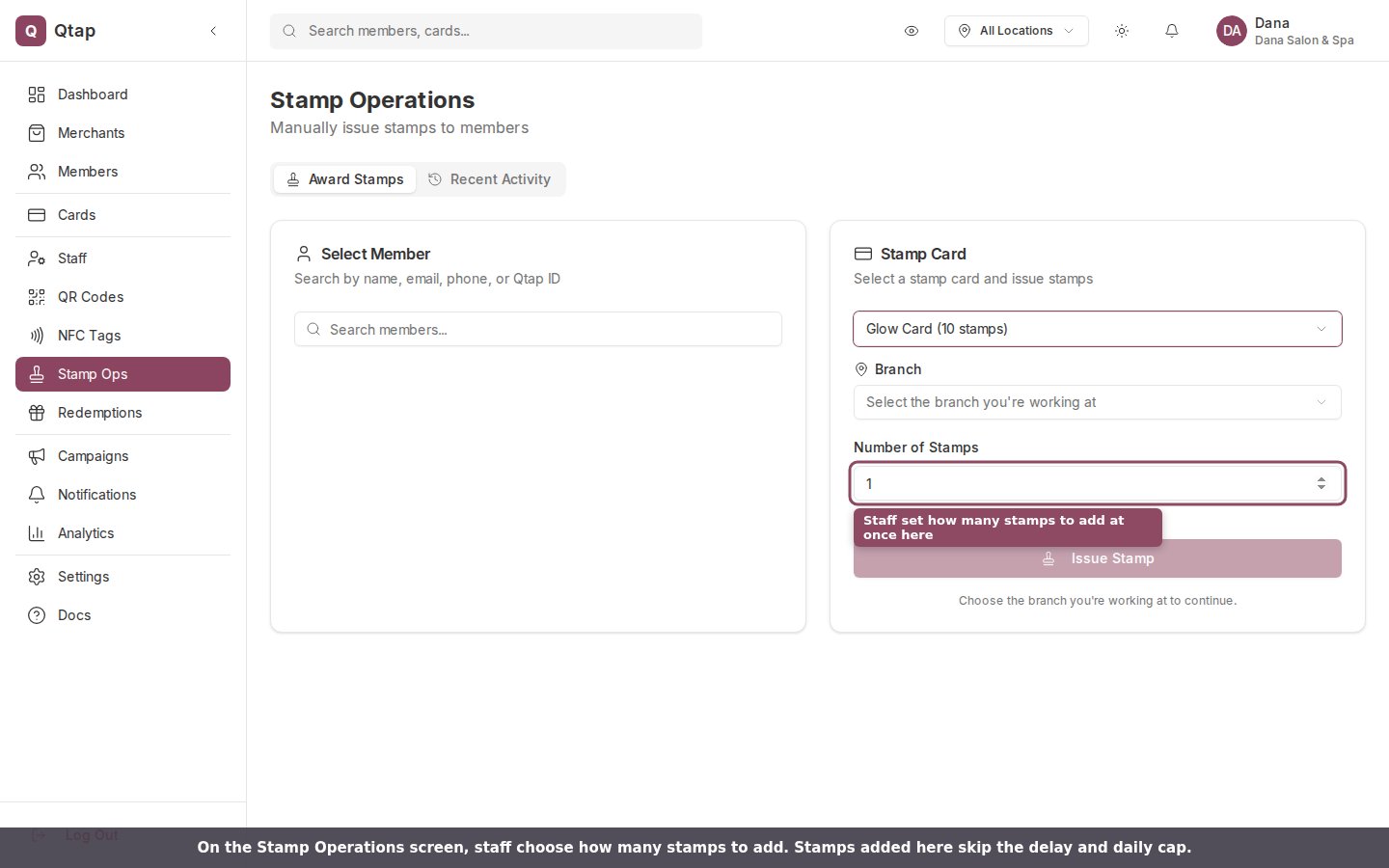
On the Stamp Operations screen, staff pick a card and choose how many stamps to add.
The rest of the panel
Below Stamping Rules, the same panel holds a few more options:- Stamp Expiry, under Expiration, sets a lifespan in days for stamps, from 1 to 365. Leave it empty, or set it to 0, for stamps that never expire. The value you choose also shows on the customer’s card.
- Welcome Bonus and Birthday Bonus are free stamps. The welcome bonus is added when a customer first joins the card. The birthday bonus needs a birthday saved on the customer’s profile. Both go from 0 to 10 stamps.
- Allow Partial Redemption lets a customer claim a reward before they finish the whole card, which only applies to milestone rewards. See Stamp Card Rewards for how those work.