

Where they are
Click Notifications in the sidebar, then New Notification. Both controls are in the Message card, below the boxes where you type.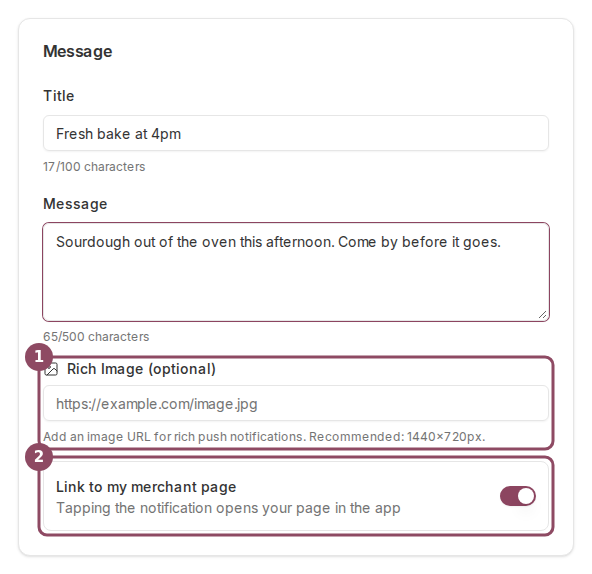
The Message card on the compose screen. The Rich Image field (1) and the merchant page switch (2) sit below your title and message.
Link to my merchant page
This switch is already on every time you open the compose screen. Leave it on and a customer who taps your notification lands on your merchant page inside the Qtap app, where your cards and offers are. Turn it off and the tap opens their notifications list instead. If your business does not have a public link yet, the tap still reaches your page. Qtap opens it by account instead of by link.The switch also decides who can receive the message
Turning it on marks your message as a promotion. Qtap pushes promotions only to members who agreed to marketing messages and left that kind of message switched on. A member who has muted your business is left out as well. Everyone you targeted still gets the message in their Qtap app inbox. What they do not get is the alert on their lock screen. That matters when you read your figures afterwards: a silenced member counts towards Sent and never towards Delivered, so a promotion can report a much lower delivery rate than an automatic receipt for a stamp. Reading your notification stats covers the rest of that arithmetic. With the switch off, Qtap treats the message as a plain account message and skips that check, so it reaches more phones. Leave it on anyway for anything promotional. Almost everything written on this screen is a promotion, and sending one with the switch off puts it on the lock screen of someone who asked not to be marketed to.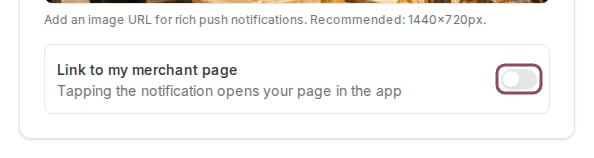
The same row with the switch turned off. Taps then open the customer's notifications list, and the message skips the marketing check.
Rich Image (optional)
The field takes a web address for a picture rather than a file from your computer, so the image has to be hosted somewhere public before you can paste its link. Paste one and a thumbnail appears under the box.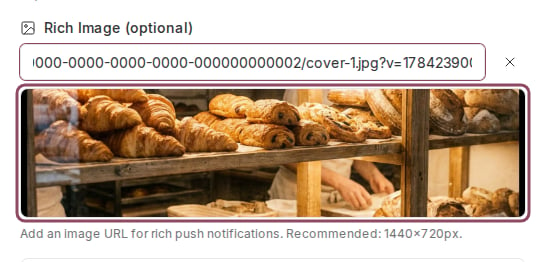
A pasted image address draws a thumbnail under the field. The X on the right clears it.
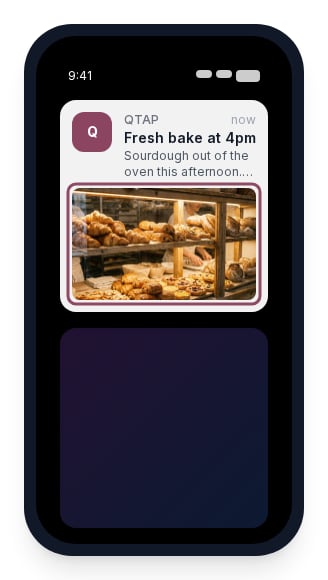
The preview on the compose screen renders the image. This is the only place it appears: the notification that reaches your customer carries the title and message alone.