

A customer standing at your counter points their phone camera at your QR code. They have never heard of Qtap and they have not downloaded anything. The code opens a join page in their browser, they type their phone number, and they walk away as a member of your program with their first stamp already on the card. You do not have to do anything to switch this on. It is how every QR code you print behaves.

What the customer sees

The page opens with your business name, your card in your own colours, and the progress counter at zero.
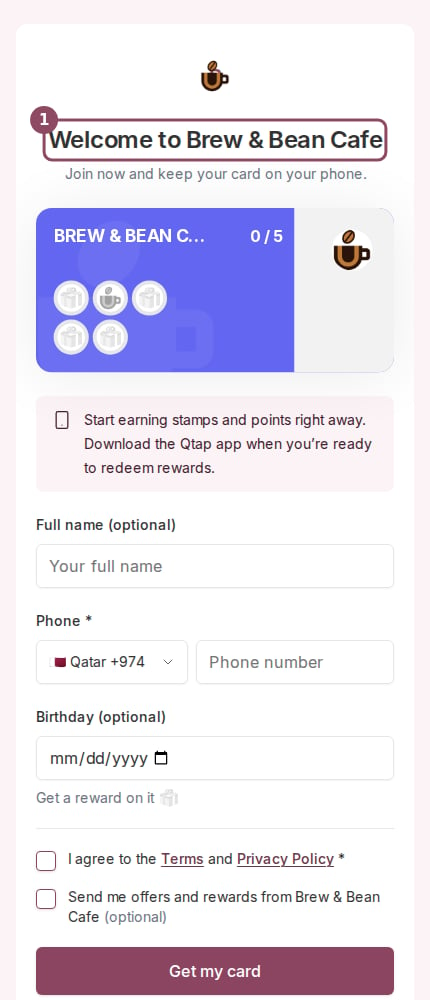
The Qtap join page on a phone, showing Welcome to Brew and Bean Cafe, a stamp card preview at 0 of 5, and a form asking for full name, phone and birthday

The join page a customer reaches by scanning a printed code. The card preview (1) is the merchant's real card design, not a generic template.
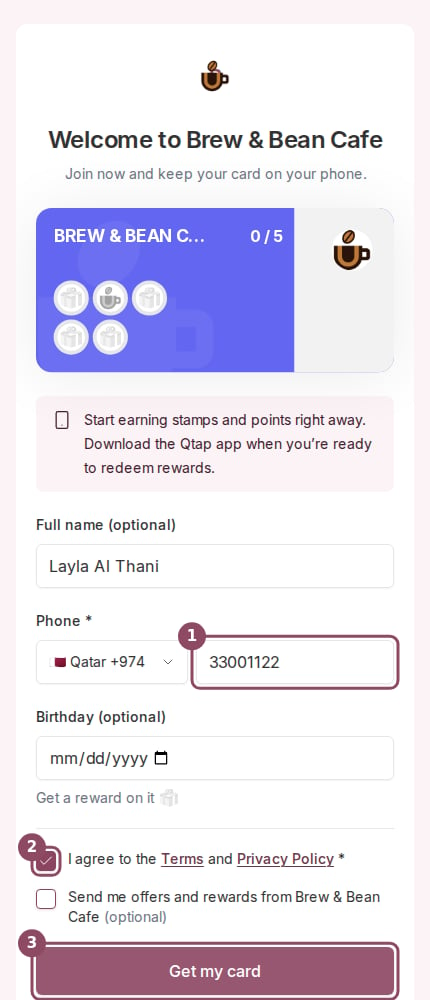
Only the phone number and the Terms checkbox are required. Name and birthday are optional, and the marketing checkbox is separate from the Terms one, so a customer can join without agreeing to hear from you.
The join form filled in with a name and a Qatar phone number, the Terms checkbox ticked, and the Get my card button

Phone (1) and the Terms checkbox (2) are the only required fields. Everything else can be skipped, and Get my card (3) does not create anything yet.

A saved birthday is worth asking for. It is what makes that customer reachable by a birthday campaign later, and the page nudges for it with a small reward hint.

The phone number is the account

There is no verification code. Qtap does not text them anything, which is what keeps the whole thing fast enough to finish while their coffee is being made. A typed number that nobody checks can be wrong, so the page shows the number back before it commits.
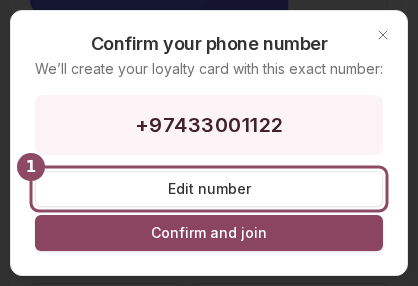
A dialog titled Confirm your phone number showing a full Qatar number with Edit number and Confirm and join buttons

The confirmation step. Edit number (1) sends them back to the field, and only Confirm and join creates the card.

Because the number is unverified until they install the app, treat it as what the customer typed rather than as a proven contact. If someone mistypes, they will land in a different account when they eventually sign in.

What they walk away with

Confirming creates a real member in your list and runs the same earning rules an in-app scan would run. If the code adds a stamp, they get a stamp. If it awards points, they get points. A sign-up reward, an interim reward, a completed card’s main reward and any campaign reward all fire exactly as they would for an app member. They also get an Apple Wallet pass, which is the card they show at the counter next time. Rewards they earn are held for them but stay invisible on their phone until they install the app. Everything is recorded and nothing is lost, and you can see all of it in the dashboard, but the member cannot.
A returning member who scans the same poster again gets their pass offered back and no second stamp. Repeat earning goes through a staff member at the counter, which is what stops someone standing next to your poster stamping their own card. See redeeming by scanning.
If the phone number already belongs to a full Qtap account, the page tells them to open the app instead. No stamp is issued and no pass is sent, because their card is already in the app.

Spotting them in your list

Members who joined this way carry a No app yet badge under their name.
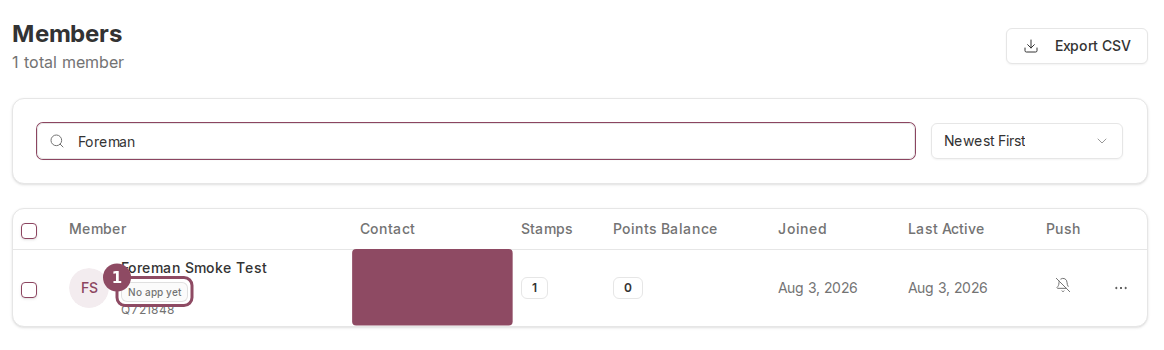
The Members table filtered to one member, showing a No app yet badge under the member name next to their Qtap ID

The Members list. The No app yet badge (1) marks a member who joined from a QR code. Contact details are covered here for privacy.

What your staff see at the counter

Stamp Operations and Points Operations show a quiet note. Nothing is wrong and nothing is blocked, so the note is there as a prompt to mention the app while the member is in front of you.
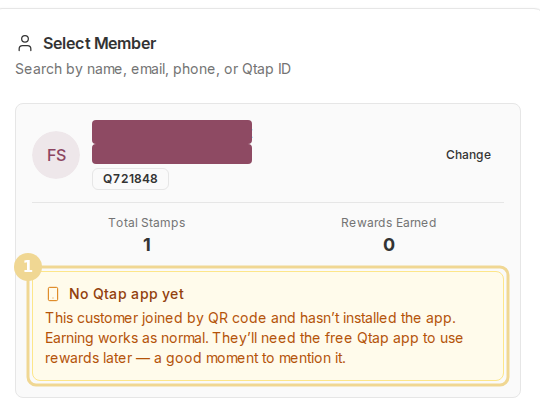
The Select Member panel on Stamp Operations showing an amber No Qtap app yet note under the member's stamp totals

On Stamp Operations the note (1) is informational. Earning works normally.
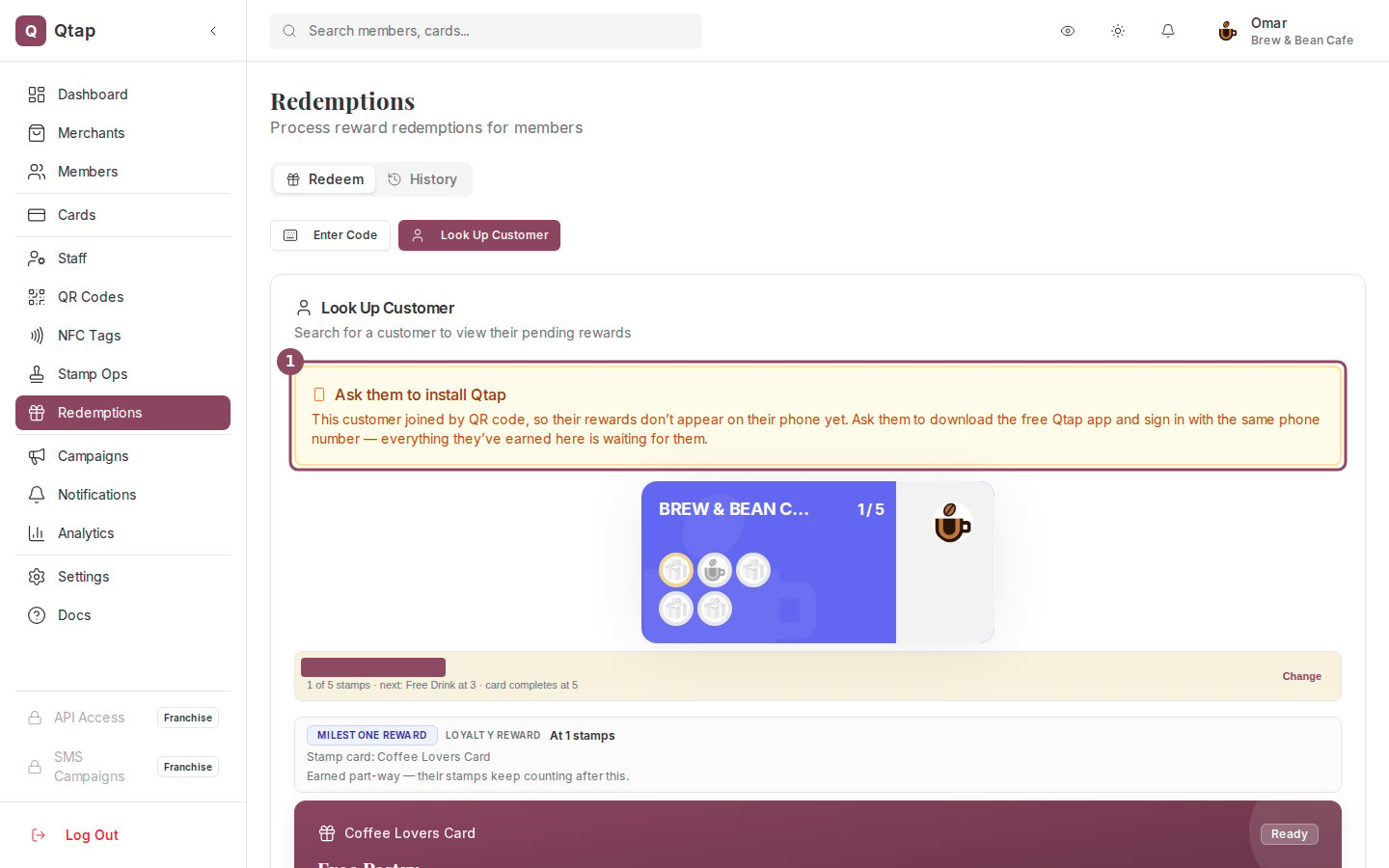
Redemptions is louder about it, because that is the moment it costs the member something. The note sits above the voucher so staff read it before handing anything over, and it gives them the sentence to say out loud.
The Redemptions Look Up Customer panel with a bordered amber notice reading Ask them to install Qtap above the member's card and reward

On Redemptions the same fact is raised before the voucher (1), with the exact wording to use with the member.
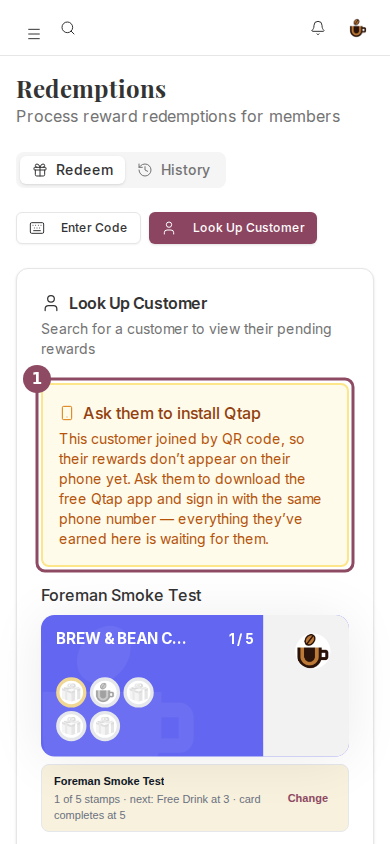
The same notice appears when staff work from a phone or tablet.
The Redemptions page on a phone-sized screen showing the Ask them to install Qtap notice above the member's stamp card

The counter notice at phone width.

The phrase to use is the one on screen: same phone number. A member who signs in with a different number lands in a new empty account and their stamps appear to have vanished.

When the code will not work

A code that has been switched off, has passed its expiry date, has hit its scan limit or is simply not recognised shows the customer which of those happened and tells them to ask you for a current one. Nobody joins and nothing is charged against the code.
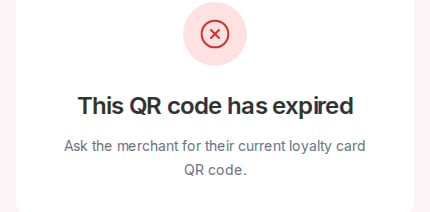
An error card reading This QR code has expired, ask the merchant for their current loyalty card QR code

What a customer sees when they scan a code that has passed its expiry date.

One caveat for one-time codes. A join burns the scan the same way an in-app scan does, so a one-time code is spent after the first person uses it. See expiry dates and scan limits.
Staff accounts see the badge too. Members is open to them by default at view level, and the counter notices show up for anyone who can reach Stamp Operations, Points Operations or Redemptions, which staff can by default. See roles and permissions if you have changed those defaults.