

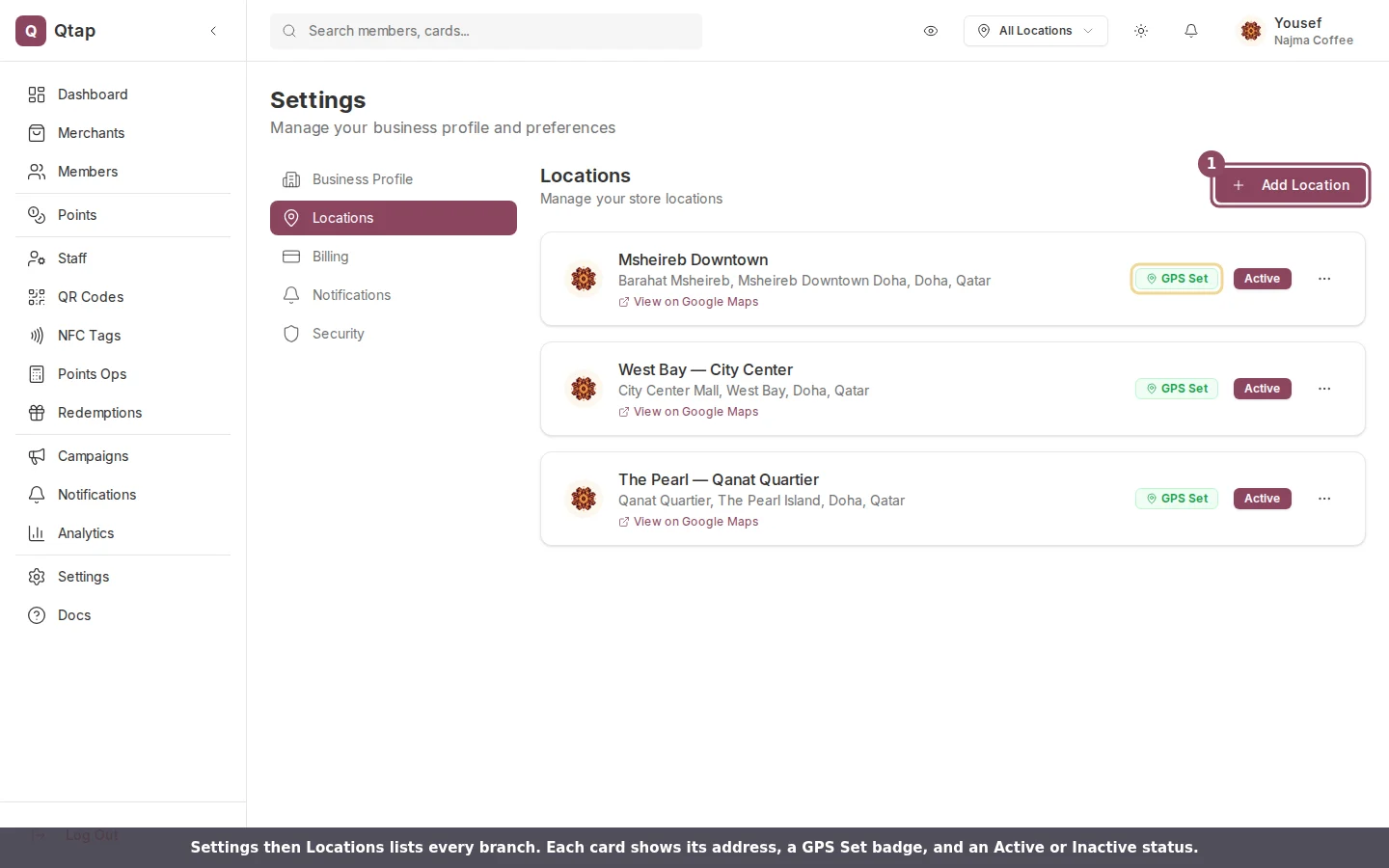
Settings → Locations lists every branch with its address, GPS Set badge, and Active status.
Add a location
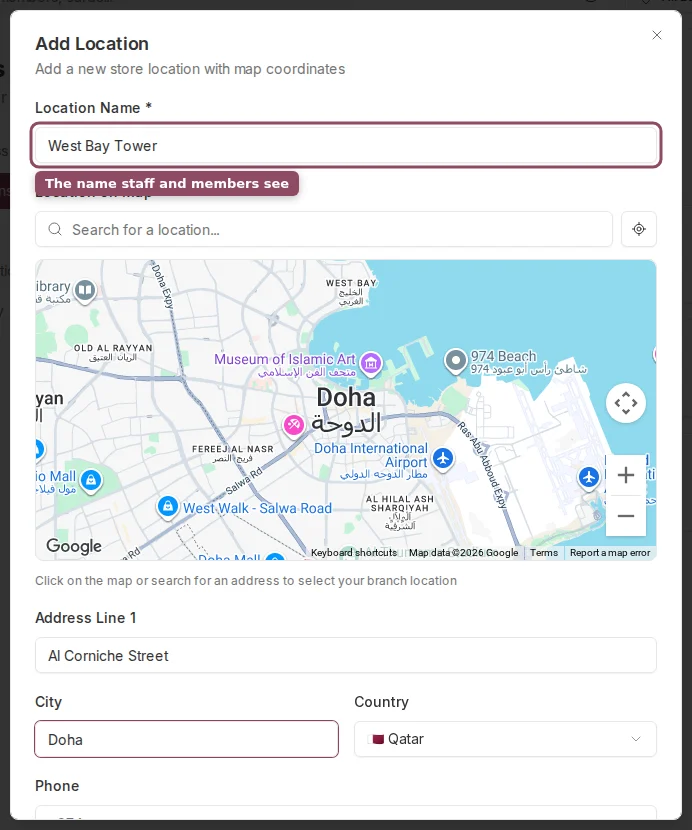
The Add Location form: name the branch, drop a pin on the map, and fill in the address.
The map picker accepts a typed address. If dropping a pin manually is awkward, type the branch name or street address into the search field instead.
Edit a location
Click the three-dot menu on any location card and choose Edit. The same form opens with your existing details. Click Update Location to save.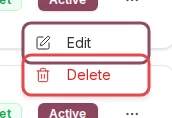
The three-dot menu on each location card holds Edit and Delete.
Delete a location
Click the three-dot menu and choose Delete. Deletion is permanent. QR codes that were assigned to that location will no longer filter by branch, but all existing stamp and points history is kept.Active and inactive locations
The Active toggle controls whether a location counts toward your plan limit and shows up in the dashboard and on your merchant page. Toggling a location inactive is useful when a branch is temporarily closed. You can reactivate it at any time without losing any data.GPS badge
A location card shows a green GPS Set badge when coordinates are saved. Without GPS, the branch won’t appear correctly on customer-facing maps. Click View on Google Maps on any card to confirm the pin is placed correctly.QR Codes
Assign QR codes to specific locations to track stamps by branch.
Analytics: Location Comparison
Compare stamp and member activity across all your branches.