

dashboard.qtap.qa/m/your-slug, where the slug comes from your business name. Share the link or print it on a QR code, and anyone who opens it sees your branding, the loyalty cards they can join, and how to reach you.
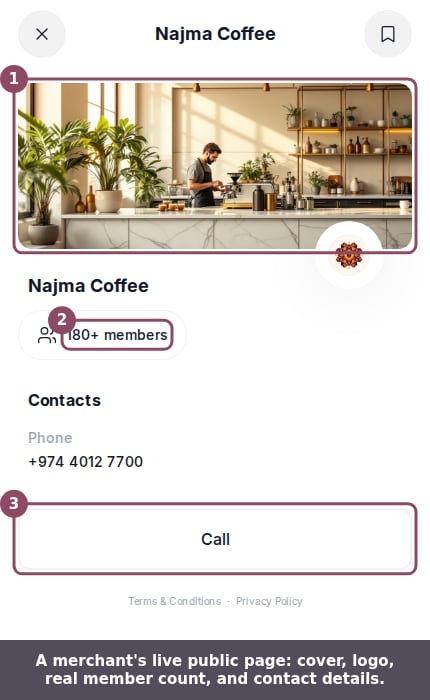
A merchant's live public page, with the cover and logo, a real member count, and contact details.
What’s on the page
The page opens with your cover and logo. The cover is a gallery of up to five photos that customers swipe through, with your logo over the bottom corner. If you haven’t built a gallery yet, the page falls back to the cover image and logo from your business settings. Below that sits your business name, a short description, and a category chip. Next to the category is a live member count, like “180+ members.” This figure comes from your real members. Counts under ten show the exact number; once you pass ten, Qtap rounds down to the nearest ten, so the page reads “180+ members” instead of an exact tally. The Current card section shows the loyalty cards you feature. Each card shows its design and reward, plus the customer’s progress, which stays at zero until they join. Feature more than one card and customers swipe between them. Only active cards appear here, so a draft or paused card stays hidden until you publish it. At the bottom are your contacts: opening hours and phone number, with Directions and Call buttons. Directions opens the branch in Google Maps. Call dials your number.
A fully set-up page. Each section fills in as you add it; the demo above shows the parts a new page starts with.
What customers can do
A visitor who likes what they see taps Add a card or Join Now to add your loyalty card to their Qtap wallet. From there they collect stamps or points with you. Tap for full terms opens the reward details and conditions for the card they’re viewing. The customer joins from their own phone, so there is nothing for you to do at the counter.Setting it up
The cover gallery, description, category, and featured cards come from the Merchant Page editor. Your logo, phone, and opening hours come from your Merchant Page settings. Fill those in and the matching sections on the public page fill in too. Use the Preview option in the editor to check the page before you publish it.The member count and card progress are always real. Qtap never shows a number you didn’t earn, so a brand-new page reads with a small member count and zero progress until customers start joining.
Merchant Page settings
Set your logo, hours, phone, and business details.
Stamp cards
Create the loyalty cards customers join from your page.