Look up a customer, see the rewards their points cover, and redeem one at the counter. No code needed.
On a points program, a customer spends points to claim a reward. You don’t need a code for this. Look the customer up on the Redemptions page, and Qtap shows you the rewards their balance covers. Pick one, confirm, and the points come off.
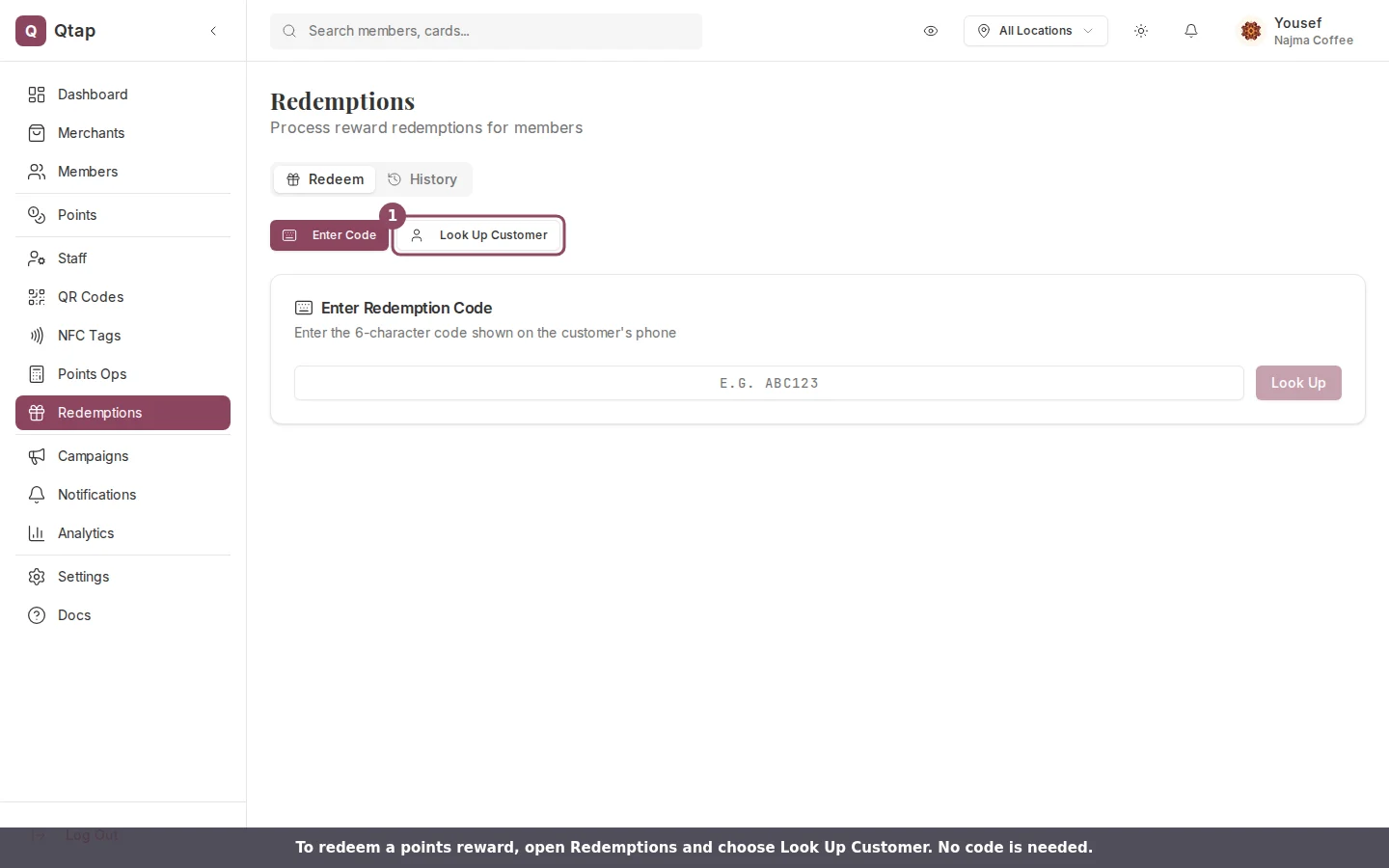
Open Redemptions from the sidebar and choose Look Up Customer.
This is the points side of redemption. If a customer instead hands you the 6-character code from their phone, use the Enter Code method on the same page.
Open Redemptions from the sidebar. The page opens on the Redeem tab. Click Look Up Customer.
2
Search for the customer
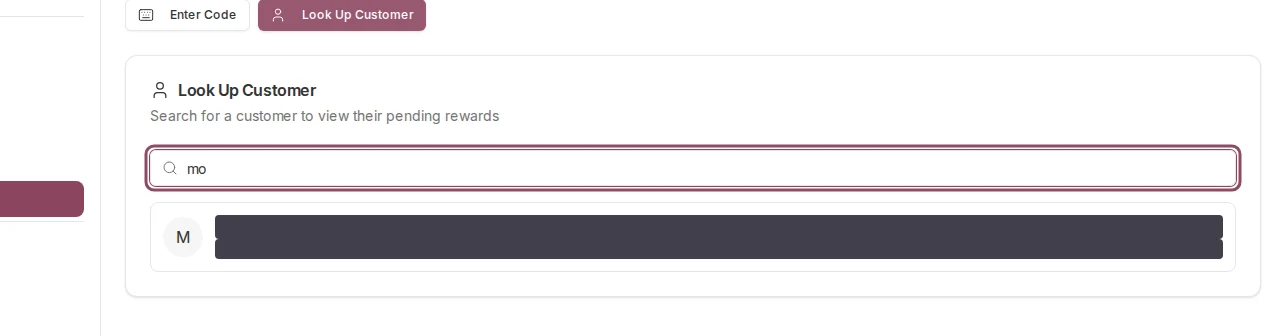
Type at least two characters of their name, email, phone number, or Qtap ID. Matches appear as you type.
Search by name, email, phone, or Qtap ID. The customer's contact details are hidden in this screenshot.
3
Pick the customer
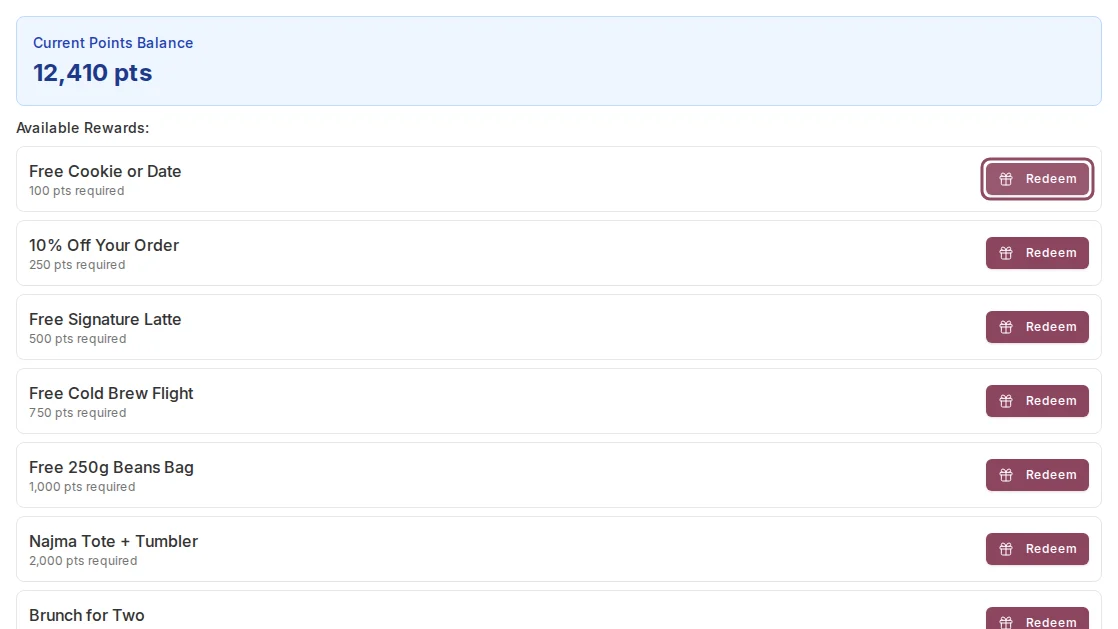
Click their row. Their points balance loads, followed by an Available Rewards list. Only rewards their balance covers appear here, and each line shows the points it costs.
The customer's balance sits above the rewards they can afford right now. Each reward shows its points cost.
4
Redeem and confirm
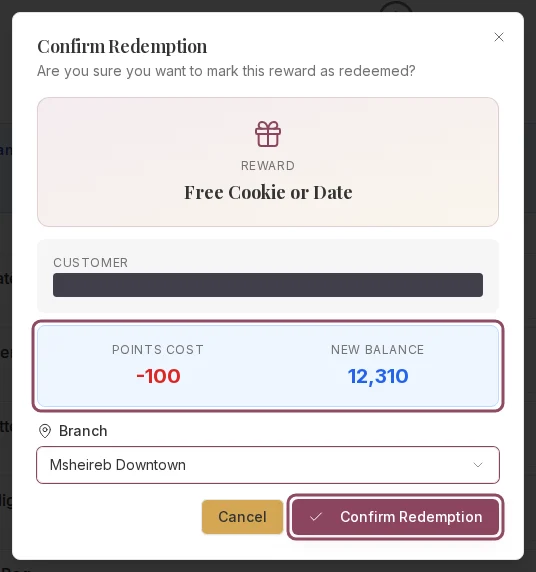
Click Redeem next to the reward. If your account has more than one branch, choose the branch you’re working at. The dialog shows the points cost and the new balance before you commit. Click Confirm Redemption.
The confirmation shows the points cost and the customer's new balance. Choose your branch, then confirm.
The list only shows rewards the customer can afford. If a reward they want isn’t there, they don’t have enough points yet. The list filters by their current balance, so it changes as they earn more.The balance check is exact. If the customer’s points change between opening the screen and confirming, say another staff member redeems for them at the same counter, Qtap blocks the second redemption instead of letting the balance go below zero. You’ll see an error. Reopen the customer and check their balance.The reward and its points program both have to be active. A reward you’ve switched off won’t show up to redeem.The branch you choose is what the redemption is attributed to, so per-branch and per-staff numbers stay accurate.
Redemptions can’t be undone from the dashboard. Check the reward and the customer before you confirm. If you confirm one by mistake, email support@qtap.qa and the team can help correct it.
Redeeming is available to the owner at all times, and is on by default for managers and staff.