

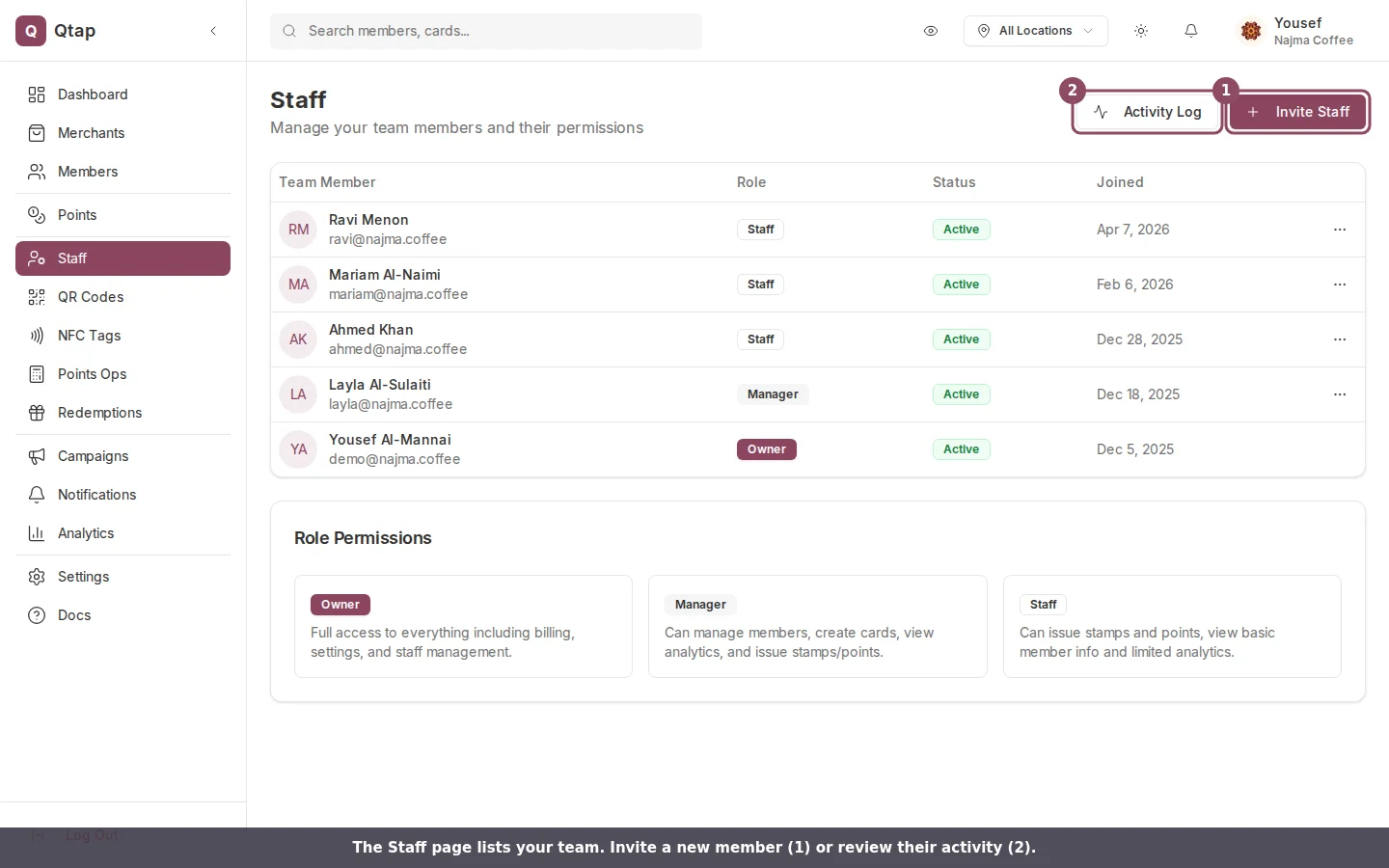
The Staff page: invite a new teammate (1) or open the activity log (2). Each row shows a member's role, status, and join date.
Roles
There are two roles in Qtap: Manager — can access all locations and all sections of the dashboard. Managers can view analytics, manage campaigns, and see member data across the entire organization. Staff — has limited access by default. You control which locations they can work at and what actions they can take. A staff member might be able to issue stamps but not view analytics or export member data.The account owner has full access to everything, including billing and settings. The owner role cannot be assigned to invited staff.
What’s on the Staff page
Go to Staff in the left sidebar to see your full staff list. Each row shows:- The staff member’s name and email
- Their role (Manager or Staff)
- Their status (Active or Pending)
- The date they were added
Inviting a staff member
- On the Staff page, click Invite Staff Member.
- Fill in their first name, last name (optional), and email address.
- Select their role: Manager or Staff.
- If the role is Staff, select which locations they can access.
- Click Send Invite.
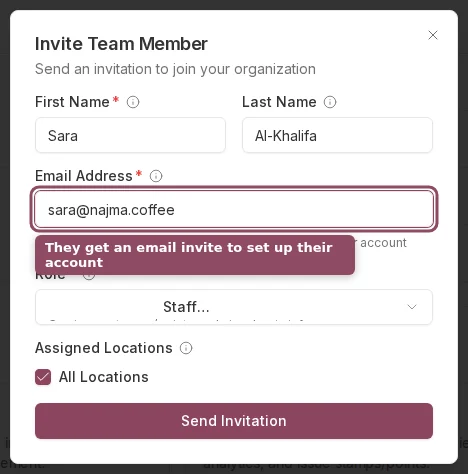
The invite form: enter the teammate's name and email, pick a role, and choose which locations they can access.
Removing a staff member
Click the three-dot menu next to the staff member’s row and select Remove. This immediately revokes their access. Their historical activity (stamps issued, etc.) remains in your records.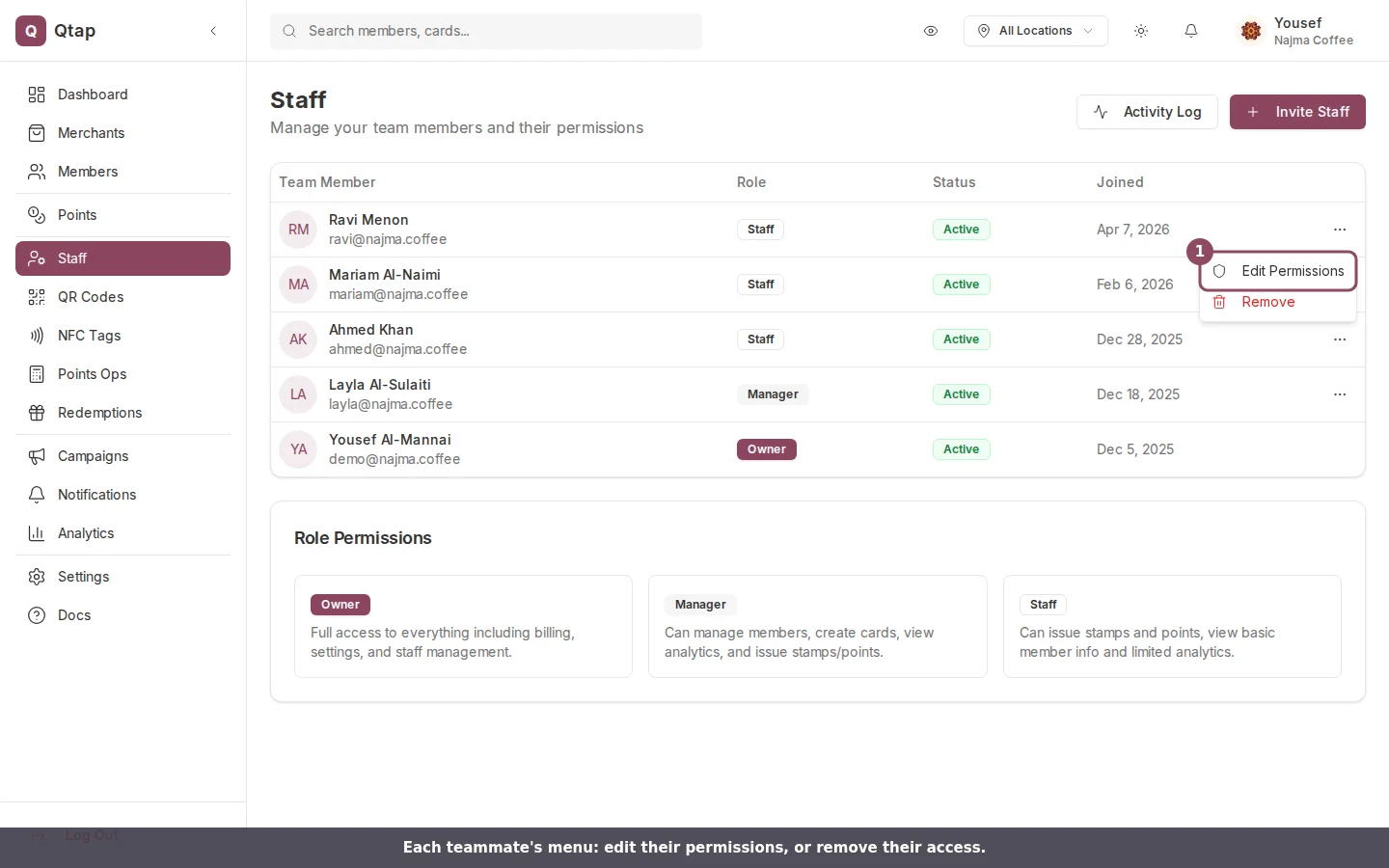
Each teammate's row menu: edit their permissions, or remove their access.
Staff permissions
For staff with the Staff role, you can customize which sections of the dashboard they can access. Click the three-dot menu next to their name and select Edit Permissions. This opens the permissions dialog where you can grant or restrict access to members, analytics, and other sections.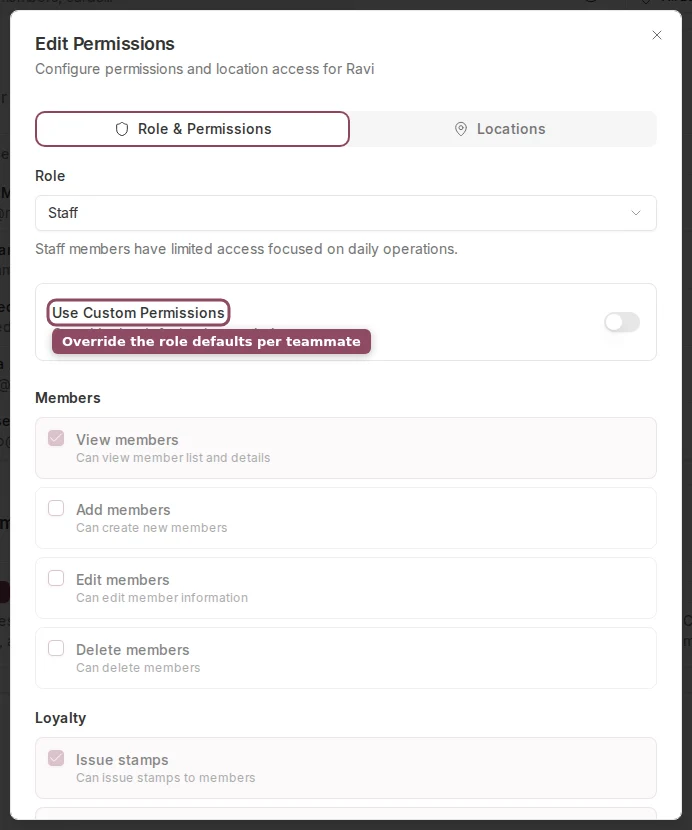
The Edit Permissions dialog. Turn on Use Custom Permissions to override the role defaults for one teammate.
Plan limits
Your plan determines how many staff members you can invite. If you’ve reached the limit, the Invite Staff Member button won’t be available. Go to Settings > Billing to upgrade.Roles and Permissions
Detailed breakdown of what each role and permission level allows.
Staff Activity Logs
How to view a history of actions taken by your staff.