

Creating a QR Code
Go to QR Codes in the sidebar and click Generate QR Code.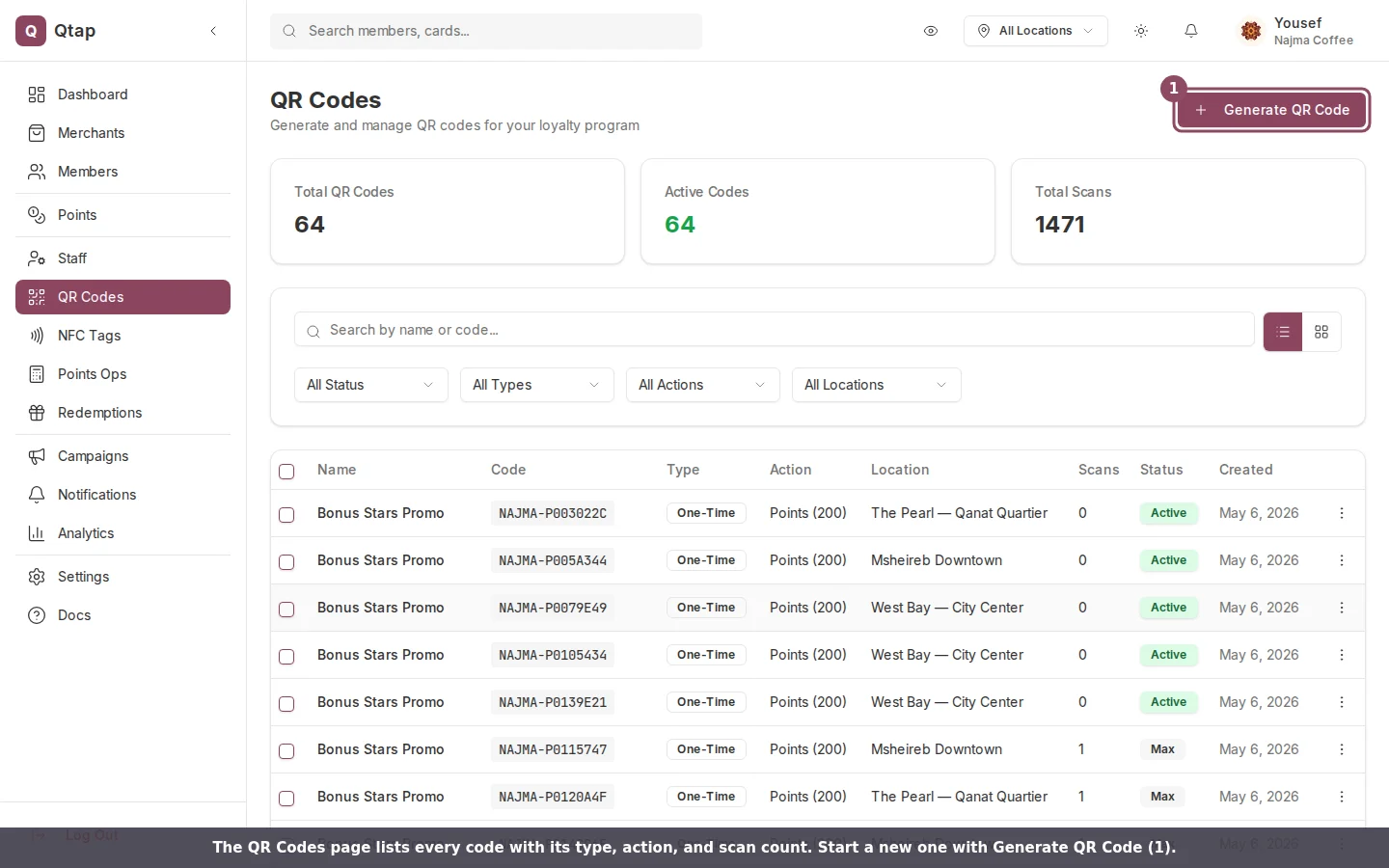
The QR Codes page lists every code with its type, action, and scan count. Generate QR Code opens the builder.
1
Give it a name
Enter a name in the Name field. This is for your reference only — customers do not see it. Use something like “Counter — Stamp Card A” so you can tell codes apart.
2
Choose the type
Select the Type:
- Reusable — the same QR code can be scanned any number of times (or up to a limit you set)
- Batch — generates multiple single-use QR codes at once, each with a unique code
3
Set the action
Select what scanning this QR code should do:
- Stamp — issues a stamp on a specific stamp card. You must also select which stamp card from the dropdown that appears.
- Points — awards a set number of points to a points program. You must select the program and enter the points value.
- Redeem — lets a customer redeem a reward they have already earned.
4
Assign a location (optional)
If you want this QR code to work only at a specific location, select it from the Location dropdown. Leave it set to All locations if the code should work anywhere.
5
Set limits (optional)
Toggle on Max scans if you want to cap how many times a reusable code can be scanned. Enter a number in the field that appears.Toggle on Expiry date and enter a date if the code should stop working after a certain point.
6
Customize the appearance (optional)
Change the QR color and Background color fields to match your branding. A preview updates immediately on screen.
7
Save it
Click Save QR Code. The code is added to your QR Codes list and is ready to use.
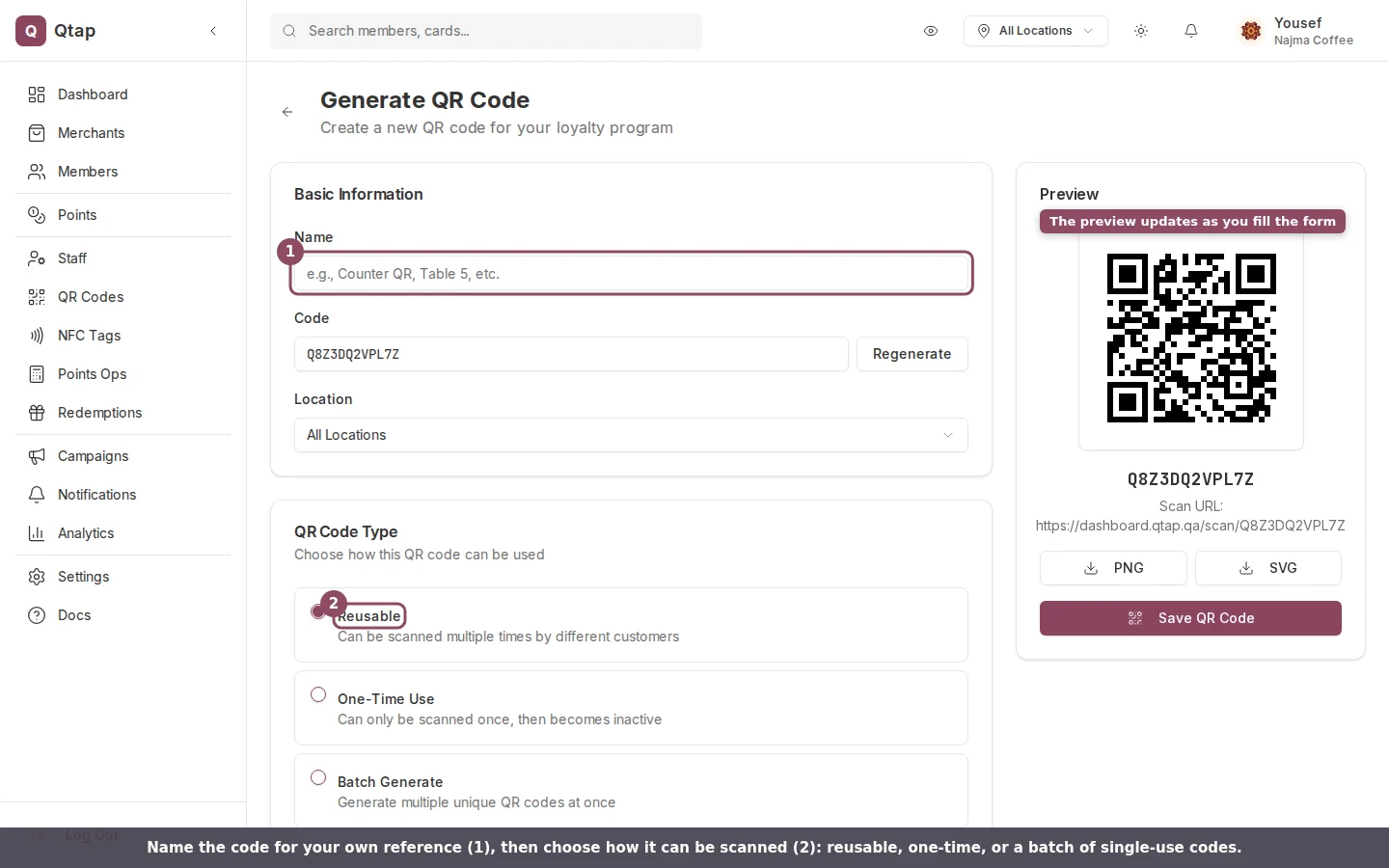
Give the code a name, then choose how it can be scanned. The preview on the right updates as you go.
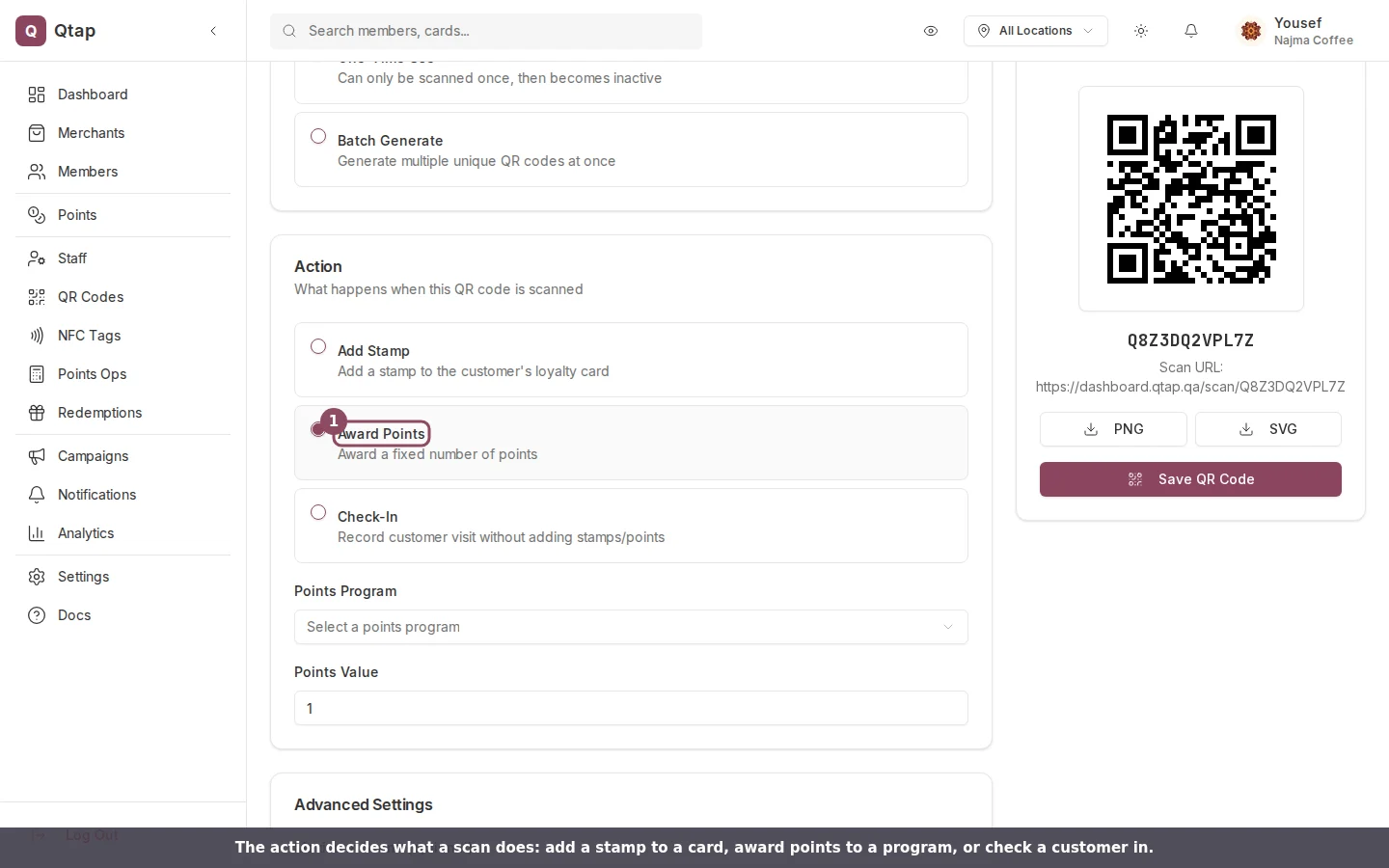
Pick what a scan should do. Award Points reveals the program and points-value fields shown here.
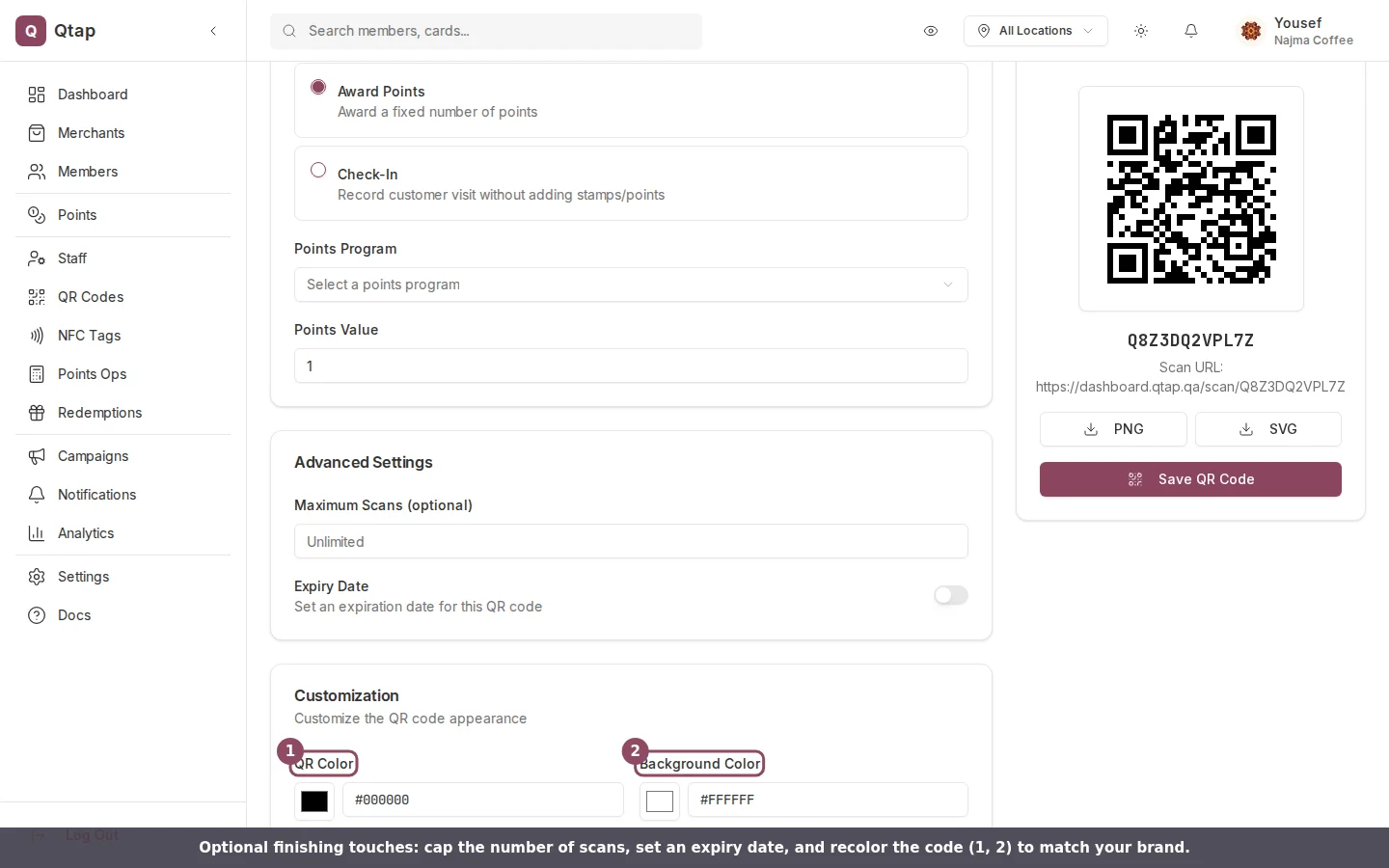
Advanced settings let you cap scans and set an expiry date, and the customization section recolors the code.
Downloading Your QR Code
After saving, find the code in your QR Codes list. Click the menu icon on the row and select Download to get a PNG file you can print or display on a screen.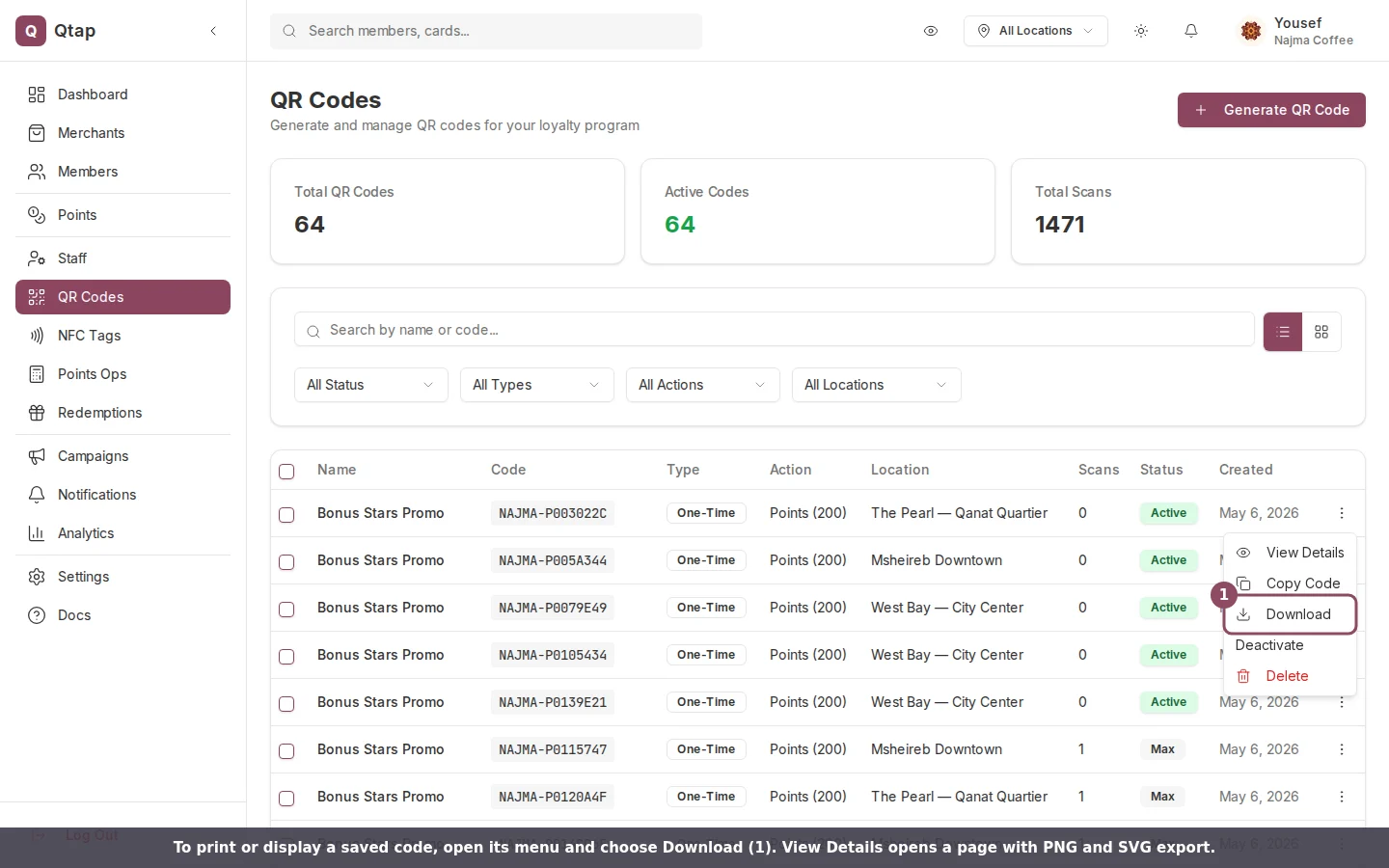
Each row's menu has Download, plus View Details, which opens a page with PNG and SVG export.
You can also view your QR codes in gallery mode by clicking the grid icon near the top right of the QR Codes page. This makes it easier to visually distinguish codes at a glance.
Batch QR Codes
If you selected Batch as the type, enter the number of codes to generate in the Quantity field before saving. Qtap creates that many unique codes with the same action and settings. Download them all at once as a ZIP file or PDF from the QR Codes list.QR Codes Overview
How QR codes work in the Qtap system
Batch QR Codes
Generating and managing large sets of single-use codes