

Only the account owner can change the plan. If you’re a manager or staff member with billing access, each plan card shows Contact Owner instead of a button. Ask the owner to make the change.
Check your usage first
Go to Settings, open Billing, and stay on the Overview tab. Each meter shows how much of your current plan you’re using: locations, staff members, loyalty cards, QR codes, campaigns, and push notifications. A meter that turns red is already past the limit of a lower plan, which is a sign that plan will block the downgrade until you bring the count down.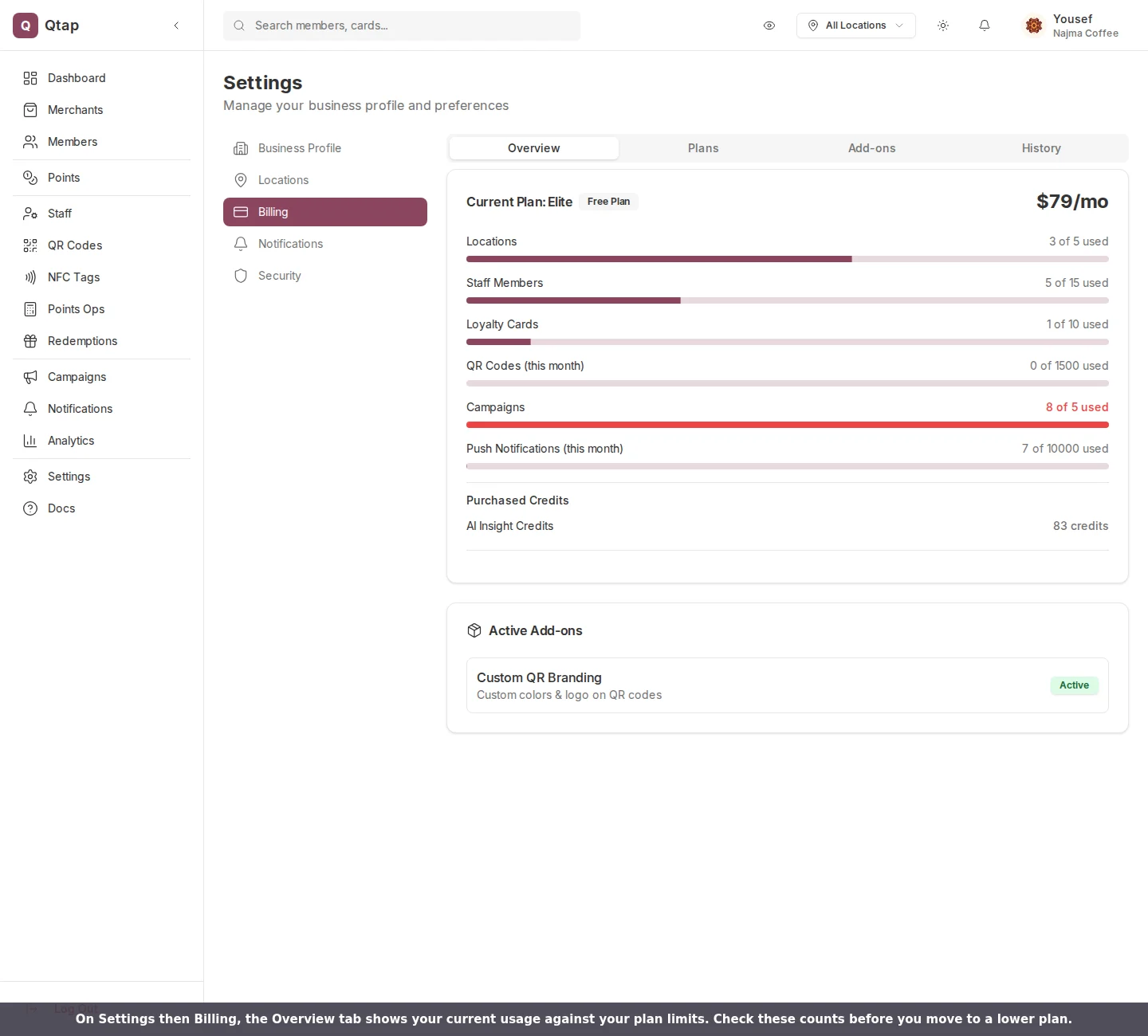
The Overview tab. Each meter shows your current usage against your plan limits.
Start the downgrade
Open the Plans tab. Plans below your current one show a Downgrade button. Click it to run the pre-flight check. The check compares four things against the plan you picked: active locations, active staff members, active loyalty cards (stamp cards and points programs counted together), and campaigns.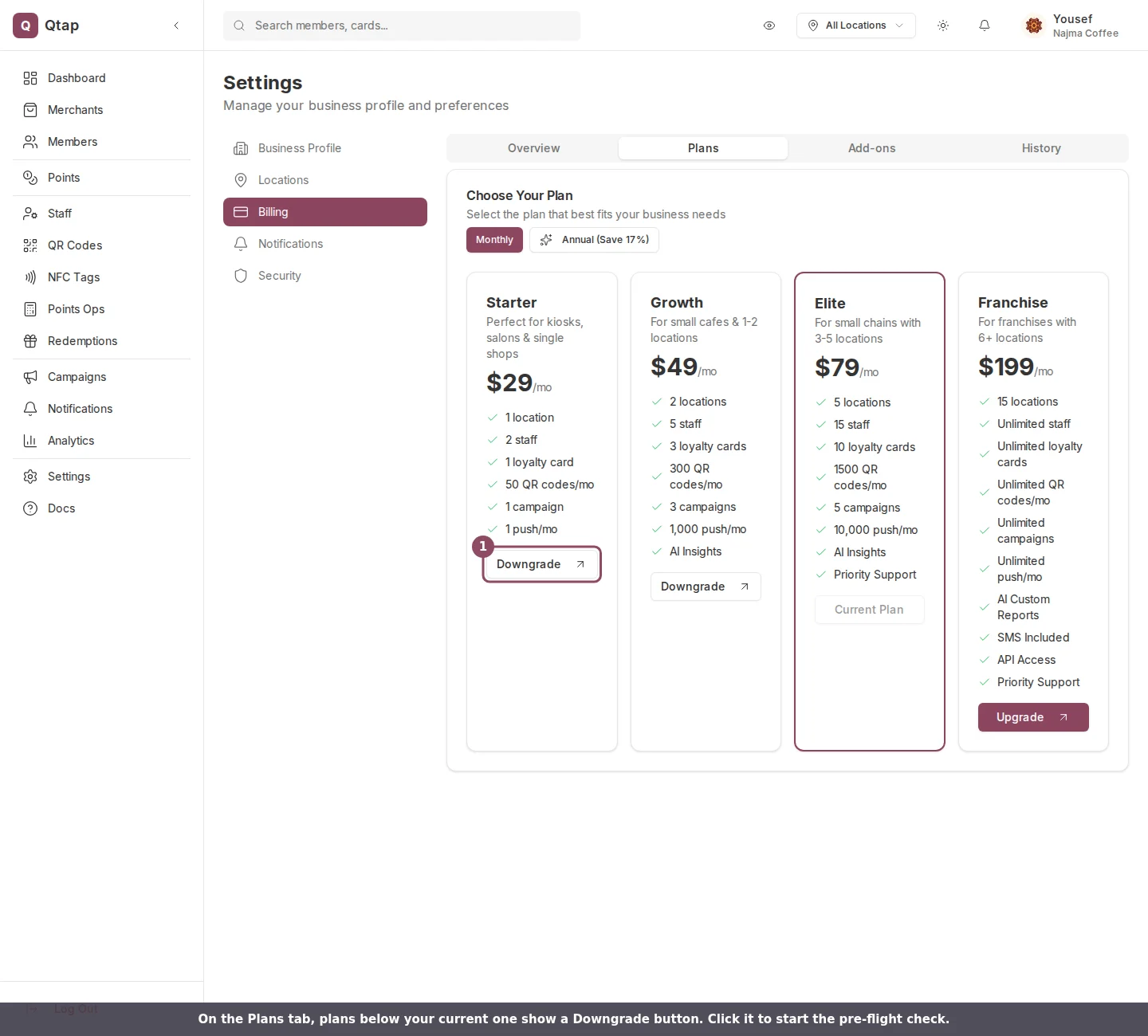
On the Plans tab, plans below your current one show a Downgrade button.
If your usage is too high
If any of those four counts is over the lower plan’s limit, Qtap blocks the downgrade and shows a Cannot downgrade yet box. It lists each resource that’s over, how many you have, how many the new plan allows, and how many to reduce.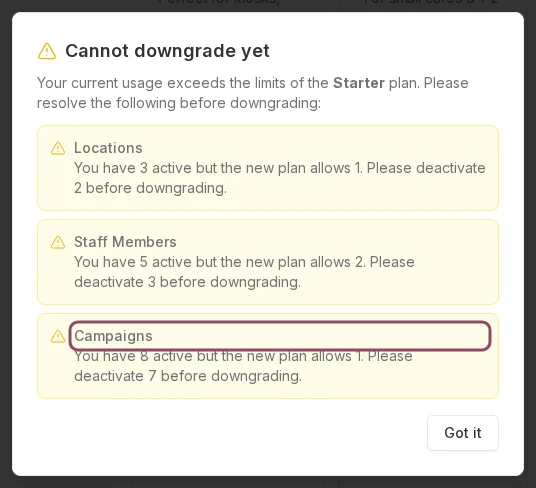
When your usage is too high, Qtap lists exactly what to reduce before the downgrade can go through.
When the change takes effect
Once your usage fits, the downgrade is scheduled for the end of your current billing period. You keep your current plan and its features until that date, then the lower price and limits take over. You aren’t charged to downgrade, and you can pick a different plan before the scheduled change lands if you change your mind.If you downgrade during a free trial, confirming ends the trial and starts billing at the new plan’s price right away.
Upgrading your plan
Move to a higher plan and unlock more room
Billing
View your plan, usage, invoices, and payment method
Locations
Deactivate the extra locations a lower plan can’t hold
Staff
Remove the team members over your new plan’s limit