

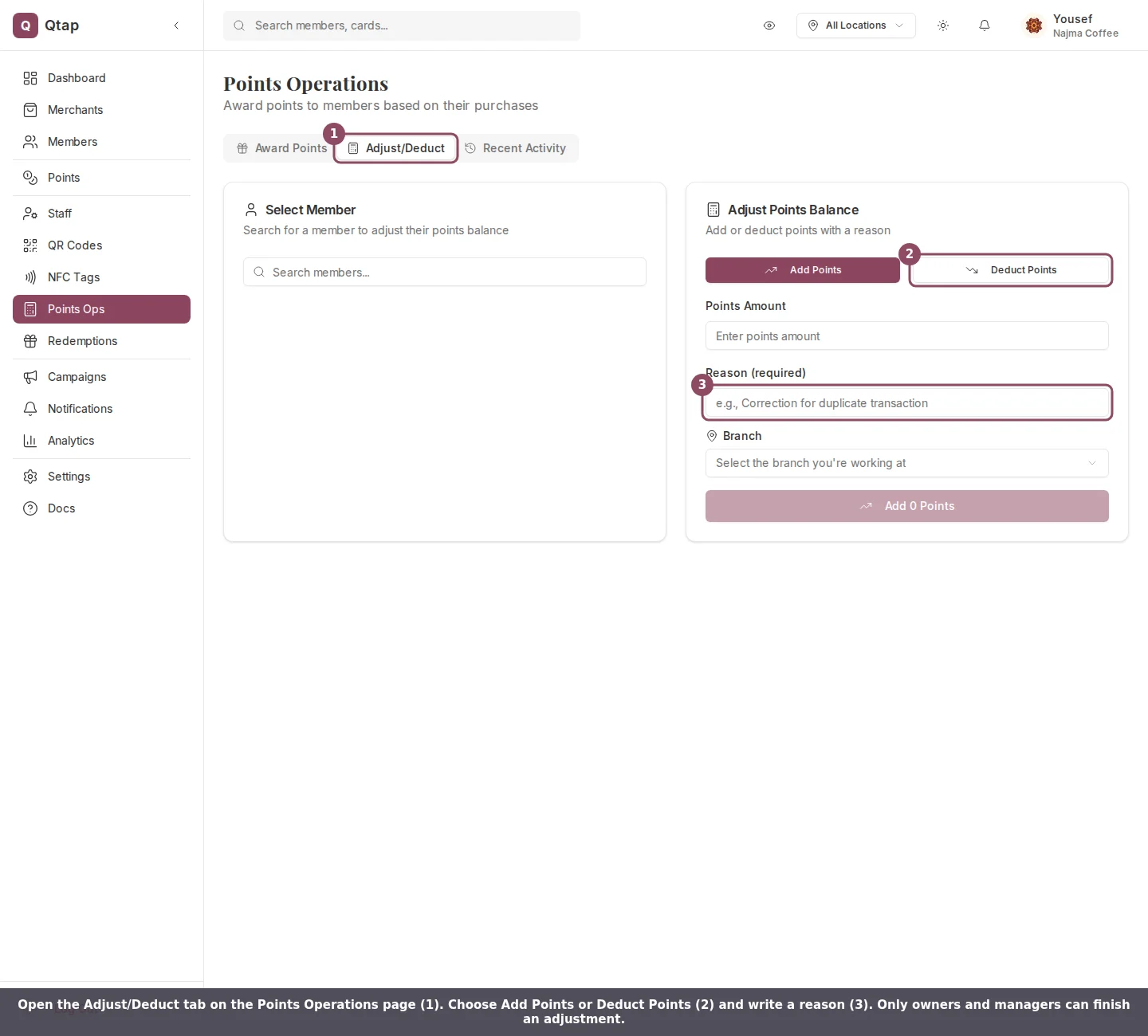
The Adjust/Deduct tab. Pick Add Points or Deduct Points, enter an amount, and write a reason.
Who can adjust a balance
Only owners and managers can finish an adjustment. Managers and staff both start with the Adjust points permission switched on, so a staff member can open Points Operations, see the Adjust/Deduct tab, fill the form in, and reach the confirmation screen. Qtap refuses the change at that last step and tells them the action needs an owner or manager. If you are signed in as staff, hand the correction to an owner or manager. To take that tab away from someone, open Staff, open the menu at the end of their row, and choose Edit Permissions. Turn on Use Custom Permissions, clear Adjust points under Loyalty, and click Save Changes. The Adjust/Deduct tab stops appearing for them, which spares them a form that was going to be refused anyway.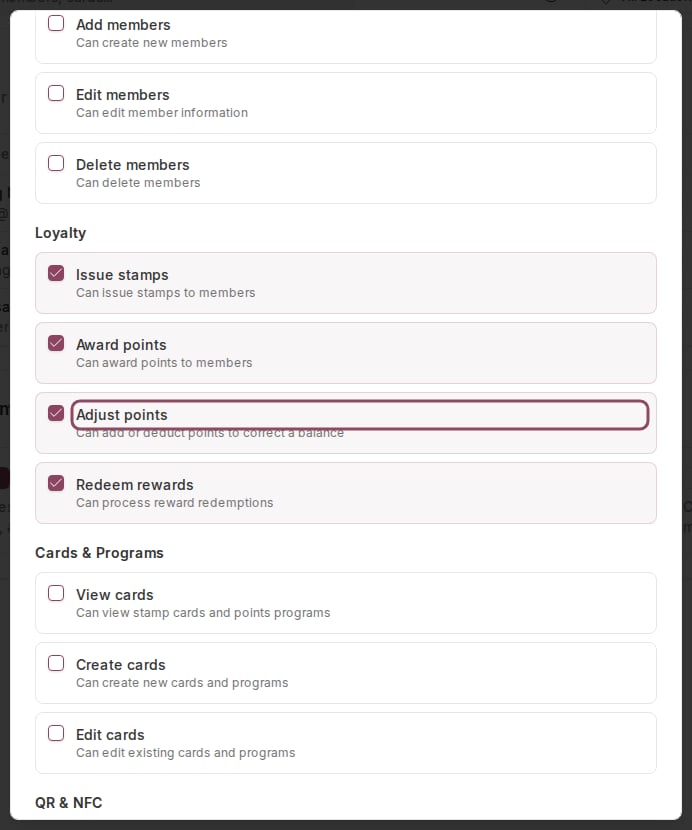
The Adjust points permission in the Loyalty group of a teammate's Edit Permissions dialog. Clearing it hides the Adjust/Deduct tab for that person.
Add or deduct points
As you fill the form, Qtap shows the member’s current balance and what it becomes after the change, so you can check the math before you confirm.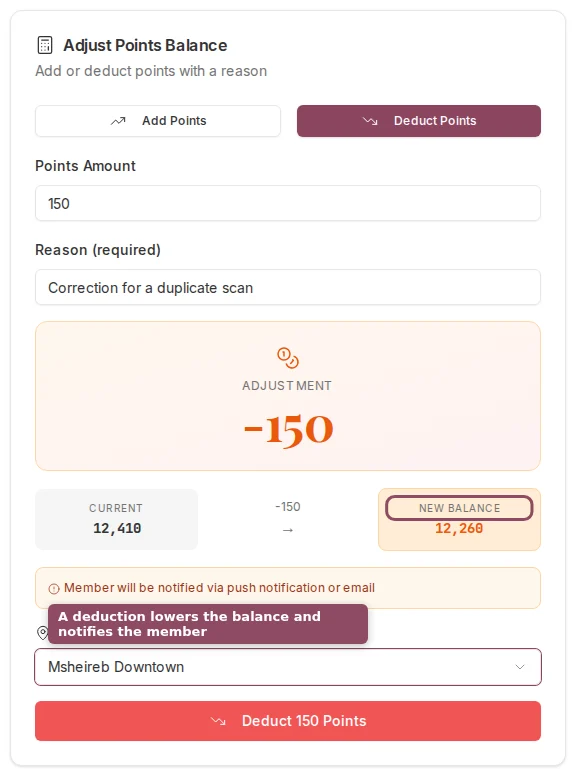
The form shows the adjustment and the new balance before you confirm.
A deduction cannot go below zero
You cannot deduct more points than a member has. If the amount would push the balance under zero, Qtap rejects the change and leaves the balance untouched. Lower the amount and try again.The member hears about every adjustment
Both directions tell the member. A deduction arrives titled “Points adjusted”; an addition arrives as “+25 points”. Either way the message carries the reason you typed and their new balance, so write the reason in words the member will understand. The notice always lands in the member’s in-app inbox, and Qtap pushes it to their phone as well unless they have push switched off or have not set up the app yet. A balance correction counts as transactional, so a member’s notification preferences and any mute they have set on your business do not silence it.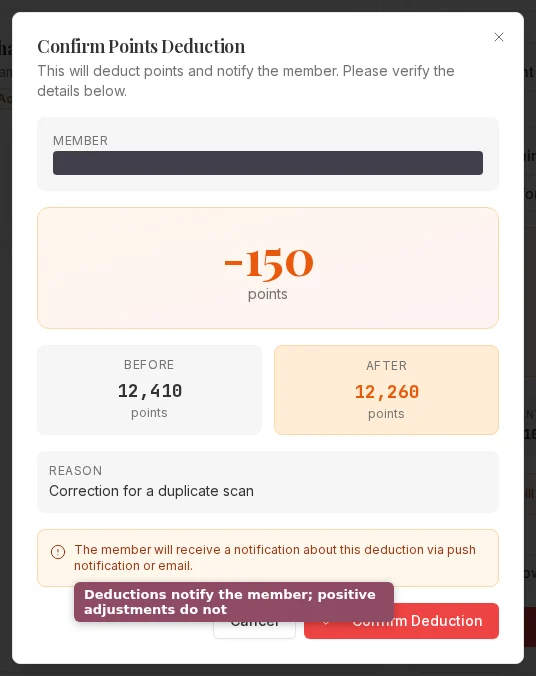
The confirmation screen for a deduction, with the member, the amount, the new balance, and the reason.
Points Operations
Award points for a purchase and read the recent activity log.
Points Programs Overview
Set your earn rate, minimum transaction, and expiry rules.