


The top bar on a wide screen. 1 the search box, 2 the theme picker, 3 the notifications bell, 4 your account menu.
The search box
This one catches people out because the box looks and behaves like a normal search field right up to the point where you expect an answer. If you are hunting for one member, go to Members and search there.Light and dark mode
Click the sun or moon icon to pick how the dashboard looks. You get three choices, and a tick marks the one you are on.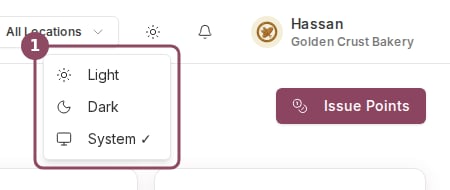
The theme picker. System is the default and follows whatever your computer is set to.
- Light: the pale theme, whatever your computer is set to.
- Dark: the dark theme, whatever your computer is set to.
- System: follows your computer. If your laptop switches to dark at sunset, so does Qtap, while the page is still open.
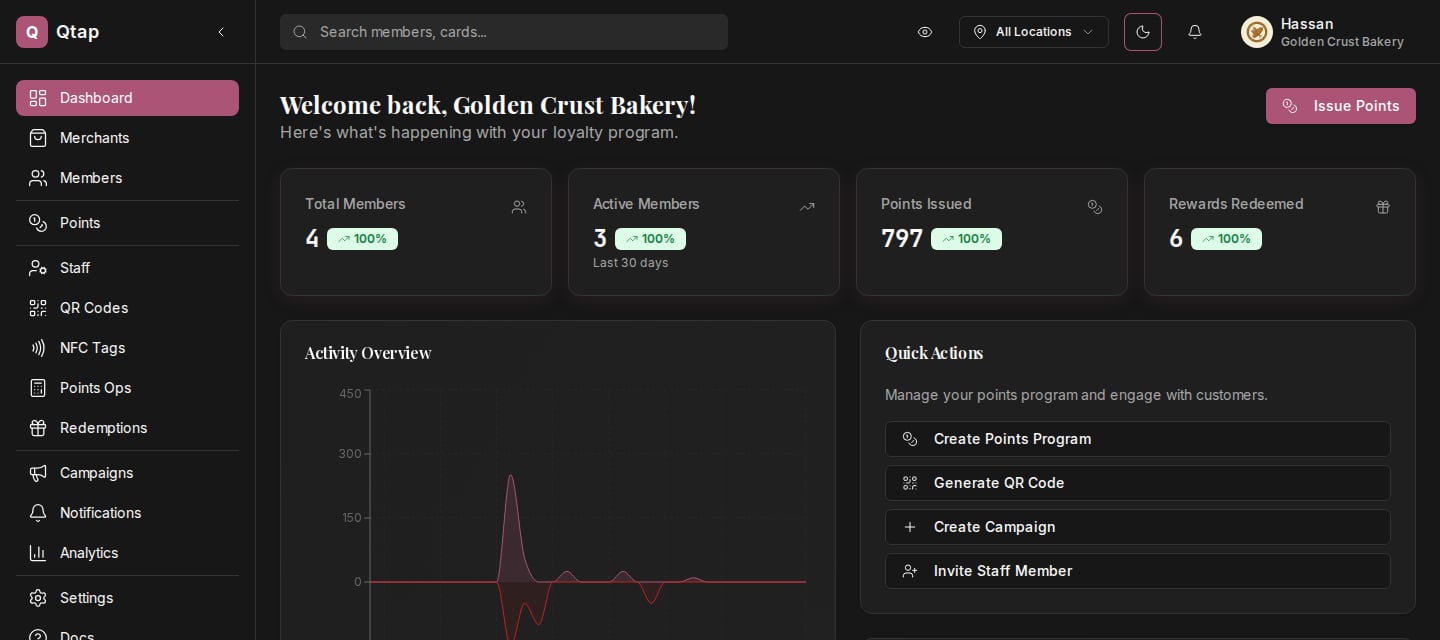
The dashboard home in dark mode.
Your choice is saved in the browser you made it in, not on your Qtap account. Sign in on a different computer, or in a different browser on the same computer, and you are back to System until you pick again. Your staff are not affected by what you choose, and clearing your browser data resets it.
The notifications bell
The bell opens your Push Notifications page, where you write and schedule messages to members and see what has already gone out. It is a shortcut to the same page as Notifications in the sidebar.Your account menu
Your name and business name sit at the far right. Click them for:- Profile: your business settings.
- Billing: your plan, usage meters, and add-ons.
- Terms & Conditions and Privacy Policy: both open qtap.qa in a new tab.
- Log out: signs you out and returns you to the login page.
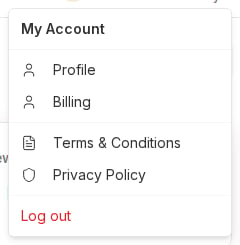
The account menu.
On a phone or a narrow window
The bar rearranges in two stages as the window gets narrower. Below about 768 pixels the search box collapses to a magnifying glass, and tapping it slides a full-width search field over the bar until you close it with the X.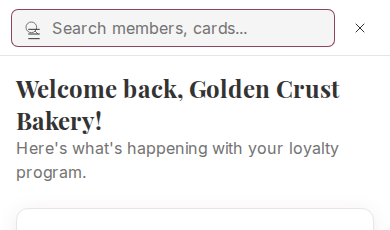
On a narrow screen the search box opens over the top bar.
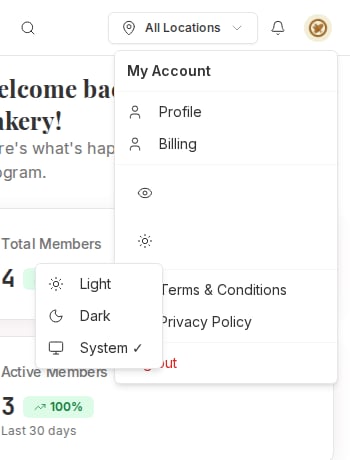
On a phone the theme picker lives inside the account menu, under the two labelled rows.