

Where rewards live
Open Points in the sidebar. To add rewards to a new program, click Create Program. To change the rewards on a program you already run, open its menu and click Edit.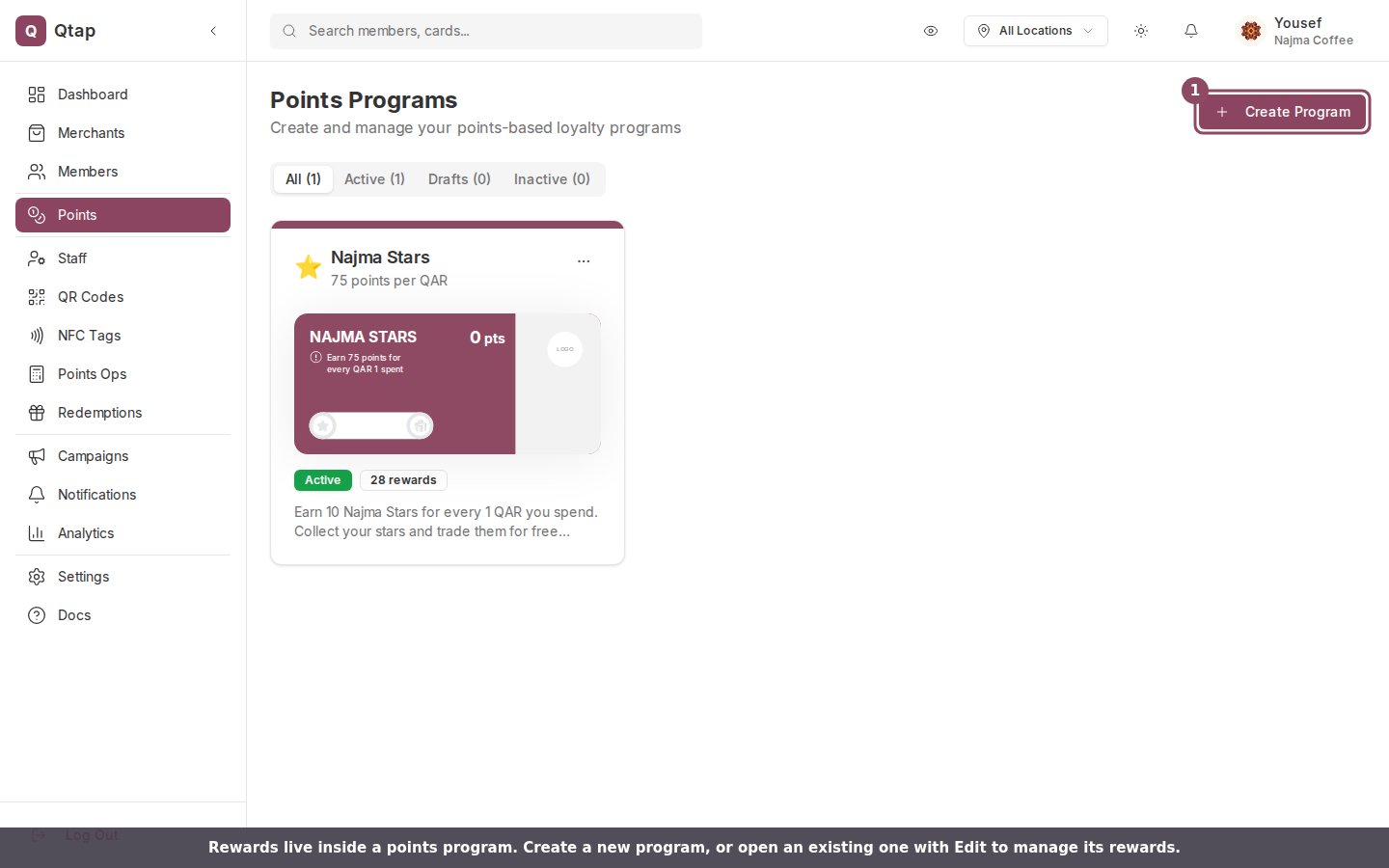
Open Points in the sidebar. Click Create Program for a new program, or Edit on one you already run to manage its rewards.
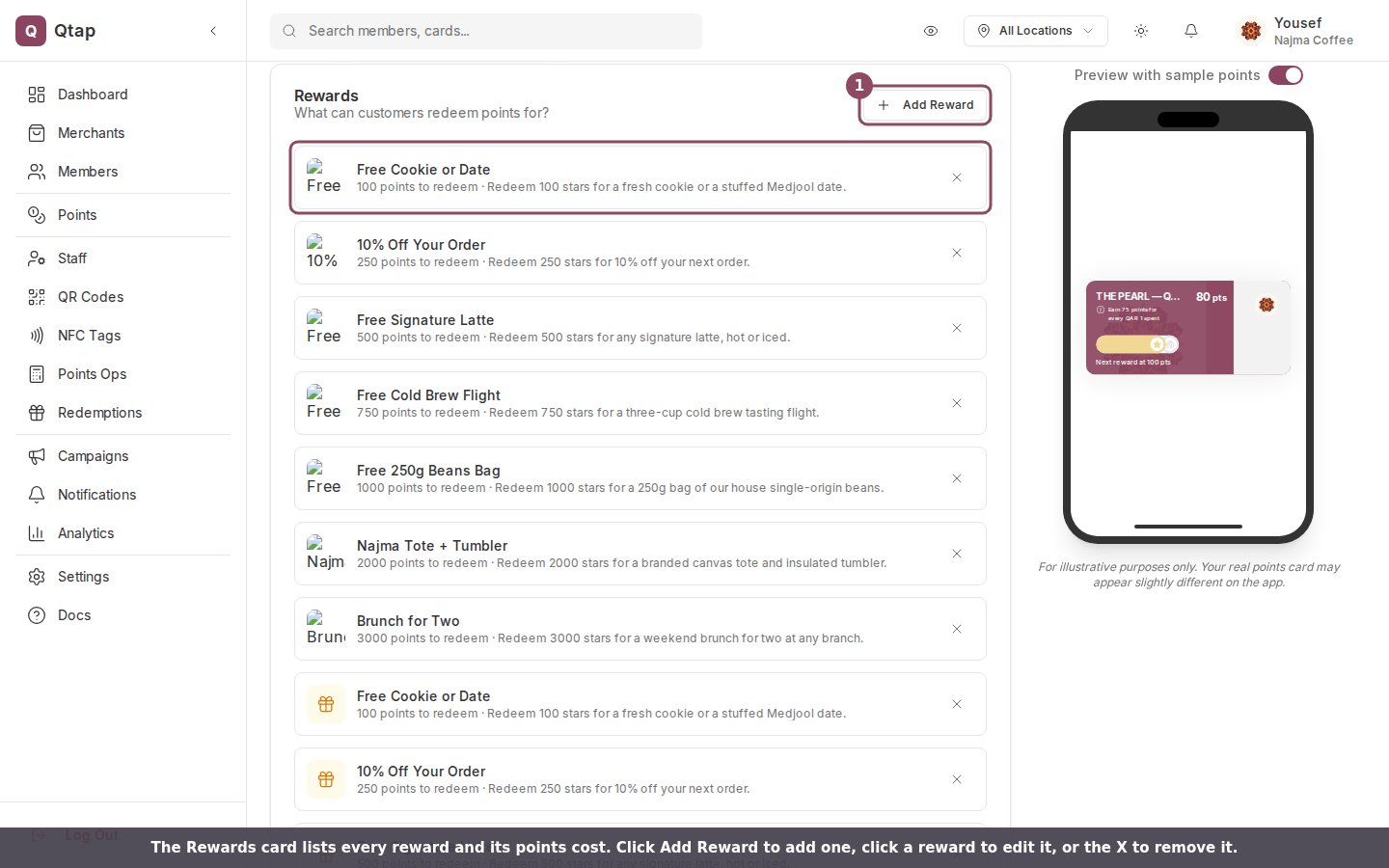
The Rewards card lists each reward and the points it costs to redeem.
Add a reward
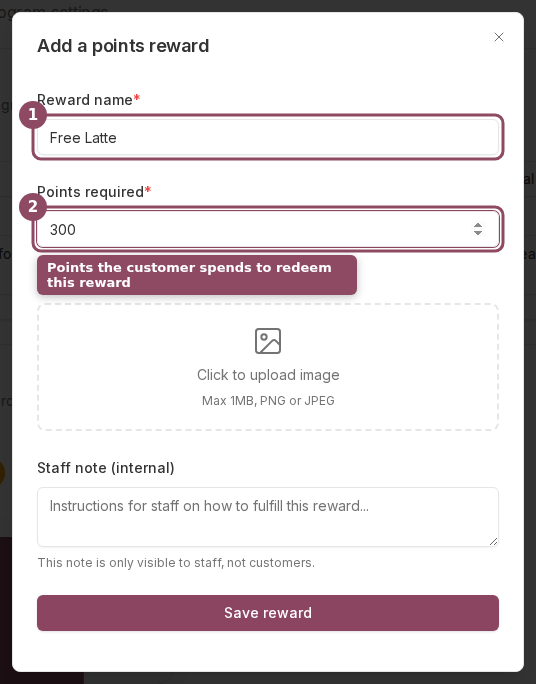
Give the reward a name and the points it costs. The staff note stays internal.
Offer rewards at different point costs
You can add as many rewards as you like, each at its own points cost. A mix of small and large rewards gives members a reason to keep saving: a cookie at 100 points, a free drink at 500, a brunch for two at 3,000. Members pick what to spend their points on.Edit or remove a reward
Click any reward in the list to reopen the editor and change its name, points cost, image, or staff note. To take a reward off the program, click the X at the end of its row.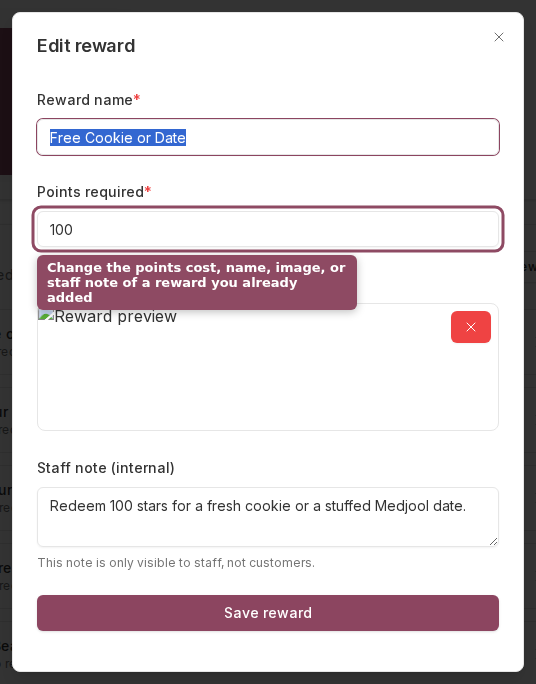
Click a reward to reopen the editor and change its cost or details.
How customers redeem a reward
Members do not receive a points reward on their own when their balance reaches its cost. A member tells your staff which reward they want, and staff redeem it from the Redemptions screen. Qtap checks that the member has enough points, subtracts the points cost, and records the redemption. The reward and its program both need to be active for it to show up. See Points Operations for the staff side.Creating a Points Program
Set up the program, points rate, and expiry rules.
Points Operations
How staff award points and redeem rewards.