

Where to look
Go to Settings, then Billing. The page has four tabs. Your invoices sit under History; the card on file shows on Overview.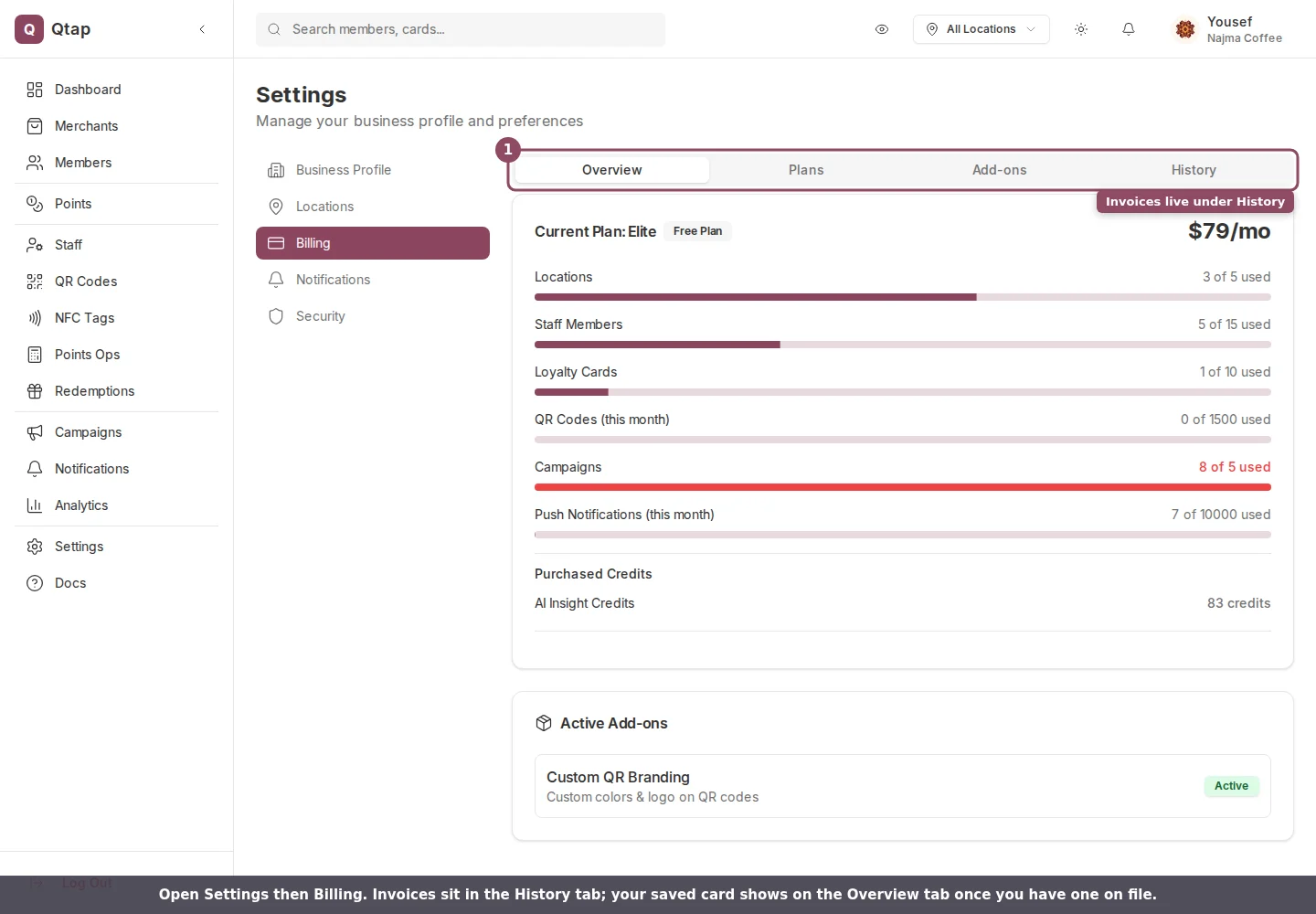
The Billing page tabs. Invoices live under History; your saved card shows on Overview.
Your payment history
Open the History tab to see Payment History: one row for each charge, newest first. Every row shows the date, what it was for, the amount, and whether it was paid.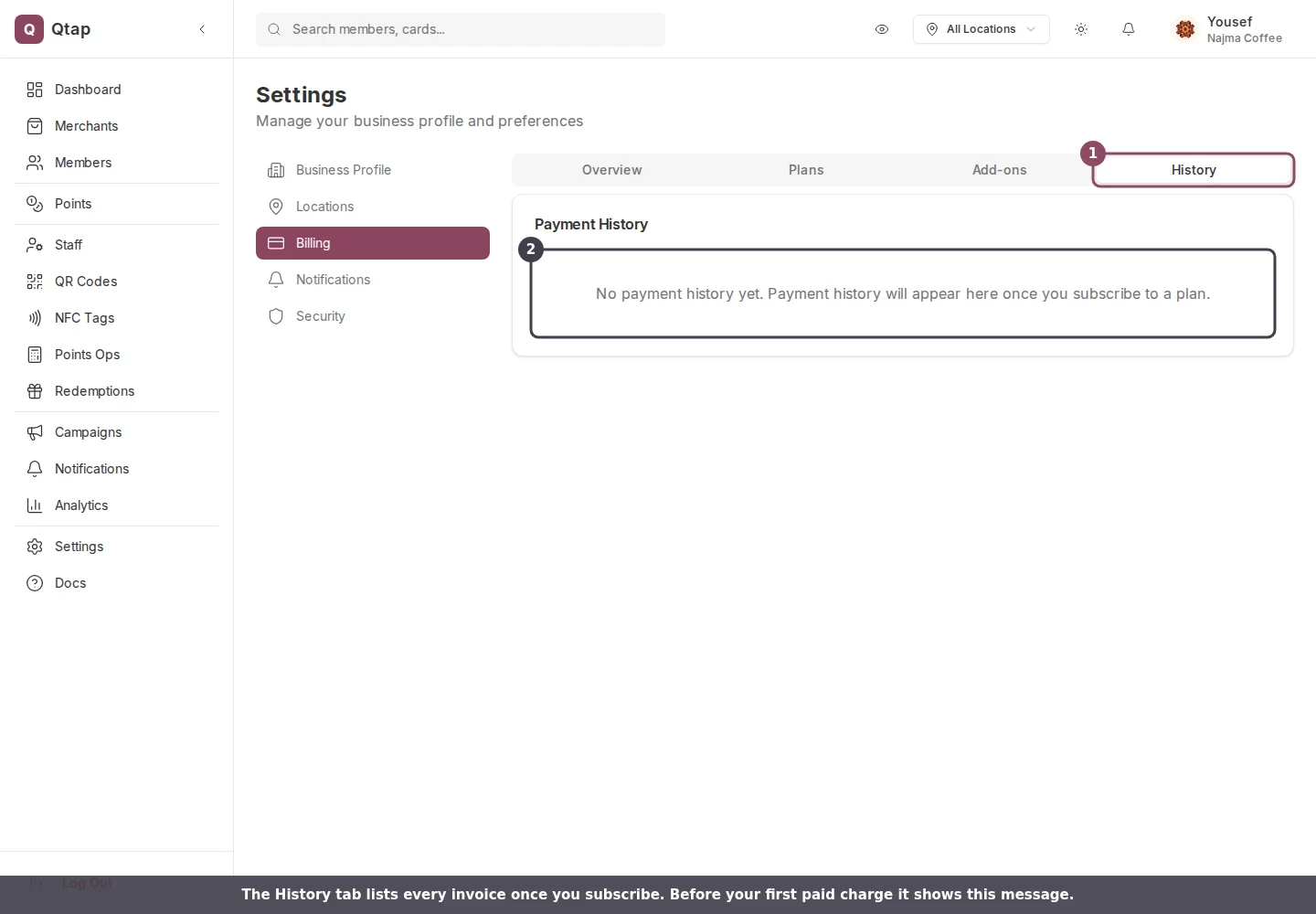
The History tab on a new account, before any paid charge has been made.

A paid invoice row, and where to change the card you pay with.
- Download saves the invoice as a PDF, ready to keep or send to your accountant.
- View online opens the same invoice as a web page you can read or print.
A free trial doesn’t create an invoice, so the History tab stays empty until your first paid charge. That’s normal, not a missing receipt.
The card you pay with
Once you have a card on file, the Overview tab shows a Payment Method card with the brand and the last four digits, plus the expiry date. This is the card Qtap charges each billing period. To change it, click Manage Subscription on the Overview tab. That opens the secure Stripe billing portal, where you can replace the card, read your full billing history, and download any past invoice. When you finish, the portal returns you to the Billing page.If you have a card saved but no active plan, the same button reads Manage Payment Method instead. Either one opens the same portal.
If a payment fails
When a charge doesn’t go through, your plan shows a Past Due status and a red banner appears at the top of the Billing page with an Update Payment button. Click it to open the same Stripe portal and fix or replace the card before your access is affected.Billing
View your plan, usage, and add-ons
Upgrading your plan
Move to a higher plan and see what you’re charged